

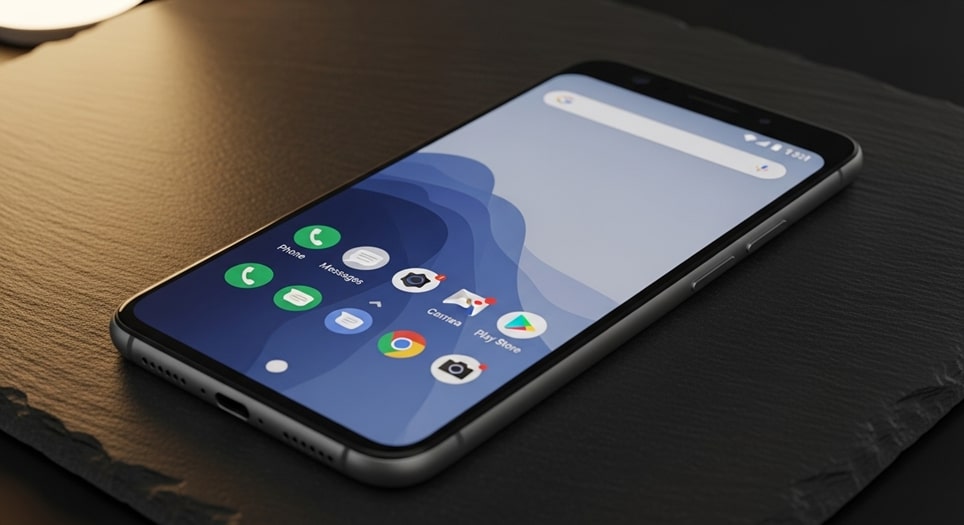
In today’s digitally connected world, our mobile devices serve as lifelines for communication and critical information. Among the most important notifications you can receive are Wireless Emergency Alerts (WEAs), a system designed to warn the public about imminent threats to safety. These alerts include severe weather warnings, local emergencies requiring evacuation or immediate action, and, notably, AMBER Alerts for abducted children. While these alerts are a vital public safety tool, their loud, distinctive sound and full-screen intrusion can sometimes be startling, disruptive, or, in rare cases, cause confusion if the alert is for a distant location. Many Android users seek information on how to manage these settings to balance personal convenience with civic responsibility. This guide provides a comprehensive, step-by-step walkthrough for finding and configuring your emergency alert preferences on any Android device, empowering you to make an informed choice about which alerts you receive.
Understanding Wireless Emergency Alerts (WEA)
Before adjusting any settings, it’s crucial to understand what you are managing. The Wireless Emergency Alert system is a public safety system that allows authorized government agencies to send text-like messages to all compatible mobile devices in a geographically targeted area. The system is operated by the Federal Emergency Management Agency (FEMA) in partnership with the Federal Communications Commission (FCC) and wireless carriers. Unlike standard SMS texts, these alerts are not affected by network congestion, which means they will get through even during times of heavy call and data traffic when traditional text messages might fail. This makes them an exceptionally reliable tool for reaching the maximum number of people during a crisis.
The alerts are broadcast from cell towers in the affected area, and any WEA-capable phone within range will receive them, regardless of whether the user is a customer of the tower’s carrier or a visitor from out of town. There are three main categories of alerts:
- Presidential Alerts: Issued by the President of the United States for national emergencies. These alerts cannot be disabled by the public on their devices, as they are reserved for the most critical, nation-wide threats.
- Imminent Threat Alerts: Include warnings for severe natural disasters like hurricanes, tornadoes, flash floods, and tsunamis, as well as human-made disasters like chemical spills or radiation leaks. These alerts are meant to inform you of an immediate danger to life or property.
- Public Safety Alerts (AMBER Alerts): This category includes AMBER Alerts for abducted children and may also include alerts for other civil emergencies, like shelter-in-place orders or significant public safety threats that are not classified as “imminent threats.”
Locating Alert Settings on Different Android Versions and Skins
The universal entry point for managing alerts is your device’s Settings app. However, the exact path to the alert controls has changed over various versions of Android and is customized by different device manufacturers like Samsung, Google, OnePlus, and others. This variation is the primary source of confusion for users. Below is a breakdown of how to find the settings on the most common Android interfaces.
For Stock Android (Google Pixel, Android 12 and newer):
- Open the Settings app.
- Tap on Safety & emergency.
- Select Wireless Emergency Alerts.
- Here, you will see toggles for “Allow alerts,” “Extreme threats,” “Severe threats,” and “AMBER alerts.” You can disable the specific categories you choose.
For Samsung One UI (Galaxy S and Z series, Android 12/13/14):
- Open the Settings app.
- Tap on Apps.
- Tap the three-dot menu icon in the top-right and select Special access.
- Choose Emergency alerts.
- You will find the menu for “Emergency alert history” and Alert settings. Tap “Alert settings” to access the toggles.
For Older Android Versions (Android 11 and earlier):
On many older devices and some current manufacturer skins, the settings are still found within the Messages app, as the alert system was originally integrated there.
- Open your default Messages app.
- Tap the three-dot menu and go to Settings.
- Select Advanced or a similar option.
- Look for Wireless Emergency Alerts or Emergency alert settings.
- Tap on Settings again within that menu to access the category toggles.
If you cannot find the settings using these paths, you can also use your Settings app’s search function. Simply type “emergency alerts” into the search bar at the top of the Settings menu, and it should direct you to the correct page.
Step-by-Step Guide to Disabling Specific Alert Types
Once you have navigated to the correct Wireless Emergency Alerts settings menu, you will be presented with several options. It is important to review each one carefully. The interface is typically straightforward, consisting of a main switch to enable or disable all alerts, followed by individual toggles for each category.
- Main Toggle (Allow Alerts): This is the master switch. If this is turned off, you will not receive any Wireless Emergency Alerts, including Presidential Alerts. In most regions, the system will not allow you to disable the Presidential Alert category separately, as mandated by law.
- Extreme Threats: This category typically includes alerts for the most severe, immediate dangers, such as hurricanes, tornadoes, earthquakes, or other catastrophic events. Disabling this is generally not recommended if you live in an area prone to such disasters.
- Severe Threats: These alerts are for significant but potentially less immediately life-threatening dangers, like severe thunderstorm warnings, winter storm warnings, or special weather statements.
- AMBER Alerts: This toggle controls alerts for abducted children. This is the setting most users look for when they want to stop late-night notifications. You can disable this category independently of the others.
- Test Alerts: Some menus include an option to receive “Test Alerts.” These are periodic drills sent by authorities and carriers to ensure the system is functional. You can usually disable these without affecting real emergency alerts.
To disable AMBER Alerts specifically, simply locate the “AMBER Alerts” toggle and tap it to turn it off (the switch will typically turn gray or move to the left). You may receive a brief warning message about the importance of these alerts. Confirm your choice if prompted. Your change is saved immediately.
The Technology and Regulations Behind Emergency Alerts
The WEA system is more than just a software feature; it is a complex, regulated piece of national infrastructure. Alerts are created by authorized agencies (like the National Weather Service or state law enforcement) and entered into FEMA’s Integrated Public Alert and Warning System (IPAWS). IPAWS then authenticates the alert and routes it to the appropriate cell towers for broadcast. The technical specifications for how phones must handle these alerts are set by the FCC, which ensures a baseline level of performance and consistency across all carriers and devices sold in the United States.
A key FCC rule mandates that Presidential Alerts cannot be blocked. This ensures that in a true national emergency, the government can reach every citizen with a capable device. For other alerts, the FCC requires that devices provide users with the ability to opt out of all but the Presidential category. However, carriers and device makers have some flexibility in how they present these options, which explains the variation in menu locations.
The system also uses a technology called Cell Broadcast. Unlike a group text message that is sent individually to each phone number, a cell broadcast is a one-to-many transmission sent to an entire geographic area defined by cell towers. This makes it incredibly fast and efficient, preventing the network slowdowns that would occur if millions of individual texts were sent simultaneously during a disaster.
Pro Tips for Managing Alerts Effectively
Simply turning alerts off may not be the only or best solution. Here are several expert-recommended strategies for managing emergency notifications to minimize disruption while maintaining safety awareness.
- Utilize Do Not Disturb and Bedtime Mode: Modern Android versions have sophisticated Do Not Disturb (DND) and Bedtime Mode features. You can schedule these to automatically activate at night. Crucially, you can configure DND to allow repeat callers and alarms to sound, while still silencing other notifications. Since emergency alerts are designed to bypass standard DND, scheduling a strict DND or Bedtime mode for your sleeping hours can be an effective way to prevent unexpected awakenings from non-critical alerts without fully disabling the system.
- Review Your Location Settings: Some users receive alerts for locations far away because their phone’s location services (used by the alert system to determine relevance) are inaccurate or because they are roaming on a tower that is broadcasting the alert. Ensuring your device’s location is set to high accuracy can help. If you are traveling, be aware that you will receive alerts for the area you are physically in, not your home area.
- Know the Alert Sounds: Familiarize yourself with the unique, attention-grabbing sound and vibration pattern of a WEA. This distinct signal can help you mentally prepare for the interruption and quickly identify it as a potential emergency, not just another app notification.
- Check for Carrier-Specific Tools: Some wireless providers offer additional alert management tools through their websites or dedicated apps. For example, you might be able to set a preference for only the highest-level alerts or manage alerts for connected devices like smartwatches.
- Consider a Middle Ground: Instead of turning off AMBER Alerts completely, see if your device offers a “vibrate only” or “silent” option for alerts. Not all devices have this, but some do, allowing the visual alert to appear without the loud tone.
Ethical Considerations and Public Safety Responsibility
The decision to disable emergency alerts, particularly AMBER Alerts, carries a weight beyond personal convenience. These systems exist because they are effective. According to the U.S. Department of Justice, the AMBER Alert program has been directly credited with the safe recovery of over 1,100 children since its inception. The “eyes and ears” of the public are a critical component of these recoveries. A single tip from an alert recipient has often led to a child being found.
Before disabling alerts, consider these points:
- The “Cry Wolf” Effect: Some users feel that receiving alerts for incidents dozens or hundreds of miles away diminishes their urgency. However, alert boundaries are drawn by law enforcement based on the suspected direction of travel of an abductor. You may receive an alert for a child who could be in your area soon.
- Minimizing Disruption vs. Opting Out: Explore all options for minimizing disruption (like the DND scheduling mentioned in Pro Tips) before choosing to opt out completely. Your awareness could be crucial.
- Re-evaluating Your Choice: Settings can be changed. You might choose to disable alerts during a specific period (like a vacation where you need uninterrupted sleep) and then re-enable them afterward. Make your choice an active, reconsidered decision rather than a “set it and forget it” action.
The core philosophy of the system is community-wide preparedness. By opting out, you remove yourself from this communal safety net, both as a beneficiary and a potential helper.
Frequently Asked Questions (FAQ)
Q1: I turned off AMBER Alerts, but I still got one! Why?
A: This can happen for a few reasons. First, double-check that you disabled the correct setting, as menus can be confusing. Second, in some extremely rare, critical cases, local authorities might issue an alert using a different category (like an Imminent Threat alert) if the situation warrants it, which would bypass your AMBER Alert setting. Third, if you recently changed carriers or updated your device’s operating system, your settings may have been reset to default.
Q2: Do these settings also control weather app notifications or local news alerts?
A: No. The Wireless Emergency Alert settings control only the federally mandated, cell-broadcast emergency messages. Notifications from apps like The Weather Channel, AccuWeather, or your local news station are controlled entirely within those individual apps’ notification settings. You must manage those separately.
Q3: I have a dual-SIM phone. Which SIM card controls the alert settings?
A: On most dual-SIM Android devices, the emergency alert settings are global for the device, not per-SIM. The alerts are broadcast geographically, so whichever SIM is actively connected to a local tower in the alert area will cause the phone to receive the broadcast, regardless of your alert settings app location.
Q4: Can I get emergency alerts on my Android tablet or Wi-Fi-only device?
A: Typically, no. The WEA system requires a cellular connection to a participating carrier’s network. Tablets with cellular capability (LTE/5G) can receive alerts, but Wi-Fi-only tablets and devices cannot, as they lack the necessary cellular radio to receive the cell broadcast.
Q5: Is there a national “do not alert” registry I can join to stop all of these?
A: There is no national opt-out registry. The ability to manage alerts is designed to be a personal choice made on your individual device. This ensures that in an emergency, authorities can reach everyone who hasn’t personally chosen to disable the alerts, without maintaining a complex and potentially unreliable opt-out list.
Troubleshooting Common Alert Issues
Sometimes, users encounter problems with alerts not working as expected. Here’s how to troubleshoot the most common issues:
- Not Receiving Any Alerts: First, ensure your device is WEA-capable (most smartphones sold in the U.S. since 2012 are). Check that the master “Allow Alerts” switch is turned on. Ensure your device software is up to date, as updates sometimes contain critical fixes for the alert system. If you’re indoors, try moving to an area with stronger cell signal, as the broadcast requires a basic cellular connection.
- Receiving Alerts in Wrong Language: The language of the alert is determined by the language setting of your device’s operating system. If you receive Spanish alerts but want English, check your primary system language in Settings > System > Languages & input.
- Alerts Not Making Sound on Silent: This is by design. Emergency alerts are programmed to override your phone’s silent or vibrate mode and play the full alert sound. They are meant to be impossible to miss. If they are not sounding, it could indicate a deeper software or hardware issue with your device’s audio system.
- Persistent “Test Alert” Messages: If you keep receiving test alerts after disabling them, it might be that your carrier is conducting a required system test. You can contact your carrier’s customer support to inquire, but they may not be able to exclude individual numbers from these mandatory network tests.
Conclusion
Managing Wireless Emergency Alerts on your Android device is a straightforward process once you know where to look within your specific device’s settings. The path may vary from a “Safety & emergency” menu on a Google Pixel to a “Special access” menu on a Samsung Galaxy, but the core controls for toggling Presidential, Imminent Threat, Severe Threat, and AMBER Alerts remain consistent in function. While the option to disable non-presidential alerts exists for personal convenience, it is vital to weigh this choice against the proven public safety benefits of the system. These alerts are a key component of modern community preparedness, designed with robust, tower-based broadcast technology to ensure reliability during crises. By understanding how the system works, utilizing tools like scheduled Do Not Disturb to manage disruptions, and making a conscious, informed decision about your alert preferences, you can tailor this powerful safety feature to fit your life while remaining a conscientious member of the public safety network. Remember, your awareness could one day make a critical difference.
