

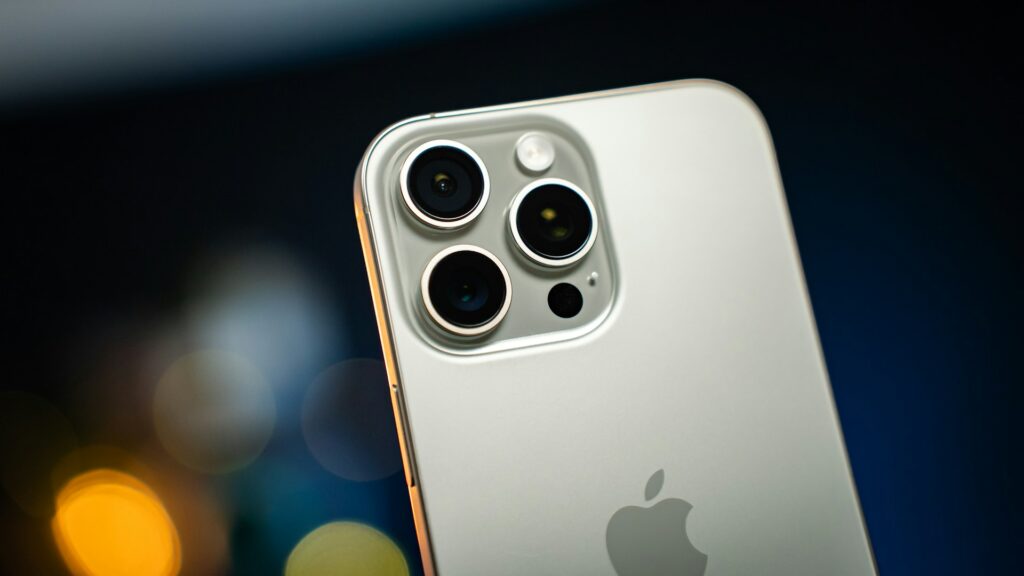
Every iPhone user encounters moments when their device becomes unresponsive, frozen, or simply needs a fresh start. Whether you own the latest iPhone 16 or an older model, knowing how to properly restart your device is an essential troubleshooting skill that can resolve numerous software glitches, performance issues, and system crashes. This comprehensive guide walks you through every method of restarting an iPhone, from standard restarts to force restarts, ensuring you can restore your device to full functionality regardless of the situation you face.
Restarting an iPhone serves multiple purposes beyond just turning it off and on again. This fundamental process clears temporary system files, refreshes the device’s memory, closes background applications that may be consuming excessive resources, and resolves minor software conflicts that can cause slowdowns or freezing. Understanding the various restart methods available for your specific iPhone model empowers you to handle technical difficulties confidently without losing valuable data or requiring professional assistance.
Understanding the Difference Between Restart Methods
Before diving into the specific procedures, it is crucial to understand the distinction between different restart methods. A standard restart, also known as a soft reset, involves using the power-off slider to shut down your iPhone through the normal interface. This method is appropriate for routine maintenance or when your device is responding normally but experiencing minor issues such as sluggish performance or app instability.
A force restart, conversely, is a more powerful intervention that bypasses the standard shutdown process by using specific button combinations. This method becomes necessary when your iPhone completely freezes, becomes unresponsive to touch input, displays a black screen, or fails to respond to the power button. The force restart essentially simulates disconnecting and reconnecting the device’s battery, providing a fresh start without accessing the screen interface. Importantly, neither method erases your personal data, photos, messages, or installed applications, making them safe troubleshooting options.
When to Use Standard Restart vs Force Restart
Determining which restart method to employ depends on your device’s current state and the issues you are experiencing. Use a standard restart when your iPhone is responsive but experiencing minor problems such as slow app performance, connectivity issues with WiFi or Bluetooth, apps crashing occasionally but not freezing the entire system, or when performing routine device maintenance. The standard restart method is gentler on the system and should always be your first approach when the device remains responsive.
Force restart becomes necessary in more severe situations. Deploy this method when your iPhone screen is completely frozen and unresponsive to touch, the device is stuck on the Apple logo or a black screen, apps have frozen the entire system and standard shutdown is impossible, or when the power button and touch screen are both non-functional. Force restart is a powerful tool that can resolve situations where the operating system has become so unstable that normal shutdown procedures cannot execute.
How to Restart iPhone 16, 15, 14, 13, 12, 11, X, XS, and XR
Modern iPhones from the iPhone X onward share a consistent design language featuring Face ID technology and the absence of a physical Home button. These models all use identical restart procedures, making it easier for users upgrading between recent models to maintain familiarity with the process.
Standard Restart Method for Modern iPhones
To perform a standard restart on these models, begin by simultaneously pressing and holding the Side button located on the right edge of your device and either of the Volume buttons on the left edge. Continue holding both buttons until the power-off slider appears on your screen, which typically takes approximately three seconds. Once the slider appears, release the buttons and drag the slider from left to right to initiate the shutdown sequence.
Wait patiently for approximately thirty seconds as your iPhone completely powers down. You will know the device has fully shut down when the screen becomes completely black with no illumination. To power your device back on, press and hold only the Side button located on the right side of your iPhone until the Apple logo appears on the screen, which usually takes about five to ten seconds. Release the button once you see the logo and allow your iPhone to complete its startup sequence.
Force Restart for iPhone X and Later Models
When your modern iPhone becomes completely unresponsive, the force restart procedure provides a reliable solution. This three-button sequence was introduced with the iPhone 8 and continues with all subsequent models. The procedure requires precise timing and execution to work correctly.
Begin by quickly pressing and immediately releasing the Volume Up button located on the left side of your device. This initial press should be brief—approximately half a second. Immediately after releasing the Volume Up button, quickly press and release the Volume Down button, also located on the left side below the Volume Up button. Again, this should be a quick tap rather than a sustained press.
Finally, press and hold the Side button on the right edge of your device. Continue holding this button without releasing it. Your screen may go completely black temporarily—this is normal and expected. Continue holding the Side button through this phase. After approximately ten to fifteen seconds, the Apple logo will appear on your screen. Once you see the logo, release the Side button and allow your iPhone to complete its restart sequence, which typically takes thirty to sixty seconds.
How to Restart iPhone SE (2nd and 3rd Generation), 8, 7, and 6
These iPhone models represent a transitional period in Apple’s design evolution, with the iPhone 8 sharing restart procedures with modern models while the iPhone 7 and earlier versions use different methods. Understanding these distinctions ensures you use the correct procedure for your specific device.
Standard Restart for iPhone SE (2nd/3rd Gen), 8, 7, and 6
To perform a standard restart on the iPhone SE second and third generation, iPhone 8, 7, or 6, press and hold the Side button located on the right edge of your device. Continue holding this button until the power-off slider appears on your screen. Drag the slider from left to right to turn off your device. Wait approximately thirty seconds for your iPhone to completely shut down, then press and hold the Side button again until the Apple logo appears to restart your device.
For the iPhone SE first generation and earlier models with a top-mounted power button, press and hold the Sleep/Wake button located on the top edge of your device until the power-off slider appears, then follow the same procedure.
Force Restart iPhone 8 and iPhone SE (2nd/3rd Generation)
The iPhone 8, despite its Home button design, introduced the new three-button force restart sequence that continues in modern iPhones. To force restart these models, follow the exact same procedure as iPhone X and later: quickly press and release the Volume Up button, quickly press and release the Volume Down button, then press and hold the Side button until the Apple logo appears.
Force Restart iPhone 7 and 7 Plus
The iPhone 7 series introduced a unique force restart method that differs from both earlier and later models. To force restart an iPhone 7 or 7 Plus, simultaneously press and hold the Volume Down button on the left side and the Sleep/Wake button on the right side of your device. Continue holding both buttons simultaneously without releasing them, even if the screen goes black or prompts appear. After approximately ten seconds, the Apple logo will appear on your screen. Once you see the logo, release both buttons and allow your iPhone to complete its restart.
How to Restart iPhone SE (1st Generation), 6s, 6, and Earlier Models
Older iPhone models featuring the iconic Home button use a different restart procedure that many long-time iPhone users will find familiar. These devices include the iPhone SE first generation, iPhone 6s, iPhone 6, iPhone 5s, and all earlier models.
Standard Restart for Older iPhone Models
To perform a standard restart on these classic iPhone models, press and hold the Sleep/Wake button located either on the top edge for iPhone 5s and earlier or on the right side for iPhone 6 and 6s. Continue holding until the power-off slider appears on your screen. Drag the slider to turn off your device, wait thirty seconds for complete shutdown, then press and hold the Sleep/Wake button again until the Apple logo appears.
Force Restart for Home Button iPhones
For iPhone models equipped with a physical Home button, including the iPhone SE first generation and iPhone 6s or earlier, the force restart procedure is straightforward and memorable. Simultaneously press and hold the Home button located at the bottom center of your device’s front face and the Sleep/Wake button located on the top or right side. Continue holding both buttons together without releasing them, even if prompts appear asking you to slide to power off.
Keep holding both buttons through any screen changes. After approximately ten seconds of continuous pressing, the Apple logo will appear on your screen. Once the logo appears, release both buttons simultaneously and allow your iPhone to complete its restart process. This method has remained consistent across many iPhone generations and is one of the most widely known troubleshooting techniques among iPhone users.
Alternative Restart Methods Through Settings
While hardware button combinations provide the most direct restart methods, iOS also offers software-based options for shutting down your device. These methods can be particularly useful when your hardware buttons are damaged or unresponsive, or when you simply prefer using the touchscreen interface.
Using the Settings App to Power Off
To restart your iPhone through the Settings application, open the Settings app from your home screen by tapping the gray gear icon. Scroll down and tap on General to access general device settings. Continue scrolling to the bottom of the General menu until you locate the Shut Down option. Tap on Shut Down to display the power-off slider on your screen.
Drag the slider from left to right to turn off your iPhone. Once your device completely shuts down and the screen becomes black, press and hold the Side button or Sleep/Wake button until the Apple logo appears to power your device back on. This method accomplishes the same result as using the hardware button combination but relies entirely on the touchscreen interface.
Using AssistiveTouch for Restart
AssistiveTouch is an accessibility feature that creates an on-screen button providing access to various device functions, including the power menu. This feature proves invaluable when your hardware buttons are damaged or difficult to press. To enable AssistiveTouch, open Settings, tap Accessibility, then tap Touch, and finally tap AssistiveTouch. Toggle the switch to turn on AssistiveTouch.
Once enabled, a semi-transparent circular button appears on your screen that you can move to any location. Tap this button to open the AssistiveTouch menu, then tap Device, and finally press and hold the Lock Screen icon until the power-off slider appears. This method provides complete restart functionality without requiring any physical buttons.
Using Siri to Restart Your iPhone
Voice commands offer another hands-free method for restarting your iPhone, though with some limitations. While Siri cannot directly restart your device, the voice assistant can help initiate the shutdown process, which is particularly useful in situations where touching your device is inconvenient or impossible.
To use this method, activate Siri by saying “Hey Siri” if you have voice activation enabled, or press and hold the Side button or Home button depending on your iPhone model. Once Siri is active, say “Turn off my iPhone” or “Power off my iPhone.” Siri will respond by displaying the power-off slider on your screen. You will still need to use the touchscreen to drag the slider to complete the shutdown, so this method is not entirely hands-free but does reduce the need for button presses.
Troubleshooting Common Restart Issues
Despite following the correct procedures, you may occasionally encounter situations where your iPhone does not respond as expected. Understanding these scenarios and their solutions ensures you can handle even the most challenging situations.
iPhone Won’t Turn Off Using Standard Methods
When your iPhone refuses to respond to the standard power-off slider or the screen is completely frozen, the force restart method becomes essential. Refer to the force restart instructions for your specific model above. If force restart also fails to produce any response after multiple attempts with proper button timing, your device may require charging before it can restart.
Connect your iPhone to a reliable power source using an Apple-certified Lightning or USB-C cable and original power adapter. Allow the device to charge for at least one hour before attempting another force restart. A completely depleted battery can sometimes prevent restart procedures from executing successfully.
iPhone Gets Stuck on Apple Logo
If your iPhone successfully begins the restart process but becomes stuck displaying the Apple logo for more than several minutes, you may need to force restart the device again. Perform the appropriate force restart procedure for your model. If the device becomes stuck on the Apple logo repeatedly after multiple force restart attempts, you may need to use recovery mode to restore your device through a computer.
iPhone Won’t Turn On After Restart
When your iPhone screen remains completely black and shows no signs of life after attempting restart procedures, first ensure the device has adequate charge. Connect it to power for at least one hour, then attempt the force restart procedure again. Check for any signs of life such as vibration, sounds, or even brief screen flickers that indicate the device is receiving power.
If your iPhone still shows no response, examine the charging port for debris or damage that might prevent proper charging connection. Use a flashlight to inspect the port and gently remove any visible lint or debris with a wooden toothpick—avoid using metal objects that could damage the connectors. If the device still will not power on after charging and cleaning the port, professional service may be required.
Using Recovery Mode for Severe Issues
When force restarting your iPhone does not resolve serious problems such as being stuck in a boot loop, repeatedly crashing during startup, or failing to complete the startup process, recovery mode provides a more comprehensive solution. This process allows you to reinstall iOS through a computer without necessarily erasing your data.
Entering Recovery Mode
To enter recovery mode, first connect your iPhone to a computer using a USB cable. On a Mac running macOS Catalina or later, open Finder. On a Mac running macOS Mojave or earlier, or on a Windows PC, open iTunes. Ensure you are running the latest version of macOS or iTunes.
Once your iPhone is connected, perform the force restart procedure for your specific model. However, instead of releasing the buttons when the Apple logo appears, continue holding the final button through the Apple logo until you see the recovery mode screen. This screen displays a computer icon and a cable, indicating your device is in recovery mode.
Your computer will display a prompt offering to either Update or Restore your iPhone. Choose Update first, as this option reinstalls iOS without erasing your data. The update process downloads the latest iOS version and reinstalls it on your device, which typically takes fifteen to thirty minutes depending on your internet connection speed. If the process takes longer than fifteen minutes and your device exits recovery mode, simply repeat the steps to re-enter recovery mode and try again.
When to Use Restore Instead of Update
If the Update option fails to resolve your issues or cannot complete successfully, the Restore option provides a more comprehensive solution. However, this method erases all data on your device, returning it to factory settings. Before choosing Restore, ensure you have a recent backup of your iPhone through iCloud or your computer. After the restore completes, you can restore your data from the backup during the setup process.
Pro Tips for iPhone Maintenance and Performance
Beyond knowing how to restart your device when problems occur, implementing proactive maintenance practices can significantly reduce the frequency of issues requiring restarts. These expert recommendations help maintain optimal iPhone performance and minimize the need for troubleshooting interventions.
Regular Restart Schedule
Even when your iPhone is functioning perfectly, performing a standard restart at least once per week provides significant benefits. Regular restarts clear accumulated temporary files, refresh system memory allocation, close background processes that may be consuming resources unnecessarily, and reset various system components that can develop minor glitches over time. Consider scheduling your weekly restart for a consistent time, such as Sunday evening, to make it a routine maintenance habit.
Keep iOS Updated
Apple regularly releases iOS updates containing bug fixes, security patches, and performance improvements. Many freezing issues and system instabilities result from known bugs that Apple has already addressed in newer iOS versions. To check for updates, open Settings, tap General, then tap Software Update. If an update is available, review the update details and tap Download and Install. Enable automatic updates in Settings to ensure your device always runs the latest stable iOS version.
Manage Storage Space
Insufficient storage space is a common cause of iPhone performance degradation and system instability. When your device storage is nearly full, iOS struggles to manage temporary files, cache data, and background operations efficiently. To monitor your storage, open Settings, tap General, then tap iPhone Storage. This screen displays a detailed breakdown of storage usage by app and offers personalized recommendations for freeing space.
Consider implementing these storage management strategies: enable iCloud Photos to store your photo library in the cloud rather than on your device, regularly review and delete unused apps by enabling the Offload Unused Apps feature, clear browser cache and Safari data periodically, and delete old message conversations with large media attachments. Maintaining at least ten to fifteen percent of your total storage capacity as free space ensures optimal system performance.
Monitor App Behavior
Problematic apps can cause system-wide issues including freezing, crashes, and excessive battery drain. If you notice your iPhone frequently requires restarting after using a specific app, that application may be poorly optimized or contain bugs. Check the App Store for updates to problematic apps, as developers regularly release updates addressing performance issues.
If an app continues causing problems after updating, consider uninstalling and reinstalling it to clear any corrupted data. To monitor which apps are consuming the most system resources, open Settings, tap Battery, and review the battery usage by app. Apps consuming disproportionate amounts of battery often indicate underlying performance problems.
Optimize Settings for Performance
Several iOS settings, while providing enhanced visual effects or features, can impact system performance and stability, particularly on older iPhone models. To improve performance, consider adjusting these settings: reduce motion effects by opening Settings, tapping Accessibility, tapping Motion, and enabling Reduce Motion; disable Background App Refresh for apps that do not require constant updates by going to Settings, General, and Background App Refresh; limit location services to only apps that genuinely need location access; and disable automatic app updates during active use by managing this setting in Settings, App Store, and App Updates.
Protect Against Physical Damage
Physical damage to your iPhone, particularly to the display or internal components from drops or liquid exposure, can cause system instability and unexpected behavior. Invest in quality protective cases and screen protectors to minimize damage risk. If your iPhone has been exposed to liquid, even if it has water resistance, power it off immediately and allow it to dry completely before attempting to power it on again.
Battery Health Considerations
As iPhone batteries age, their ability to deliver peak performance diminishes, which can lead to unexpected shutdowns and system instability. To check your battery health, open Settings, tap Battery, then tap Battery Health. If your Maximum Capacity is below eighty percent or if you see a message about significantly degraded battery health, consider replacing the battery through Apple or an authorized service provider.
Frequently Asked Questions
Will restarting my iPhone delete any data or photos?
No, neither standard restart nor force restart will delete any of your personal data, photos, messages, contacts, or installed applications. These restart methods only refresh the system memory and close running processes. Your data remains safely stored on the device. The only procedure that erases data is a factory reset or restore, which requires explicit confirmation through multiple steps and cannot happen accidentally through restart procedures.
How often should I restart my iPhone?
For optimal performance, restart your iPhone at least once per week even if you are not experiencing any issues. Regular restarts clear temporary files, refresh system processes, and prevent the accumulation of minor software glitches that can compound over time. Many iPhone users find that implementing a weekly restart schedule on the same day significantly improves overall device stability and responsiveness.
What’s the difference between restart, reset, and restore?
These terms are often confused but represent distinctly different operations. A restart or reboot simply powers off your device and powers it back on, clearing memory but preserving all your data and settings. A reset can refer to either a force restart using hardware buttons or a settings reset that returns specific system settings to defaults without erasing personal data. A restore, conversely, completely erases your device and reinstalls iOS, returning it to factory condition. Only restore operations delete your personal data.
Can I restart my iPhone if the screen is completely broken?
Yes, you can restart your iPhone even with a non-functional display by using the appropriate force restart button combination for your model. Since these procedures rely entirely on hardware buttons and do not require seeing the screen, they work even when the display is completely broken. However, you will not be able to see confirmation that the restart is occurring. Listen for the startup sound or wait several minutes after performing the force restart procedure before attempting to use the device.
Why does my iPhone keep freezing even after restarting?
Persistent freezing after restarts typically indicates underlying issues requiring more comprehensive solutions. Common causes include insufficient storage space preventing proper system operation, problematic apps with bugs or poor optimization, outdated iOS versions with known stability issues, hardware problems such as degraded battery or damaged components, or corrupted system files requiring restoration through recovery mode. If regular restarts do not resolve persistent freezing, systematically address these potential causes or seek professional diagnostic assistance.
Is force restart bad for my iPhone?
Force restart is a safe procedure designed by Apple specifically for troubleshooting unresponsive devices and does not harm your iPhone when used appropriately. However, it should not be your first option for every minor issue. Use standard restart methods when your device is responsive, reserving force restart for situations where the device is truly frozen or unresponsive. Frequent need for force restarts may indicate underlying problems requiring further investigation.
What should I do if none of the restart methods work?
If your iPhone does not respond to any restart procedures, first ensure it has adequate battery charge by connecting it to power for at least one hour. If it still does not respond after charging, try connecting it to a computer and using recovery mode to update or restore the device. If recovery mode also fails or cannot be accessed, your iPhone may have hardware damage requiring professional repair service. Contact Apple Support or visit an Apple Store or authorized service provider for diagnosis and repair.
Can restarting fix all iPhone problems?
While restarting resolves many common iPhone issues including temporary software glitches, minor performance slowdowns, app crashes, connectivity issues, and system lag, it cannot fix all problems. Hardware damage, corrupted data, major software corruption, battery degradation, and physical component failures require different solutions. Restart should be your first troubleshooting step, but if problems persist after restarting, additional diagnostic steps or professional service may be necessary.
Conclusion
Mastering the various methods of restarting your iPhone equips you with essential troubleshooting skills that can resolve the vast majority of common device issues. From standard restarts for routine maintenance to force restarts for unresponsive devices, understanding the appropriate procedure for your specific iPhone model ensures you can quickly restore your device to normal operation when problems arise. The differences between restart methods for various iPhone generations reflect Apple’s evolving hardware design, but the underlying principle remains consistent—providing users with reliable recovery options when software issues occur.
Remember that neither standard nor force restart procedures will erase your personal data, making them safe first-line troubleshooting tools. Implementing proactive maintenance practices such as weekly restarts, keeping iOS updated, managing storage space effectively, and monitoring app behavior can significantly reduce the frequency of issues requiring troubleshooting interventions. When restart procedures prove insufficient for resolving persistent problems, more advanced recovery options such as recovery mode updates or factory restores provide comprehensive solutions.
By familiarizing yourself with these restart procedures and maintenance best practices, you transform from a passive iPhone user into an empowered device owner capable of resolving common issues independently. This knowledge saves time, reduces frustration, and often eliminates the need for professional assistance with minor problems. Keep this guide bookmarked for quick reference whenever your iPhone behaves unexpectedly, and share these valuable techniques with friends and family who may benefit from understanding proper iPhone restart procedures.
