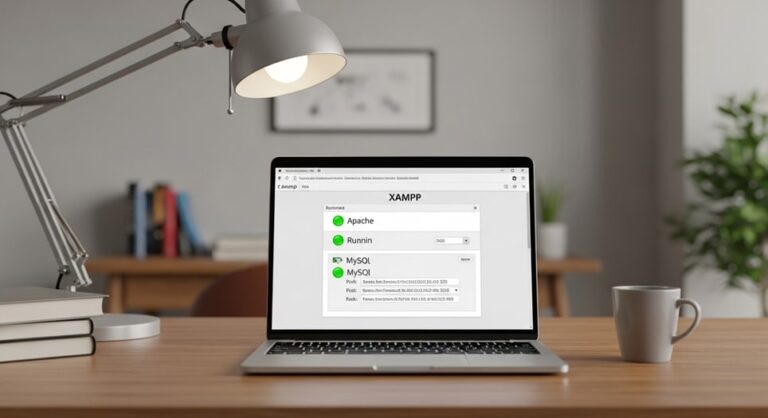
I ran into this warning myself while setting up a local WordPress development environment on XAMPP. The message looks alarming the first time you see it, but the fix is straightforward — you have a duplicate extension=openssl line in your php.ini file and PHP is complaining about loading it twice. This guide shows you exactly where to find it, how to fix it in under five minutes, and how to handle related warnings like curl and bz2 that appear the same way.
What Causes the “Module ‘openssl’ Already Loaded” Warning?
When PHP starts up, it reads your php.ini configuration file and loads every extension listed in it. If it finds two lines telling it to load OpenSSL, it loads the first one successfully and then throws a warning on the second attempt because OpenSSL is already resident in memory.
The most common causes are:
- A duplicate extension=openssl or extension=php_openssl.dll line in php.ini — usually from a manual edit or a failed XAMPP upgrade that reapplied default settings
- A secondary configuration file in the php/conf.d/ directory also loading OpenSSL
- PHP 8.x builds where OpenSSL is compiled in by default, making any extension=openssl line in php.ini redundant
The warning does not break your site or stop PHP from working. OpenSSL loads correctly on the first call — the warning is just PHP telling you the second instruction was unnecessary. That said, leaving duplicate entries in your configuration creates log noise that can hide real errors.
Step 1 — Find the Active php.ini File
Before editing anything, confirm which php.ini file PHP is actually using. XAMPP installations often contain multiple php.ini files — the live one, a development template, and a production template — and editing the wrong one changes nothing.
Create a file called info.php in your XAMPP htdocs folder with this single line:
<?php phpinfo(); ?>
Open your browser and go to http://localhost/info.php. Near the top of the output, look for the row labelled Loaded Configuration File. The path shown there is the exact file you need to edit — typically C:\xampp\php\php.ini on Windows.
Step 2 — Find the Duplicate OpenSSL Entry
Open the active php.ini file in a text editor. VSCode or Notepad++ both work well for this. Press Ctrl+F and search for openssl.
You are looking for lines that look like either of these:
extension=openssl
extension=php_openssl.dll
If you see the same line appearing twice — once in the main Dynamic Extensions section and again somewhere else in the file — that is the problem. Also check the C:\xampp\php\conf.d\ directory if it exists on your system, as some XAMPP versions use that folder for additional configuration snippets that can contain a second OpenSSL directive.
Step 3 — Comment Out the Duplicate Line
Do not delete the duplicate line — comment it out by adding a semicolon at the very start of it. This disables the line while keeping it visible in the file so you can reverse the change easily if needed.
Change this:
extension=openssl
To this:
;extension=openssl
Keep only one active (uncommented) extension=openssl line. The one in the standard Dynamic Extensions section of the file is the correct one to keep. Save the file after making the change.
Step 4 — Restart Apache in XAMPP
Saving php.ini does not apply the changes — you must do a full Apache restart to reload the configuration from scratch.
- Open the XAMPP Control Panel
- Click Stop next to the Apache module
- Wait for the status to show fully stopped
- Click Start to restart it
- Watch the log window at the bottom — Apache should start cleanly with no new errors
If Apache fails to start after your edit, you likely introduced a syntax error in php.ini. Reopen the file, check that the semicolon is at the very start of the line with no spaces before it, and try again.
Step 5 — Verify the Warning Is Gone
Refresh your http://localhost/info.php page or open the PHP error log at C:\xampp\php\logs\php_error_log. The “Module already loaded” warning should no longer appear.
If the warning persists after the restart, a third-party configuration file may also be loading OpenSSL. Do a global search in your text editor across the entire C:\xampp\ directory for the word openssl to locate any hidden duplicate in an Apache config file under apache/conf/extra/.
Fixing the Same Warning for Other Modules (curl, bz2, and Others)
The exact same warning appears for other PHP extensions — the most common being curl and bz2. The fix is identical in every case: search php.ini for the module name, find the duplicate entry, comment out the second one, and restart Apache.
Common variants of this warning you may see:
- PHP Warning: Module ‘curl’ is already loaded in Unknown on line 0
- PHP Warning: Module ‘bz2’ is already loaded in Unknown on line 0
- PHP Warning: Module ‘openssl’ is already loaded in Unknown on line 0 — note “Unknown on line 0” is the same issue as “line 0”, just different PHP versions formatting it differently
If you are seeing multiple module warnings at once, work through them one at a time — search for each module name, remove the duplicate, save, and restart Apache before moving to the next one.
How to Disable PHP Warnings in XAMPP (All Warnings)
If you want to suppress all PHP warnings in your local environment rather than fixing them individually, you can change the error reporting level in php.ini. This is useful for development environments where third-party plugins generate non-critical warnings you do not want cluttering your logs.
Find this line in php.ini:
error_reporting = E_ALL
Change it to:
error_reporting = E_ALL & ~E_WARNING & ~E_NOTICE
This suppresses warnings and notices while keeping fatal errors visible. Restart Apache after saving. Note that suppressing warnings is fine for local development but should never be done on a production server — always fix the underlying issue before deploying.
Understanding PHP globals and configuration directives more broadly helps you navigate php.ini confidently without accidentally breaking other settings while making these edits.
How to Enable OpenSSL in XAMPP (If It Stops Working After the Fix)
In rare cases, commenting out what you thought was a duplicate actually removes the only active OpenSSL entry, and PHP stops loading the extension. If you see SSL-related errors after applying the fix, check your phpinfo() output — look for the OpenSSL section. If it is missing entirely, OpenSSL is no longer loaded.
To re-enable it, open php.ini, find the line:
;extension=openssl
And remove the semicolon to make it active again:
extension=openssl
Restart Apache and verify in phpinfo() that the OpenSSL section reappears. This is the most common reason developers end up with SSL errors after trying to fix the duplicate warning.
Why This Warning Matters for Local WordPress Development
Most developers encounter this warning while running WordPress locally on XAMPP. WordPress relies on OpenSSL for HTTPS connections, API calls, and plugin update checks. While the duplicate warning does not break these functions, a cluttered error log makes it significantly harder to spot the warnings that actually matter — like a failed database connection or a missing file.
When developing locally, keeping your error log clean from the start is worth the few minutes it takes. If you need to locate your WordPress installation files during this process, knowing how to find your WordPress root directory saves time when navigating between the XAMPP htdocs folder and your WordPress file structure.
Preventing Duplicate Extension Warnings in Future XAMPP Upgrades
The most common trigger for duplicate extension entries is upgrading XAMPP and having the installer overwrite php.ini with default settings, which can reintroduce lines that were already present in your existing configuration.
To prevent this:
- Before any XAMPP upgrade, back up your current php.ini to a separate folder with a date-stamped filename
- After upgrading, do not copy the old php.ini directly — instead open both files side by side and manually port your custom settings to the new one
- Use a text editor with diff/comparison functionality to spot duplicates when merging configurations
- Run phpinfo() immediately after every upgrade to confirm the loaded configuration path and check for new warnings before starting development work
This approach takes five extra minutes per upgrade and prevents hours of debugging later. Developers who work on PHP projects that also involve WordPress customization benefit from a stable XAMPP environment that doesn’t introduce surprise warnings mid-project.
Frequently Asked Questions
How do I fix “Module ‘openssl’ already loaded” in XAMPP?
Open your active php.ini file (confirm the path via phpinfo()), press Ctrl+F and search for openssl. Find the duplicate extension=openssl or extension=php_openssl.dll line, add a semicolon at the start to comment it out, save the file, and restart Apache in the XAMPP Control Panel. The warning will not appear on the next startup.
How do I disable warnings in XAMPP?
In php.ini, change error_reporting = E_ALL to error_reporting = E_ALL & ~E_WARNING & ~E_NOTICE and restart Apache. This suppresses warnings and notices while keeping fatal errors visible. Only do this in a local development environment — never suppress warnings on a live server.
How do I enable OpenSSL in XAMPP?
In php.ini, find the line ;extension=openssl and remove the semicolon to make it extension=openssl. Save the file and restart Apache. Verify it is active by checking phpinfo() — the OpenSSL section should appear in the output.
How do I solve the XAMPP Apache problem when it won’t start?
The most common cause is a syntax error in php.ini or a port conflict — usually port 80 being used by another application like Skype or IIS. Check the XAMPP log window for the specific error. If it mentions a port conflict, change Apache’s port in httpd.conf from 80 to 8080. If it mentions a php.ini syntax error, reopen the file and check for misplaced semicolons or broken extension lines.
Why does the warning say “Unknown on line 0”?
This is the same warning formatted differently by different PHP versions. “Module ‘openssl’ already loaded in line 0” and “Module ‘openssl’ is already loaded in Unknown on line 0” are identical issues — a duplicate extension entry in php.ini. The fix is the same in both cases.