

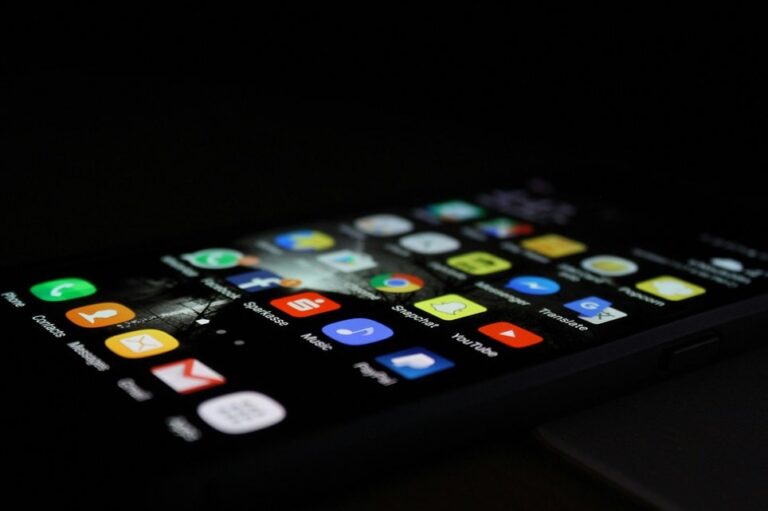
Understanding Android Dark Mode: A Comprehensive Overview
Android Dark Mode represents one of the most significant visual enhancements introduced to mobile operating systems in recent years. This feature fundamentally transforms the way users interact with their devices by switching the traditional light color scheme to a darker palette. The system-wide implementation affects not only the Android operating system interface but also extends to numerous compatible applications, creating a cohesive visual experience across the entire device ecosystem.
The dark theme feature, officially introduced with Android 10 in 2019, converts bright white backgrounds into dark or black surfaces while simultaneously adjusting text colors to lighter shades for optimal readability. This transformation isn’t merely cosmetic; it represents a thoughtful approach to addressing multiple user concerns including battery consumption, visual comfort, and accessibility. The feature has gained widespread adoption among Android manufacturers, with Samsung, Google Pixel, OnePlus, Xiaomi, and other major brands integrating dark mode capabilities into their custom Android interfaces.
Modern Android versions have expanded dark mode functionality significantly beyond its initial implementation. The feature now includes scheduling options, automatic activation based on ambient lighting conditions, and enhanced compatibility with third-party applications. Understanding how dark mode works and its various implementations across different Android versions helps users make informed decisions about when and how to use this popular feature.
The Science Behind Dark Mode Technology
To fully appreciate the benefits and limitations of Android Dark Mode, it’s essential to understand the underlying display technology that powers modern smartphones. The effectiveness of dark mode varies dramatically depending on whether your device uses an OLED (Organic Light-Emitting Diode) screen or an LCD (Liquid Crystal Display) screen. This distinction plays a crucial role in determining the actual battery-saving capabilities and visual characteristics of dark mode on your specific device.
OLED displays function fundamentally differently from their LCD predecessors. Each individual pixel in an OLED screen generates its own light independently, meaning that when a pixel displays black, it can be completely turned off, consuming virtually no power. This pixel-level control creates true blacks and enables significant energy savings when displaying dark content. Most flagship and mid-range Android devices manufactured since 2017 utilize OLED technology, including popular models from Samsung’s Galaxy series, Google Pixel lineup, OnePlus devices, and numerous other manufacturers.
In contrast, LCD screens employ a constant backlight that illuminates the entire display regardless of the content being shown. Even when displaying black images or dark themes, the LCD backlight remains active, meaning the power consumption remains relatively constant whether viewing light or dark content. While dark mode on LCD displays may offer marginal benefits through reduced backlight intensity, the energy savings pale in comparison to what OLED devices achieve. This technological difference explains why dark mode’s battery-saving reputation primarily applies to OLED-equipped smartphones.
Battery Life Benefits: Facts and Realistic Expectations
The battery-saving potential of Android Dark Mode has been extensively studied by researchers at prestigious institutions, providing valuable insights into its actual effectiveness. A comprehensive study conducted by Purdue University researchers revealed nuanced findings about dark mode’s impact on battery consumption. Their research demonstrated that the battery savings from dark mode are heavily dependent on screen brightness levels, with dramatic variations in effectiveness across different usage scenarios.
According to the Purdue study, when using an Android device at maximum brightness, switching from light mode to dark mode can reduce power consumption by approximately 42 to 47 percent on OLED displays. This represents a substantial energy saving that could meaningfully extend device usage time. However, most users don’t operate their smartphones at maximum brightness regularly. At more typical brightness levels of 30 to 50 percent, which align with automatic brightness settings in most indoor environments, dark mode saves only 3 to 9 percent of battery power.
Research published by Mobile Enerlytics confirmed these findings through detailed testing of popular Android applications. Their study examined six widely-used apps including YouTube, Google Maps, Google News, Phone, Calculator, and Gmail at a controlled 38 percent brightness level. The results showed significant variation in energy savings across different applications, ranging from 1.8 percent savings when watching YouTube videos in full-screen mode to 23.5 percent savings when reading articles in Google News. The disparity stems from the amount of static versus dynamic content displayed, with text-heavy applications benefiting more from dark mode than video or image-intensive apps.
OLED Display Power Characteristics
The unique properties of OLED technology create specific conditions under which dark mode delivers maximum battery benefits. Understanding these characteristics helps users optimize their settings for improved battery performance. OLED pixels consume power proportionally to their brightness and color output, with white pixels requiring the most energy and black pixels consuming virtually none. This fundamental characteristic means that applications with predominantly white interfaces drain significantly more battery than those with darker color schemes.
Research has identified that OLED displays can account for 44 to 73 percent of total device power consumption when displaying light-colored content at maximum brightness. This substantial proportion of overall battery drain highlights why screen management represents one of the most effective strategies for extending battery life. When dark mode is activated, the reduced pixel activation translates directly into lower power draw from the battery, though the magnitude of savings depends on multiple factors including screen brightness, app design, and usage patterns.
The color composition of displayed content also influences power consumption on OLED screens. Pure black backgrounds offer the greatest energy savings since the pixels are completely deactivated. However, many applications implement dark mode using dark gray rather than pure black backgrounds for aesthetic reasons. While dark gray still provides energy savings compared to white backgrounds, the benefits are somewhat diminished because the pixels remain partially active. Users seeking maximum battery efficiency should look for applications offering true black dark mode themes when available.
How to Enable Dark Mode on Android: Step-by-Step Instructions
Activating Dark Mode on Android devices is straightforward, though the exact steps may vary slightly depending on your device manufacturer and Android version. The following comprehensive guide covers multiple methods for enabling this feature, ensuring compatibility with various Android implementations including stock Android, Samsung One UI, and other manufacturer-specific interfaces.
Method One: Using the Quick Settings Panel
The fastest and most convenient way to toggle Dark Mode involves using the Quick Settings panel, which provides immediate access to frequently used system features. To access this panel, swipe down from the top of your screen once to reveal the notification shade. On most devices, you’ll need to swipe down a second time to expand the Quick Settings panel fully and display all available toggles. Look for an icon labeled “Dark theme,” “Dark mode,” or “Night mode” depending on your device manufacturer.
If you cannot locate the dark mode toggle in your Quick Settings, you may need to customize the panel to add it. Access the Quick Settings customization menu by tapping the pencil or edit icon, typically found in the top corner of the expanded panel. This action reveals all available Quick Settings tiles, including those not currently displayed. Locate the Dark Mode tile in the available options section and drag it to your active tiles area. Once positioned, tap the checkmark or back button to save your changes. The Dark Mode toggle now appears in your Quick Settings for easy access.
Method Two: Through the Settings Application
For users who prefer accessing dark mode through the full settings menu, Android provides straightforward navigation to this feature. Open your device’s Settings application by tapping the gear icon in your app drawer or notification shade. Navigate to the Display settings section, which houses all screen-related configurations. Within Display settings, you’ll find the Dark theme or Dark mode option, typically positioned near the top of the menu for easy access.
On stock Android and Google Pixel devices, you’ll see a toggle switch next to “Dark theme.” Simply tap this switch to activate dark mode immediately across your system and compatible applications. Samsung Galaxy devices running One UI present a slightly different interface with distinct options for Light and Dark modes at the top of the Display settings screen. Tap the Dark option to activate dark mode, and the system will transition all supported interfaces to the darker color scheme.
Method Three: Automatic Activation Through Battery Saver
Android includes an integrated connection between Battery Saver mode and Dark Mode, recognizing the energy-saving potential of darker interfaces. When Battery Saver activates, either manually or automatically when battery levels drop below a specified threshold, Dark Mode typically enables simultaneously. This automatic behavior helps maximize battery preservation during critical low-power situations. However, users should note that Battery Saver also restricts background processes, location services, and other features that may impact device functionality.
To manually enable Battery Saver and trigger dark mode activation, swipe down to access Quick Settings and tap the Battery Saver icon. Alternatively, navigate to Settings, select Battery, and toggle Battery Saver on. While this method activates dark mode, it’s best reserved for situations where extended battery life takes priority over full device functionality, as the associated restrictions may limit your user experience.
Advanced Dark Mode Features and Scheduling Options
Modern Android versions offer sophisticated scheduling capabilities that allow Dark Mode to activate and deactivate automatically based on time or ambient lighting conditions. These intelligent features ensure you benefit from dark mode when most appropriate without requiring manual intervention. Scheduling dark mode proves particularly valuable for users who prefer darker interfaces during evening hours but want the visibility benefits of light mode during daytime.
Sunset to Sunrise Scheduling
The automatic sunset-to-sunrise scheduling option represents the most effortless approach to dark mode management. When enabled, your Android device uses location data to determine local sunrise and sunset times, automatically activating dark mode when darkness falls and reverting to light mode at dawn. This feature adapts throughout the year as daylight hours change, ensuring consistent behavior regardless of season.
To enable sunset-to-sunrise scheduling on stock Android, navigate to Settings, tap Display, select Dark theme, and choose Schedule. Tap “Turns on from sunset to sunrise” to activate this automatic mode. Samsung devices follow a similar path: access Display settings, tap Dark mode settings, enable “Turn on as scheduled,” and select “Sunset to sunrise.” The system will request location permissions if not already granted, as this information is necessary to calculate accurate sunrise and sunset times for your area.
Custom Time-Based Scheduling
For users who prefer greater control over when dark mode activates, custom scheduling allows you to specify exact start and end times. This flexibility accommodates personal preferences and usage patterns that may not align with natural daylight cycles. Perhaps you work night shifts and prefer dark mode during daytime hours, or you want dark mode to activate earlier than sunset to reduce eye strain during evening activities.
Access custom scheduling through the same Dark theme Schedule menu described above. Select “Turns on at custom time” on stock Android or “Custom schedule” on Samsung devices. You’ll then set your preferred Start time when dark mode should activate and End time when it should deactivate. The system remembers these settings and automatically handles the transitions daily, ensuring consistent dark mode behavior matching your schedule.
Forcing Dark Mode on Unsupported Applications
While system-wide dark mode affects many native Android applications and an increasing number of third-party apps, some applications lack native dark mode support. Android provides experimental features to force dark mode on apps that haven’t implemented it natively, though results vary in quality and effectiveness. These features work by inverting colors or applying dark overlays to application interfaces, which can sometimes produce unexpected visual results.
Android 10 introduced Force Dark, a developer-oriented feature that analyzes each view of an application and attempts to apply a dark theme automatically. While this functionality exists primarily for app developers to test dark mode implementations, it can sometimes be leveraged by users through developer options. However, accessing and enabling Force Dark requires activating Developer Options on your device, which involves tapping the Build Number in About Phone settings seven times.
Some manufacturers, particularly Samsung with One UI, have implemented more refined versions of forced dark mode. Samsung devices running recent One UI versions include an “Apply to all apps” option within Dark mode settings that attempts to darken applications lacking native support. The effectiveness varies significantly between applications, with some displaying perfectly while others show inverted images, illegible text, or other visual artifacts. Users should test this feature with their most-used applications to determine if the results meet their expectations.
Optimizing Individual Apps for Dark Mode
Many popular applications include independent dark mode settings separate from the system-wide Android dark mode. These app-specific implementations often provide superior visual quality compared to forced dark mode, as developers have carefully designed dark themes optimized for their application’s interface. Understanding how to enable dark mode in frequently used applications ensures a consistent and visually pleasing experience across your device.
Social media platforms like Instagram, Twitter, Facebook, and Reddit all support dark mode with varying implementation methods. Instagram automatically adopts the system dark mode setting, while Twitter requires manual activation through the app’s Settings and Privacy menu. Reddit offers both automatic system-following and manual dark mode options, accessible through the profile menu. Each application may refer to dark mode by different names including Dark Theme, Night Mode, or Dark Appearance, so familiarizing yourself with specific app settings proves beneficial.
Google’s ecosystem of applications generally respects the system-wide dark mode setting automatically. Gmail, Google Maps, Google Photos, YouTube, Google Drive, and Chrome all transition to dark themes when Android Dark Mode is enabled. However, some Google apps provide additional customization options. YouTube, for example, offers three theme settings: Use device theme, Dark theme, and Light theme, allowing users to maintain YouTube in dark mode even when the system uses light mode, or vice versa.
Productivity and Communication Apps
Professional and productivity applications have increasingly embraced dark mode as the feature’s popularity has grown. Microsoft Office applications including Word, Excel, and PowerPoint support dark mode on Android, as do collaboration tools like Slack, Microsoft Teams, and Zoom. Communication applications such as WhatsApp, Telegram, and Signal all provide dark mode options, though activation methods differ. WhatsApp allows users to choose between Light, Dark, and System default themes in Settings under Chats and Theme.
Email clients beyond Gmail also support dark mode implementations. Outlook for Android includes a comprehensive dark mode that affects both the application interface and email composition. The app allows you to select System default, Dark, or Light themes independently of your Android system settings. Similarly, third-party email clients like BlueMail and Spark offer dark mode options that can be configured to follow system settings or maintain independent theme preferences.
Eye Health Considerations and Dark Mode
The relationship between dark mode and eye health represents a complex topic with research producing mixed results. While many users report subjective improvements in comfort when using dark mode, especially in low-light environments, scientific evidence supporting universal eye health benefits remains limited. Understanding the nuanced relationship between display settings and visual comfort helps users make informed decisions about when to use dark mode for optimal eye health outcomes.
Dark mode can reduce glare in low-light environments, making screens more comfortable to view when ambient lighting is dim. When using a smartphone in a darkened room, a bright white screen creates substantial contrast with the surrounding environment, potentially causing discomfort and requiring your eyes to work harder to adapt. Dark mode minimizes this contrast, allowing for more comfortable viewing in nighttime conditions. The reduced overall light output from the display may also help some users experience less eye fatigue during extended usage sessions.
However, dark mode introduces its own set of potential challenges for visual comfort. When viewing light text on dark backgrounds, your pupils dilate to accommodate the lower light levels. This pupil dilation can reduce the depth of focus, potentially making text appear slightly less sharp than black text on white backgrounds. For individuals with certain vision conditions, particularly myopia or astigmatism, this effect can be pronounced. Research indicates that approximately 30 to 50 percent of the population has some degree of astigmatism, and these individuals may experience a phenomenon called halation when using dark mode.
Understanding Halation and Visual Clarity
Halation occurs when light spreads beyond its intended boundaries, creating a blurry or foggy appearance around bright objects on dark backgrounds. In the context of dark mode, white or light-colored text on black backgrounds can appear to bleed or blur, particularly for individuals with refractive errors. This optical effect stems from the way light refracts through an irregularly shaped lens or cornea, with the effect becoming more pronounced when the iris is dilated in low-light conditions.
People with significant astigmatism often find black text on white backgrounds easier to read because their iris constricts in the brighter conditions, partially compensating for the irregular lens shape by creating a smaller aperture effect. This principle mirrors how cameras achieve greater depth of field with smaller apertures. When dark mode is active, the dilated pupils create a larger aperture, reducing depth of focus and potentially degrading text clarity for affected individuals.
These considerations don’t mean dark mode is universally problematic for eye health. Many users with normal vision or well-corrected refractive errors experience no readability issues with dark mode and may prefer it for its aesthetic appeal and reduced glare. The key is individual experimentation to determine which display mode provides the most comfortable and clear viewing experience for your specific vision characteristics and environmental conditions.
Blue Light Reduction and Sleep Quality
One of the most frequently cited benefits of dark mode relates to its potential impact on sleep quality through reduced blue light exposure. Blue light, which falls within the 450-495 nanometer wavelength range of the visible light spectrum, has been shown to suppress melatonin production, the hormone responsible for regulating sleep-wake cycles. Since smartphone and tablet displays emit significant amounts of blue light, evening device usage has raised concerns about sleep disruption.
Dark mode reduces overall light output from displays, including blue light wavelengths, which theoretically could help maintain natural melatonin production during evening hours. Many users report feeling more comfortable using their devices at night with dark mode enabled, attributing this comfort to reduced blue light exposure. However, research examining dark mode’s specific impact on melatonin production has produced mixed results, with some studies finding minimal differences between dark and light modes when brightness levels are controlled.
A 2019 study examining Apple’s Night Shift feature, which reduces blue light by warming screen colors, found no significant difference in melatonin production between users who employed the feature and those who didn’t. The researchers concluded that overall screen brightness played an equally or more important role than color temperature in affecting melatonin levels. These findings suggest that while dark mode may contribute to better sleep hygiene, its benefits stem more from reduced overall brightness rather than specifically from blue light reduction.
Comprehensive Strategies for Reducing Eye Strain
Whether or not you use dark mode, implementing comprehensive strategies to reduce eye strain during device usage proves beneficial for long-term eye health. The American Academy of Ophthalmology recommends the 20-20-20 rule: every 20 minutes of screen time, look at something 20 feet away for at least 20 seconds. This simple practice helps reduce the eye muscle fatigue associated with prolonged near-focus work, regardless of whether your screen displays light or dark themes.
Maintaining appropriate screen brightness for your environment represents another crucial factor in reducing eye strain. Screens that are too bright or too dim relative to ambient lighting force your eyes to work harder. Android’s adaptive brightness feature, which uses sensors to adjust screen brightness automatically based on surrounding light levels, helps maintain optimal display settings throughout the day. Combining adaptive brightness with dark mode during evening hours provides a balanced approach to display management.
Additional eye health practices include maintaining adequate device distance, positioning screens to minimize glare from windows or overhead lighting, using artificial tears if experiencing dry eyes, and ensuring your vision correction prescription remains current. These fundamental practices often provide more significant eye comfort benefits than dark mode alone, though combining multiple strategies yields the best results for reducing digital eye strain.
Dark Mode Performance on Different Android Versions
The implementation and capabilities of Dark Mode have evolved significantly across Android versions, with each release introducing refinements and new features. Understanding how dark mode functions on your specific Android version helps set realistic expectations and ensures you’re utilizing available features effectively. Android 10 marked the official introduction of system-wide dark mode, though some manufacturers had implemented similar features in earlier custom Android versions.
Android 10 introduced the foundational dark theme functionality that affects system UI elements, notification panels, settings menus, and compatible applications. This initial implementation provided basic on-off toggling through Quick Settings and the Display menu, along with scheduling options for automatic activation. The system intelligently applies dark themes to compatible apps while maintaining original color schemes for apps lacking dark mode support, preventing forced inversions that might degrade visual quality.
Android 11 refined the dark mode experience with improved app compatibility and enhanced automatic switching behaviors. The update introduced more granular controls over which applications respect the system dark mode setting, allowing users to maintain light mode in specific apps even when the system uses dark theme. This flexibility proved valuable for applications where light mode provides better usability or where dark mode implementations by developers contained visual issues.
Android 12 and Material You Integration
Android 12 represented a substantial overhaul of Android’s visual design language with the introduction of Material You, Google’s dynamic theming system. This update integrated dark mode more deeply into the overall design philosophy, creating more cohesive color transitions between light and dark themes. Material You extracts colors from your wallpaper and applies them throughout the system UI, maintaining consistency whether you’re using light or dark mode. The color palette automatically adjusts contrast and brightness to ensure readability in both themes.
The dynamic theming system in Android 12 and later versions ensures that accent colors, buttons, backgrounds, and other UI elements maintain appropriate contrast ratios in dark mode. This attention to accessibility makes dark mode more usable for individuals with various vision capabilities, addressing concerns about insufficient contrast that plagued some earlier dark mode implementations. The system also introduced smoother transitions between light and dark modes, reducing the jarring visual shift that occurred when switching themes.
Android 13 and 14 Enhancements
Recent Android versions have continued refining dark mode functionality with subtle but meaningful improvements. Android 13 introduced enhanced app-specific theme controls, allowing users to override system dark mode on a per-app basis more easily. This feature proves particularly useful for apps that may work better in light mode due to image-heavy content or design choices that don’t translate well to dark themes. The update also improved the consistency of dark mode across system components, ensuring that dialogs, pop-ups, and other UI elements properly respect the selected theme.
Android 14 further expanded dark mode capabilities with improved compatibility for apps that hadn’t explicitly implemented dark themes. The system became more intelligent about applying dark overlays to unsupported apps, using improved algorithms to minimize visual artifacts while attempting to darken interfaces. However, forcing dark mode on unsupported apps remains an imperfect solution, and the best dark mode experiences continue to come from applications with native dark theme implementations developed specifically for their interfaces.
Manufacturer-Specific Dark Mode Implementations
While Android provides system-wide dark mode as part of the core operating system, device manufacturers often add their own enhancements and modifications through custom Android skins. These manufacturer-specific implementations can provide additional features, unique visual styles, or different approaches to dark mode management. Understanding your device manufacturer’s specific implementation helps you access all available dark mode features and customization options.
Samsung One UI Dark Mode
Samsung’s One UI interface includes one of the most comprehensive dark mode implementations among Android manufacturers. Beyond basic dark theme functionality, One UI provides extensive customization options including multiple dark mode intensity levels, color temperature adjustments, and granular app-specific controls. Samsung devices allow users to maintain specific apps in light mode while keeping the system in dark mode, or vice versa, through detailed application management settings.
One UI’s dark mode implementation pays particular attention to maintaining readability and reducing eye strain through carefully calibrated contrast ratios and color adjustments. Samsung includes a feature called Night Mode (separate from dark mode) that applies warm color filters to reduce blue light emission further. This dual-feature approach allows users to combine dark mode’s interface changes with color temperature adjustments for maximum evening viewing comfort. The scheduling options in One UI also provide more flexibility than stock Android, with custom schedules supporting multiple time periods and more detailed configuration options.
Google Pixel and Stock Android
Google Pixel devices running stock Android provide the purest implementation of Google’s intended dark mode experience. This version closely follows Material You design guidelines, ensuring optimal integration between dark mode and the dynamic theming system. Pixel devices receive dark mode updates simultaneously with new Android version releases, often gaining access to refinements and new features before other manufacturers’ devices.
The Pixel implementation emphasizes simplicity and ease of use, with straightforward toggles in Quick Settings and Display options. While lacking some of the extensive customization options found in manufacturer-specific interfaces like One UI, Pixel’s dark mode provides a clean, reliable experience that serves as the reference implementation for how dark mode should function on Android. The integration with Google’s ecosystem of applications ensures seamless dark mode transitions across Gmail, Google Photos, Chrome, and other core Google services.
OnePlus OxygenOS and Xiaomi MIUI
OnePlus devices running OxygenOS offer a balanced approach to dark mode that combines simplicity with useful customization options. OxygenOS includes features like adjustable darkness levels, allowing users to choose between different shades of dark gray and pure black backgrounds. This customization proves valuable for OLED devices, as pure black backgrounds maximize battery savings while some users prefer slightly lighter dark gray for aesthetic reasons or reduced contrast.
Xiaomi’s MIUI takes an aggressive approach to dark mode implementation, including forced dark mode capabilities that attempt to darken nearly all applications regardless of native support. While this aggressive approach can produce impressive results with many apps, it also increases the likelihood of visual glitches, inverted images, or illegible text in applications not designed for dark themes. MIUI users should test forced dark mode carefully with their most-used applications to determine if the trade-offs prove acceptable.
Troubleshooting Common Dark Mode Issues
Despite dark mode’s maturity as an Android feature, users occasionally encounter problems with its functionality, appearance, or behavior. Understanding common issues and their solutions helps you resolve problems quickly and ensures you can fully benefit from dark mode features on your device.
Dark Mode Not Applying to Certain Apps
The most common dark mode complaint involves specific applications that remain in light mode despite system-wide dark theme activation. This issue typically occurs because the application lacks native dark mode support and the system isn’t forcing dark mode on unsupported apps. Many older applications or those from developers who haven’t prioritized dark mode implementation simply don’t include dark themes in their design.
Solutions depend on your device and Android version. Check if the problematic application has its own dark mode setting within its preferences or settings menu, as some apps maintain independent theme controls. For applications without native support, investigate whether your device manufacturer provides forced dark mode options in system settings. Samsung One UI, for example, includes an “Apply to all apps” option within Dark mode settings that attempts to darken unsupported applications, though results vary.
Some third-party applications available on the Google Play Store claim to enable system-wide dark mode on older Android versions or force dark mode on resistant applications. However, these apps often require accessibility permissions or other sensitive system access, and results can be inconsistent. Generally, the most reliable approach involves requesting dark mode support directly from application developers through app store reviews or developer contact channels, encouraging them to implement native dark themes in future updates.
Visual Glitches and Inverted Images
When using forced dark mode on applications lacking native support, users may encounter various visual anomalies including inverted images, illegible text, or interface elements displaying with incorrect colors. These issues occur because the system attempts to invert or darken application elements algorithmically without understanding the specific design intent of each element. Photographs might appear as color negatives, white text on white backgrounds becomes invisible, or colored buttons display with unpredictable hues.
If experiencing these problems, the most effective solution involves disabling forced dark mode for the affected application while maintaining it for other apps. Most implementations allowing forced dark mode include options to exclude specific applications from this treatment. Navigate to your dark mode settings, look for app exclusion lists or app-specific controls, and disable forced dark mode for problematic applications. The apps will then display in their original light themes even when system dark mode remains active.
Dark Mode Deactivating Unexpectedly
Some users report dark mode deactivating seemingly randomly or not maintaining scheduled activation consistently. This issue frequently stems from conflicts with battery optimization settings, third-party theming applications, or launcher replacements that manage their own theme settings independently. If dark mode isn’t activating on schedule, verify that the scheduling feature is properly enabled in Display settings and that all necessary permissions, particularly location access for sunset-sunrise scheduling, are granted.
Battery optimization can sometimes interfere with dark mode scheduling by limiting system services responsible for time-based theme switching. Navigate to Settings, select Apps, access the three-dot menu, and choose Special access followed by Battery optimization. Find System UI or similar system services and ensure they’re excluded from aggressive battery optimization. This adjustment allows scheduling functions to operate reliably even when battery saver might otherwise restrict background activities.
Pro Tips for Maximizing Dark Mode Efficiency
Beyond basic activation and scheduling, several advanced strategies can help you maximize the benefits and optimize the dark mode experience on your Android device. These professional tips address battery optimization, visual comfort, and workflow efficiency considerations that enhance the overall value of using dark mode.
- Combine Dark Mode with Adaptive Brightness: The synergy between dark mode and adaptive brightness creates optimal power savings and visual comfort. Adaptive brightness automatically adjusts screen luminosity based on ambient light sensors, preventing excessive brightness in dim environments and ensuring adequate visibility in bright conditions. This combination means your screen uses appropriate brightness levels for current lighting while maintaining dark mode’s interface benefits, maximizing battery savings particularly in low-light situations where screens would otherwise emit unnecessary brightness.
- Use True Black Wallpapers on OLED Devices: On devices with OLED screens, selecting pure black wallpapers compounds dark mode’s battery-saving effects. Since OLED pixels displaying true black are completely deactivated, a black wallpaper visible on your home screen and lock screen eliminates power consumption from a significant portion of screen area during routine device interactions. Many wallpaper applications offer dedicated dark or black wallpaper collections optimized for OLED displays, with minimalist designs that maintain visual appeal while maximizing battery efficiency.
- Customize Quick Settings for Easy Theme Switching: Position the Dark Mode toggle prominently in your Quick Settings panel for instant access when environmental conditions change. Placing it in the first row of toggles enables one-swipe access to theme switching, valuable when moving between indoor and outdoor environments or transitioning between day and evening usage. Some users prefer maintaining system-independent themes in specific applications while toggling system dark mode frequently, making quick access essential for workflow efficiency.
- Utilize Color Inversion for Stubborn Applications: For applications that absolutely refuse to display properly in dark mode despite forced settings, Android’s color inversion accessibility feature provides an alternative. While not specifically designed for dark mode purposes, color inversion can temporarily darken light-mode-only applications, though it affects all screen content including images and videos. Access this feature through Settings, Accessibility, and Color inversion. Remember to disable it when not needed to prevent unintended visual effects in other applications.
- Adjust Text and Display Size for Dark Mode Comfort: Dark backgrounds can sometimes reduce perceived text legibility, particularly in bright environments or for users with certain vision conditions. Increasing system font size slightly or enabling bold text in Display settings can improve readability in dark mode without sacrificing the feature’s benefits. Android allows independent adjustment of font size and display size, letting you optimize text appearance while maintaining comfortable interface element sizing for touch interaction.
- Monitor Battery Impact Through Settings: Android’s battery usage statistics help you understand how display settings, including dark mode, affect your device’s power consumption. Navigate to Settings and Battery to view detailed breakdowns of battery usage by component and application. Comparing battery usage patterns with dark mode enabled versus disabled provides concrete data about its effectiveness on your specific device and with your particular usage patterns, informing whether the feature delivers meaningful benefits for your situation.
- Enable Reading Mode for Extended Text Consumption: Some Android devices and applications include reading modes separate from dark mode, optimized specifically for long-form text consumption. These modes often combine dark or sepia-toned backgrounds with typography adjustments and blue light filtering for enhanced reading comfort during extended sessions. Applications like Google Play Books, Kindle, and various browser extensions offer dedicated reading modes that complement system dark mode for optimal text viewing experiences.
- Schedule Based on Your Actual Usage Patterns: Rather than defaulting to sunset-sunrise scheduling, consider creating custom schedules that align with your actual device usage patterns. If you typically begin using your phone in the evening but want maximum visibility during morning commutes, schedule dark mode to activate a few hours after sunset and deactivate before sunrise. Analyzing your personal screen time patterns through Digital Wellbeing tools helps identify optimal scheduling windows that maximize dark mode’s benefits during your actual high-usage periods.
Frequently Asked Questions
Does dark mode work on all Android versions?
System-wide dark mode was officially introduced in Android 10 and is available on all subsequent versions. Users running Android 9 or earlier may find dark mode options in individual applications, but comprehensive system-wide implementation requires Android 10 or newer. Some manufacturers implemented their own dark mode features in custom Android skins before Android 10’s release, so checking your specific device’s settings may reveal dark theme options even on older Android versions. However, for the most complete and reliable dark mode experience with scheduling, app compatibility, and refined visual design, upgrading to Android 10 or later is recommended. Most devices released after 2019 support at least Android 10, making system-wide dark mode widely accessible across the Android ecosystem.
Can dark mode really save battery life?
Dark mode provides genuine battery savings on devices with OLED screens, though the magnitude depends on screen brightness and usage patterns. Research demonstrates that at maximum brightness, dark mode can reduce power consumption by 42 to 47 percent on OLED displays. However, at typical brightness levels of 30 to 50 percent, savings decrease to approximately 3 to 9 percent. LCD displays experience minimal battery benefits from dark mode since their backlights remain active regardless of displayed content. The most significant battery savings occur when viewing static content like text or social media feeds, while video playback shows minimal improvement. OLED device users who frequently use their phones at high brightness levels will notice the most substantial battery life extension from enabling dark mode.
Why doesn’t dark mode work in some of my apps?
Applications remain in light mode despite system-wide dark theme activation for several reasons. The most common cause is that the application simply lacks native dark mode support from its developers. Many older apps or those from small development teams haven’t implemented dark themes in their designs. Some applications include independent dark mode settings within their own preferences menus that must be activated separately from system settings. Additionally, certain apps intentionally ignore system dark mode to maintain brand consistency or because their content doesn’t translate well to dark themes. You can attempt to force dark mode on unsupported apps through manufacturer-specific settings on some devices, though this may produce visual glitches or illegible text in applications not designed for dark interfaces.
Is dark mode better for your eyes?
The eye health benefits of dark mode vary significantly between individuals and circumstances. Dark mode reduces glare in low-light environments, making screens more comfortable for nighttime viewing and potentially reducing eye strain for some users. However, approximately 30 to 50 percent of the population has some degree of astigmatism, and these individuals may experience halation or blurry text when viewing light text on dark backgrounds due to pupil dilation in reduced lighting. People with normal vision or well-corrected eyesight typically experience no readability issues with dark mode and may prefer it for aesthetic or comfort reasons. The most effective approach involves trying both light and dark modes to determine which provides better clarity and comfort for your specific vision characteristics and usage environments.
Does dark mode help you sleep better?
Dark mode reduces overall light output from displays, including blue light that can suppress melatonin production and potentially disrupt sleep patterns. Many users subjectively report feeling more comfortable using devices at night with dark mode enabled. However, research examining dark mode’s specific impact on sleep quality has produced mixed results. Studies suggest that overall screen brightness plays an equally or more important role than color scheme in affecting melatonin levels and sleep quality. While dark mode may contribute to better sleep hygiene when using devices before bedtime, combining it with reduced screen brightness, limiting device use in the hour before sleep, and utilizing blue light filters provides more comprehensive sleep protection than dark mode alone.
How do I enable dark mode in specific apps like YouTube or Instagram?
Many popular applications include independent dark mode settings that must be configured separately from system settings. For YouTube, open the app, tap your profile icon in the top right corner, select Settings, then Appearance, and choose Dark theme. Instagram automatically follows the system dark mode setting in most cases, but you can verify by going to your profile, tapping the menu icon, selecting Settings, then Theme, and ensuring it’s set to follow the system setting or manually selecting Dark. Facebook requires opening the app, tapping the menu icon, selecting Settings and Privacy, then Dark Mode, and choosing your preferred option. Twitter offers dark mode through Settings and Privacy, Display and Sound, then Dark Mode with options for Dim or Lights Out themes. Each application may use slightly different terminology or menu structures, so exploring the settings or preferences section typically reveals available theme options.
Can I schedule dark mode to turn on automatically?
Android provides comprehensive scheduling options that allow dark mode to activate and deactivate automatically without manual intervention. The most convenient option is sunset-to-sunrise scheduling, which uses your location to determine local sunset and sunrise times and automatically switches themes accordingly. This feature adapts throughout the year as daylight hours change. Alternatively, you can create custom schedules specifying exact times when dark mode should activate and deactivate, providing flexibility for personal preferences and usage patterns that don’t align with natural daylight cycles. Access scheduling options through Settings, Display, Dark theme, and Schedule. Samsung devices offer similar functionality through Dark mode settings with additional customization options for multiple schedule periods.
What’s the difference between dark mode and night mode?
Dark mode and night mode represent distinct features serving different purposes, though they’re sometimes confused due to similar names. Dark mode changes the visual theme of your device’s interface, converting white backgrounds to dark or black while adjusting text colors for readability. It’s primarily a visual and battery-saving feature that affects how the interface appears. Night mode, also called blue light filter or reading mode on some devices, applies a warm color filter to reduce blue light emission without changing the interface design. Night mode tints the entire screen with warm orange or amber tones to minimize blue light’s potential impact on sleep quality. You can use both features simultaneously, combining dark mode’s interface changes with night mode’s color temperature adjustments for maximum evening viewing comfort and potential sleep benefits.
Conclusion
Android Dark Mode has evolved from a novelty feature into an essential component of the modern smartphone experience, offering measurable benefits in battery conservation, visual comfort, and aesthetic appeal. Understanding how dark mode functions, particularly the significant differences between OLED and LCD display technologies, helps users set realistic expectations about battery savings and visual quality. While OLED device users can achieve substantial power consumption reductions, especially at higher brightness levels, the benefits prove more modest at typical usage brightness settings.
Enabling and configuring dark mode on Android is straightforward through multiple methods including Quick Settings toggles, comprehensive Display menu options, and automatic scheduling features. The scheduling capabilities allow users to optimize dark mode activation based on personal preferences, whether following natural daylight cycles through sunset-sunrise automation or implementing custom timing that aligns with individual usage patterns. Advanced users can leverage manufacturer-specific enhancements, per-app theme controls, and forced dark mode options to create highly customized experiences tailored to their specific needs and preferences.
The relationship between dark mode and eye health requires nuanced understanding rather than accepting simplistic claims about universal benefits. While dark mode reduces glare in low-light environments and may decrease eye strain for some users, individuals with astigmatism or other refractive errors might experience reduced text clarity due to halation effects. The feature’s impact on sleep quality, though frequently cited, stems more from reduced overall brightness than specific blue light reduction, suggesting that comprehensive evening device usage strategies provide better sleep hygiene than dark mode alone.
As Android continues evolving, dark mode functionality has become increasingly sophisticated with better app compatibility, refined visual design through Material You integration, and more intelligent automatic switching behaviors. The feature now represents a mature, reliable component of the Android experience that millions of users rely on daily. Whether motivated by battery conservation, visual preference, or comfort considerations, Android users have powerful tools to customize their device’s appearance and optimize the dark mode experience for their specific devices, usage patterns, and environmental conditions.
Ultimately, the decision to use dark mode should be based on your individual circumstances including device display technology, vision characteristics, typical usage environments, and personal aesthetic preferences. Experimenting with dark mode in various situations helps you determine when and where it provides the most value, allowing you to leverage this popular feature effectively while avoiding potential drawbacks that might affect your particular situation. With proper configuration and understanding of its capabilities and limitations, Android Dark Mode serves as a valuable feature enhancing both the functionality and enjoyment of your Android device.

Full-stack developer at Scylla Technologies (USA), working remotely from Bangladesh. Adobe Certified Magento Developer.

