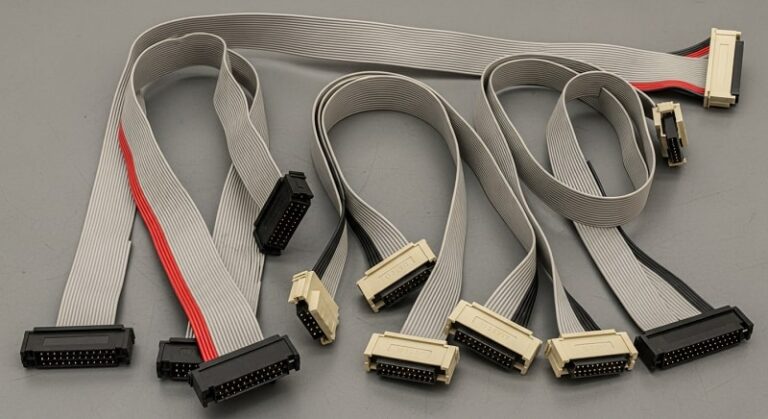
IDE (Integrated Drive Electronics) cables were once the backbone of PC storage, connecting hard drives, CD-ROMs, and other storage devices to motherboards. While modern systems have largely transitioned to SATA and NVMe, IDE cables remain relevant for . This guide covers everything you need to know about IDE cables in 2026: their types, uses, how they compare to SATA, and how to select the right cable for your needs.
What Is an IDE Cable?
An IDE cable is a ribbon cable used to connect storage devices—such as hard drives, CD-ROMs, and optical drives—to a computer’s motherboard. IDE, also known as PATA (), uses a parallel data transfer method, which means multiple bits of data are sent simultaneously over several wires. This technology was standard in PCs from the 1980s until the mid-2000s, when it was gradually replaced by SATA (Serial ATA) due to speed and airflow limitations.
Key Features of IDE Cables
- Connector Types: IDE cables typically feature 40-pin or 80-conductor connectors. The 80-conductor version reduces crosstalk and supports faster data transfer rates (up to 133 MB/s).
- Master/Slave Configuration: Each IDE cable can support two devices: a . Jumpers on the devices determine their role, allowing both to operate on the same cable without conflict.
- Cable Length: IDE cables are limited to 18 inches (457 mm), which can restrict placement within a PC case.
- Data Transfer Rates: IDE supports speeds up to 133 MB/s (), which is significantly slower than SATA’s 6 Gb/s.
Types of IDE Cables
1. Standard 40-Pin IDE Cable
The original IDE cable, featuring 40 pins and a flat ribbon design. It supports basic data transfer rates and is compatible with older motherboards and drives. However, it is prone to crosstalk, which can limit performance in high-speed applications.
2. 80-Conductor IDE Cable
Introduced to support Ultra DMA modes, the 80-conductor cable includes 40 additional ground wires to reduce interference. It uses the same 40-pin connectors but offers improved data integrity and higher transfer speeds (up to 133 MB/s). The connectors are color-coded: blue for the motherboard, black for the master device, and gray for the slave device.
3. Cable Select (CS) IDE Cables: Simplify Your Setup with Automatic Master/Slave Configuration
Cable Select cables automatically configure devices as master or slave based on their position on the cable. This eliminates the need for manual jumper settings, simplifying installation in systems with multiple drives.
4. Rounded IDE Cables
Designed to improve airflow within PC cases, bundle the ribbon wires into a cylindrical shape. This reduces clutter and can help with cable management, though they function identically to flat ribbon cables.
IDE vs. SATA: Key Differences
While IDE was the standard for decades, SATA (Serial ATA) has largely replaced it in modern systems. Here’s how they compare:
- Speed: SATA offers data transfer rates up to 6 Gb/s, while IDE maxes out at 133 MB/s. This makes SATA significantly faster for modern applications.
- Cable Design: SATA cables are thinner and more flexible, improving airflow and ease of installation. IDE cables are wide and bulky, which can obstruct airflow in tightly packed cases.
- Hot Swapping: SATA supports , allowing devices to be connected or disconnected without powering down the system. IDE does not support this feature.
- Device Configuration: IDE requires manual jumper settings for master/slave configuration, while SATA connects each device independently, eliminating this complexity.
- Cable Length: SATA cables can extend up to 1 meter (3.28 ft), offering more flexibility in device placement compared to IDE’s 18-inch limit.
When to Use an IDE Cable in 2026
Despite being outdated for most modern builds, IDE cables are still useful in specific scenarios:
- Legacy Systems: If you’re maintaining or repairing older PCs, IDE cables are essential for compatibility with vintage motherboards and drives.
- Retro Computing: Enthusiasts restoring or building retro PCs (e.g., for gaming or nostalgia) often rely on IDE for authentic hardware configurations.
- Industrial Applications: Some industrial machines and embedded systems still use IDE due to its reliability and simplicity in controlled environments.
- Data Recovery: IDE cables are necessary for connecting old hard drives to modern systems via adapters, allowing .
How to Choose the Right IDE Cable
Selecting the right IDE cable depends on your specific needs:
- Compatibility: Ensure the cable matches your motherboard and device connectors (40-pin or 80-conductor).
- Length: Measure the distance between your motherboard and drive to avoid cable strain or signal degradation.
- Speed Requirements: For Ultra DMA modes, use an 80-conductor cable to minimize crosstalk and maximize performance.
- Cable Management: If airflow is a concern, opt for rounded IDE cables to reduce clutter.
Step-by-Step Guide: Installing an IDE Cable
Tools You’ll Need
- IDE cable (40-pin or 80-conductor)
- Screwdriver (for securing drives)
- Anti-static wrist strap (recommended)
- Motherboard manual (for IDE port locations)
Step 1: Power Down and Open Your PC
Turn off your computer and unplug it from the power source. Open the case to access the motherboard and drive bays.
Step 2: Locate the IDE Port
Refer to your motherboard manual to find the IDE (PATA) port. It is typically labeled and located near the bottom edge of the board.
Step 3: Connect the IDE Cable
Align the red stripe on the IDE cable with pin 1 on the motherboard connector. Gently press the cable into place, ensuring it is fully seated.
Step 4: Connect the Drive(s)
Attach the other end of the cable to your IDE device. If using two devices, connect the master to the black connector and the slave to the gray connector. Set the according to their role (master or slave).
Step 5: Secure the Drive
Mount the drive in an available bay using screws. Ensure it is stable and properly aligned to avoid vibration or disconnection.
Step 6: Power Up and Test
Reconnect the power supply and boot your PC. Enter the BIOS to confirm the drive is recognized. If not, double-check connections and jumper settings.
Pro Tips for Working with IDE Cables
- Use Cable Select for Simplicity: If your motherboard and devices support Cable Select, use a CS cable to avoid manual jumper configuration.
- Label Your Cables: Use colored labels or markers to identify master/slave devices, especially in systems with multiple IDE cables.
- Check for Damage: Inspect IDE cables for fraying or bent pins, which can cause connection issues or data corruption.
- Upgrade to SATA When Possible: If your motherboard supports both IDE and SATA, prioritize SATA for better performance and easier cable management.
- Use Adapters for Modern Systems: can help connect legacy drives to modern PCs for data transfer or recovery.
Frequently Asked Questions (FAQ)
1. Can I use an IDE cable with a SATA drive?
No, IDE and SATA are incompatible due to different connectors and data transfer protocols. However, you can use adapters to connect IDE drives to SATA ports or vice versa.
2. Why is my IDE drive not detected?
Common issues include incorrect jumper settings, loose cable connections, or a faulty cable. Ensure the drive is properly configured as master or slave and that the cable is securely connected.
3. What is the maximum length of an IDE cable?
IDE cables are limited to 18 inches (457 mm). Exceeding this length can result in .
4. Can I use an 80-conductor cable with a 40-pin device?
Yes, 80-conductor cables are backward compatible with 40-pin devices and offer better performance due to reduced crosstalk.
5. Are IDE cables still available for purchase?
Yes, IDE cables are still sold by , though they are less common than SATA cables.
Conclusion
While IDE cables are no longer the standard for modern PCs, they remain a critical component for legacy systems, retro computing, and specific industrial applications. Understanding the types, uses, and installation processes for IDE cables ensures you can maintain or upgrade older hardware effectively. For most users, is recommended for better performance and ease of use, but IDE still holds value in niche scenarios. Whether you’re a hobbyist, IT professional, or data recovery specialist, this guide provides the knowledge to work confidently with IDE technology in 2026.