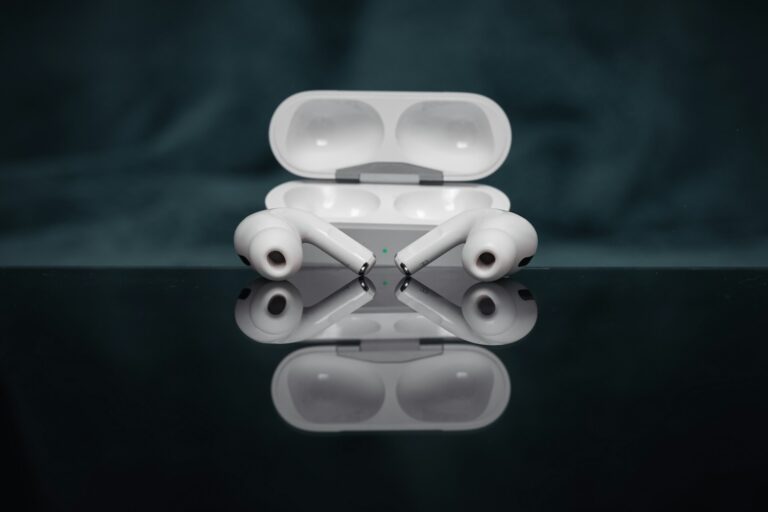
The Apple AirPods experience is designed around simplicity and minimalism. With very few physical buttons and a sleek, buttonless exterior on the earbuds themselves, most of the communication between the hardware and the user happens through a single, tiny LED indicator. This light, located either inside the charging case or on the front of it, serves as the primary diagnostic tool for millions of users worldwide. However, because this light uses a specific language of colors and patterns—amber, green, white, and sometimes no light at all—it can be confusing for users to decipher exactly what their device is trying to tell them.
Understanding these signals is crucial for maintaining battery health, troubleshooting connectivity issues, and ensuring that your firmware is up to date. Whether you are using the original AirPods, the AirPods Pro, or the high-end AirPods Max, the light patterns follow a standardized logic developed by Apple. By mastering this visual language, you can quickly determine if your headphones are fully charged, ready to pair with a new device, or experiencing a hardware malfunction that requires a factory reset. This guide provides an exhaustive breakdown of every possible light state and what it means for your user experience.
The placement of the status light depends entirely on the model of AirPods you own. For first and second-generation AirPods, the status light is located inside the lid, nestled between the two earbud slots. For AirPods Pro, third-generation AirPods, and the MagSafe-compatible cases for the second generation, the light has been moved to the front of the case. This allows users to see the charging status without having to flip the lid open. Regardless of the placement, the functionality remains identical, acting as a beacon of information for the internal battery state and the pairing status of the Bluetooth modules.
Decoding the Colors: Green, Amber, and White
The most common color you will encounter is green. When you open your AirPods case and see a solid green light while the earbuds are inside, it indicates that the AirPods are fully charged. If the earbuds are out of the case and the light is green, it signifies that the case itself has at least one full charge cycle remaining. This is the “all-clear” signal from Apple, suggesting that you are ready for hours of uninterrupted listening. Green is the goal for every user, representing a healthy battery state and a successful connection to a power source if the device is currently plugged in.
Amber (often described as orange) is the second most frequent color. An amber light typically acts as a warning or a transitional state. If you open the case and see a solid amber light while the AirPods are inside, it means they are currently charging but have not yet reached 100%. If the case is empty and the light is amber, it indicates that the case has less than one full charge remaining for the earbuds. This is your cue to find a Lightning or USB-C cable, or a Qi-certified wireless charging pad, to replenish the internal lithium-ion cells before they reach a critical low.
White is the primary indicator for Bluetooth connectivity and pairing. Unlike the solid green or amber lights, the white light is almost always pulsing or flashing. When you press and hold the setup button on the back of the AirPods case, the light will begin to pulse white. This signifies that the AirPods have entered “Pairing Mode.” In this state, they are broadcasting their Bluetooth signal to any nearby compatible devices, such as iPhones, Macs, or even Android smartphones. If the light does not turn white when the button is pressed, it usually indicates that the case is out of battery or the button is not being held long enough.
What Flashing Lights Indicate: Errors and Syncing
While solid lights represent status, flashing lights usually represent a process or a problem. A flashing amber light is perhaps the most concerning signal a user can encounter. This pattern typically indicates a “Pairing Error” or a synchronization issue between the two individual earbuds. This often happens if one earbud was replaced or if there is a software glitch preventing the left and right units from communicating with each other. If you see flashing amber, the standard solution is a factory reset, which involves holding the setup button for about 15 seconds until the light flashes amber and then switches back to white.
A flashing white light is a standard part of the setup process, but if it continues to flash without connecting to a device, it may indicate that the AirPods are stuck in a pairing loop. This can happen in environments with high electromagnetic interference or if the device you are trying to connect to has a Bluetooth cache error. Ensuring that your iPhone or iPad is running the latest version of iOS is often the quickest way to resolve a persistent flashing white light, as Apple frequently releases “silent” firmware updates for AirPods that improve connectivity stability.
If there is no light at all when you open the case, it usually means the battery is completely depleted. Lithium-ion batteries used in AirPods can enter a “deep discharge” state if left uncharged for long periods. In this scenario, plugging the case into a power source might not result in an immediate light. It may take several minutes of charging before the internal circuitry gains enough power to illuminate the LED. If no light appears after 30 minutes of charging, it may indicate a faulty cable, a clogged charging port, or a hardware failure within the case itself.
Advanced Charging Indicators and Wireless Logic
With the introduction of wireless charging and MagSafe cases, the behavior of the status light has evolved slightly to accommodate different charging methods. When you place a wireless-capable AirPods case on a Qi-certified charging mat or a MagSafe charger, the light will glow for approximately eight seconds to confirm that charging has begun. After this initial confirmation, the light will turn off to save energy, even though the device is still charging. This often leads users to believe that charging has stopped, but you can simply tap the case or open the lid to see the current status reflected by the LED.
The logic of “AirPods in vs. AirPods out” is the most critical concept to understand when diagnosing battery levels. The case’s logic board prioritizes the earbuds. If the earbuds are in the case, the LED represents the earbuds’ charge. If the earbuds are removed, the LED switches to representing the case’s charge. This allows Apple to provide two distinct sets of data through a single light source. For those using the AirPods Max, the status light is located on the bottom of the right ear cup near the charging port, following the same color schemes for battery life and pairing status.
Key Light Patterns and Their Meanings
- Solid Green (With AirPods In Case): This indicates that both earbuds are at 100% battery capacity and are ready for use. It is the ideal state for someone heading out for a long commute or workout.
- Solid Green (Without AirPods In Case): This means the charging case itself is fully charged or has enough power to provide multiple full charges to the earbuds.
- Solid Amber (With AirPods In Case): The earbuds are currently drawing power from the case to recharge; they are not yet at full capacity but are functional if you need to use them immediately.
- Solid Amber (Without AirPods In Case): The charging case is running low on battery and likely has less than one full charge cycle remaining for the earbuds; it should be plugged in soon.
- Flashing White: The AirPods are in discovery mode and are actively looking for a host device to pair with via Bluetooth.
- Flashing Amber: A system error has occurred, most likely a pairing mismatch between the left and right earbuds; a factory reset is usually required to sync them.
Troubleshooting Common Light-Related Issues
One of the most frequent complaints from users is that their AirPods light stays amber even after hours of charging. This is often caused by debris in the bottom of the charging case. Small amounts of pocket lint or dust can prevent the metallic contact points on the bottom of the AirPods stems from making a clean connection with the charging pins inside the case. When this happens, the case “thinks” the earbuds are still charging because they haven’t reached the full voltage threshold. Cleaning the interior of the case with a dry cotton swab and a small amount of isopropyl alcohol can often resolve this persistent amber light.
Another issue involves the “unbalanced charge” light. While the LED only shows one color, your iPhone can show the individual percentages of each earbud. If you notice the light staying amber for an unusually long time, it might be because one earbud is charging significantly slower than the other. This can be a sign of battery degradation in one specific unit or a software bug where the case fails to recognize that one earbud is full. Resetting the case by holding the back button usually recalibrates the power management system and ensures both buds are tracked accurately by the status light.
For users who experience a “no light” situation even when the device is plugged in, the culprit is often the power source rather than the AirPods. Apple’s charging cases are sensitive to the wattage of the power adapter. While they can be charged with high-wattage MacBook chargers, they sometimes fail to initiate charging with low-quality, third-party “knock-off” bricks. Switching to a genuine Apple USB-C to Lightning cable or a verified 20W USB-C power adapter is the first step in troubleshooting a dead LED. Additionally, check the Lightning port for compressed lint, which can physically block the cable from seating correctly.
Pro Tips for AirPods Battery Management
Maintaining the battery health of your AirPods is essential because the batteries are not user-replaceable. To ensure your status light stays green for years to come, avoid leaving the case in extreme temperatures. Heat is the enemy of lithium-ion batteries; leaving your AirPods on a hot car dashboard can cause the battery to swell or lose capacity permanently. Furthermore, Apple has introduced “Optimized Battery Charging” in newer versions of iOS, which learns your daily charging routine and waits to finish charging past 80% until you need to use them. This might result in an amber light in the morning even if they have been plugged in all night, which is actually a feature intended to prolong the lifespan of the cells.
Another expert tip involves the use of the “Find My” network. If your AirPods case is flashing amber and you cannot get it to reset, check the Find My app on your iPhone. Sometimes, a “Mismatch” notification will appear if you have accidentally swapped an earbud with a friend or family member who also owns the same model. The status light is smart enough to detect that the serial number of the left bud does not match the registered serial number of the right bud in the case’s internal memory. Ensuring that your “set” is original is the first thing to check before assuming a hardware defect.
Maintenance Checklist for Reliable Status Lights
- Clean the Interior Pins: Use a q-tip to gently clear the gold-plated pins at the bottom of the case to ensure accurate battery reporting.
- Verify Cable Integrity: Use only MFi-certified cables; cheaper cables can provide inconsistent voltage that confuses the charging logic.
- Update Firmware Regularly: Keep your AirPods near your iPhone while charging to allow automatic firmware updates that fix LED bugs.
- Monitor Individual Percentages: Use the battery widget on your iOS home screen to compare the digital data with the physical LED colors.
- Soft Reset Regularly: If the light seems “stuck” on one color, a quick 10-second hold of the setup button can refresh the system without a full wipe.
Current Market Price and Deals
The pricing for AirPods varies depending on the generation and the type of charging case included. As of the current market cycle, the entry-level AirPods (2nd Generation) typically retail for $129, though they are frequently on sale for $89 to $99 at major retailers like Amazon and Best Buy. These feature the status light inside the lid and do not support wireless charging by default.
The AirPods (3rd Generation), which introduced a design similar to the Pro model and includes the status light on the front of the case, are priced at $169 for the Lightning-only case and $179 for the MagSafe-compatible version. During holiday sales, these often drop to $149. The flagship AirPods Pro (2nd Generation) with USB-C and MagSafe currently retail for $249, with common deal prices hitting $189 to $199. These models offer the most advanced light indicators, including a speaker on the case that can chime to indicate charging or low battery.
For those looking for the over-ear experience, the AirPods Max are priced at $549. While deals can bring them down to $449, they remain a premium investment. It is important to note that when buying “deals,” users should ensure they are purchasing from authorized resellers to avoid counterfeit products, which often have erratic or incorrect LED light behaviors that do not follow the standard Apple protocols described in this guide.
Pros and Cons of the AirPods Light System
The single-LED system used by Apple has several advantages. It maintains a clean, aesthetic design that aligns with the company’s minimalist philosophy. For most users, the three-color system is intuitive once learned: green means good, amber means charging/low, and white means pairing. This simplicity removes the need for a complex screen or multiple buttons, reducing the number of points of failure on the device. Additionally, the move to place the light on the exterior of the case for newer models was a significant quality-of-life improvement, allowing users to check status without physical interaction.
However, there are notable drawbacks to this design. The most significant con is the lack of granularity. A solid green light can mean 100% battery or 50% battery (if it’s enough to charge the buds), which forces users to rely on their iPhones for precise data. Furthermore, the “flashing amber” signal is famously vague; it can mean anything from a minor sync error to a total hardware failure, leaving users guessing without the aid of an external screen or an app-based diagnostic tool. For colorblind users, distinguishing between the shades of green and amber used in the LED can also be challenging, representing a slight gap in universal accessibility.
Frequently Asked Questions
Q: Why is my AirPods light flashing amber even after a reset?
A: This often indicates that the two AirPods are not running the same firmware version or that one of them is defective. Try keeping both AirPods in the case and connected to a charger near your iPhone for 30 minutes to allow them to sync and update. If the problem persists, it may be a hardware mismatch.
Q: Can I change the color of the status light?
A: No, the colors are hardcoded into the AirPods’ internal hardware and cannot be changed or customized via software settings. The colors are standardized to represent specific system states.
Q: My light only turns on when I open the lid. Is this normal?
A: Yes, for non-wireless charging cases, the LED remains off to save power until the lid is opened. For wireless charging cases, the light will also briefly illuminate when placed on a charger and then turn off.
Q: Does a red light mean something different than amber?
A: Apple does not use a “red” light for AirPods. The amber color can sometimes look reddish in certain lighting, but it always signifies either “charging” or “battery low,” never a separate “danger” or “broken” state beyond what amber already covers.
Q: What should I do if the light is white but my phone won’t see the AirPods?
A: Toggle your iPhone’s Bluetooth off and back on. If that doesn’t work, “Forget” the device in your Bluetooth settings and restart the pairing process by holding the button on the case until the white light pulses again.
Conclusion
The status light on your AirPods case is a small but powerful tool that acts as the primary interface between you and your device’s internal health. By understanding that green represents readiness, amber signals a need for power or a charging state, and white indicates an open door for connectivity, you can manage your audio experience with much greater efficiency. While the system is not without its limitations—specifically regarding its lack of precise percentage data—it provides enough immediate feedback to solve most daily issues. Remember that most problems, signaled by a flashing amber light, can be resolved with a simple factory reset or a thorough cleaning of the charging contacts. Keeping your firmware updated and using official charging equipment will ensure that your AirPods continue to communicate clearly through their simple, colorful language for years to come.

Full-stack developer at Scylla Technologies (USA), working remotely from Bangladesh. Adobe Certified Magento Developer.