

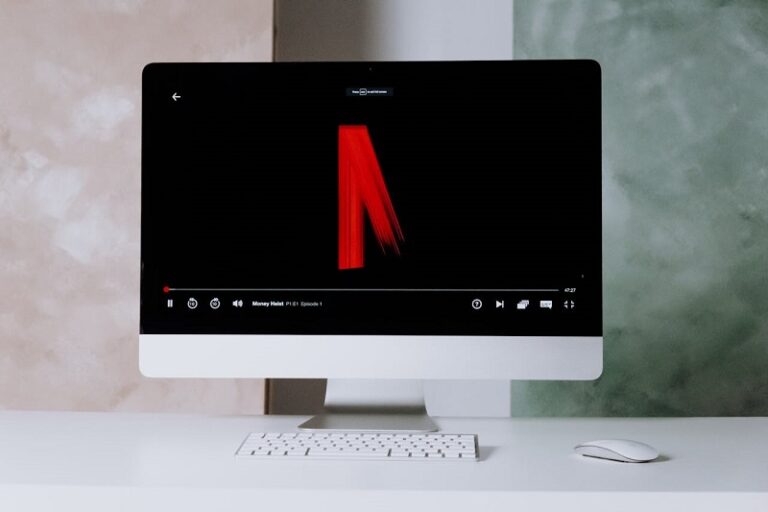
Setting up your system to enjoy streaming services across several displays can enhance your viewing experience significantly. Whether you’re working on one screen while streaming on another or extending your entertainment setup, understanding the basics is essential. This guide covers everything from initial configuration to resolving typical challenges that arise when integrating multiple displays with streaming platforms.
First, ensure your hardware supports the setup. Windows 10 handles multiple monitors well, but compatibility with graphics cards and cables plays a key role. Start by checking your computer’s ports, such as HDMI, DisplayPort, or VGA, and confirm they match your monitors’ inputs. If you’re using a laptop, docking stations can provide additional ports for expanded connectivity.
Once hardware is in place, dive into the software side. Updating your graphics drivers is crucial for smooth performance. Outdated drivers often lead to display issues, so visit your manufacturer’s website—NVIDIA, AMD, or Intel—and download the latest versions compatible with Windows 10. After installation, restart your computer to apply changes.
Now, configure your displays in Windows settings. Right-click on the desktop and select Display settings. Here, you can detect additional monitors and choose to extend or duplicate your desktop. Extending allows independent use of each screen, which is ideal for multitasking with streaming.
Preparing Your System for Multi-Monitor Streaming
Before launching any applications, optimize your system settings. Adjust the resolution for each monitor to match their native specs for the best quality. Mismatched resolutions can cause scaling problems, affecting video playback. In Display settings, select each monitor and set the appropriate resolution from the dropdown menu.
Power management settings also impact performance. Go to Power Options in Control Panel and select a high-performance plan to prevent screens from dimming or turning off during extended viewing sessions. This ensures uninterrupted streaming without manual interventions.
Security features like antivirus software might interfere, so temporarily disable them if you encounter issues, but remember to re-enable them afterward. Additionally, clear your browser cache if using web-based streaming, as accumulated data can slow down loading times.
Network stability is another factor. Ensure your internet connection is robust, with at least 5 Mbps for standard definition and higher for HD or 4K. Wired connections are preferable over Wi-Fi for minimal latency, especially in multi-monitor setups where bandwidth demands increase.
Hardware Requirements and Compatibility
To run smoothly, your computer needs a capable graphics card. Integrated graphics might suffice for basic use, but dedicated cards like those from NVIDIA or AMD handle higher resolutions better. Check your system’s specs in Device Manager under Display adapters.
Cables matter too. Use high-quality HDMI 2.0 or DisplayPort 1.4 cables for 4K support. Older cables may limit resolution or cause signal drops. If connecting to a TV as a secondary monitor, verify HDCP compliance, as it’s required for protected content.
For laptops, external hubs or docks expand options. Models like USB-C docks support multiple outputs, allowing connection to two or more monitors. Test compatibility with your specific laptop model to avoid surprises.
Step-by-Step Setup for Streaming on Multiple Monitors
Begin by installing the necessary software. Download the official app from the Microsoft Store for Windows 10, as it offers better integration than browser versions. Sign in with your account credentials to access your library.
Position your windows accordingly. Drag the app window to the desired monitor. If it doesn’t move, ensure your display mode is set to Extend rather than Duplicate in settings. This allows apps to run independently on each screen.
To achieve fullscreen on one monitor while using the other, press F11 in browser mode or use the fullscreen button in the app. If it minimizes when you click elsewhere, adjust settings in the playback options to allow background play.
For enhanced audio, connect speakers or headphones to the appropriate output. If using a TV, switch audio devices in Sound settings to route sound to the external display. This creates an immersive experience without disrupting your primary workflow.
Test playback by starting a title. Monitor for any lag or artifacts. If issues arise, pause and adjust graphics settings in your driver control panel, such as enabling hardware acceleration.
Configuring Display Modes
In Display settings, arrange your monitors to reflect their physical positions. This helps with mouse movement across screens. Click Identify to see numbers on each display, then drag icons to match your setup.
Choose Extend these displays for flexibility. Duplicating mirrors content, which might be useful for presentations but not ideal for independent streaming. Switch modes using Windows key + P for quick access.
Scale and layout options allow customization. Set scaling to 100% for accurate rendering, or adjust if text appears too small. These tweaks ensure content displays correctly without distortion.
Troubleshooting Common Issues
One frequent problem is a blank screen on the secondary display. This often stems from HDCP handshake failures. Unplug and replug cables, or restart your computer to re-establish the connection.
Static or flickering can occur due to incompatible resolutions. Match settings across monitors or lower quality temporarily. Update drivers if persistence continues, as they often include fixes for such glitches.
Fullscreen mode exiting when switching monitors is another issue. Use browser extensions or app settings to lock fullscreen. Alternatively, set the streaming window as always on top using third-party tools.
4K playback on secondary monitors requires specific setups. Ensure your graphics card supports it and that cables are rated for high bandwidth. Switch primary display if needed via settings.
Audio not syncing or missing on external displays? Check default playback device in Sound settings. Select the correct output and test volume levels.
Resolving Black Screen Problems
Black screens during playback often indicate DRM conflicts. Use the app instead of browser, as it handles protections better. Disable hardware acceleration in browser settings if using web version.
Try different ports on your computer. Sometimes, specific outputs have limitations. Switch to another HDMI or DisplayPort to see if the issue resolves.
If connected via docking station, bypass it directly to the laptop. Docks can introduce compatibility layers that interfere with protected content transmission.
Advanced Configurations for Optimal Performance
For users with three or more monitors, surround setups enhance immersion. Configure in graphics control panel for NVIDIA Surround or AMD Eyefinity. This treats multiple screens as one large display.
Integrate smart TVs as monitors via HDMI. Enable screen mirroring or use as extended display. Adjust input settings on TV to PC mode for lower latency.
Virtual desktops in Windows 10 allow organizing workspaces. Create a dedicated desktop for streaming by pressing Windows key + Tab, then add new desktop. Switch between them seamlessly.
Monitor temperatures during long sessions. Use software like HWMonitor to track GPU load. Overheating can cause throttling, affecting playback quality.
Customize keyboard shortcuts for efficiency. Windows key + arrow keys snap windows to sides or move between monitors quickly.
Enhancing Video Quality
Adjust streaming quality in account settings. Set to High or Auto based on bandwidth. For 4K, ensure subscription supports it and hardware meets requirements.
Use calibration tools for color accuracy. Windows has built-in color management; access via search. Calibrate each monitor for consistent visuals.
Enable subtitles or audio descriptions if needed. Customize appearance in app settings for better readability on larger screens.
Integrating with Other Devices
Combine with casting devices for flexibility. Use Chromecast on one monitor while app runs on another. This allows multi-room setups indirectly.
Sync with mobile devices for controls. The mobile app can act as remote, adjusting volume or pausing from afar.
Explore split-screen modes within browsers. Resize windows to view multiple streams, though subscription limits apply.
For gaming setups, ensure streaming doesn’t interfere with primary tasks. Allocate resources via Task Manager, setting priorities.
Troubleshoot network-related lags by running speed tests. Position router closer or use extenders for stronger signals.
Security and Privacy Considerations
Protect your account with strong passwords. Enable two-factor authentication in settings.
Avoid public networks for streaming to prevent data interception. Use VPN if necessary, but note it may slow speeds.
Regularly update Windows and apps for security patches. Check for updates in Settings > Update & Security.
Pro Tips
- Always start with the latest app version; updates often include multi-monitor optimizations. Check the Microsoft Store regularly for improvements that enhance compatibility and performance.
- Use display profiles to switch setups quickly. Tools like DisplayFusion allow saving configurations for work and entertainment modes, saving time on adjustments.
- Optimize bandwidth by closing unnecessary apps. Background processes can consume resources, leading to buffering; monitor via Task Manager and end tasks as needed.
- Experiment with different browsers if app issues persist. Chrome often handles multi-monitor better than Edge for some users, due to extension support.
- Calibrate audio delay if using external speakers. Some TVs have built-in settings to sync sound with video, preventing lip-sync problems.
- Backup display settings before major updates. Windows upgrades can reset configurations; note your preferences beforehand.
- Integrate with smart home for automation. Use scripts or apps to dim lights when starting playback on secondary monitor.
Frequently Asked Questions
- Why does the screen go black on my second monitor? This usually happens due to HDCP issues; try switching cables or restarting devices. Ensure all components support the required protection levels.
- Can I stream in 4K on an external display? Yes, if your hardware and subscription allow it. Set the secondary monitor as primary temporarily for testing.
- How do I keep fullscreen mode active while using the other screen? Use app settings or browser extensions designed for multi-tasking. Avoid clicking outside the window unnecessarily.
- What if audio doesn’t play on the TV monitor? Change the default sound device in Windows settings. Select the HDMI output corresponding to your display.
- Is there a way to watch on more than two monitors? Extend your desktop across all, but performance depends on GPU capabilities. Test with lower resolutions first.
- Why is there static during playback? This could be driver-related; update graphics drivers and check connections. Unplug other monitors to isolate the issue.
- Can I use a laptop with external monitors? Absolutely; use docks for additional ports. Configure in Display settings for extended mode.
- What bandwidth do I need for smooth streaming? At least 25 Mbps for 4K; test your connection and upgrade if buffering occurs frequently.
Conclusion
Mastering multi-monitor setups for streaming transforms your computing experience, allowing seamless integration of work and entertainment. By following the setup steps, troubleshooting effectively, and applying pro tips, you can overcome common hurdles and enjoy high-quality viewing. Remember to keep your system updated and hardware compatible for the best results. With these strategies, your Windows 10 environment becomes a versatile hub for all your needs.

