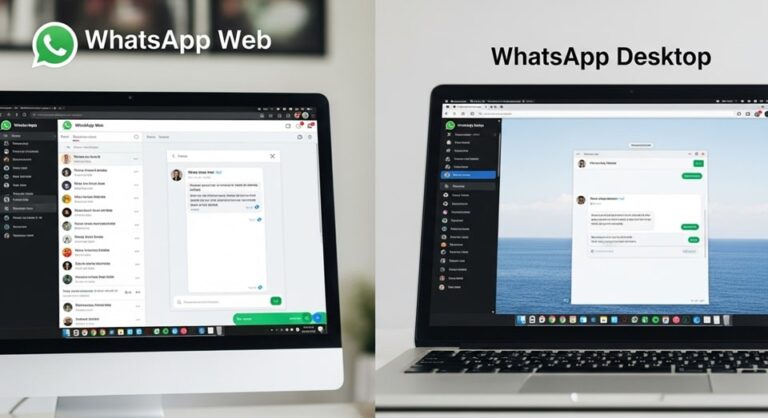
In an era where connectivity defines daily life, WhatsApp remains a cornerstone for communication, boasting billions of users worldwide. Extending its functionality beyond mobile devices, WhatsApp offers robust options for computer users through its Web and Desktop versions. These tools allow individuals to maintain conversations, share files, and manage groups without constantly switching to their phones, enhancing efficiency for both personal and professional interactions.
The evolution of these platforms has introduced features that cater to modern needs, such as multi-device support and enhanced security measures. Whether you’re a remote worker coordinating with teams or someone keeping in touch with family across continents, mastering WhatsApp on your computer can transform your messaging experience. This guide delves into every aspect, from initial setup to optimizing usage, ensuring you leverage the full potential of these applications.
With updates in 2025 focusing on user privacy and integration, WhatsApp Web and Desktop have become more intuitive and versatile. They sync seamlessly with your mobile account, providing real-time updates and a larger interface for better readability. By the end of this exploration, you’ll be equipped to navigate these tools confidently, avoiding common pitfalls and maximizing their benefits.
Understanding WhatsApp Web and Desktop
What is WhatsApp Web?
WhatsApp Web serves as a browser-based extension of the mobile app, enabling access to your account directly from a web browser on your computer. It mirrors your phone’s conversations in real time, allowing you to send messages, view status updates, and participate in group chats without needing additional software installation. This version is ideal for users who prefer not to download apps or those working on shared computers.
Launched initially as a simple mirroring tool, it has grown to support advanced functionalities like voice notes and document sharing. Compatibility extends to major browsers such as Chrome, Firefox, Edge, and Safari, ensuring broad accessibility. However, it requires an active internet connection on both the computer and the linked phone for optimal performance.
What is WhatsApp Desktop?
Unlike the web version, WhatsApp Desktop is a standalone application downloadable for Windows and macOS systems. It provides a dedicated interface that runs independently of browsers, offering a more stable experience with native notifications and quicker load times. This makes it suitable for users who spend extended periods on their computers and need uninterrupted access.
The app integrates deeply with your operating system, supporting features like drag-and-drop file sharing and keyboard shortcuts for faster navigation. Updates are handled automatically, keeping the software aligned with the latest security protocols and enhancements from WhatsApp.
Key Differences Between Web and Desktop Versions
While both versions offer core messaging capabilities, the Desktop app stands out with support for voice and video calls, which are not available on WhatsApp Web due to browser limitations. This difference is crucial for users relying on calls for communication. Additionally, the Desktop version can function even if your phone is offline after initial linking, providing greater flexibility.
WhatsApp Web, on the other hand, excels in portability since it doesn’t require installation, making it perfect for quick sessions on public or work computers. However, it may consume more browser resources and lacks some native integrations. Choosing between them depends on your workflow—opt for Desktop for heavy use and Web for occasional access.
Step-by-Step Setup for WhatsApp Web
Getting started with WhatsApp Web is straightforward and takes only a few minutes. Begin by ensuring your mobile device has the latest version of WhatsApp installed and is connected to the internet. This setup process links your phone to the computer, syncing all data securely.
Open your preferred web browser and navigate to the official WhatsApp Web site. A QR code will appear on the screen, which is the key to establishing the connection. Keep this page open while you proceed to your phone.
On your mobile WhatsApp app, access the settings menu and select the option for linked devices. This will activate your phone’s camera to scan the QR code displayed on your computer. Position your phone so the code is fully visible in the scanner frame.
- Open WhatsApp on your phone and tap the three-dot menu in the top right corner for Android, or go to Settings on iOS.
- Select Linked Devices and then tap Link a Device.
- Point your phone’s camera at the QR code on your computer screen until it scans successfully.
- Wait for the sync to complete, and your chats will appear on the web interface.
- Enable desktop notifications in your browser settings for real-time alerts.
Once linked, you can start messaging immediately. Remember to log out from the web version when using shared computers to maintain privacy. If the QR code expires, simply refresh the page to generate a new one.
Troubleshooting common setup issues involves checking your internet connection on both devices. If the scan fails, ensure no VPNs or firewalls are interfering. Restarting the browser or app often resolves temporary glitches.
Step-by-Step Setup for WhatsApp Desktop
For a more permanent solution, installing WhatsApp Desktop provides enhanced performance. Download the app from the official WhatsApp website to avoid counterfeit versions that could compromise security. The installation file is available for both Windows and macOS.
After downloading, run the installer and follow the on-screen prompts to complete the setup. The app will launch automatically, displaying a QR code similar to the web version. This code is unique to each session for added security.
Using your mobile app, navigate to linked devices as before and scan the code. The Desktop app will then pull in your conversation history, contacts, and media. You may need to grant permissions for notifications and microphone access if planning to use calls.
- Visit the official download page and select the version for your operating system.
- Install the app by double-clicking the downloaded file and agreeing to the terms.
- Open the app to view the QR code.
- Scan it with your phone’s WhatsApp linked devices feature.
- Customize settings like auto-launch on startup for convenience.
Post-setup, explore the menu options to adjust themes, notification sounds, and privacy settings. The Desktop version supports multiple windows if needed, allowing you to manage different chats simultaneously.
If installation encounters errors, verify your system’s compatibility—Windows 10 or later, macOS 10.13 or higher. Clearing cache or reinstalling can fix persistent issues.
Exploring Essential Features
Both WhatsApp Web and Desktop offer a suite of features that mirror the mobile experience while adapting to larger screens. Messaging remains the core, with support for text, emojis, and stickers. File sharing is simplified, allowing uploads up to 100MB for documents, images, and videos.
Group management is efficient, with options to create, join, or leave groups directly from the computer. Status updates can be viewed and posted, keeping you connected to your network’s daily shares. Voice notes are recordable using your computer’s microphone for hands-free communication.
Search functionality helps locate specific messages or media within chats. Pinned chats keep important conversations at the top, while muting notifications prevents distractions during focused work sessions.
- Real-Time Syncing: All changes on your phone reflect instantly on the computer, ensuring consistency. This includes read receipts and message deletions. It’s particularly useful for maintaining continuity across devices.
- Keyboard Shortcuts: Speed up tasks with combinations like Ctrl + N for new chats or Ctrl + Shift + M to mute. These shortcuts save time for frequent users. Learning them can significantly boost productivity.
- Media Gallery: Access shared photos and videos in a dedicated view. Download items directly to your computer for editing or storage. Organize media by date or sender for easy retrieval.
- Privacy Controls: Adjust who sees your last seen, profile photo, and status. Enable two-step verification for added security. These settings protect your account from unauthorized access.
- Dark Mode: Reduce eye strain with a dark theme option. It automatically adjusts based on system preferences. This feature is especially beneficial for late-night usage.
- Multi-Device Support: Link up to four additional devices without keeping your phone online. This 2025 update enhances flexibility. Manage linked devices from your phone for control.
- Voice and Video Calls (Desktop Only): Initiate high-quality calls with end-to-end encryption. Share screens during calls for collaborative work. Adjust call settings for better audio quality.
- Archived Chats: Hide less active conversations without deleting them. They remain searchable if needed. This keeps your main chat list clutter-free.
These features collectively make WhatsApp on computer a powerful tool for extended sessions. Experimenting with them will reveal how they fit into your routine.
Advanced Usage and Customization
Beyond basics, customize the interface to suit your preferences. Change chat wallpapers or notification tones to personalize your experience. Integrate with other apps for automated backups or integrations.
Handle large groups by using broadcast lists for one-way announcements. Label contacts for quick categorization, especially useful in business contexts. Export chat histories for records or transfers.
Security remains paramount—regularly review linked devices and log out from unused sessions. Use disappearing messages for sensitive information. These practices safeguard your data.
For power users, explore third-party extensions cautiously, ensuring they comply with WhatsApp’s terms to avoid account bans. Focus on built-in tools for reliability.
Pro Tips for Maximizing Efficiency
To elevate your WhatsApp experience on computer, incorporate these expert strategies. They address common challenges and unlock hidden potentials.
- Utilize Multiple Browser Profiles: For managing multiple accounts, create separate browser profiles in Chrome or Firefox. This isolates sessions without logging out frequently. It’s ideal for separating personal and work communications.
- Enable Auto-Download Controls: Prevent automatic media downloads to save bandwidth and storage. Set preferences in settings to manual only. This keeps your computer organized and responsive.
- Leverage Quick Replies: Predefine responses for frequent queries in WhatsApp Business mode. Access them via shortcuts for faster replies. This is a time-saver for customer service roles.
- Schedule Messages: While not native, use reliable extensions or scripts to schedule sends. Ensure compatibility to avoid issues. Perfect for time-zone differences in global teams.
- Optimize for Productivity: Pin up to three chats for instant access. Use search filters for dates or media types. These streamline workflow during busy periods.
- Troubleshoot Connectivity: If sync lags, restart the app or check phone battery optimization settings. Disable power-saving modes on mobile. Maintains seamless operation.
- Backup Regularly: Link to cloud services for automatic backups. Restore chats if switching devices. Protects against data loss.
- Customize Notifications: Set unique tones for priority contacts. Mute non-essential groups. Focuses attention where needed.
Implementing these tips will make your usage more efficient and tailored.
Frequently Asked Questions
Can I use WhatsApp Web without my phone being online?
After initial linking, the multi-device feature allows usage even if your phone is offline or powered down. This applies to up to four linked devices. Ensure your app is updated to the latest version for this functionality.
Is WhatsApp Desktop safe to use?
Yes, it employs end-to-end encryption for all communications, matching the mobile app’s security. Download only from official sources to avoid malware. Regularly update to benefit from security patches.
How do I make voice calls on WhatsApp Web?
Voice calls are not supported on WhatsApp Web due to browser restrictions. Switch to the Desktop app for this feature. Ensure your computer has a functional microphone and speakers.
What browsers are compatible with WhatsApp Web?
Major browsers like Google Chrome, Mozilla Firefox, Microsoft Edge, and Apple Safari are fully supported. Avoid using outdated versions to prevent compatibility issues. Enable JavaScript and cookies for smooth operation.
Can I link multiple computers to one WhatsApp account?
Yes, up to four additional devices can be linked simultaneously. Manage them from your phone’s linked devices section. Remove any unused links to maintain security.
How do I log out from WhatsApp Web or Desktop?
From the computer, click the three-dot menu and select Log Out. Alternatively, use your phone to remotely log out all sessions. This is essential on shared devices.
What should I do if the QR code doesn’t scan?
Ensure good lighting and a stable connection. Clean your phone’s camera lens if needed. Refresh the QR code on the computer and try again.
Does WhatsApp Desktop support video calls?
Yes, it allows video calls with options for screen sharing. Adjust camera settings in the app for better quality. Calls remain encrypted end-to-end.
Can I use WhatsApp on a tablet?
Tablets can access WhatsApp Web via browsers, but official support is limited. For full functionality, use a computer or the mobile app.
How do I enable dark mode?
In settings, select Theme and choose Dark. It syncs with your system’s theme if preferred. This reduces eye strain during prolonged use.
Conclusion
Mastering WhatsApp Web and Desktop empowers users to communicate more effectively across platforms, blending mobility with desktop convenience. From seamless setups to advanced features and pro tips, these tools offer versatility for diverse needs. Embracing them enhances productivity while maintaining the security and reliability WhatsApp is known for. As technology evolves, staying updated ensures you continue to benefit from new enhancements in 2025 and beyond.

Full-stack developer at Scylla Technologies (USA), working remotely from Bangladesh. Adobe Certified Magento Developer.