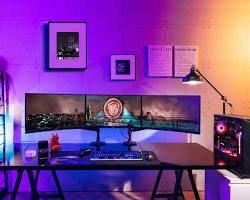
Expanding your workspace with multiple monitors can transform how you work, game, or create. In today’s fast-paced digital environment, a single screen often feels limiting, whether you’re juggling spreadsheets, editing videos, or immersing yourself in expansive virtual worlds. This guide walks you through every aspect of assembling a multi-monitor configuration, from selecting compatible hardware to fine-tuning settings for seamless performance. By the end, you’ll have a powerhouse setup that boosts efficiency and enjoyment without unnecessary complications.
The appeal of multi-monitor systems lies in their versatility. Professionals in fields like graphic design or data analysis report up to 42% higher productivity when spreading tasks across screens, allowing quick switches between references and outputs. Gamers, meanwhile, leverage wider fields of view for competitive edges in titles like flight simulators or strategy games. As we move deeper into 2025, advancements in display technology make these setups more accessible, with affordable 4K panels and adaptive sync features enhancing clarity and smoothness.
Before diving into connections, consider your goals. A dual setup suits most users for basic multitasking, while triple or quad configurations shine in specialized scenarios like stock trading or 3D modeling. Regardless of scale, the process starts with understanding your system’s capabilities to avoid bottlenecks.
Assessing Hardware Needs for a Smooth Multi-Monitor Experience
Your computer’s graphics processing unit (GPU) serves as the backbone of any multi-monitor array. Modern integrated graphics in processors like Intel’s Core Ultra series or AMD’s Ryzen 7000 can handle two displays adequately for office tasks, but dedicated GPUs from NVIDIA or AMD unlock true potential for higher resolutions and refresh rates across three or more screens.
Evaluate your current setup by checking the GPU model through Windows Device Manager. Search for “Device Manager” in the Start menu, expand “Display adapters,” and note the listed hardware. Entry-level cards like the NVIDIA GTX 1650 support up to three monitors at 1080p, while mid-range options such as the RTX 3060 manage 4K on four displays effortlessly. For laptops, verify port availability—many 2025 models include Thunderbolt 4 or USB-C with DisplayPort alt mode for versatile connectivity.
Monitor specifications matter equally. Aim for consistent resolutions, such as all 1440p panels, to prevent scaling issues. Curved ultrawides can mimic dual setups on one screen, but for true multi-monitor benefits, flat IPS panels offer wide viewing angles and accurate colors. Budget around $150-300 per additional display for quality without excess.
Key Components Checklist
Gathering essentials upfront prevents mid-setup frustrations. Here’s a detailed breakdown of must-haves:
- Graphics Card Outputs: Ensure at least as many ports as monitors. HDMI 2.1 supports 4K at 120Hz, ideal for gaming; DisplayPort 1.4 handles daisy-chaining for cable-free expansion. Older VGA or DVI ports limit to 1080p, so upgrade adapters if needed for modern resolutions.
- Cables and Adapters: Match cable types to ports—HDMI for audio-inclusive video, USB-C for power and data passthrough. Active adapters convert signals without quality loss; passive ones suffice for shorter runs under 6 feet. Test lengths to avoid signal degradation in larger desks.
- Power Supply Adequacy: Multi-monitor demands strain older PSUs; aim for 650W+ for desktops with power-hungry GPUs. Laptops draw from batteries, so external hubs with power delivery keep things charged during extended sessions.
- Monitor Stands or Arms: VESA-compatible mounts free desk space and allow height adjustments for ergonomics. Dual-arm setups tilt and swivel independently, reducing neck strain during long hours. Clamp-on models install quickly without drilling.
- Software Drivers: Latest NVIDIA GeForce Experience or AMD Adrenalin editions optimize multi-display rendering. Update via manufacturer apps to access features like bezel correction for immersive gaming spans.
- Peripherals Hub: KVM switches let one keyboard/mouse control multiple PCs across monitors. USB docks expand ports, integrating everything into a clutter-free zone.
- Cooling Solutions: Extra screens generate heat; add case fans or laptop stands with vents. Monitor GPU temps via tools like HWMonitor to stay under 80°C for longevity.
- Backup Drive: Image your system pre-setup using Windows Backup. Reverting configurations beats troubleshooting from scratch if conflicts arise.
With components aligned, your foundation is solid. This preparation phase, often overlooked, accounts for 70% of setup success rates according to user forums.
Selecting and Preparing Your Monitors
Choosing monitors involves balancing size, resolution, and panel type. A 27-inch 1440p IPS display hits the sweet spot for most, offering sharp text without taxing lower-end GPUs. For color-critical work like photo editing, prioritize Adobe RGB coverage above 95%.
Positioning affects usability profoundly. Place the primary monitor directly ahead at eye level, with secondary ones at 20-30 degree angles to minimize head turns. Vertical stacking suits coders scanning long documents, while horizontal arrays excel for video timelines.
Calibrate before full integration. Use built-in OSD menus to reset to factory defaults, then apply uniform brightness around 120 cd/m² and contrast at 1000:1. Free tools like DisplayCAL ensure color matching across screens, vital for consistent workflows.
Common Setup Configurations
Different arrangements cater to specific needs. Explore these options:
- Dual Horizontal: Side-by-side for broad overviews, perfect for traders monitoring charts. Extends the desktop linearly, doubling effective width for drag-and-drop efficiency between apps.
- Triple Surround: Curved or flat trio for gamers, spanning 180 degrees via NVIDIA Surround. Merges bezels virtually for panoramic views, enhancing situational awareness in open-world titles.
- Vertical Dual: One landscape primary with a portrait secondary for reading PDFs or emails. Saves horizontal space in compact offices, streamlining vertical scrolling tasks.
- Quad Matrix: 2×2 grid for control rooms or developers testing UIs. Requires robust GPUs but enables grid-based multitasking, like quadrants for code, docs, browser, and terminal.
- Laptop + External: Built-in screen as tertiary with two externals. Clamshell mode dedicates the laptop to processing, freeing ports for high-res peripherals.
- Ultrawide Hybrid: Single 49-inch as primary with a smaller secondary. Mimics dual without seams, ideal for budget-conscious users blending immersion and utility.
These layouts adapt to evolving 2025 trends, where hybrid work blurs home and office boundaries.
Power cycle all devices after placement. Unplug monitors, connect loosely, then tighten once positions are locked. This sequence detects hardware without surges.
Connecting Monitors: The Physical Setup Process
Physical connections form the setup’s core. Power off your PC or laptop first to safeguard components. Identify ports on your GPU or motherboard—desktops offer rear I/O panels, laptops front/side variants.
For desktops, route cables through case grommets for tidiness. Use velcro ties to bundle, preventing trips. Laptops benefit from docking stations, consolidating ports into one Thunderbolt link for hot-swappable ease.
Boot up post-connection. Windows typically auto-detects additions, but manual intervention may follow. Listen for display beeps or LED indicators confirming links.
Step-by-Step Connection Guide for Desktops
- Identify Available Ports: Locate HDMI, DisplayPort, or USB-C on the GPU. Prioritize DisplayPort for multi-monitor chaining, reducing cable count by linking screens sequentially.
- Attach First Monitor: Plug one end into GPU, the other to monitor input. Secure with thumbscrews if applicable. Repeat for subsequent displays, labeling cables for future reference.
- Power On Sequence: Activate monitors first, selecting correct inputs via remote or buttons. Then start the PC, allowing 30 seconds for handshake protocols to establish.
- Verify Detection: If screens blank, press Windows + P to cycle modes—PC screen only, duplicate, extend, or second screen only. Extend mode unlocks full potential.
- Secure and Organize: Use cable sleeves for aesthetics. Test by dragging windows across; smooth transitions confirm stable links.
This methodical approach minimizes errors, common in rushed assemblies.
Adapting for Laptops
Laptops present unique challenges with limited ports. Close the lid if using external-only mode, connecting via HDMI for simplicity or USB-C hubs for expansion. External GPUs via Thunderbolt enclosures boost capabilities for on-the-go power users.
Enable projection modes similarly, but monitor battery drain—multi-displays halve runtime. Invest in a cooling pad to offset thermal buildup from sustained output.
Configuring Software and Display Settings in Windows
Windows 11’s revamped Settings app streamlines multi-monitor management. Right-click the desktop and select “Display settings” to access the hub. Here, numbered rectangles represent screens; drag to mirror physical layout.
Set the primary display by selecting it and checking “Make this my main display.” This anchors taskbar and notifications. Align edges precisely—misalignments cause cursor jumps when crossing screens.
Resolution and scaling demand attention. Match native resolutions like 2560×1440 for crispness; scale at 125% for 4K to readable sizes without blurriness. Refresh rates unify at 60Hz minimum, or 144Hz for fluid motion in dynamic apps.
Advanced Display Options
Dive deeper for refinements. Under “Graphics settings,” assign apps to specific GPUs for power efficiency. Night light and HDR toggles enhance viewing in varied lighting.
For gaming, integrate AMD FreeSync or NVIDIA G-Sync. These sync frame rates to refresh, eliminating tears. Enable in GPU control panels post-Windows setup.
Taskbar customization extends across monitors via “Multiple displays” in Taskbar settings. Show all icons or duplicate for quick access, tailoring to workflow.
Wallpaper spanning adds flair. Use built-in slideshows or tools like DisplayFusion for dynamic backgrounds that flow seamlessly.
Optimizing for Performance and Productivity
Beyond basics, tweaks elevate usability. Virtual desktops multiply via Windows + Tab, assigning themes per monitor for context switches. Power plans adjust GPU clocks dynamically, balancing speed and energy.
Input management streamlines control. Third-party apps like Synergy share mouse/keyboard wirelessly across machines, turning multi-PC setups into unified stations.
Accessibility features like Magnifier scale sections, aiding those with visual needs in dense layouts.
Troubleshooting Common Issues
Glitches arise, but fixes are straightforward. Flickering signals cable faults—swap to isolate. Black screens prompt driver rollbacks via Device Manager.
- No Detection: Update drivers from manufacturer sites; restart explorer.exe in Task Manager. Check BIOS for multi-monitor enablement on older boards.
- Resolution Limits: Confirm GPU specs; use CRU tool for custom timings if defaults fail. Avoid overclocking ports beyond certified speeds.
- Color Mismatch: Calibrate with Windows Color Management; ICC profiles from monitor makers ensure uniformity. Test with gradient images for banding.
- Performance Lag: Close background apps; enable hardware acceleration in browsers. Monitor VRAM usage—under 80% prevents stuttering.
- Cursor Misalignment: Fine-tune offsets in display settings; pixel-perfect drags confirm alignment. Vertical setups may need rotation tweaks.
- Audio Routing: Set default playback device per monitor in Sound settings. HDMI carries sound; assign speakers accordingly.
- Sleep/Wake Problems: Disable fast startup in Power Options; update chipset drivers. Hybrid sleep preserves states across reboots.
- Overheating: Clean vents; undervolt GPU via MSI Afterburner. Temps above 85°C throttle outputs—add fans proactively.
Regular maintenance, like monthly driver checks, keeps systems humming.
Enhancing Multi-Monitor Setups for Specific Uses
Tailor configurations to pursuits. For coding, dedicate one screen to IDE, another to docs, and a third to terminals. Tools like i3 window manager (via WSL) snap precisely.
Video editors thrive on timelines spanning horizontals, previews on verticals. DaVinci Resolve leverages GPU for real-time renders across arrays.
In finance, dashboards populate quads with live feeds. Secure setups with encrypted connections, isolating sensitive data screens.
Gamers configure asymmetric spans—main for action, peripherals for chats. Ultrawide equivalents via software bending reduce bezel distractions.
Remote workers integrate webcams centered, using Picture-in-Picture for calls while main tasks proceed uninterrupted.
These adaptations highlight multi-monitor’s adaptability in 2025’s diverse demands.
Pro Tips for Optimal Multi-Monitor Use
Elevate your setup with expert strategies. Ergonomics first: Position tops at eye level, arms extended comfortably. Blue light filters mitigate strain during late nights.
Automation shines—scripts via AutoHotkey remap keys for monitor-specific hotkeys, like Win+1 switching desktops. Backup configs in .reg files for portability.
Sustainability counts: Eco modes dim unused screens, extending hardware life. Recycle old singles into secondary roles, minimizing e-waste.
Experiment iteratively. Track productivity via time logs pre- and post-setup; adjust based on gains. Community forums offer layout inspirations tailored to niches.
Invest in quality over quantity. Two premium panels outperform four budget ones in clarity and reliability.
Frequently Asked Questions
Can I mix monitor sizes and resolutions? Yes, but uniformity prevents headaches. Scale mismatched ones in settings; test for eye fatigue over sessions.
How many monitors can Windows support? Up to 10 via Eyefinity or Surround, limited by GPU ports and VRAM. Start small, scale as needs grow.
Does multi-monitor affect battery life on laptops? Significantly—expect 20-40% faster drain. Use power-saving modes and docks for plugged efficiency.
What if my old PC can’t handle it? Upgrade GPU first; integrated solutions suffice for basics. Cloud rendering offloads heavy lifts.
Are wireless multi-monitors viable? Emerging Miracast tech works for casual use, but latency hampers gaming. Wired remains king for pros.
How do I handle bezels in gaming? GPU software warps images around frames. Curved panels or bezel-less designs minimize intrusions.
Can Macs join Windows multi-setups? Via Sidecar or third-party bridges, but native Windows excels in extensibility.
What’s the ROI on extra monitors? Studies show 20-50% task speedups; calculate via hours saved versus cost.
Conclusion
Mastering a multi-monitor setup unlocks untapped potential in your computing routine, blending hardware savvy with software finesse for unparalleled versatility. From initial hardware audits to nuanced optimizations, each step builds toward a tailored ecosystem that amplifies focus and flow. As 2025 unfolds with smarter displays and hybrid workflows, embracing this expansion positions you ahead, whether conquering deadlines or epic quests. Dive in, iterate boldly, and watch your productivity soar across the expanded horizon.