
Accidentally deleted a Facebook story and want it back? You are not alone—it happens to millions of users every day. The good news is that Facebook provides technical mechanisms to restore deleted Facebook stories before they are purged from the server entirely. Whether a story was manually removed or expired naturally after its 24-hour window, the platform maintains specific data retention layers including the Recycle Bin, Stories Archive, and the “Download Your Information” tool.
The most critical technical constraint to keep in mind is the 30-day recovery window. Once a story is manually deleted, it enters a temporary storage state known as the Recycle Bin. After 30 days, the server executes a permanent deletion command, rendering the content unrecoverable through standard user interfaces. Acting quickly within this window is the difference between a successful restoration and permanent data loss. This guide details the exact technical workflows required to retrieve your media across all major Facebook interfaces.
Method 1: Check the Recycle Bin First (Best for Recently Deleted Stories)
Most users assume that clicking “Delete” on a story triggers an immediate wipe of the file from Facebook’s Content Delivery Network (CDN). In reality, Facebook utilizes a Recycle Bin logic similar to a desktop operating system. When a story is deleted, the metadata is updated to hide it from the public feed, but the media file is moved to a hidden “Trash” directory within your Activity Log. This is the highest-probability recovery method for any content removed within the last month.

Steps to Restore from Recycle Bin (Mobile App):
To access the server-side trash, follow these precise steps within the mobile interface:
- Launch the Facebook application and navigate to the Menu (three horizontal lines) in the navigation bar.
- Access your personal profile by tapping your name at the top of the menu.
- Locate the three-dot icon (•••) situated next to the “Edit Profile” button to open Profile Settings.
- Select Activity Log from the list of administrative options.
- At the top of the Activity Log dashboard, tap the Trash or Recycle Bin button.
- Scroll through the chronologically ordered list of deleted items to find your story or reel.
- Tap the specific item and select Restore to Profile to move it back to an active state.
It is important to note that the Recycle Bin is a time-limited buffer. If the 30-day retention period has lapsed, the item will be automatically cleared to optimize server storage. If the story is missing from this list, the system has likely already performed a permanent purge. Understanding advanced SEO techniques can often help in understanding how digital footprints and cache systems work in larger ecosystems like Meta.
Method 2: The Facebook Stories Archive (For Expired Stories)
A common point of confusion is the difference between a “deleted” story and an “expired” story. If a story was not manually removed but simply disappeared after 24 hours, it has not been deleted—it has been moved to the Stories Archive. This feature acts as a private cloud vault that stores every story ever posted, provided the archival setting was enabled at the time of posting.
The Stories Archive is the primary tool for professional creators and digital strategists who need to repurpose past content. Because these files are stored indefinitely on Facebook’s servers, this method allows for recovery of content that is months or even years old, which is a major advantage over the 30-day Recycle Bin limit. This is particularly vital when you know if someone blocked you and need to verify past interactions or shared media that may have been lost during account restrictions.
Steps to Access Your Stories Archive:
- Open the Facebook app and navigate to your profile page.
- Tap the three-dot menu (•••) located to the right of the primary “Add Story” or “Edit Profile” buttons.
- Choose Archive from the settings menu.
- At the top of the Archive screen, tap the Stories Archive tab to filter for story media.
- Use the calendar view or scroll to locate the specific date the story was shared.
- Once found, tap the story and select Share to put it back into circulation, or Save Photo/Video to download the raw file to local storage.
If the Archive appears empty, the feature was likely disabled in the account’s privacy settings. To prevent future data loss, navigate to Settings & Privacy → Settings → Story Settings → Save Story to Archive and ensure the toggle is active. This will not retroactively recover stories posted while the setting was off, but it secures all future uploads.
Method 3: Download Your Facebook Data (Last Resort)
When a story is not visible in the Recycle Bin or the Archive, the last official technical solution is to trigger a Bulk Data Export. This process bypasses the standard user interface and requests the raw data packets associated with your account. Even if a link is broken in the app, the underlying media file may still exist within the backup archives prepared by Facebook’s automated systems.
This method is highly effective for recovering content after a major app glitch or when the archive settings were misconfigured. Because Facebook is legally required in many jurisdictions to provide access to user data, this export tool is one of the most reliable ways to see exactly what remains on their servers.
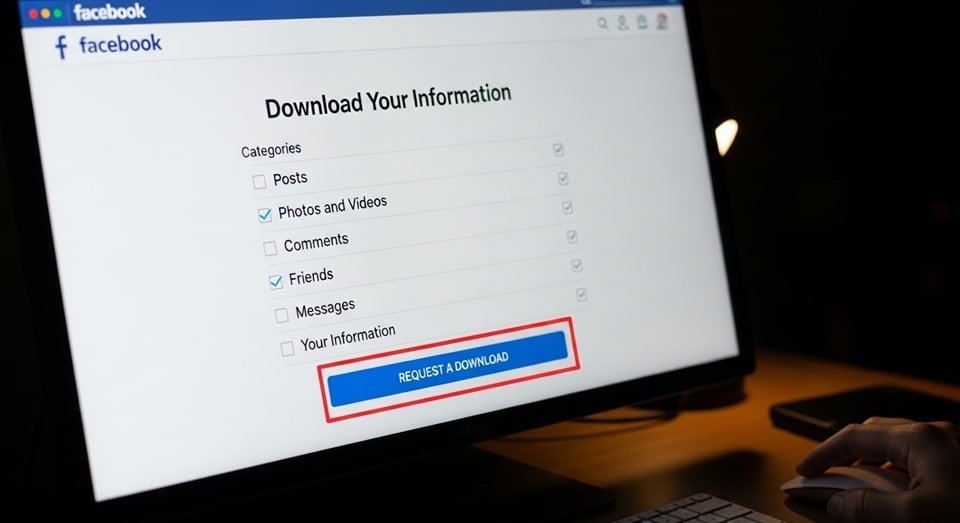
How to Download Your Facebook Data:
The data download process is asynchronous and can take anywhere from 10 minutes to several hours depending on the total volume of your account media.
- Access the Menu icon in the Facebook app and go to Settings & Privacy → Settings.
- Scroll down to the “Your Information” header and select Download Your Information.
- Select Request a Download and choose the specific account profile.
- Choose Select Types of Information to keep the file size manageable.
- Ensure the Stories checkbox is specifically checked. It is also wise to check Posts and Media.
- Set the Date Range to “All Time” or define a custom range if you know exactly when the story was active.
- Set the format to HTML for easy viewing in a web browser and set media quality to High.
- Tap Submit Request. You will receive an email and a notification once the ZIP file is ready for download.
- Download the file, extract the ZIP archive, and navigate to the stories folder to view the JPG or MP4 files.
For technical support regarding large data exports, the Facebook Data Download Help Center provides detailed documentation on file structures and extraction errors. Just as one might recover deleted text messages on Android through backup files, this export creates a tangible secondary copy of your digital social interactions.
Method 4: Check Your Phone’s Camera Roll
Local redundancy is often the fastest way to recover deleted media. If the Save Story to Camera Roll feature was enabled, Facebook would have performed a local write to your device storage at the moment the story was published. This means even if the server-side copy is deleted or the account is inaccessible, the original high-resolution file remains on the physical hardware of the phone.
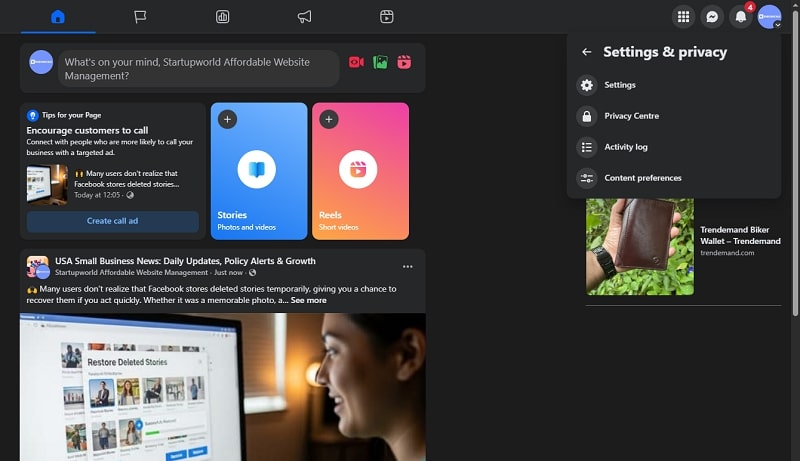
How to Check for Saved Stories on Your Phone:
The storage path for social media content varies by operating system, but typically follows a standardized directory structure.
- Open the primary Photos (iOS) or Gallery/Google Photos (Android) application.
- Navigate to the “Albums” tab and look for a folder titled Facebook or Instagram.
- Search for the specific media file. If it is not in the main album, check the Recently Deleted folder in your gallery. iOS and Android both retain deleted local media for 30 days before permanent erasure.
How to Enable Save to Camera Roll for Future Stories:
To automate this local backup for all future content, adjust your visibility settings:
- Navigate to Settings & Privacy → Settings.
- Scroll to Audience and Visibility and select Stories.
- Tap Story Archive and ensure “Save to Archive” is active.
- Select Save to Camera Roll and toggle the switch to the “On” position.
This configuration ensures that every piece of content shared creates two identical copies: one on the cloud server and one on the local NAND flash storage of your smartphone. This double-layer protection is the industry standard for content security. When mastering on-page SEO for media-heavy sites, having original high-quality assets like these is essential for maintaining page performance and user engagement.
Are Third-Party Recovery Apps Worth It?
The digital landscape is flooded with applications and web-based tools claiming to have secret backdoors to restore deleted Facebook stories. From a technical and security perspective, these tools are almost universally fraudulent. Meta’s APIs (Application Programming Interfaces) do not permit external applications to access or modify the Activity Log or server-side trash directories.
Using these apps creates a significant security risk. Most require you to grant “Full Access” permissions to your account, which allows malicious actors to scrape your personal messages, contact lists, and financial information. Stick exclusively to the official internal methods provided by Facebook. There is no magical software that can bypass Facebook’s server-side deletion logic. If it is not in the Recycle Bin, Archive, or Data Export, it is functionally non-existent.
Frequently Asked Questions
Can I retrieve deleted Facebook stories?
Yes, retrieval is possible if the action is taken within 30 days of deletion. The first step should always be the Recycle Bin located within the Activity Log. For stories that vanished after the 24-hour public window, the Stories Archive is the correct repository. Both mechanisms rely on server-side flags that preserve media before it is scheduled for permanent hardware erasure.
Can you undelete a story from Facebook?
The “undelete” process is officially handled via the Recycle Bin. When a story is removed manually, Facebook changes the status from “Visible” to “Trash” rather than deleting the file immediately. You have 720 hours (30 days) to access the Activity Log, select the item, and trigger the restore command. After this countdown, the file is overwritten on the storage nodes.
Are Facebook stories deleted forever?
Facebook stories are not deleted immediately. Manually deleted stories sit in the Recycle Bin for 30 days. Expired stories stay in the cloud Archive indefinitely as long as the feature was toggled on. However, if neither of these buffers contains the media, and the 30-day window has passed, the content is purged from the CDN and is truly gone forever.
How do I undo a deletion on Facebook?
To undo a deletion, access your profile, tap the three-dot menu, and navigate to Activity Log → Trash. Select the media or post and choose the “Restore” option. This works for stories, reels, and standard posts. It is a critical fail-safe for accounts where Facebook page investment is a core part of a brand strategy and accidental deletion could impact engagement metrics.
Tips to Never Lose a Facebook Story Again
- Enable Story Archive: This is a server-side setting. Go to Settings → Story Settings → Save Story to Archive. It ensures every story you post is indexed in your private cloud vault.
- Enable Camera Roll Backup: This creates a physical second copy on your smartphone. It is accessible even if Facebook servers are down or your account is restricted.
- Scheduled Data Exports: Use the Download Your Information tool once a quarter. This gives you a permanent offline backup of all interactions and media shared on the platform.
- Secondary Cloud Sync: Ensure your phone’s gallery is synced with Google Photos or iCloud. This provides a third layer of redundancy for stories saved locally.
- Avoid Direct Deletion: If you are unsure about a story, let it expire naturally after 24 hours. Expired stories are easier to manage in the Archive than deleted stories are in the Trash.

Quick Summary: Which Method Should You Use?
- Manual Deletion within 30 days: Use the Recycle Bin found in the Profile Activity Log.
- Natural Disappearance after 24 hours: Search the Stories Archive in your Profile Settings.
- Archive was disabled: Attempt a full Data Export via the Download Your Information tool.
- Device Backup: Check the “Facebook” folder in your local smartphone Gallery or Camera Roll.
For advanced account security and data management, the official Facebook Help Center offers specific documentation on privacy settings. Ensuring these settings are configured correctly today prevents the need for complex recovery workflows tomorrow.

Conclusion
Restoring deleted Facebook stories is a straightforward technical process provided you understand the hierarchy of Facebook’s data storage. The 30-day Recycle Bin acts as a primary buffer for errors, while the Stories Archive serves as a permanent digital scrapbook for expired content. When app-level tools fail, the system-level Data Download provides a raw look at what remains on the server. As a professional developer, I recommend prioritizing local backups and server-side archival toggles as your first line of defense. By following these verified methods, you can reclaim lost media and ensure your digital presence on smartupworld.com and beyond remains consistent and secure.