

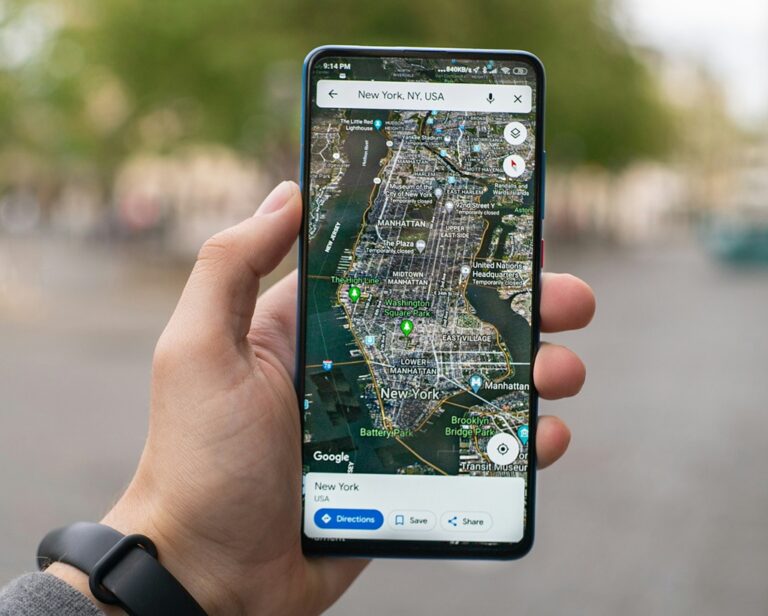
Google Maps has evolved from a simple navigation tool into a robust geographic information system capable of performing complex spatial measurements. One of its most powerful yet underutilized features is the “Measure Distance” tool. This functionality allows users to determine the exact straight-line distance between two or more points on the globe, bypassing the standard road-based routing algorithms. Whether you are a hiker planning an off-trail route, a drone pilot calculating flight ranges, or a homeowner measuring the perimeter of a property, mastering this tool provides professional-grade precision within a consumer-friendly interface.
The ability to measure distance manually is distinct from the directions feature. While directions focus on travel time and road networks, the measurement tool provides the “as the crow flies” distance. This is particularly useful in scenarios where roads do not exist or when calculating the area of a specific polygon. Google uses a sophisticated Mercator projection for its mapping, but the distance tool accounts for the Earth’s curvature, ensuring that even long-distance measurements across continents remain remarkably accurate. Understanding the mechanics of this tool is the first step toward utilizing Google Maps for more than just finding the nearest coffee shop.
To begin using this feature, it is essential to recognize that the interface varies slightly between the desktop web browser and the mobile applications for Android and iOS. While the core logic remains the same—dropping a starting point and adding subsequent nodes—the gestures and right-click menus are platform-specific. This guide will break down the process for every major device, ensuring that regardless of your hardware, you can calculate distances with millimetric precision. We will also explore advanced applications, such as area calculation and multi-point perimeter mapping.
Mastering Distance Measurement on Desktop and Web Browsers
The desktop version of Google Maps offers the most intuitive experience for measuring distances because it allows for high-precision clicking and easy manipulation of points. To initiate a measurement, open any web browser and navigate to the Google Maps website. Locate your starting point on the map. Instead of left-clicking, which usually drops a location pin, you must right-click on the exact spot where you want the measurement to begin. A context menu will appear; from this list, select the option labeled Measure distance. A small white circle with a black border will appear, marking your starting point.
Once the starting point is established, you can click anywhere else on the map to create a second point. Google Maps will instantly draw a black line between the two points and display the distance in a small box at the bottom of the screen. This box typically shows the distance in both metric (kilometers/meters) and imperial (miles/feet) units, depending on your regional settings. If you need to measure a path rather than a single straight line, you can continue clicking on the map to add more points. Each click adds a new segment to the path, and the total distance is updated in real-time in the summary box.
Editing a measurement on a desktop is remarkably flexible. If you placed a point incorrectly, you do not need to start over. You can click and drag any of the existing white circles to a new location, and the distance will recalculate instantly. Furthermore, you can click anywhere on an existing line to add a new point in the middle, allowing you to “bend” the line around obstacles or follow the curve of a coastline or trail. To remove a point, simply click on it once. When you are finished with your measurement, you can clear the entire path by right-clicking and selecting Clear measurement or by clicking the “X” in the distance summary box at the bottom.
Measuring Distance on Android and iOS Mobile Devices
The mobile experience for Google Maps is designed around touch gestures. While it lacks the right-click functionality of the desktop, the “Measure Distance” feature is equally powerful on smartphones and tablets. To start, open the Google Maps app on your Android or iPhone. Long-press on the map to drop a red pin at your starting location. Once the pin is dropped, a panel will slide up from the bottom containing details about the location. Tap on the name of the place or the address in this panel to expand the menu, then scroll down and select Measure distance.
After selecting the tool, the interface changes. The red pin is replaced by a crosshair icon and a white circle. Instead of tapping the screen to add points, you must drag the map so that the crosshair is positioned over the next point you wish to measure. Once the crosshairs are aligned with your target, tap the blue Add point button (usually a plus symbol “+”). The app will draw a line from your starting point to the crosshair location. You can repeat this process indefinitely, moving the map and tapping the plus button to create complex, multi-segmented paths across the landscape.
Mobile users should be aware of the “Undo” functionality. If you make a mistake while adding points, there is an arrow icon at the top of the screen that allows you to remove the last point added. Unlike the desktop version, you cannot easily drag points in the middle of a path on mobile; the interface is strictly sequential. If you need to clear the measurement entirely, tap the three dots in the upper-right corner and select Clear. The total distance is always visible at the bottom-left of the screen, updating as you move the crosshairs even before you officially add a point.
Technical Requirements and Precision Factors
To ensure the highest level of accuracy when measuring distances in Google Maps, several technical factors must be considered. The platform uses the WGS84 coordinate system, which is the standard for GPS worldwide. However, the visual representation is often in Web Mercator projection. While this is great for navigation, it can distort sizes at extreme latitudes. Google’s measurement tool compensates for this by calculating the “Great Circle” distance, which is the shortest distance between two points on the surface of a sphere. This ensures that a measurement from London to New York is as accurate as a measurement across your backyard.
- Zoom Level Sensitivity: The precision of your measurement is directly tied to your zoom level. For property measurements or small-scale paths, zoom in as far as possible to ensure the points are placed on the exact boundary. Measurements taken at a high altitude are prone to significant margin of error.
- Satellite vs. Map View: Satellite view is often superior for measuring distance when physical landmarks like fences, trees, or rooflines are involved. Map view is better for general city-to-city distances where road intersections are the primary nodes.
- Terrain Considerations: It is important to remember that Google Maps measures horizontal distance. It does not currently account for elevation changes in its distance tool. If you are measuring a path up a steep mountain, the “Measure Distance” tool will give you the flat distance, not the actual walking distance which would be longer due to the incline.
- Unit Conversion: Google Maps automatically detects your location to set units, but you can override this in the settings. For professional reports, it is best to toggle between kilometers and miles to verify data against other sources.
- Connectivity Issues: While the map may be cached, the distance calculation often requires a handshake with Google’s servers for high-precision coordinate data. Ensure a stable internet connection for the most responsive experience.
- Coordinate Export: On the desktop, the latitude and longitude of each point are not explicitly shown in the distance box, but you can find the coordinates of any point by right-clicking it after clearing the measurement.
Calculating Area and Perimeter for Properties
One of the “hidden” features of the distance tool on the desktop version of Google Maps is the ability to calculate the total area of a closed shape. This is an invaluable tool for real estate agents, landscapers, and farmers. To calculate area, you must create a closed loop. Start by dropping your first point, then add several more points to outline the perimeter of the space (such as a backyard or a field). To complete the measurement, click on the very first point you created. This “closes” the shape.
Once the shape is closed, the measurement box at the bottom will change. Instead of just showing the “Total Distance” (which is now the perimeter), it will also display a value for “Total Area.” The area is usually provided in square meters and square feet, or square kilometers and square miles for larger regions. This calculation is performed using a spherical geometry algorithm, making it far more accurate than trying to estimate the size of an irregular plot of land using a standard ruler or visual estimation.
This functionality is currently exclusive to the desktop web version of Google Maps. On the mobile apps, you can follow the perimeter to find the total distance (the perimeter length), but the app does not currently perform the secondary calculation to provide the internal area. For users who need to find area on the go, the best workaround is to measure the perimeter on mobile and then use a separate geometric calculator, or simply switch to a mobile browser and request the “Desktop Site” version of Google Maps to access the full toolset.
Integrating Distance Data with Other Google Tools
For power users, measuring a distance is often just the beginning of a larger project. Google Maps allows for a certain level of integration with other services like Google Earth and My Maps. While the standard Google Maps interface is for quick “one-off” measurements, “Google My Maps” allows you to save these measurements as part of a custom map layer. This is ideal for project planning, where you might need to save multiple different route options or property boundaries for later review.
Google Earth Pro (the desktop application) takes this a step further. It includes a “Ruler” tool that offers even more advanced options, such as the ability to measure the “3D Path.” Unlike the standard Google Maps tool, Google Earth’s 3D path measurement accounts for the elevation of the terrain. If you measure a path over a mountain range in Google Earth Pro, it will tell you both the horizontal distance and the actual ground distance, taking into account every hill and valley. This is a critical distinction for hikers and civil engineers.
Furthermore, developers can access these measurement capabilities via the Google Maps Platform API. Using the Geometry Library, developers can write scripts to calculate distances and areas programmatically. This is how many delivery apps and real estate websites calculate distances between warehouses and customers or determine the size of a lot for a listing. While this requires coding knowledge, it highlights the professional-grade engine that powers the simple “Measure Distance” button we see on our screens.
Pro Tips for Accurate Measurements
To get the most out of the Google Maps distance tool, consider these expert strategies that can help you avoid common pitfalls and improve your workflow:
- Use Keyboard Shortcuts: On desktop, you can use the arrow keys to nudge the map while you are in the middle of a measurement. This allows you to maintain high zoom levels while following a very long path without having to click and drag the map constantly.
- Snap to Features: While Google Maps doesn’t have a “snap” feature like CAD software, you can use the labels on the map (like building outlines or street corners) as visual anchors. Switch to the Satellite view with 3D turned off to get the flattest, most accurate overhead view for snapping to rooflines.
- Measure in Segments: For extremely complex paths, it is often better to measure in smaller segments and add them together. This reduces the risk of a single accidental click clearing your entire work, which can happen if you aren’t careful with the context menu.
- Clear the Cache: If the distance tool feels laggy or the lines aren’t appearing where you click, clear your browser’s cache. High-intensity map rendering can sometimes cause a desync between the visual cursor and the actual coordinate placement.
- Avoid the Poles: Due to the nature of the Mercator projection used for the visual map, measurements near the North and South Poles can appear visually distorted. Always trust the numerical output in the measurement box over the visual length of the line on the screen.
Frequently Asked Questions
Q: Is the Google Maps distance tool accurate enough for legal property boundaries?
A: No. While the tool is highly accurate for general planning, it should never be used as a substitute for a professional land survey. Google Maps satellite imagery can have an offset of several feet, and the tool does not account for legal easements or local topographical nuances.
Q: Can I measure the distance of a route I’ve already traveled?
A: Yes, if you have Google Maps Timeline enabled, you can view your past routes. However, the “Measure Distance” tool is for manual planning. To measure a past trip, you would need to manually trace over your timeline path using the measurement tool to get the “straight-line” or “segmented” distance.
Q: Why can’t I see the “Measure distance” option on my phone?
A: You must first drop a pin by long-pressing on the map. The option is hidden within the location details menu that appears after a pin is dropped. If you are clicking on an existing business or landmark, the option should also be available in the expanded info panel.
Q: Does measuring distance work offline?
A: If you have downloaded an “Offline Map” area, you can still drop pins and see basic map data, but the “Measure Distance” tool often requires an active connection to calculate the spherical geometry accurately. It is best to perform measurements while online.
Q: Can I share my distance measurements with someone else?
A: Not directly through the standard Google Maps interface. The measurement is temporary and disappears when you close the tab or clear it. To share a measurement, you should take a screenshot or use “Google My Maps” to create a permanent, shareable line or shape.
Q: Is there a limit to how many points I can add?
A: There is no strictly defined limit for most users, but adding hundreds of points can slow down your browser or app. For extremely long or complex paths, the tool remains stable up to several dozen points.
Conclusion
The “Measure Distance” feature in Google Maps is a versatile tool that bridges the gap between casual navigation and professional geographic analysis. By understanding the platform-specific steps for desktop, Android, and iOS, users can unlock a new dimension of utility from a tool they likely use every day. From the simplicity of measuring a straight line between two cities to the complexity of outlining irregular property perimeters for area calculations, the tool provides immediate, data-driven insights. While it lacks the 3D topographical adjustments of Google Earth or the legal authority of a professional surveyor, its accessibility and precision make it an essential feature for anyone needing to understand the spatial relationships of our world. By following the steps outlined in this guide and applying the pro tips for accuracy, you can ensure that your next project, trip, or measurement is handled with the highest degree of confidence.



