

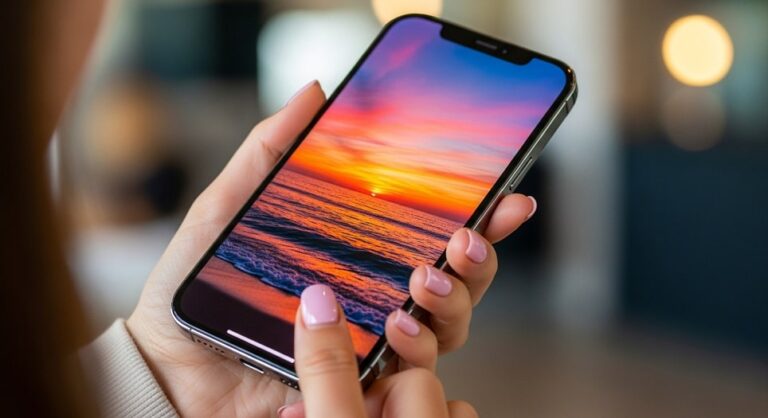
Customizing your iPhone wallpaper represents one of the most effective ways to personalize your device and express your unique style. Whether you want to showcase cherished memories, create an aesthetic home screen, or simply refresh your device’s appearance, understanding how to properly manage and customize wallpapers can transform your iPhone experience. This comprehensive guide walks you through every aspect of iPhone wallpaper customization, from basic setup to advanced techniques and troubleshooting common issues.
With the introduction of iOS 16 and subsequent updates through iOS 18, Apple has revolutionized wallpaper management by introducing unprecedented customization options. Users can now create multiple lock screens, add interactive widgets, apply dynamic effects, and even automate wallpaper changes based on time of day or Focus modes. These powerful features enable you to design a truly personalized iPhone interface that adapts to your daily needs and aesthetic preferences.
Understanding iPhone Wallpaper Basics
Before diving into customization techniques, it’s essential to understand the fundamental structure of iPhone wallpapers. Modern iPhones utilize two distinct wallpaper zones: the Lock Screen and the Home Screen. The Lock Screen serves as your device’s first impression, displaying when you wake your phone or check notifications. The Home Screen contains your app icons and widgets, representing your primary workspace throughout the day.
Apple’s iOS operating system supports various wallpaper types, each offering unique visual experiences. Static wallpapers display a single unchanging image, providing simplicity and minimal battery consumption. Dynamic wallpapers feature subtle animations that respond to device movement or time changes, adding visual interest without overwhelming the interface. Live Photos transform short video clips into interactive wallpapers that animate when you press and hold the Lock Screen, creating engaging moments every time you unlock your device.
Wallpaper Resolution and Aspect Ratios
Achieving optimal wallpaper quality requires understanding display specifications for different iPhone models. The iPhone 14 Pro and iPhone 15 Pro series utilize 2796 x 1290 pixel displays, while standard iPhone 14 and iPhone 15 models feature 2532 x 1170 pixel screens. Older models like the iPhone 13 mini support 2340 x 1080 pixels, whereas the iPhone SE maintains a 1334 x 750 pixel resolution. Matching your wallpaper dimensions to your specific iPhone model ensures crisp, properly scaled images without pixelation or unwanted cropping.
Most iPhone wallpapers maintain a 9:16 aspect ratio, perfectly filling modern iPhone displays from edge to edge. However, you can leverage the built-in photo editor to crop, zoom, and position images precisely where desired. This flexibility allows you to highlight specific portions of photos or artworks, ensuring important elements remain visible even when obscured by app icons, widgets, or the clock display.
Setting Wallpapers Through Multiple Methods
iOS provides several convenient pathways for changing wallpapers, each suited to different scenarios and user preferences. Understanding these various methods empowers you to quickly update your device’s appearance whenever inspiration strikes.
Method One: Using the Settings App
The Settings app offers the most comprehensive wallpaper management interface, providing access to all customization options in one centralized location. Navigate to your iPhone’s Settings application and scroll down to locate the Wallpaper option. Tapping Wallpaper reveals previews of your current Lock Screen and Home Screen layouts, along with the prominent Add New Wallpaper button.
When you tap Add New Wallpaper, iOS presents an extensive gallery of options organized into categories. The Featured section showcases Apple’s curated wallpaper collections, including Astronomy, Weather and Astronomy, Color, and Gradients. The Photos category grants access to your personal image library, allowing you to select cherished memories or downloaded artwork. Photo Shuffle enables automatic wallpaper rotation from selected albums, while Emoji wallpapers add playful character to your Lock Screen.
After selecting your desired wallpaper source, iOS displays a preview screen where you can fine-tune the appearance. Pinch and drag with two fingers to reposition the image, ensuring key visual elements align properly with screen elements. Swipe left or right to explore different photo styles and color filters, transforming your image with effects like Black and White, Duotone, or Color Wash. When satisfied with your customization, tap Add to proceed with applying the wallpaper.
Method Two: Customizing from the Lock Screen
iOS 16 introduced the ability to customize wallpapers directly from your Lock Screen, streamlining the customization process significantly. Simply wake your iPhone and press and hold on any blank area of the Lock Screen until the customization interface appears. Your existing wallpapers display in a scrollable gallery format, with a prominent plus icon for creating new designs.
This direct-access method proves particularly convenient when you want to make quick adjustments or create multiple Lock Screen variations. You can swipe through your wallpaper collection, tap Customize on any existing screen to modify it, or select the plus button to start fresh with a new wallpaper. The interface matches the Settings app’s functionality while providing faster access from anywhere on your device.
Method Three: Setting Wallpapers from the Photos App
When browsing your photo library and discovering an image that would make an excellent wallpaper, you don’t need to navigate through Settings menus. The Photos app includes built-in wallpaper functionality that enables instant application of any image. Open the Photos app and locate the image you want to use, then tap it to view the full-resolution version.
Tap the Share button located in the bottom-left corner of the screen, revealing a sheet of sharing and action options. Scroll through the bottom row of icons until you locate Use as Wallpaper, then tap it to enter the wallpaper preview screen. From this point, the customization process mirrors the Settings app experience, allowing you to adjust positioning, apply filters, and configure Lock Screen elements before finalizing your selection.
This method particularly suits spontaneous wallpaper changes when you capture a beautiful photo or receive an image from friends and family. The streamlined workflow eliminates unnecessary steps, letting you transform any moment into your iPhone’s new background within seconds.
Advanced Lock Screen Customization
Modern iOS versions transform the Lock Screen into a dynamic information hub beyond simple wallpaper display. Understanding these advanced customization options enables you to create functional, beautiful Lock Screens that serve your daily needs.
Customizing Clock Styles and Fonts
The Lock Screen clock represents one of the most prominent visual elements, and iOS provides extensive customization options to match your aesthetic preferences. After entering wallpaper customization mode, tap directly on the time display to reveal font and color options. iOS offers various typefaces ranging from traditional serif fonts to modern geometric styles, each conveying different visual personalities.
Select your preferred font style by tapping through the available options, watching the preview update in real-time. Beyond font selection, you can adjust the clock’s color to complement your wallpaper or create striking contrast. The color picker allows precise shade selection, or you can use the eyedropper tool to sample colors directly from your wallpaper image, ensuring perfect color harmony across your Lock Screen design.
Adding and Configuring Lock Screen Widgets
Lock Screen widgets provide at-a-glance information without unlocking your device, significantly enhancing productivity and convenience. iOS supports widget placement in designated areas above and below the clock, accommodating rectangular and circular widget layouts. Available widgets include Calendar events, Weather conditions, Battery levels, Activity rings, Reminders, Clock displays for different time zones, and third-party options from compatible applications.
To add widgets to your Lock Screen, enter customization mode and tap the widget placeholder boxes located above or below the time display. A widget selection menu appears, showcasing all compatible widgets organized by category. Tap any widget to add it to your Lock Screen, or tap existing widgets to swap them for different options. Some widgets offer additional configuration through long-press gestures, enabling you to select specific data sources or display preferences.
Widget selection should balance visual aesthetics with practical functionality. Overcrowding your Lock Screen with excessive widgets can create visual clutter and reduce the impact of your wallpaper, while thoughtfully chosen widgets enhance both appearance and utility. Consider your daily information needs when selecting widgets, prioritizing data you frequently reference throughout the day.
Implementing Depth Effect for Photos
The Depth Effect feature creates sophisticated visual layering by positioning Lock Screen elements behind the subject of your photo. This advanced effect works with portrait-mode images or photos where iOS can distinguish the foreground subject from the background. When enabled, the time display and widgets appear to tuck behind the photo’s subject, creating three-dimensional depth and visual interest.
To activate Depth Effect, select a compatible photo during wallpaper customization and tap the Depth Effect button represented by a layering icon. iOS analyzes the image and automatically applies the effect if the photo contains recognizable subjects. Not all images support Depth Effect—photos lacking clear subject-background separation may not display the option. The effect works best with portraits, pet photos, or images featuring distinct foreground elements against simpler backgrounds.
Home Screen Wallpaper Customization
While Lock Screen customization receives considerable attention, Home Screen wallpaper selection equally impacts your iPhone’s overall aesthetic. iOS 16 and later versions introduced the ability to set different wallpapers for Lock and Home Screens, enabling greater design flexibility.
Creating Wallpaper Pairs
After configuring your Lock Screen wallpaper, iOS presents options for pairing it with a Home Screen design. The Set as Wallpaper Pair option applies your Lock Screen wallpaper to the Home Screen as well, creating visual consistency across both interfaces. This approach works well when you’ve selected a wallpaper that complements your app icon layout and provides adequate contrast for visibility.
Alternatively, selecting Customize Home Screen opens dedicated Home Screen wallpaper options. You can choose a matching photo from your library, apply solid colors, create gradients, or enable a blur effect that softens your Lock Screen wallpaper for reduced visual distraction. The blur option proves particularly popular for maintaining visual connection between screens while ensuring app icons remain easily distinguishable against the background.
Tinting and Styling App Icons
iOS 18 introduced revolutionary home screen customization through icon tinting and styling options. These features enable you to apply consistent color schemes across all app icons, creating cohesive aesthetic themes that align with your wallpaper. Access these options by entering Home Screen edit mode—tap and hold any empty space, then tap Edit in the top-left corner followed by Customize.
The customization overlay presents several styling choices. Default maintains full-color app icons in their original appearance, while Dark applies darker icon variants suitable for nighttime viewing. The Auto option intelligently switches between light and dark icons based on time of day, reducing eye strain during evening hours. Tinted allows you to apply a single color tint across all icons using adjustable hue and saturation sliders, while Clear creates translucent icon backgrounds with monochrome glyphs for a distinctive glass-like appearance.
Automating Wallpaper Changes
iOS provides built-in features for automating wallpaper rotation, keeping your iPhone’s appearance fresh without manual intervention. These automation options range from simple time-based shuffling to complex Focus mode integration.
Setting Up Photo Shuffle
Photo Shuffle automatically rotates through selected images at defined intervals, showcasing different memories or artwork throughout the day. Access this feature by navigating to Settings, tapping Wallpaper, then Add New Wallpaper. Select Photo Shuffle from the top row of options to begin configuration.
The Photo Shuffle screen presents frequency options including On Tap (changes when you tap the Lock Screen), On Lock (changes each time you lock your device), Hourly, and Daily. Choose your preferred rotation schedule, then tap Select Photos to designate which images should appear in the rotation. You can choose from People album suggestions, Featured Photos, recent images, or manually select specific photos from your library. Photo Shuffle works best with similarly styled or themed images to maintain visual consistency as wallpapers change.
Linking Wallpapers to Focus Modes
Focus modes enable you to filter notifications and customize your iPhone’s interface based on different activities or times of day. Each Focus mode can associate with a specific Lock Screen wallpaper, automatically switching your device’s appearance when that Focus activates. This powerful integration creates context-appropriate environments for Work, Personal time, Sleep, or custom Focus modes you’ve created.
To link a wallpaper to a Focus mode, enter Lock Screen customization and tap the Focus button near the bottom of the screen. Select the desired Focus mode from the list—options include Do Not Disturb, Personal, Sleep, Work, and any custom Focuses you’ve configured. Once linked, activating that Focus mode automatically displays the associated wallpaper, and switching away from it returns to your default Lock Screen.
Creating Live and Dynamic Wallpapers
Live wallpapers add motion and interactivity to your Lock Screen, transforming static images into engaging visual experiences. These animated backgrounds respond to touch input, creating delightful moments whenever you interact with your device.
Converting Live Photos to Wallpapers
Live Photos capture brief video clips before and after each photo, preserving movement and sound from special moments. These can be converted into Live wallpapers that play their animation when you press and hold the Lock Screen. Navigate to Settings, select Wallpaper, then Add New Wallpaper. Choose Photos and locate a Live Photo from your library—these are indicated by a circular Live Photo badge.
After selecting a Live Photo, tap the Live Photo icon at the bottom of the preview screen to enable or disable the animation. When enabled, pressing and holding your Lock Screen plays the brief video clip, bringing the moment to life. This feature works particularly well with videos of flowing water, moving subjects, or animated scenes that benefit from brief playback.
Using Third-Party Apps for Advanced Live Wallpapers
While iOS includes basic Live Photo support, third-party applications extend live wallpaper capabilities significantly. Apps like Video Wallpaper, intoLive, and GIPHY enable conversion of longer video clips, GIFs, and animations into Live wallpapers. These applications typically offer editing tools for trimming video length, adjusting playback speed, and applying visual effects before conversion.
When using third-party apps, ensure video files don’t exceed recommended sizes to avoid excessive battery drain or performance issues. Most apps automatically optimize videos for wallpaper use, compressing files while maintaining visual quality. After creating a Live wallpaper through these apps, save it to your photo library and apply it using the standard wallpaper settings process.
Managing Multiple Lock Screens
iOS allows creation and management of multiple Lock Screen designs, enabling quick switching between different aesthetic themes or functional layouts. This capability proves valuable for users who want varied appearances for different occasions or prefer matching their device to changing moods.
Creating a Lock Screen Gallery
Build a collection of Lock Screens by repeatedly creating new wallpaper configurations through the Settings app or Lock Screen customization interface. Each saved Lock Screen maintains its unique wallpaper, widgets, clock style, and Focus association independently. Your Lock Screen gallery can accommodate dozens of designs, limited only by available storage space.
To create a new Lock Screen, press and hold your current Lock Screen until the customization interface appears, then swipe to the far right where you’ll find the Add New button with a plus icon. Select your desired wallpaper source and configure all elements including widgets, clock formatting, and photo effects. Tap Done when finished, and your new Lock Screen joins the gallery alongside existing designs.
Switching Between Lock Screens
Accessing your Lock Screen gallery enables instant switching between saved designs without recreating entire configurations. Press and hold your Lock Screen until the customization interface appears, then swipe left or right through your saved designs. Each Lock Screen displays a small preview, making identification easy even with many saved options. Tap your desired Lock Screen to immediately apply it as your active wallpaper.
This switching capability supports dynamic personalization strategies—you might maintain a professional Lock Screen for work hours, a minimal design for focused study sessions, and a photo-based screen for personal time. Linked Focus modes can automate these switches, but manual selection provides flexibility when your needs don’t align with scheduled Focus activations.
Deleting Unwanted Lock Screens
Over time, your Lock Screen gallery may accumulate designs you no longer use. Removing these outdated screens keeps your collection organized and makes finding preferred designs easier. To delete a Lock Screen, enter the gallery view by pressing and holding your current Lock Screen. Swipe to locate the screen you want to remove, then swipe upward on its preview. A trash icon appears—tap it, then confirm deletion by selecting Delete This Wallpaper.
Note that deleting a Lock Screen removes its configuration permanently, including custom widgets, clock styles, and Focus associations. If you might want to recreate a similar design later, consider taking a screenshot of the Lock Screen before deletion as a reference for future recreation.
Troubleshooting Common Wallpaper Issues
Despite iOS’s refined wallpaper system, users occasionally encounter problems ranging from minor display glitches to complete wallpaper disappearance. Understanding common issues and their solutions helps maintain your desired iPhone appearance.
Resolving Black or Disappearing Wallpapers
One frequently reported issue involves wallpapers unexpectedly turning black or disappearing entirely, particularly after iOS updates. This problem typically stems from Focus mode settings, software bugs, or wallpaper pairing complications introduced in iOS 16’s new wallpaper architecture.
Begin troubleshooting by checking your Focus mode settings. Navigate to Settings, select Focus, and review each Focus mode’s customization screens. If any Focus has a black wallpaper assigned or shows Dim Lock Screen enabled, this could cause your wallpaper to disappear when that Focus activates. Disable the Dim Lock Screen option or assign appropriate wallpapers to each Focus mode.
If Focus settings aren’t causing the issue, try resetting your wallpaper entirely. Delete your current Lock Screen through the gallery view, then create a completely new wallpaper from scratch rather than modifying an existing one. This process clears potential corruption in wallpaper configuration files that might persist through simple wallpaper changes.
When black wallpaper issues persist despite these measures, restart your iPhone to clear temporary software glitches. For iPhone 8 and later models, press and quickly release the volume up button, press and quickly release the volume down button, then press and hold the side button until the Apple logo appears. For iPhone 7, press and hold both the volume down and side buttons until you see the Apple logo. iPhone 6s and earlier models require holding both the Home and top buttons simultaneously.
Fixing Live Wallpaper Motion Problems
Live wallpapers may fail to animate properly due to several factors, most commonly Low Power Mode or Reduce Motion accessibility settings. Low Power Mode automatically disables animations and visual effects to conserve battery life, preventing Live wallpapers from playing their animations even when properly configured.
Check your battery settings by opening Settings and selecting Battery. If Low Power Mode shows as enabled, toggle it off to restore Live wallpaper functionality. Remember that Low Power Mode automatically activates when battery level drops below twenty percent, so Live wallpapers will stop animating again if you allow your battery to deplete significantly.
The Reduce Motion accessibility feature can also interfere with Live wallpaper playback. Navigate to Settings, select Accessibility, tap Motion, and ensure Reduce Motion is disabled. This setting affects system-wide animations, so enabling it prevents Live wallpapers from functioning regardless of other configuration.
If Live wallpapers still won’t animate after addressing these settings, verify that your specific photo supports the Live Photo feature. Only images captured with Live Photo enabled or converted through compatible apps function as Live wallpapers. Standard photos cannot be made interactive without first converting them through third-party Live Photo creation tools.
Addressing Wallpaper Cropping and Positioning Issues
Users sometimes struggle with wallpapers cropping unexpectedly or failing to position correctly on their screens. These issues typically arise from mismatched aspect ratios between the original image and iPhone display dimensions.
When setting a wallpaper, use pinch-to-zoom gestures to scale the image appropriately for your screen. Start by zooming out fully to see the entire image, then carefully zoom in while monitoring how the composition aligns with screen elements like the clock, widgets, and notification area. Position important visual elements where they’ll remain visible rather than hidden behind interface components.
For persistent cropping problems, consider editing your images before applying them as wallpapers. Use the Photos app’s built-in editing tools or third-party applications to crop images to your iPhone’s specific aspect ratio before wallpaper application. This pre-editing ensures your intended composition displays exactly as envisioned without unexpected automatic cropping.
Pro Tips for Wallpaper Management
Maximizing your iPhone wallpaper experience extends beyond basic setup and troubleshooting. These advanced tips help you create more sophisticated, functional, and visually impressive Lock and Home Screens.
Optimizing Images for Best Quality
Image quality significantly impacts wallpaper appearance, making proper file preparation essential for professional-looking results. Always use images that match or exceed your iPhone’s native resolution to avoid pixelation and blurriness. For iPhone 14 Pro and iPhone 15 Pro models, source images with minimum dimensions of 2796 x 1290 pixels. Standard iPhone 14 and iPhone 15 models benefit from 2532 x 1170 pixel images or larger.
Consider image compression and file formats when preparing wallpapers. JPEG files offer smaller file sizes with acceptable quality for photographic wallpapers, while PNG format preserves maximum quality and supports transparency for certain creative applications. Avoid over-compressing images, as aggressive compression introduces visual artifacts that become obvious on high-resolution iPhone displays.
For photographs, shoot in good lighting conditions and avoid heavily processed or filtered images that may not scale well to wallpaper dimensions. Simple, clean compositions with clear subjects typically work better than busy, complex images that become cluttered when app icons and widgets overlay them.
Creating Cohesive Design Themes
Developing consistent visual themes across your Lock Screen, Home Screen, and app icons creates polished, professional-looking device interfaces. Start by selecting a color palette—three to five complementary colors that work harmoniously together. Use wallpapers that incorporate these colors, then apply icon tinting or choose custom icon packs that match your palette.
Widget selection should also align with your overall theme. Many widget applications offer customizable styling options, allowing you to adjust colors, backgrounds, and typography to match your wallpaper aesthetic. This attention to detail transforms disparate interface elements into a unified design system that feels intentional and carefully crafted.
Consider creating seasonal or mood-based theme sets—spring florals, summer beach scenes, autumn landscapes, or winter minimalism. Save complete Lock Screen configurations for each theme, enabling quick seasonal updates by simply switching between saved designs rather than recreating entire setups.
Balancing Aesthetics with Functionality
While beautiful wallpapers enhance your iPhone’s visual appeal, prioritizing aesthetics over functionality can hinder daily usability. Ensure sufficient contrast exists between wallpaper colors and text elements—both the Lock Screen clock and Home Screen app labels must remain easily readable against your background.
Test wallpapers in various lighting conditions before committing to them long-term. An image that looks stunning indoors might prove difficult to read in bright sunlight, while dark wallpapers perfect for evening use may strain visibility during daytime. iOS’s automatic light and dark mode support helps address this concern, but not all wallpapers benefit equally from these automatic adjustments.
Widget placement requires similar functional consideration. Position informational widgets where you’ll naturally glance when checking your device, avoiding awkward corners or positions that require visual searching. The area directly below the Lock Screen clock provides optimal visibility for frequently referenced information like weather or calendar events.
Managing Storage and Performance
Wallpaper files, particularly high-resolution images and Live Photos, consume device storage space that accumulates significantly over time. Regularly review your saved Lock Screens and delete configurations you no longer use. Each Lock Screen stores its wallpaper image independently, meaning the same photo applied to multiple screens exists as separate files.
Live wallpapers and Photo Shuffle configurations require more system resources than static images, potentially impacting battery life on older iPhone models. If you notice increased battery drain after implementing these features, consider reducing animation frequency or limiting the number of images in Photo Shuffle rotations.
For users with extensive photo libraries, enable iCloud Photos optimization to store full-resolution images in iCloud while maintaining device-optimized versions locally. This approach frees local storage for wallpaper files while still providing access to your complete photo collection for wallpaper selection.
Frequently Asked Questions
Can I use different wallpapers for Lock Screen and Home Screen?
Yes, iOS 16 and later versions fully support independent wallpaper selection for Lock Screen and Home Screen. After configuring your Lock Screen wallpaper, select Customize Home Screen instead of Set as Wallpaper Pair when prompted. This opens Home Screen wallpaper options where you can choose a completely different photo, apply solid colors, create gradients, or blur your Lock Screen wallpaper for visual continuity with reduced distraction.
Why does my wallpaper keep changing automatically?
Automatic wallpaper changes typically result from Photo Shuffle being enabled or Focus modes with linked Lock Screens. Check your wallpaper settings to see if Photo Shuffle is active—this feature automatically rotates through selected images at intervals you’ve defined. Additionally, review your Focus mode configurations to determine if different modes trigger wallpaper switches. Disable these features if you prefer static wallpapers that remain consistent.
How do I stop my wallpaper from zooming in?
iOS applies perspective zoom to wallpapers by default, creating subtle parallax motion as you tilt your device. This effect can make wallpapers appear more zoomed than intended. To prevent this behavior, disable Perspective Zoom in Accessibility settings. Navigate to Settings, select Accessibility, tap Motion, and toggle off Perspective Zoom. This setting maintains your wallpaper at its original scale without dynamic movement effects.
Why won’t my Live Photo work as a wallpaper?
Several factors can prevent Live Photos from functioning as animated wallpapers. First, verify that Low Power Mode is disabled, as this feature deactivates animations to conserve battery. Check that Reduce Motion is turned off in Accessibility settings. Ensure the image is actually a Live Photo—look for the circular Live Photo badge when selecting images. Finally, confirm you’ve enabled the Live Photo option when setting the wallpaper by tapping the Live Photo icon during wallpaper preview.
Can I create custom widgets for my Lock Screen?
While iOS includes numerous built-in Lock Screen widgets, third-party developers can create additional custom widgets through their applications. Apps like Widgetsmith, WidgetClub, and Lock Launcher offer extensive widget customization including custom designs, data sources, and styling options. Download compatible widget applications from the App Store, configure your desired widgets within those apps, then add them to your Lock Screen through the standard widget addition process.
How much battery do Live wallpapers consume?
Live wallpapers consume more battery than static images because they store video data and process animations during playback. However, the impact remains relatively minimal on modern iPhones with efficient processors. The animation only plays when you press and hold the Lock Screen rather than continuously, limiting battery drain. Users on older iPhone models or those concerned about maximum battery longevity may prefer static wallpapers, while most users can enjoy Live wallpapers without noticeable battery impact.
Why does my wallpaper look blurry?
Blurry wallpapers typically result from using images with insufficient resolution for your iPhone’s display. Modern iPhones feature high-pixel-density screens requiring images with dimensions matching or exceeding native display resolution. Download or capture higher-resolution images—at minimum 2532 x 1170 pixels for standard iPhone 14/15 models, or 2796 x 1290 pixels for Pro models. Additionally, check whether you’ve accidentally enabled the blur effect for Home Screen wallpapers, which intentionally softens images.
Can I schedule different wallpapers for different times of day?
iOS doesn’t include native scheduled wallpaper changes beyond Photo Shuffle and Focus mode integration. However, you can create Focus modes that activate on schedules, each linked to different Lock Screens. For example, create a Work Focus scheduled for 9 AM to 5 PM with a professional wallpaper, then configure a Personal Focus for evening hours with a different design. This approach achieves time-based wallpaper scheduling through Focus automation rather than direct wallpaper scheduling.
Conclusion
Mastering iPhone wallpaper customization empowers you to create personalized, functional, and visually stunning device interfaces that reflect your unique style and support your daily workflows. From basic wallpaper application to advanced features like Live Photos, Photo Shuffle, Focus integration, and Lock Screen widgets, iOS provides comprehensive tools for transforming your iPhone’s appearance.
Success with wallpaper customization requires balancing aesthetic preferences with practical considerations including image quality, battery impact, readability, and functionality. By understanding iOS’s wallpaper architecture, leveraging multiple customization methods, troubleshooting common issues, and applying advanced optimization techniques, you can maintain a constantly fresh, purposeful iPhone interface that enhances rather than hinders your mobile experience.
Regular experimentation with different wallpapers, widgets, and configurations helps you discover preferences and develop personalized design systems that evolve with your needs and tastes. Whether you prefer minimal static designs, dynamic animated wallpapers, or rotating photo collections, iOS’s flexible wallpaper system accommodates every approach while maintaining the refined user experience Apple products are known for delivering.

Full-stack developer at Scylla Technologies (USA), working remotely from Bangladesh. Adobe Certified Magento Developer.
