

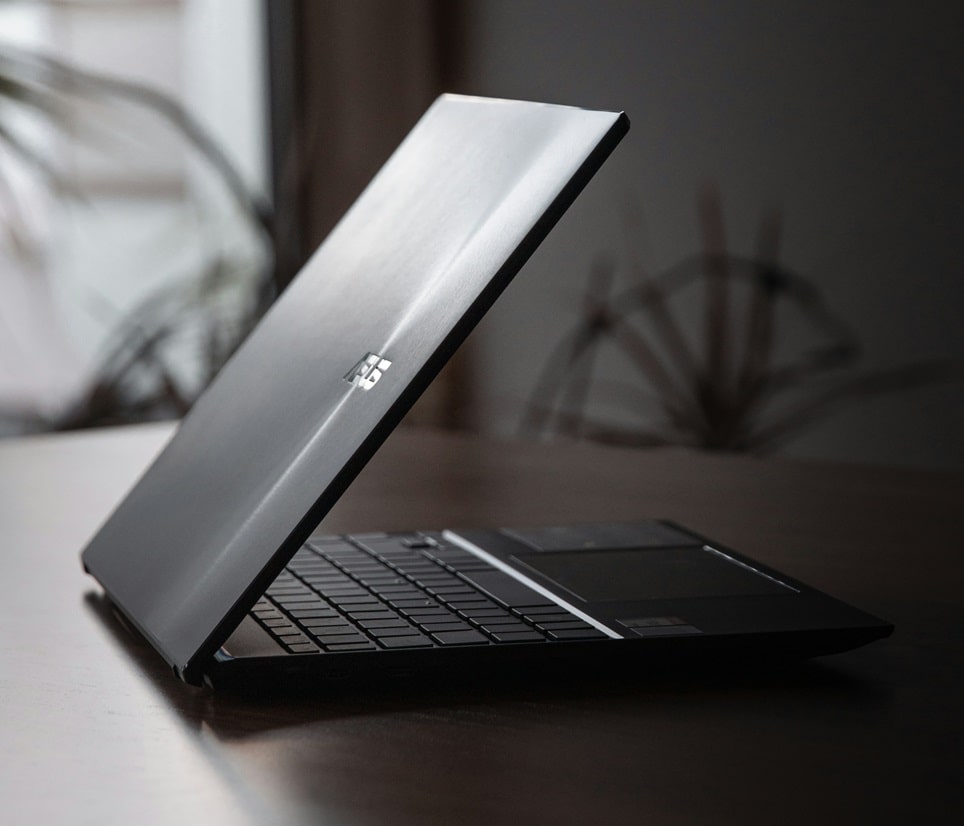
Few things are more frustrating than opening your laptop to work, study, or relax, only to discover that the keyboard has stopped responding. Since laptop keyboards are integrated into the device, unlike desktop keyboards, replacing them is not as simple as plugging in a new one. Fortunately, most laptop keyboard issues can be resolved without costly repairs if you follow a structured troubleshooting process. This guide provides a comprehensive step-by-step approach to diagnosing and fixing laptop keyboard problems across all major brands and operating systems.
Understanding Why Laptop Keyboards Fail
Laptop keyboards can stop working due to a variety of causes, ranging from simple software glitches to complex hardware failures. Identifying the root cause is the first step toward fixing the issue. Common causes include:
- Driver conflicts: Outdated or corrupted drivers can prevent the operating system from recognizing the keyboard properly.
- Operating system updates: Windows or macOS updates sometimes disable keyboard functionality temporarily.
- Hardware damage: Spilled liquids, dust buildup, or damaged ribbon cables can cause permanent failures.
- Power management settings: Incorrect settings may disable the keyboard to save energy.
- Locked function keys: Some laptops have function key toggles that disable typing unintentionally.
Step 1: Perform Basic Checks
Before diving into advanced troubleshooting, start with simple checks:
- Restart the laptop: A reboot often resolves temporary glitches.
- Check external devices: Disconnect USB keyboards, mice, or other peripherals that may interfere.
- Inspect for debris: Dust or crumbs under the keys can block input.
- Test individual keys: Use an online keyboard tester to confirm whether specific keys or the entire keyboard is failing.
Step 2: Update or Reinstall Keyboard Drivers
Driver issues are among the most common causes of keyboard malfunctions. To fix this:
- Open Device Manager in Windows.
- Locate Keyboards and right-click your laptop keyboard driver.
- Select Update driver or Uninstall device (then restart to reinstall automatically).
- For macOS, ensure the latest system update is installed, as drivers are bundled with OS updates.
Step 3: Check Keyboard Settings
Sometimes, settings can disable the keyboard unintentionally:
- Sticky Keys or Filter Keys: In Windows, accessibility features may interfere with typing. Disable them in Ease of Access settings.
- Function Key Lock: Many laptops have an Fn Lock key that toggles keyboard behavior. Ensure it is not activated.
- Language and Input Settings: Incorrect input language can cause unexpected behavior.
Step 4: Run Hardware Diagnostics
If software fixes fail, run built-in diagnostics:
- HP laptops: Use HP Hardware Diagnostics accessible via BIOS.
- Dell laptops: Run Dell SupportAssist to test keyboard functionality.
- Lenovo laptops: Use Lenovo Vantage diagnostics.
- Apple laptops: Run Apple Diagnostics by holding D during startup.
Step 5: Clean or Reseat the Keyboard
Dust, spills, or loose connections can cause hardware issues. Cleaning and reseating may help:
- Turn off the laptop and disconnect power.
- Use compressed air to blow out debris.
- If comfortable, open the laptop and reseat the ribbon cable connecting the keyboard to the motherboard.
- For liquid damage, professional cleaning may be required.
Step 6: Use an External Keyboard
If the built-in keyboard remains unresponsive, connect a USB or Bluetooth keyboard. This allows continued use of the laptop while diagnosing or awaiting repair. If the external keyboard works, the issue is likely hardware-related with the built-in keyboard.
Step 7: Consider Replacement
If none of the above steps work, the keyboard may need replacement. Laptop keyboards can often be replaced for $50–$150 depending on the brand. For premium models like MacBooks, replacement costs may be higher. Always consult the manufacturer or a certified technician for repairs.
Pro Tips
- Keep drivers updated: Regularly update system drivers to prevent conflicts.
- Avoid eating near laptops: Food particles are a common cause of stuck keys.
- Use a keyboard cover: Protects against dust and spills.
- Backup data: If the keyboard fails completely, ensure you can still access files using an external keyboard.
- Check warranty: Many laptops include keyboard coverage under manufacturer warranty.
Frequently Asked Questions
Why does my laptop keyboard stop working after updates?
Updates can sometimes reset drivers or disable certain services. Reinstalling drivers usually resolves this.
Can I fix a liquid-damaged keyboard myself?
Minor spills may be cleaned with isopropyl alcohol, but major liquid damage often requires professional repair.
Is replacing a laptop keyboard expensive?
Costs vary by brand, but most replacements range between $50 and $150. Premium models may cost more.
What if only some keys stop working?
This usually indicates debris or a damaged ribbon cable. Cleaning or reseating may fix the issue.
Conclusion
A non-working laptop keyboard can disrupt productivity, but most issues can be resolved through systematic troubleshooting. From simple restarts and driver updates to hardware diagnostics and replacements, this guide covers every step needed to restore functionality. By following these steps, users can often avoid costly repairs and extend the life of their laptops.

Loading comments…