

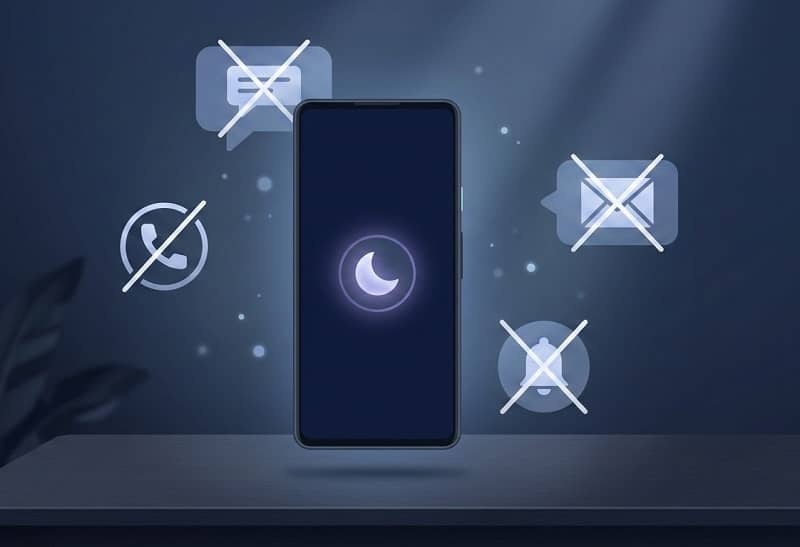
Learning how to use Do Not Disturb mode on Android is one of the most practical things you can do to reclaim control over your phone. Notifications are relentless — messages, app alerts, news pings, calendar reminders — and while each one feels minor individually, the cumulative effect on focus and sleep is well-documented.
Android’s Do Not Disturb system is more powerful than most users realize, and when configured correctly, it works invisibly in the background, silencing exactly what you want silenced while letting through exactly what you don’t.
This guide covers every aspect of Android’s DND feature: how to turn it on quickly, how to build precise rules for different parts of your day, which exceptions to configure so you never miss a genuine emergency, and how the system varies slightly across Android versions and manufacturer skins like Samsung One UI, Pixel’s stock Android, and OnePlus OxygenOS.
How to Turn On Do Not Disturb Mode on Android
The fastest way to activate Do Not Disturb is through the Quick Settings panel. Swipe down from the top of your screen once to reveal the first row of toggles, then swipe down again to expand the full panel. Look for the Do Not Disturb icon — it typically resembles a minus sign inside a circle, though Samsung devices may label it differently. Tap it once to enable DND immediately using whatever settings were last configured.
Alternatively, you can reach DND through the Settings app for more granular control. Open Settings → Sound & Vibration → Do Not Disturb on most Android devices. On Samsung phones running One UI, the path is Settings → Notifications → Do Not Disturb. Google Pixel devices running Android 12 or later use Settings → Sound & Vibration → Do Not Disturb, which then opens a dedicated panel where schedules, app exceptions, and contact exceptions are all managed from a single screen.
- Swipe down twice from the top of your screen to open the full Quick Settings panel.
- Tap the Do Not Disturb tile to enable it immediately with current settings.
- Press and hold the Do Not Disturb tile to open the full DND settings screen.
- Alternatively, go to Settings → Sound & Vibration → Do Not Disturb to access all options.
- Toggle Do Not Disturb on from the top of the settings screen if it isn’t already active.
Understanding What Do Not Disturb Actually Silences
When Do Not Disturb is active, Android suppresses visual notifications, sounds, and vibrations from apps and contacts that fall outside your defined exceptions. The screen will not light up for incoming notifications, notification sounds will not play, and the vibration motor stays silent. Calls from numbers not on your exceptions list go straight to voicemail without ringing. Alarms, however, are exempt by default — your morning alarm will still fire even with DND fully enabled, which is one of the most common points of confusion for new users.
Media audio — music, podcasts, video playback — is not affected by Do Not Disturb. The feature specifically targets interruptions rather than intentional audio. Similarly, apps you are actively using at the moment DND activates may still display in-app notifications, though system-level sounds for those apps are still muted. Understanding this distinction helps you predict exactly how your phone will behave during meetings, sleep periods, or focus sessions.
How to Set Up Do Not Disturb Schedules on Android
Manually toggling DND every night gets tedious quickly, and it’s easy to forget. Android’s schedule feature solves this by activating DND automatically at times you specify. From the Do Not Disturb settings screen, look for a section labeled Schedules or Turn on automatically, depending on your Android version.
- Open Settings → Sound & Vibration → Do Not Disturb.
- Tap Schedules or Add Schedule, depending on your device.
- Select the days of the week this schedule should apply — you can create separate schedules for weekdays versus weekends.
- Set the start time and end time for the DND window.
- Tap Save or the back arrow to confirm, and confirm the schedule is toggled on.
Google Pixel devices also offer event-based automation that integrates with Google Calendar. When enabled, DND activates automatically during any calendar event you’ve marked as Busy, then turns off when the event ends. This is particularly useful for back-to-back meeting days where manually toggling DND between appointments would be impractical. Samsung devices offer a similar feature through Bixby Routines, which can trigger DND based on time, location, Wi-Fi network, or connected Bluetooth devices.
How to Allow Exceptions in Do Not Disturb Mode
The most important configuration step in DND setup is defining exceptions — the calls, messages, and alerts that should still reach you regardless of DND status. Without exceptions, someone trying to reach you in a genuine emergency will be completely blocked, which is the scenario most people worry about when hesitating to enable DND at night.
- From the Do Not Disturb settings screen, tap People or Calls, depending on your Android version.
- Under Calls, choose from: Anyone, Contacts Only, Starred Contacts Only, or Nobody.
- Enable Repeat Callers to allow a call through if the same number calls twice within 15 minutes — this catches emergencies without opening up all calls.
- Under Messages, apply the same tiered options: Anyone, Contacts Only, Starred Contacts Only, or Nobody.
- Return to the main DND settings and tap Apps to specify which applications can send priority notifications through DND.
- Add any specific apps — alarm apps, medical alert apps, or family safety apps — that should always be permitted to interrupt.
Starred Contacts is the most practical setting for overnight use. Open your Contacts app, find the people whose calls you want to come through — immediate family members, a caregiver, a close colleague on call — and tap the star icon on their contact page. Once starred, they will be able to reach you through DND without any additional configuration. Everyone else goes to voicemail silently.
How to Configure Do Not Disturb on Samsung Galaxy Phones
Samsung’s One UI applies a slightly different structure to DND compared to stock Android, and the additional customization options are worth knowing. Navigate to Settings → Notifications → Do Not Disturb to reach the main control panel. From there, you’ll find separate toggles for calls, messages, notifications, alarms, and media sounds — Samsung gives each category independent control rather than grouping them under a single exceptions menu.
One UI also includes a Hide Notifications option that controls whether notification icons still appear in the status bar while DND is active. On stock Android, the DND icon replaces other notification indicators; on Samsung, you can choose to show or hide pending notifications visually even while their sounds are blocked. This is a small but useful distinction for users who want to silently collect notifications during focus time and review them afterward without missing that something arrived.
Bixby Routines on Samsung devices extends DND functionality significantly. You can create a routine that triggers DND when you connect to your office Wi-Fi network, when your phone detects you’re driving, when your phone battery drops below a certain level, or when you arrive home based on GPS location. These context-aware triggers replace the need for manual toggling entirely once configured. Find Bixby Routines under Settings → Advanced Features → Bixby Routines.
How to Use Do Not Disturb During Sleep on Android
Android 10 and later include a dedicated Bedtime Mode on Pixel devices, accessible through the Digital Wellbeing settings. Bedtime Mode combines Do Not Disturb activation with a grayscale screen filter that makes the phone visually less stimulating after a set time. The combination works on a behavioral level — the phone becomes both quieter and less compelling to pick up, which addresses two separate sleep disruption mechanisms simultaneously.
- Go to Settings → Digital Wellbeing & Parental Controls.
- Tap Bedtime Mode.
- Select Based on a Schedule and set your bedtime and wake-up time.
- Enable Do Not Disturb during Bedtime Mode to activate both features together.
- Optionally enable Grayscale to reduce visual stimulation further.
For non-Pixel devices, the same outcome is achievable by creating a DND schedule with matching times and setting your screen timeout to a short interval. The behavioral effect is similar even without the grayscale overlay. What matters most for sleep quality is that incoming notifications cannot produce sound or light up your screen — both of which cause measurable sleep disruption even when you don’t consciously wake to check the notification.
How to Customize Notification Exceptions by App
Beyond contact-based exceptions, Android allows you to specify which apps can bypass Do Not Disturb entirely. This is the right approach for apps where a notification genuinely demands immediate attention regardless of time — a medication reminder app, a baby monitor alert, a home security notification, or a critical work system alert. Granting an app DND bypass means its notifications behave normally even when DND is fully active.
- Open Settings → Sound & Vibration → Do Not Disturb.
- Tap Apps under the Exceptions or Allow section.
- Tap Add Apps or the plus icon to see installed applications.
- Select the app you want to grant exception status.
- Choose whether to allow calls, messages, or all notifications from that app through DND.
- Repeat for each app that requires exception access.
Be selective about app exceptions. The value of Do Not Disturb erodes quickly if you grant exceptions liberally. A useful discipline is to ask whether a notification from a given app has ever caused a genuinely time-sensitive response outside normal hours — if the honest answer is no, the app doesn’t need exception status.
Pro Tips for Using Do Not Disturb More Effectively
The Repeat Callers exception deserves a permanent place in almost every DND configuration. When enabled, any phone number that calls twice within a fifteen-minute window is automatically allowed through, regardless of whether the number is saved in your contacts. This single setting resolves the most common anxiety about enabling DND at night — the fear that a family member in an accident or emergency won’t be able to reach you — without requiring you to whitelist every possible person who might ever need to call.
Creating multiple DND schedules for different contexts is more useful than most Android documentation suggests. A work-hours DND profile that silences social media and shopping apps while allowing work email and calendar alerts handles a completely different use case than a sleep-hours profile that silences everything except starred contacts and alarm apps. Both can coexist as separate saved schedules, activating and deactivating automatically without any manual management.
If you use Android’s Focus Mode — available under Digital Wellbeing on Android 9 and later — understand that it works differently from DND. Focus Mode pauses specific apps entirely, preventing them from delivering notifications or running in the background, while Do Not Disturb silences notifications without stopping apps from functioning. The two features complement each other: Focus Mode during work sessions stops distracting apps at the source, while DND ensures that even apps not paused by Focus Mode can’t interrupt you with sounds.
Check your alarm app’s DND override setting independently. Most Android alarm applications have a separate permission called Override Do Not Disturb that must be granted explicitly in addition to general notification permissions. If you’ve ever slept through an alarm after enabling DND, a missing override permission is the most likely cause. Find this under Settings → Apps → [Your Alarm App] → Notifications → Override Do Not Disturb.
Use DND strategically during commutes by connecting it to your car’s Bluetooth. On Samsung devices, a Bixby Routine can trigger DND the moment your phone pairs with your car’s audio system, and disable it when the connection drops. This creates hands-free, eyes-free notification management during driving without any ongoing manual input.
Frequently Asked Questions About Do Not Disturb on Android
Will my alarm still go off if Do Not Disturb is on?
Yes, in most cases. Android’s default DND configuration exempts alarms from suppression, so your scheduled alarm will sound normally even with DND fully active. The one exception is if your alarm app has not been granted Override Do Not Disturb permission, or if you have manually configured DND to silence alarms. Check your alarm app’s notification settings to confirm the override permission is enabled, particularly if you’ve recently updated the app or reset app permissions.
Can someone still reach me in an emergency when DND is on?
Yes, if you configure the right exceptions. The most reliable setup is enabling Starred Contacts under the Calls exception, then starring the contacts — family members, close friends, medical contacts — whose calls should always reach you. Additionally, enabling Repeat Callers allows any number that calls twice within fifteen minutes to break through DND, which catches emergency situations from numbers you may not have starred. Together, these two settings make DND safe for overnight use without leaving you genuinely unreachable.
Does Do Not Disturb block text messages on Android?
DND suppresses notification sounds and screen wake events for text messages, but the messages themselves still arrive and are stored normally. You will see them when you unlock your phone and check your messages app. If you want specific contacts’ messages to produce sounds even during DND, add them to your Messages exceptions under the People section of the DND settings. The process mirrors the Calls exception setup and supports the same tiered contact filtering.
How is Do Not Disturb different from Silent Mode on Android?
Silent Mode on Android simply mutes the device’s ringer and notification sounds without any exceptions or scheduling logic — everything is silenced equally, including alarms on some devices. Do Not Disturb is a more intelligent system that allows granular exception rules, scheduled activation, and context-aware triggers. For most practical purposes, DND with appropriate exceptions configured is strictly more useful than Silent Mode, because it silences what you want silenced while still allowing genuine emergencies through.
Why are some notifications still coming through when DND is on?
Several explanations are common. First, the app generating notifications may have been granted an exception, either intentionally or by default. Second, the notification may be classified as a high-priority or alarm-type notification at the system level, which can bypass DND automatically. Third, on some Android versions, notifications from apps you are actively using at the time DND activates may still display. Check your DND exceptions list in Settings and review which apps have been granted bypass access — removing unnecessary exceptions usually resolves unexpected interruptions.
Can I use Do Not Disturb during specific events automatically?
Yes. On Google Pixel devices with Android 12 or later, DND can sync with Google Calendar to activate automatically during any event marked as Busy in your calendar, then deactivate when the event ends. On Samsung devices, Bixby Routines provides even broader automation, triggering DND based on location, connected Wi-Fi networks, Bluetooth devices, time of day, or phone activity patterns. Third-party automation apps like Tasker offer similar functionality across all Android devices for users comfortable with more advanced configuration.
Does Do Not Disturb affect calls made through WhatsApp or other messaging apps?
By default, DND silences notification sounds from all apps including WhatsApp, Signal, Telegram, and similar platforms. If you want calls through these apps to bypass DND, you need to add them individually under the Apps exceptions section in DND settings. WhatsApp specifically has its own notification categories, so you can grant exception access for WhatsApp calls without allowing WhatsApp message notifications to also bypass DND — a useful distinction that keeps the exceptions targeted rather than blanket.
Conclusion
Do Not Disturb is one of Android’s most genuinely useful features, and the gap between its default configuration and its full potential is wide. Turning it on with a quick settings tap is easy; configuring it so that it works intelligently across sleep, work, and focus periods — letting through what matters while blocking what doesn’t — requires the setup steps covered in this guide. The investment of twenty minutes spent building proper schedules, starring key contacts, and auditing app exceptions pays off every single day in fewer interruptions and better sleep.
The most important takeaway is that DND doesn’t have to be an all-or-nothing choice. Android’s exception architecture makes it possible to be fully unreachable to most notifications while remaining accessible to the people and alerts that genuinely matter. Once that balance is calibrated correctly for your life, enabling DND stops feeling like a risk and starts feeling like the obvious default.
