

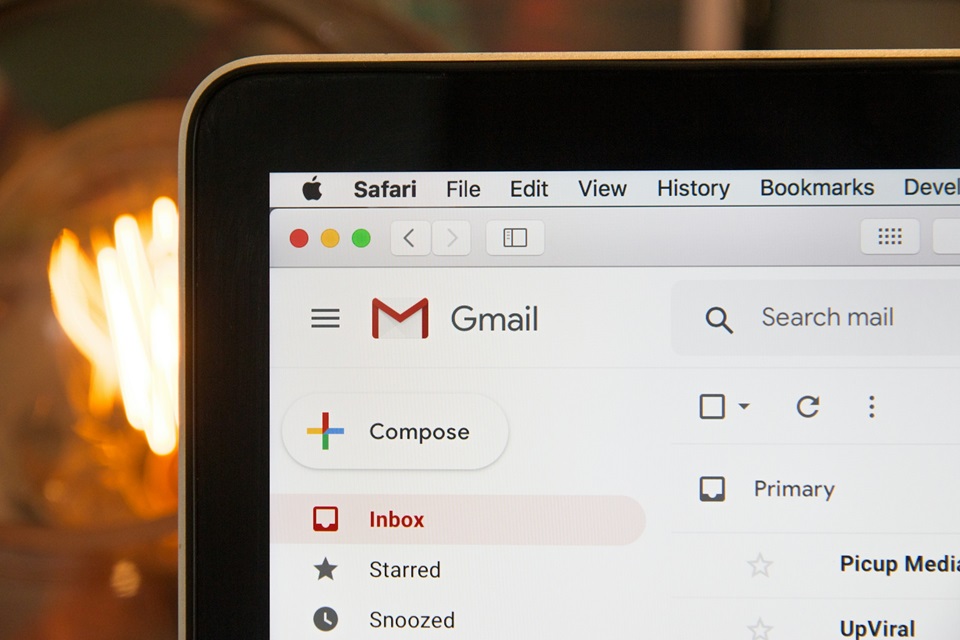
Gmail’s archive feature is a powerful tool for decluttering your inbox without permanently deleting messages. When you archive an email, it removes the Inbox label but keeps the message fully accessible elsewhere in your account. Many users accidentally archive important emails or simply forget where they go, leading to confusion about retrieval. This guide explains exactly how to locate archived emails and bring them back to your inbox on any device.
Understanding how archiving works in Gmail is essential before diving into the steps. Unlike traditional email clients with dedicated archive folders, Gmail uses labels to organize messages. Archiving simply hides emails from the Inbox view while storing them under the All Mail label. This approach keeps your inbox clean while ensuring nothing is lost.
Archived emails remain searchable and can appear in other label views if applicable. They count toward your storage quota just like any other message. Knowing this foundation helps avoid common misconceptions about lost emails.
Understanding Gmail’s Archive Feature
The archive button in Gmail is designed for quick inbox management. Clicking it on a conversation removes it from your primary view without moving it to trash. This differs from deleting, which sends messages to the Trash folder for 30 days before permanent removal.
One key point is that Gmail has no separate “Archive” folder. All archived messages live in the All Mail section, which contains every email in your account except those in Trash or Spam. This includes inbox items, sent messages, drafts, and archived ones.
Archiving preserves all labels except Inbox. If an email has custom labels like “Work” or “Family,” it remains visible under those labels even after archiving. This makes organization flexible and efficient.
Benefits of Using Archive in Gmail
- Declutters your inbox quickly: Archiving processes conversations in seconds without deciding on deletion, ideal for handling high email volumes while focusing on urgent items.
- Keeps emails searchable: Powerful search tools make finding archived messages easy using sender names, subjects, dates, or keywords, even years later.
- Saves storage efficiently: Archived emails use the same space as others but stay out of sight, helping manage your 15 GB free storage across Google services.
- Reduces deletion regret: Unlike permanent deletes, archiving allows easy reversal if you need the message back in your inbox later.
- Supports zero-inbox strategies: Many productivity experts archive everything after processing, relying on search and labels for retrieval.
- Works across devices: Archiving syncs instantly between web, mobile apps, and connected clients for consistent experience.
- Prevents spam buildup: Combined with filters, archiving automatically routes non-urgent emails like newsletters out of the inbox.
- Enhances focus: A clean inbox minimizes distractions and supports better email habits over time.
Finding Archived Emails on the Gmail Web Version
Accessing archived emails on a computer is straightforward through the desktop site. Start by logging into your Gmail account in any web browser like Chrome, Firefox, or Safari.
On the left sidebar, scroll down if needed and click “More” to expand additional labels. Look for “All Mail” and click it. This view displays every message in your account, including archived ones.
Archived emails in All Mail lack the Inbox label. They appear alongside other messages but won’t show in your main Inbox view. Use the search bar at the top for faster location.
To identify archived emails quickly, type a keyword, sender, or subject into the search bar. Results include matches from All Mail. For only archived items, use advanced operators like “-in:inbox” to exclude current inbox messages.
Unarchiving Emails on the Gmail Web Version
Once you locate an archived email, bringing it back to your inbox takes just a few clicks. Open the message or select it in the list view.
At the top toolbar, click the “Move to Inbox” button (folder icon with an arrow). This adds the Inbox label back, making it appear in your primary inbox immediately.
For multiple emails, check the boxes next to each conversation in All Mail or search results. Then click “Move to Inbox” to unarchive them all at once.
Alternatively, right-click a selected message and choose “Move to Inbox” from the context menu. Keyboard users can select messages and press “V” then choose Inbox.
Step-by-Step Unarchiving Process on Desktop
- Go to gmail.com and sign in.
- Click “All Mail” in the left sidebar.
- Search or scroll to find the email.
- Select the checkbox next to the message.
- Click the “Move to Inbox” icon at the top.
- Confirm the email now appears in your Inbox.
This process works identically across browsers and requires no additional settings.
Finding and Unarchiving Emails in the Gmail Mobile App
The Gmail app on Android and iOS handles archiving similarly to the web version. Steps are nearly identical on both platforms.
Open the Gmail app on your phone or tablet. Tap the three-line menu icon in the top-left corner to open the sidebar.
Scroll down and tap “All Mail.” This shows all messages, including archived ones.
To find a specific email, use the search icon at the top. Type keywords, and results pull from All Mail automatically.
To unarchive, tap the message to open it. Tap the three-dot menu at the top-right, then select “Move to Inbox.”
For multiple selections, long-press one message to enter selection mode. Tap others to select, then tap the three-dot menu and choose “Move to Inbox.”
On iPhone or iPad, the interface is the same. Swipe actions can also be customized in settings for quicker archiving or unarchiving.
Differences Between Android and iOS Gmail Apps
While core functionality remains consistent, minor interface variations exist. Android often shows more labels by default, while iOS may require extra scrolling.
Both support dark mode, notifications, and offline access. Updates from Google keep features aligned across platforms.
Bulk Actions for Managing Archived Emails
Handling many archived emails at once saves significant time. In All Mail on web or mobile, select multiple conversations using checkboxes or long-press.
After selection, use “Move to Inbox” to unarchive everything chosen. Alternatively, add custom labels or mark as read in bulk.
For advanced bulk operations, use search filters. For example, search “before:2024/01/01” in All Mail to find older archived messages, then select all and unarchive.
Be cautious with “Select all” as it applies to all search results, even across pages. Gmail warns before bulk actions affecting thousands of messages.
Advanced Search Techniques for Archived Emails
Gmail’s search is one of its most powerful features. Use operators to narrow results precisely.
- from:sender: Finds emails from a specific person, useful for locating archived threads from colleagues or services.
- subject:keyword: Searches subject lines exactly, great for newsletters or invoices.
- has:attachment: Locates archived emails with files, preventing loss of important documents.
- older_than:1y: Targets old archived messages for cleanup or retrieval.
- -in:inbox: Excludes current inbox items to focus on purely archived content.
- label:customlabel: Shows archived emails under specific labels you created.
- is:important: Finds archived messages Gmail marked as priority.
Combine operators for precision, like “from:boss -in:inbox has:attachment” to find critical archived work files.
Pro Tips
- Customize swipe actions: In mobile settings, set swipe left or right to archive or move to inbox directly for faster management.
- Create custom labels: Apply labels before archiving to make future retrieval easier than relying solely on search.
- Use keyboard shortcuts: On web, enable shortcuts in settings and use “e” to archive or “v” to move for power users.
- Set up filters: Automatically archive certain emails like promotions while keeping important ones in inbox.
- Regularly review All Mail: Periodically search for old archived items to prevent storage buildup.
- Enable conversation view: Keep related emails threaded for better context when unarchiving old chains.
- Use multiple accounts: Switch between work and personal without losing archived access in the app.
- Backup important emails: Download critical archived messages using Google Takeout for offline storage.
Frequently Asked Questions
Is there an Archive folder in Gmail?
No, Gmail does not have a dedicated Archive folder. Archived messages are stored in All Mail with the Inbox label removed.
Do archived emails get deleted automatically?
No, archived emails remain in your account indefinitely unless manually deleted. They never expire.
Can I unarchive emails on my phone?
Yes, the process is simple in the Gmail app on both Android and iOS using the Move to Inbox option.
Why can’t I find an archived email?
It might be in Spam, Trash, or under a different label. Use broad search terms or check filters.
Does archiving free up storage space?
No, archiving only removes the Inbox label and does not affect storage usage.
How do I archive emails intentionally?
Select the message and click or tap the Archive button, or use swipe actions in the mobile app.
Can I search only archived emails?
Yes, go to All Mail or use search operators like “-in:inbox” to exclude inbox items.
What happens if I delete an archived email?
It moves to Trash for 30 days, then permanently deletes unless recovered.
Conclusion
Mastering Gmail’s archive feature transforms email management from overwhelming to efficient. By understanding that archived messages live in All Mail and learning simple retrieval methods across devices, you regain control over your inbox. Whether using the web version for bulk actions or the mobile app for on-the-go access, these steps ensure no important message stays hidden. Combine search operators, custom labels, and pro tips for an optimized workflow. With practice, finding and unarchiving emails becomes second nature, supporting a cleaner, more productive Gmail experience.
