

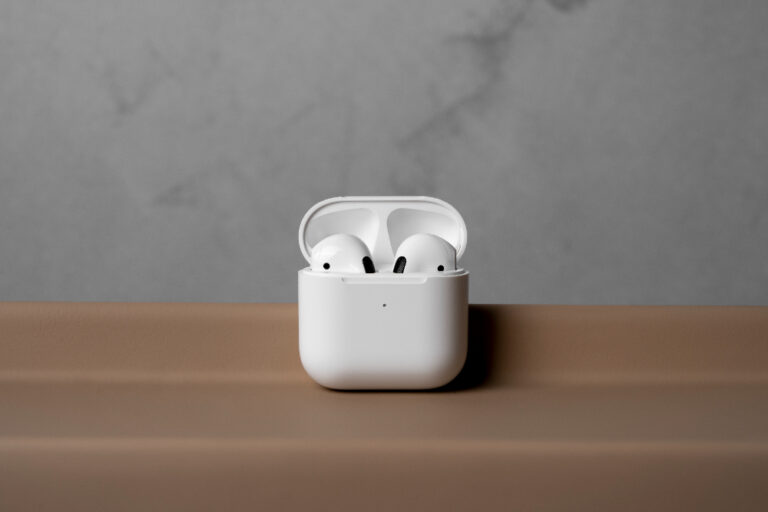
Restoring your AirPods to their factory default settings is a fundamental troubleshooting step for a wide array of issues, from connectivity hiccups and audio imbalances to unresponsive controls and charging problems. Whether you’re preparing to sell your AirPods, give them to a friend, or simply wipe the slate clean to resolve persistent glitches, a full reset is often the most effective solution. This comprehensive guide will walk you through the precise steps for resetting every model in the AirPods family, explain the critical differences between simple re-pairing and a full factory reset, and provide expert-level troubleshooting for scenarios where the standard process doesn’t seem to work.
It’s crucial to understand that Apple’s wireless earbuds, while seamlessly integrated into the ecosystem, are miniature computers. Like any computer, they can encounter software conflicts, corrupted settings, or pairing data that becomes out of sync with your devices. A reset clears this internal memory, removing all customized settings and previous device associations, allowing you to start the pairing process anew as if the AirPods were fresh out of the box. This process is universally supported across all AirPods generations, including the original AirPods (1st, 2nd, and 3rd generation), AirPods Pro (1st and 2nd generation), and the over-ear AirPods Max, though the specific button sequences and case indicators vary slightly.
Before you proceed with a full factory reset, it’s wise to rule out simpler fixes. Often, what feels like a major problem can be resolved by re-pairing your AirPods or adjusting a few settings. Disconnecting and reconnecting can refresh the Bluetooth link between your AirPods and your iPhone, iPad, or Mac. To do this, navigate to your device’s Bluetooth settings, find your AirPods in the list of devices, tap the information icon (the “i” in a circle) next to them, and select “Forget This Device.” Confirm your choice. Then, with your AirPods in their case and the lid open, hold the case near your device to initiate the pairing animation again. This solves many transient connection issues without erasing all settings.
Another common source of frustration is audio imbalance, where one AirPod seems quieter than the other. Before a reset, check a few key settings. First, ensure your AirPods are clean, as debris in the meshes can muffle sound. Second, on your iOS device, go to Settings > Accessibility > Audio/Visual. Check the balance slider to ensure it’s centered. You can also run the Ear Tip Fit Test for AirPods Pro to confirm you’re using the correct silicone tips for a proper seal, which dramatically affects sound quality and active noise cancellation performance. Addressing these points can save you the hassle of a full reset.
Pre-Reset Checklist: What You Need to Know
Performing a reset is straightforward, but a small amount of preparation ensures the process goes smoothly. First and foremost, ensure both your AirPods and their charging case have ample battery life. A low battery during the reset process can cause it to fail or stall. It’s recommended to have at least a 50% charge, but placing them on a charger while you perform the steps is a safe bet.
You should also be aware of what a factory reset actually does. It will completely remove your AirPods from your Apple ID and iCloud account, delete all device pairings, and revert all settings to their defaults. This includes the name of your AirPods, any custom double-tap or press-and-hold functions, and spatial audio personalization. After a reset, they will appear as a new, unnamed device to all your gadgets. Finally, make sure you have your primary Apple device (iPhone, iPad, or Mac) nearby, as you will need it to complete the re-pairing process after the reset is complete.
Step-by-Step Reset Instructions for Every AirPods Model
The core reset procedure is largely consistent, but the location of the setup button and the status light varies. Follow these model-specific instructions carefully.
Resetting AirPods (1st, 2nd, and 3rd Generation)
For the standard AirPods models, the process is identical. Begin by placing both AirPods inside their charging case and closing the lid. Wait for approximately 30 seconds. Next, open the lid of the charging case. On your iPhone, iPad, or iPod touch, navigate to Settings > Bluetooth and tap the information icon (the “i”) next to your AirPods’ name. Tap “Forget This Device” and confirm. If you’re using a Mac, go to System Settings (or System Preferences on older macOS) > Bluetooth, hover over your AirPods, click the three dots or “X” that appears, and choose “Remove.”
Now, with the lid still open, locate the setup button on the back of the case. It’s a small, circular button. Press and hold this button for about 15 seconds. You must watch for the status light on the front of the case. It will flash amber first, and then after a continuous hold, it will flash white. The exact timing of the white flash is critical—it signifies the reset is complete. Once you see the white flash, release the button immediately. The lid can remain open. Your AirPods are now reset. To reconnect, hold the case (with AirPods inside) near your unlocked iPhone or iPad and follow the on-screen setup prompts.
Resetting AirPods Pro (1st and 2nd Generation)
The process for AirPods Pro is functionally the same as for standard AirPods but with a minor visual difference due to the case design. Start by placing both AirPods Pro in the MagSafe Charging Case or Lightning Charging Case and close the lid. Wait 30 seconds. Open the lid. On your connected device, forget the AirPods Pro as described in the previous section (Settings > Bluetooth > [Your AirPods Pro] > Forget This Device).
With the lid open, find the setup button on the back of the case. Press and hold this button. The status light, located on the front of the case, will flash amber and then eventually flash white. Hold the button until you see this definitive white flash, which typically occurs after about 15 seconds of holding. Release the button. Your AirPods Pro are now reset. The personalized active noise cancellation, transparency mode settings, and ear tip fit test data are erased. Re-pair by bringing the case near your unlocked iOS device and following the prompts.
Resetting AirPods Max
Resetting the over-ear AirPods Max involves a different button combination since they do not use a charging case in the same way. First, ensure your AirPods Max are not connected to any device via Bluetooth. You can ensure this by turning Bluetooth off on your nearby devices or forgetting the headphones in their Bluetooth settings. Next, locate the two buttons on the right ear cup: the Digital Crown and the Noise Control button.
To initiate the reset, press and hold both the Digital Crown and the Noise Control button simultaneously. You must hold them down for about 15 seconds. Watch for the status light on the bottom of the right ear cup. It will flash amber initially. Continue holding both buttons until the light flashes white, indicating the reset is successful. Release the buttons. Your AirPods Max will now appear as a new device. Place them near your iPhone or iPad to begin the pairing process again.
When the Standard Reset Fails: Advanced Troubleshooting
In some stubborn cases, the standard reset procedure may not work. The status light might not change color, or the AirPods may not appear as a new device afterward. If this happens, do not panic. There are several advanced steps you can take. First, try the reset process again, but this time, after placing the AirPods in the case, leave the lid closed for a full minute before opening it to press the setup button. This allows any residual charge to dissipate and can clear temporary states.
If a second attempt fails, the issue might be with the charging case itself. Try a different charging cable and power adapter. Connect the case to a reliable power source and let it charge for at least an hour, even if the light indicates it’s full. Then, try the reset process once more while the case is still plugged into power. For AirPods Max, ensure they have at least a 50% charge before attempting the reset again. If multiple attempts with charged devices fail, you may need to contact Apple Support, as there could be a hardware fault requiring service.
Pro Tips for Maintaining Your AirPods
Preventative maintenance can reduce the frequency with which you need to perform a reset. Following these expert tips will keep your AirPods performing optimally and extend their lifespan.
- Regular Cleaning is Non-Negotiable: Gently clean the meshes of your AirPods with a dry, soft-bristled brush to remove earwax and debris. Wipe the casings and ear tips (for Pro models) with a slightly damp, lint-free cloth. Never use sharp objects or liquids directly on the meshes. For AirPods Max, wipe the cushions and headband with a cloth slightly dampened with water and a drop of mild detergent, then wipe with a clean, damp cloth.
- Manage Firmware Updates: AirPods receive firmware updates automatically when they are connected to an iOS device and near it while charging. You cannot manually trigger these updates, but ensuring your AirPods are in their case, near your iPhone, and connected to power overnight every so often helps ensure they receive the latest bug fixes and feature improvements.
- Optimize Battery Health: Avoid constantly draining your AirPods or their case to 0%. While lithium-ion batteries don’t suffer from “memory effect,” extreme depletion can stress them. Similarly, avoid exposing them to very high temperatures, such as leaving them in a hot car, as heat is the primary enemy of battery longevity.
- Use Find My Strategically: Before resetting AirPods you plan to sell or give away, remember to remove them from your Find My network. Go to the Find My app, select the Devices tab, choose your AirPods, swipe up on the handle, and tap “Remove This Device.” This disassociates them from your account permanently.
- Understand iCloud Pairing: When you pair your AirPods with one device signed into your iCloud account, they are automatically available on all your other Apple devices using the same ID. A reset breaks this link everywhere, so you only need to re-pair with one device to restore functionality across your ecosystem.
Frequently Asked Questions
Will resetting my AirPods delete them from Find My?
Yes, a full factory reset will remove your AirPods from your Apple ID and the Find My network. It is a critical step before selling or giving them away to ensure the new owner can pair them properly.
My AirPods case light won’t turn white during the reset. What should I do?
First, ensure you are holding the button for a full 15 seconds with the lid open. If the light stays amber or green, charge the case fully for an hour and try again while it’s plugged in. If it still fails, try the reset process with the AirPods removed from the case, then place them back in after.
Do I need to reset my AirPods to connect them to a non-Apple device, like an Android phone or Windows PC?
No, a reset is not necessary. You can simply forget the AirPods on your Apple devices, then put them in pairing mode (open the lid and hold the setup button until the light flashes white) to connect to a Bluetooth device from any manufacturer.
After resetting, one AirPod still doesn’t work. Is it broken?
If a reset doesn’t fix an unresponsive AirPod, the issue is likely hardware-related. Ensure it’s clean and making a good charging connection in the case. If problems persist, contact Apple Support for diagnostic testing, as the individual bud or the case’s charging contacts may be faulty.
How often should I reset my AirPods?
There is no recommended schedule. You should only perform a full reset when you are experiencing persistent issues that simpler troubleshooting steps cannot resolve, or when you are transferring ownership of the AirPods.
Conclusion
Knowing how to properly reset your Apple AirPods, AirPods Pro, or AirPods Max is an essential skill for any owner. This process serves as the most powerful software-based troubleshooting tool, capable of resolving a vast majority of connectivity, audio, and responsiveness problems. By following the detailed, model-specific steps outlined in this guide—from the initial pre-reset checklist to advanced troubleshooting techniques—you can confidently restore your earbuds or headphones to their factory state. Remember to always attempt simpler solutions like re-pairing or cleaning first, and reserve the full reset for more stubborn issues or ownership transfers. With the additional pro tips and FAQs provided, you are now equipped not only to fix problems but also to maintain your AirPods for optimal performance and longevity, ensuring you continue to enjoy the seamless, high-quality audio experience they are designed to deliver.
