The Amazon Fire TV Stick is one of the most popular streaming devices globally, offering a seamless interface for accessing thousands of apps, movies, and television shows. However, like any sophisticated electronic device running an operating system, it can encounter performance degradation over time. Users often report issues ranging from slow navigation and app crashes to more severe problems like being stuck on the boot logo or experiencing “critically low storage” warnings. When standard troubleshooting steps—such as clearing the cache or restarting the device—fail to resolve these issues, a factory reset becomes the most effective solution to restore the device to its peak performance.
Performing a factory reset on a Fire TV Stick involves wiping all local data, including downloaded apps, personal settings, and cached files. This process returns the software to the exact state it was in when it first left the factory. While this may seem like a drastic measure, it is often the quickest way to eliminate software bugs, remove persistent malware, or prepare the device for a new owner. Understanding the various methods available to perform this reset is crucial, especially if the device’s interface is unresponsive or if the remote control is not functioning correctly.
In this comprehensive guide, we will explore every possible method to reset your Fire TV Stick, including remote-only shortcuts, the standard settings menu approach, and advanced troubleshooting for unresponsive devices. We will also delve into what happens during the reset process and how to properly set up your device afterward to ensure a smoother experience. By the end of this article, you will have the expert knowledge required to maintain your Fire Stick and resolve almost any software-related glitch through a systematic restoration process.
When Should You Reset Your Fire TV Stick?
Before proceeding with a full factory reset, it is important to identify whether the problem truly requires such a permanent action. A reset should generally be considered a last resort after simpler troubleshooting steps have been exhausted. One of the most common reasons for a reset is persistent system lag. Over months of use, the Fire TV Stick accumulates background data and system logs that can saturate its limited internal storage. When storage falls below a certain threshold, the Fire OS struggles to manage memory, leading to a sluggish interface and delayed remote responses.
Another critical scenario for a reset is when the device encounters “boot loops” or gets stuck on the Fire TV logo during startup. These issues are often caused by corrupted system files or an interrupted firmware update. Additionally, if you are planning to sell, gift, or return your Fire TV Stick, a factory reset is mandatory for privacy reasons. It ensures that your Amazon account credentials, credit card information linked to the Appstore, and personal viewing history are completely erased from the hardware, preventing any unauthorized access by the next user.
Finally, connectivity issues that refuse to resolve through network settings may also necessitate a reset. If the Fire Stick fails to recognize any Wi-Fi networks or cannot maintain a stable connection despite other devices working perfectly on the same router, the network stack within the Fire OS may be corrupted. Resetting the device flushes all network configurations and drivers, allowing for a clean handshake with your home router. Identifying these symptoms early can save time and help you decide when it is time to perform a total system wipe.
Method 1: Resetting via the Settings Menu
The most common and user-friendly way to reset a Fire TV Stick is through the internal settings menu. This method is ideal for users who still have a functional remote and can navigate the interface. To begin, use the directional pad on your Fire TV remote to navigate to the Settings icon (the gear symbol) on the far right of the home screen. Within the settings menu, scroll down and select the option labeled My Fire TV. On some older models or different versions of Fire OS, this might be labeled as Device or System.
Once you are inside the My Fire TV menu, scroll through the list until you find Reset to Factory Defaults. Upon selecting this option, the device will present a confirmation screen. This is a critical safety step to prevent accidental data loss. The screen will warn you that you are about to remove all personal information and downloaded content. To proceed, click Reset. The Fire TV Stick will then initiate a shutdown and begin the formatting process. It is vital that you do not unplug the power source during this stage, as a power loss during formatting can lead to permanent hardware failure or “bricking.”
The process typically takes between five to ten minutes. During this time, you may see a blank screen or the Amazon logo appearing and disappearing. Once the reset is complete, the device will automatically reboot and present the initial setup screen, asking you to press the Play/Pause button on your remote to begin the pairing process. Because the device is now “clean,” you will need to reconnect to your Wi-Fi and sign back into your Amazon account from scratch.
Method 2: Using the Remote Control Shortcut
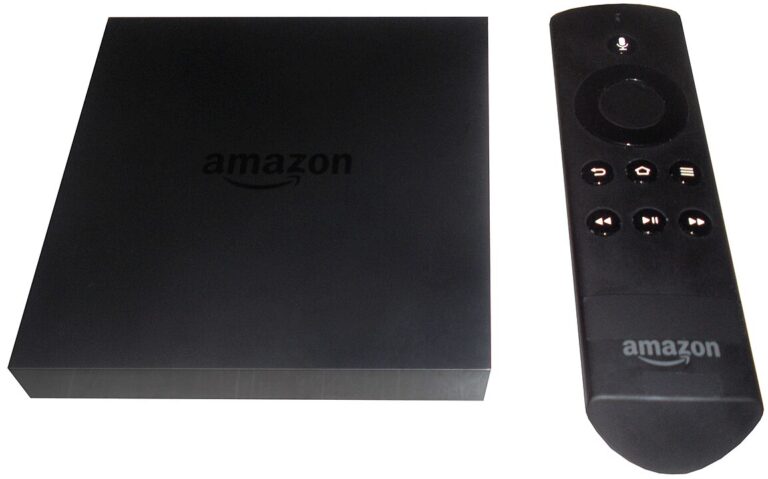
There are instances where the Fire TV Stick interface becomes so laggy or frozen that navigating to the Settings menu is impossible. In such cases, Amazon has built-in a “secret” hardware shortcut using the remote control buttons. This method bypasses the standard UI navigation and triggers the reset dialogue box directly. To use this shortcut, you must press and hold both the Back button and the Right side of the navigation circle simultaneously. You need to hold these two buttons down for at least 10 to 15 seconds without letting go.
If done correctly, a notification will appear on your TV screen with a countdown timer. The message will state that the device is preparing to reset to factory defaults. You have the option to cancel the process within those few seconds; however, if you do nothing, the device will proceed with the reset automatically once the timer reaches zero. This shortcut is particularly useful if the “Home” screen refuses to load or if you are stuck in an app that you cannot exit. It relies on the remote’s direct Bluetooth or IR connection to the system kernel rather than the graphical user interface.
If the shortcut does not appear to work, ensure that your remote has fresh batteries. Since this method requires a continuous signal for over 10 seconds, weak batteries may fail to maintain the connection, causing the reset command to fail. Additionally, ensure that there is a clear line of sight if you are using an older Fire TV Stick with an IR-based remote, though most modern Fire Stick remotes use Bluetooth which does not require line-of-sight.
Advanced Troubleshooting: Resetting Without a Remote
One of the most frustrating challenges for Fire TV users is needing a reset when the physical remote is lost or broken. Since a factory-reset device loses its pairing with previous remotes, you cannot simply use a phone app to finish the setup after the reset. However, if you need to trigger the reset itself without the original remote, there are a few workarounds. The first involves using the Amazon Fire TV App available on iOS and Android. As long as the Fire Stick and your phone are on the same Wi-Fi network, you can use the digital remote in the app to navigate to the settings and initiate the reset as described in Method 1.
If the device is not connected to Wi-Fi (making the app useless), you can utilize HDMI-CEC technology. Most modern televisions have a feature (called Anynet+ on Samsung, Bravia Sync on Sony, or SimpLink on LG) that allows your TV remote to control devices connected via HDMI. By enabling HDMI-CEC in your TV settings, you can often use your standard television remote to navigate the Fire TV menus. This allows you to reach the My Fire TV settings and select the reset option even without the dedicated Alexa remote.
Another hardware-based solution for unresponsive units is using a keyboard. By using an OTG (On-The-Go) adapter cable, you can plug a standard USB keyboard into the Fire TV Stick’s power port. The Fire OS recognizes most USB keyboards natively. You can then use the arrow keys and the Enter key to navigate to the settings menu. This is a highly effective method for power users who are dealing with a device that has completely lost its Bluetooth pairing capabilities.
Preparation Checklist for a Successful Reset
Before you commit to a factory reset, it is essential to perform a few preparatory steps to minimize the hassle of setting the device back up. Because a reset is irreversible, any data not synced to the cloud will be lost. Following a structured checklist can help ensure that you don’t lose access to your favorite services or find yourself unable to log back in later.
- Document Your Login Credentials: Ensure you have the passwords for your Amazon account, Netflix, Hulu, Disney+, and any other streaming services. While some apps allow for “code-based” login via a smartphone, others require manual entry, which can be tedious if you don’t have them ready.
- Check for System Updates: Sometimes, a software bug can be fixed by a simple update rather than a full reset. Go to Settings > My Fire TV > About > Check for Updates to see if a newer version of Fire OS is available before wiping the device.
- Sync Your Amazon Content: Ensure that your “Watchlist” and purchased content are synced to your Amazon account. Usually, this happens automatically, but performing a manual sync in the account settings can provide peace of mind.
- Note Your Side-Loaded Apps: If you have installed apps via “Downloader” or other third-party tools (APKs), these will be deleted. Make a list of the apps you use so you can quickly find and reinstall them once the reset is complete.
- Verify Power Supply: Always use the original wall outlet adapter provided by Amazon. Resetting a device while it is powered by a TV’s USB port can be risky, as many TV USB ports do not provide enough consistent voltage for the intensive formatting process.
Pro Tips for Fire TV Maintenance
Maintaining a Fire TV Stick after a reset can prevent the need for future resets. One of the best tips is to regularly clear the cache of high-bandwidth apps like YouTube or Kodi. Over time, these apps store massive amounts of temporary data that do not always delete themselves automatically. By going to Settings > Applications > Manage Installed Applications, you can select individual apps and clear their cache to free up space without losing your login info.
Another expert tip is to disable “Auto-Play” features for video and audio previews on the home screen. This reduces the processing load on the device every time you hover over a title, making the navigation feel much snappier. You can find these settings under Settings > Preferences > Featured Content. Additionally, limit the number of apps you have installed. It is tempting to download every streaming service available, but the Fire Stick’s internal storage is very limited (usually 8GB total). Keeping at least 1GB of storage free at all times is the “golden rule” for maintaining system stability.
For those using the 4K or Max versions of the Fire Stick, consider using an Ethernet adapter. While Wi-Fi is convenient, a hardwired connection reduces the strain on the device’s internal wireless chip and provides a more stable data stream for high-resolution content. This prevents the system from hanging or stuttering during buffer-heavy scenes, which is often mistaken for a software glitch requiring a reset.
Frequently Asked Questions (FAQ)
Will a factory reset remove my Amazon account from the device?
Yes. A factory reset completely unregisters the device from your Amazon account. After the process is finished, the Fire TV Stick will act as a brand-new device. You will need to sign in again with your email and password to access your Prime Video library and apps. If you are selling the device, this is exactly what you want to happen.
Does a reset delete my sideloaded apps?
Yes, any application that was not pre-installed by Amazon will be removed. This includes apps installed via APK files, the Downloader app, or third-party app stores. You will need to re-enable “Apps from Unknown Sources” in the developer settings after the reset to reinstall these applications.
How long does the reset process take?
On average, the formatting and restoration process takes approximately 5 to 10 minutes. However, the total time will be longer because you must also factor in the time required to go through the initial setup, connect to Wi-Fi, download system updates, and log back into your streaming services.
What should I do if my Fire Stick is stuck on the “Reset” screen?
If the device has been on the reset screen for more than 20 minutes without any progress, it may have frozen. Try unplugging the power cable from the wall (not just the TV), waiting for 60 seconds, and plugging it back in. In most cases, the device will resume the reset or restart the process. If it remains stuck permanently, it may indicate a hardware failure.
Do I lose my paid apps after a reset?
No, you do not lose ownership of your apps. Any app you purchased or “bought” for free through the Amazon Appstore is linked to your Amazon account, not the physical hardware. Once you sign back into your account on the reset Fire Stick, you can go to your App Library and redownload them without paying again.
Conclusion
Resetting an Amazon Fire TV Stick is a powerful diagnostic tool that can breathe new life into an aging or malfunctioning device. Whether you are dealing with persistent software bugs, preparing the hardware for a new owner, or simply looking to clear out years of digital clutter, the methods outlined in this guide provide a clear path to a fresh start. By utilizing the Settings menu for standard resets, the remote shortcut for frozen screens, or HDMI-CEC and keyboards for devices without remotes, users can overcome almost any technical hurdle. Remember to follow the preparation checklist to ensure a seamless transition and apply post-reset maintenance tips to keep your Fire OS running smoothly for years to come. With a clean slate, your Fire TV Stick will once again be the fast, reliable entertainment hub it was designed to be.