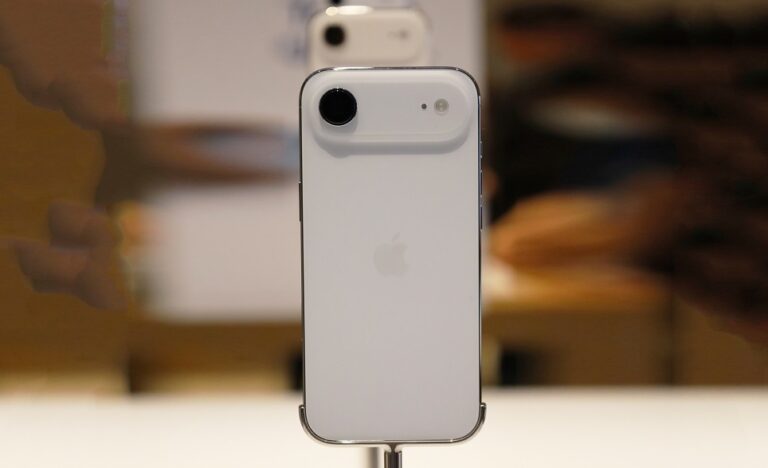
Screen recording has become an essential feature for many users, allowing you to capture tutorials, gameplay, or important moments directly from your device. Whether you’re demonstrating an app’s functionality or saving a video call, this built-in tool simplifies the process without needing third-party apps. In this guide, you’ll learn everything from basic setup to advanced techniques, ensuring you can record high-quality videos effortlessly.
Understanding the fundamentals starts with knowing your device’s capabilities. iPhones and iPads running the latest software offer seamless integration for screen recording, including options for audio capture. This functionality is particularly useful for educators, content creators, and everyday users who need to share visual instructions.
Before diving into the steps, ensure your device is updated to the most recent version of iOS or iPadOS. This guarantees access to the latest features and improvements in screen recording. Regular updates often enhance stability and add new customization options, making your recordings more professional.
One key aspect is preparing your device for optimal performance during recording. Close unnecessary apps to free up memory, and adjust your screen brightness for better visibility in the final video. These small preparations can significantly improve the quality of your captures.
Preparing Your Device for Screen Recording
To begin, check if screen recording is enabled on your iPhone or iPad. This feature is available on devices running iOS 11 or later, but with iOS 26, it includes enhanced controls for better user experience. Navigate to your settings to confirm everything is set up correctly.
Start by opening the Settings app on your home screen. Scroll down and tap on Control Center. Here, you’ll see options to customize which controls appear when you swipe down from the top-right corner of your screen. This is where screen recording lives by default, but if it’s missing, you can add it easily.
Under the More Controls section, look for Screen Recording. Tap the green plus icon next to it to include it in your Included Controls list. You can rearrange the order by dragging the three-line icon next to each control, placing screen recording in a convenient spot for quick access.
Additionally, enable Access Within Apps if it’s not already on. This allows you to open Control Center even while using other applications, which is crucial for recording specific app activities without interruption.
Customizing Control Center for Efficiency
Customizing Control Center goes beyond just adding screen recording. Consider adding related controls like Do Not Disturb to prevent notifications from appearing during your recording. This keeps your video clean and professional.
You can also adjust the haptic feedback settings in the Sounds & Haptics menu to ensure your device vibrates appropriately during interactions, which might be captured in the audio if you’re recording sound.
For users with multiple devices, syncing your settings via iCloud ensures consistency across your iPhone and iPad. This way, your customized Control Center appears the same on both, saving time when switching between them.
Starting a Basic Screen Recording
Once your Control Center is set up, initiating a recording is straightforward. Swipe down from the top-right corner of your screen to open Control Center. You’ll see the screen recording icon, which looks like a circle inside another circle.
Tap the icon to start. A three-second countdown will appear, giving you time to prepare or navigate to the screen you want to record. During this countdown, you can exit Control Center by swiping up or tapping outside the menu.
As the recording begins, a red indicator will show at the top of your screen, either as a red bar or a red pill-shaped icon depending on your device orientation. This lets you know that recording is active.
While recording, you can interact with your device as usual. Swipe between apps, open notifications, or perform any actions you need to capture. The tool records everything visible on the screen, including animations and transitions.
Recording Specific App Activities
If you’re recording within a single app, ensure the app allows screen recording. Most apps do, but some with protected content, like streaming services, may block it or show a black screen. Test beforehand to avoid surprises.
For landscape-oriented recordings, rotate your device before starting. The video will capture in the orientation you begin with, so plan accordingly for widescreen content.
Remember, screen recording captures the entire screen, so sensitive information like passwords should be avoided unless you’re editing them out later.
Enabling Audio During Screen Recording
Adding sound to your recordings elevates them from simple visuals to comprehensive tutorials. To include audio, long-press the screen recording icon in Control Center instead of just tapping it.
A menu will pop up with options. Tap the Microphone icon to turn it on; it will highlight in red when active. This captures external audio through your device’s microphone, such as your voice for narration.
Internal audio, like app sounds or music playing on your device, is captured automatically if your ringer is on. For silent recordings, switch to silent mode before starting.
After selecting your audio preferences, tap Start Recording. The three-second countdown begins, and your recording will now include the chosen audio elements.
Balancing Audio Levels
To achieve clear audio, position your mouth about six to twelve inches from the microphone. Speak clearly and at a consistent volume to avoid distortion.
If background noise is an issue, record in a quiet environment or use an external microphone connected via Lightning or USB-C for better quality.
Test a short recording first to check audio levels. Play it back and adjust your setup as needed before committing to a longer session.
Stopping and Saving Your Recording
When you’ve captured what you need, stopping the recording is simple. Tap the red indicator at the top of your screen. A confirmation prompt will appear; tap Stop to end the session.
Alternatively, swipe down to open Control Center again and tap the now-red screen recording icon. This immediately halts the recording without additional prompts.
Once stopped, a notification appears indicating the video has been saved to your Photos app. Open Photos, navigate to the Recents album or the Videos section to find your new recording.
Your screen recordings are stored as MOV files, which are compatible with most video players and editors. They retain high quality, matching your device’s resolution.
Managing Storage Space
Screen recordings can consume significant storage, especially long ones. Regularly review and delete unnecessary videos from Photos to free up space.
Enable iCloud Photos to automatically back up your recordings, ensuring they’re safe even if you delete them from your device.
For frequent recorders, consider optimizing storage in Settings > Photos to keep smaller versions on your device while storing full-resolution files in iCloud.
Editing Your Screen Recordings
After saving, you may want to trim or enhance your video. Open the recording in Photos and tap Edit in the top-right corner.
Use the timeline at the bottom to drag the yellow handles and trim unwanted sections from the beginning or end. This is perfect for removing the countdown or extra footage.
For more advanced edits, tap the three dots for additional options like adjusting exposure, adding filters, or cropping the video.
Once satisfied, tap Done to save changes. You can always revert to the original by selecting Revert in the edit menu.
Adding Annotations and Text
To make your recording more informative, use the Markup tool. After editing, tap the three dots and select Markup.
Draw arrows, add text, or highlight areas with various colors and tools. This is great for emphasizing steps in tutorials.
Save your marked-up video as a new file to preserve the original, allowing for multiple versions if needed.
Advanced Screen Recording Features
iOS 26 introduces enhanced features for screen recording. One notable addition is the ability to pause and resume recordings, though this requires third-party apps in some cases.
Integrate screen recording with other features like Screen Mirroring, but note you can’t record while mirroring to another device.
For developers or advanced users, explore accessibility options that show touches on screen during recording, useful for demonstrations.
Enable Show Touches in Settings > Accessibility > Touch > AssistiveTouch. This displays a visual indicator for every tap and swipe.
Integrating with Productivity Apps
Use screen recordings in apps like Notes or Mail by attaching them directly from Photos. This streamlines sharing workflows.
For collaborative projects, upload to iCloud Drive and share links, allowing others to view without downloading large files.
Combine with Voice Memos for separate audio tracks if you need more control over narration post-recording.
Troubleshooting Common Issues
If screen recording isn’t working, first check if it’s added to Control Center. If not, follow the addition steps outlined earlier.
Low storage can prevent recordings from saving. Clear space by deleting old files or offloading apps.
If audio isn’t capturing, ensure the microphone is enabled and not blocked. Test with a voice memo to isolate the issue.
For black screens in certain apps, it’s often due to content protection. Use alternative methods like external cameras for those scenarios.
Resolving Performance Problems
If your device lags during recording, close background apps and restart your iPhone or iPad.
Update to the latest iOS version to fix bugs that might affect recording stability.
If recordings are choppy, reduce screen resolution temporarily in Settings > Display & Brightness.
Pro Tips
- Plan Your Script: Before recording, outline what you’ll say and do. This reduces errors and makes editing easier. Practice a dry run to time your actions perfectly.
- Use External Accessories: Connect a tripod for stable hands-free recording, especially for iPad users demonstrating drawing or note-taking.
- Optimize for Sharing: Compress videos using apps like Compressor if they’re too large for email, maintaining quality while reducing file size.
- Leverage Shortcuts: Create a Siri Shortcut for starting recordings with a voice command, speeding up the process for frequent users.
- Enhance Visibility: Increase font size in Settings > Display & Brightness > Text Size for clearer text in recordings aimed at tutorials.
- Backup Regularly: Use iCloud or iTunes to back up recordings, preventing loss from device issues.
- Experiment with Orientations: Record in both portrait and landscape to see which suits your content best, then edit accordingly.
- Monitor Battery Life: Screen recording drains battery quickly; plug in your device for long sessions to avoid interruptions.
Frequently Asked Questions
- Can I record phone calls with this feature? No, screen recording doesn’t capture phone call audio due to privacy restrictions. Use dedicated call recording apps if legal in your area.
- Why is my recording silent? Check if the microphone was enabled and your device wasn’t in silent mode. Also, ensure app permissions allow audio access.
- How long can I record? There’s no set limit, but it’s constrained by available storage and battery life. Monitor these during extended recordings.
- Can I edit recordings on my device? Yes, basic edits like trimming are available in Photos. For advanced editing, transfer to a computer or use third-party apps.
- What if the red indicator is distracting? It’s a system feature and can’t be hidden, but you can crop it out in post-editing if necessary.
- Does it work on all models? Yes, on iPhones and iPads running iOS 11 or later, with full features in newer versions like iOS 26.
- How do I share recordings? From Photos, tap Share to send via Messages, Mail, or upload to cloud services.
- Is there a way to record specific parts of the screen? Native tools record the entire screen; use cropping in editing for focus.
Conclusion
Mastering screen recording on your iPhone or iPad opens up numerous possibilities for communication and creativity. From setting up Control Center to editing and troubleshooting, this guide covers all essentials. With practice, you’ll produce polished videos that effectively convey your message. Remember to explore advanced features and tips to elevate your recordings further.

Full-stack developer at Scylla Technologies (USA), working remotely from Bangladesh. Adobe Certified Magento Developer.