

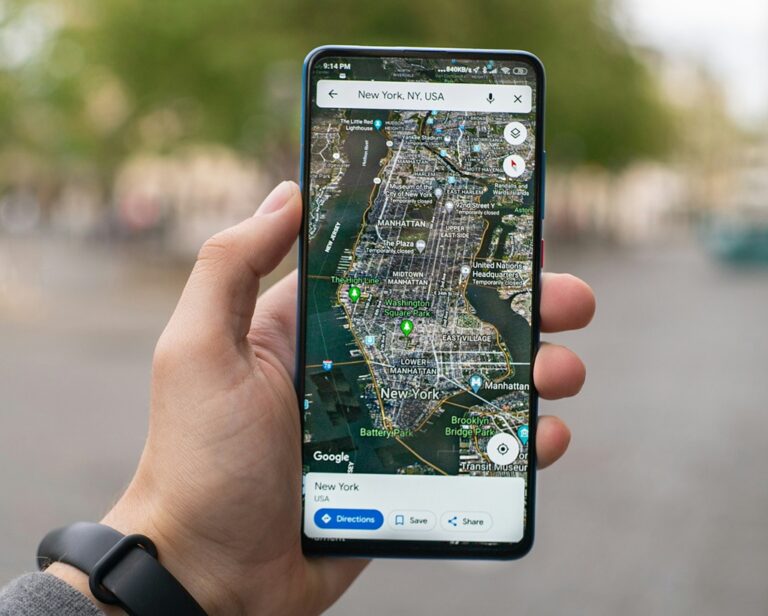
Google Maps offers a powerful tool for calculating distances between locations, whether you’re planning a hike, estimating travel mileage, or simply curious about the span between two points. This feature allows users to measure straight-line distances, also known as “as the crow flies,” which differs from driving or walking routes that follow roads. It’s particularly handy for outdoor enthusiasts, real estate professionals, and anyone needing quick spatial insights.
The distance measurement tool is built right into the app and website, making it accessible without additional downloads. By pinpointing locations on the map, you can add multiple segments to create complex paths, and the total distance updates in real time. This functionality supports both metric and imperial units, ensuring compatibility for global users.
Beyond basic measurements, integrating this with other Google Maps features like satellite view enhances accuracy for off-road calculations. Whether on a computer or mobile device, the process is straightforward, but slight variations exist across platforms to optimize for touch or mouse inputs.
Before diving into the steps, ensure your device has the latest version of Google Maps installed or access it via a modern web browser. This guarantees you benefit from recent updates that improve precision and user interface smoothness.
Understanding Distance Measurement in Google Maps
At its core, the distance tool calculates the shortest path between points on the Earth’s surface, accounting for the planet’s curvature. This uses geodesic calculations, providing more accurate results than simple flat-map projections, especially over long distances.
Users often confuse this with the directions feature, which provides route-based distances considering traffic, roads, and modes of transportation. The measurement tool, however, ignores these and focuses solely on direct lines, ideal for scenarios like aviation planning or property boundary estimates.
Google Maps displays distances in miles or kilometers, automatically defaulting to your region’s standard. You can switch units in the settings menu for personalized viewing. Additionally, the tool supports measuring areas by closing paths, though this guide focuses primarily on linear distances.
Accuracy depends on map zoom level and point placement precision. For best results, zoom in closely when dropping pins to avoid errors from broad gestures.
Key Benefits of Using This Feature
- Planning outdoor activities becomes easier, as you can gauge trail lengths or cross-country routes without relying on pre-marked paths, helping you prepare for time and effort required.
- Real estate assessments benefit from quick boundary measurements, allowing agents to estimate lot sizes or distances to amenities directly on the map.
- Fitness tracking integrates seamlessly, enabling runners or cyclists to map custom routes and calculate exact distances for training logs.
- Travel budgeting improves with precise mileage estimates, aiding in fuel cost calculations or flight path visualizations.
- Educational purposes are served well, as students can explore geography by measuring distances between historical sites or natural wonders.
- Emergency planning utilizes this for evacuation route distances, ensuring safe and efficient paths in crisis situations.
- Business logistics optimize delivery routes by measuring direct distances, reducing time spent on trial-and-error planning.
- Personal curiosity is satisfied instantly, whether wondering about the span across a lake or between cities on different continents.
Remember, while highly accurate for most purposes, factors like elevation aren’t directly factored into linear measurements, so for hilly terrains, consider complementary tools.
Measuring Distance on Desktop Computers
Desktop users enjoy a mouse-driven interface that’s precise for detailed measurements. Start by navigating to the Google Maps website in your preferred browser.
Locate your starting point by searching an address or manually panning the map. This sets the foundation for your measurement.
Right-click on the chosen spot to open a context menu. From there, select the option to begin measuring.
Add subsequent points by clicking along your desired path. Each click extends the line, updating the total distance displayed at the bottom.
Step-by-Step Instructions for Desktop
Open Google Maps in your web browser and ensure you’re in the default map view, not satellite or street view, for smoother performance.
Right-click on your initial point. A menu appears; choose the measure distance entry to activate the tool.
Click on the next location. A line connects the points, and a popup shows the distance.
Continue clicking to add more segments. For curved paths, place points closely together to approximate the shape.
To adjust, drag existing points or undo the last addition via the menu.
Finish by closing the measurement box when done, or clear it to start anew.
This method works across browsers like Chrome, Firefox, or Edge, with no significant differences in functionality.
Measuring Distance on Android Devices
Android users access the feature through the Google Maps app, optimized for touch interactions. Download or update the app from the Play Store if needed.
Open the app and search for your starting area or zoom in manually.
Tap and hold on the map to drop a red pin at your beginning point.
Swipe up on the location card at the bottom to reveal more options, including measurement.
Detailed Steps for Android
Launch the Google Maps app and allow location permissions for better context, though not strictly required.
Long-press on the starting spot until a pin drops and the bottom sheet expands.
Tap the measure distance button in the sheet to enter measurement mode.
Pan the map so the black circle aligns with your next point, then tap add point.
Repeat for additional segments, watching the total update in the bottom bar.
To remove a point, use the undo function; exit by tapping the back arrow.
This touch-based approach feels intuitive on smartphones, with gestures for zooming enhancing precision.
Measuring Distance on iOS Devices
iPhone and iPad users follow a similar process in the Google Maps app, available from the App Store.
Start the app and navigate to your desired map area.
Press and hold to place a pin, then access the measurement tool from the popup.
The interface mirrors Android but adapts to Apple’s gesture system.
Step-by-Step for iOS
Open Google Maps and grant location access if prompted.
Touch and hold the screen to drop a pin at the start.
Tap the pin’s label, then select measure distance from the options.
Move the map to position the crosshair on the next spot and tap the plus icon.
Add as many points as needed, with distances shown in real time.
Undo or clear measurements via the on-screen buttons.
iOS integration allows seamless switching between apps, useful for noting distances elsewhere.
Advanced Measurement Techniques
For more complex needs, measure paths with numerous points to simulate routes.
Switch to satellite view for visual landmarks, aiding accurate pin placement.
Combine with layers like terrain to understand elevation impacts, though not directly measured.
Export measurements by screenshotting or noting them manually for records.
- Measuring irregular shapes involves placing points around perimeters, closing the loop for area calculations if available.
- Long-distance measurements across countries benefit from zoomed-out views, but zoom in for fine adjustments.
- Integrate with Google My Maps for saving custom measurements and sharing with others.
- Use in conjunction with Street View to verify ground-level distances visually.
- For aviation, measure great-circle distances, which the tool inherently supports.
- Track changes over time by repeating measurements on updated maps.
- Combine with third-party apps for enhanced data export options.
- Practice on familiar routes to calibrate your understanding of the tool’s accuracy.
These techniques elevate basic usage to professional-level applications.
Common Challenges and Solutions
Users sometimes face issues with pin accuracy on crowded maps; solution: zoom maximally.
App crashes during long measurements; restart and segment paths.
Unit mismatches; change in settings to preferred system.
No internet; measurements require online access for map data.
Inaccurate over water; tool treats all surfaces equally.
Overcome by cross-verifying with known distances.
Troubleshooting Tips
Clear cache if the app lags during measurements.
Update software for bug fixes related to tools.
Switch devices if one platform underperforms.
Integrating with Google Earth
Google Earth provides enhanced measurement capabilities, including 3D views.
Download Earth for desktop or use the web version.
Search locations, then access the measure tool from the menu.
Add points similarly, with options for paths and polygons.
Earth includes elevation profiles, adding depth to distances.
This is ideal for geographical studies or advanced planning.
Alternatives to Google Maps Measurement
Tools like CalcMaps offer similar functionality with export options.
Map Developers provides a distance finder with route drawing.
Mappedometer specializes in pedometer-style calculations for activities.
These alternatives sometimes include ads but provide free access.
Choose based on specific needs like area measurement or integration.
Pro Tips for Accurate Measurements
Enhance your experience with these expert suggestions.
- Always double-check point placements by zooming in after adding, as slight offsets can accumulate errors over long distances, ensuring your final calculation reflects reality closely.
- Use satellite imagery mode for visual cues like buildings or trees, which help in precise pin dropping, especially in unfamiliar areas where street names might not suffice.
- For multi-segment paths, plan your points in advance on paper or mentally to avoid unnecessary undos, saving time and maintaining workflow efficiency.
- Switch units mid-measurement if needed by accessing settings quickly, allowing seamless adaptation for international collaborations or personal preferences.
- Combine measurements with directions for hybrid planning, where you compare straight-line versus actual travel distances to optimize routes.
- Save frequent measurements in Google My Maps for future reference, creating a personal library of custom paths that you can edit or share.
- Avoid measuring during peak app usage times if experiencing lag, as smoother performance leads to more accurate interactions.
- Test the tool on known distances like your daily commute to build confidence in its reliability for new scenarios.
These tips stem from common user experiences and best practices.
Frequently Asked Questions
Addressing common queries to clarify usage.
Can I measure areas as well as distances?
Yes, by closing the path with the last point connecting to the first, though this is more prominent in Google Earth.
Is the measurement tool available offline?
No, it requires an internet connection for map loading and calculations.
How accurate are the distances?
Generally within a few meters for short ranges, but curvature affects longer ones minimally due to geodesic math.
Can I share my measurements?
Yes, via screenshots or exporting to Google My Maps.
Does it account for elevation?
No, it’s flat distance; use Earth for 3D profiles.
What if the tool isn’t appearing?
Update the app or browser, and check for regional restrictions.
Can I measure on custom maps?
Yes, in My Maps, with added layers.
Are there limits to points?
No strict limit, but performance may slow with hundreds.
These answers cover most user concerns.
Conclusion
Mastering distance measurement on Google Maps empowers users with spatial awareness across devices. From desktop precision to mobile convenience, the steps outlined provide a reliable method for various applications. By understanding basics, tackling advanced techniques, and applying pro tips, you can achieve accurate results efficiently. Whether for personal, professional, or educational purposes, this tool simplifies geographical calculations, enhancing planning and decision-making. Remember to explore integrations like Google Earth for deeper insights, and always verify with alternatives if needed. With practice, you’ll find this feature indispensable in navigating the world.

Full-stack developer at Scylla Technologies (USA), working remotely from Bangladesh. Adobe Certified Magento Developer.

