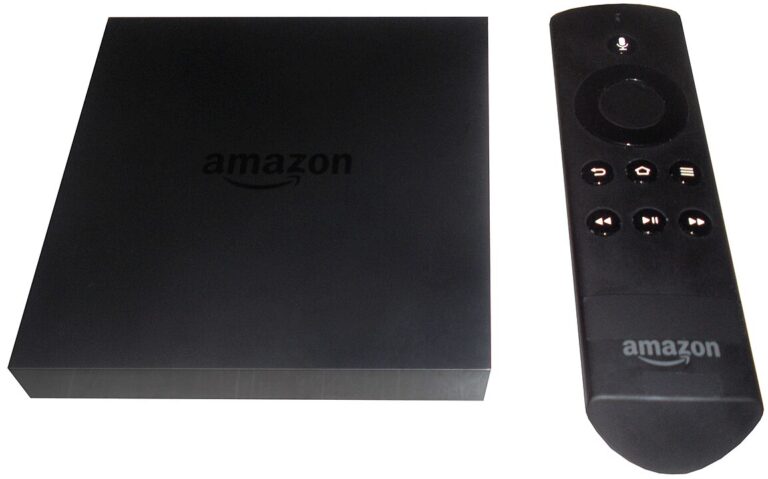
Streaming devices have become central to modern home entertainment, and Amazon’s Fire TV Stick remains one of the most popular options worldwide. Its affordability, ease of use, and tight integration with major streaming platforms make it appealing to beginners and advanced users alike. However, many owners quickly discover that the default settings limit what the device can do, especially when it comes to installing third-party apps or customizing the experience.
This comprehensive guide explains how to unlock those limitations in a safe, legal, and practical way. The process commonly referred to as “jailbreaking” does not involve modifying system files or bypassing paid services. Instead, it focuses on enabling built-in developer features that allow users to install compatible apps outside the Amazon Appstore. When done correctly, it expands functionality while keeping the device stable and secure.
Throughout this guide, you will learn exactly what the process involves, why people choose to do it, how to complete it step by step, and how to avoid common mistakes. The goal is to help you make informed decisions and get the most value from your device without compromising safety or legality.
Understanding What Jailbreaking a Fire TV Stick Really Means
Despite the dramatic name, jailbreaking a Fire TV Stick is very different from hacking or cracking a device. Amazon uses the Android-based Fire OS, which already includes options intended for developers and advanced users. These settings are disabled by default to protect inexperienced users from installing unstable or malicious software.
When people talk about jailbreaking in this context, they are usually referring to enabling the ability to install applications from sources other than the official Amazon Appstore. This practice is also known as sideloading. It does not remove Amazon services, interfere with subscriptions, or alter system-level protections.
Understanding this distinction is important because it shapes how you approach the process. A proper setup keeps the operating system intact, preserves automatic updates, and allows you to continue using all official streaming services normally.
Is It Legal and Safe?
From a legal standpoint, enabling developer options and sideloading apps is permitted in most regions. Amazon itself includes these features, which strongly indicates that they are intended for legitimate use. Problems only arise if users install apps that violate copyright laws or access pirated content.
Safety depends largely on user behavior. Installing apps from reputable developers and avoiding unknown sources significantly reduces risk. Using common sense, security awareness, and optional tools like antivirus scanners helps maintain a safe environment.
Why Users Choose to Jailbreak Their Fire TV Stick
People unlock their devices for many practical reasons. Some want access to niche streaming services not available in the Amazon Appstore, while others prefer custom media players or advanced file management tools. The flexibility gained can dramatically improve usability.
Another major motivation is customization. The default interface works well, but advanced users often prefer alternative launchers, improved performance tools, or utilities that enhance playback control. These additions can make everyday use smoother and more personalized.
Below are some of the most common benefits users experience after completing the process.
- Access to Third-Party Apps
Users can install applications not officially listed in the Amazon Appstore. This includes open-source media players, productivity tools, and region-specific streaming apps that expand content options. - Greater Customization
Advanced launchers, interface tweaks, and performance tools allow users to tailor the device to their preferences. This can improve navigation speed and overall user satisfaction. - Improved Media Playback
Some third-party players support more file formats, subtitles, and audio configurations. This is especially useful for users who stream local media or use network storage. - Better App Control
Users gain the ability to manage app permissions and background behavior more precisely. This can lead to improved performance and reduced clutter. - No Loss of Official Features
Official streaming apps and subscriptions continue to work normally. The process adds options rather than replacing existing functionality.
What You Need Before You Begin
Preparation is essential for a smooth and trouble-free experience. Fortunately, the requirements are minimal and do not involve any special hardware or paid software. Most users can complete the setup in under fifteen minutes.
Before starting, ensure that your Fire TV Stick is updated to the latest version of Fire OS. Updates often include security improvements and stability fixes that help prevent issues during installation.
You should also have a stable internet connection, as you will need to download at least one utility app during the process. A remote control with working batteries is important, as navigation relies heavily on it.
Basic Requirements Checklist
- Amazon Fire TV Stick
Any modern model is compatible, including Fire TV Stick Lite, Fire TV Stick 4K, and Fire TV Stick 4K Max. Older models may have slightly different menu layouts but follow the same principles. - Updated Fire OS
Running the latest available system version reduces compatibility issues. Updates can be checked in the device settings menu. - Reliable Internet Connection
A stable connection ensures smooth downloads and prevents corrupted files during installation. - Basic Navigation Knowledge
Familiarity with the Fire TV interface makes the process faster and reduces the chance of errors.
Step-by-Step Guide to Jailbreaking a Fire TV Stick
The following steps outline the standard and widely accepted method used by millions of users. Each step builds on the previous one, so it is best to follow them in order without skipping.
Step 1: Enable Developer Options
Turn on your Fire TV Stick and navigate to the main settings menu. Select the option related to device or system settings, then locate the section that displays device information.
Highlight the device name and press the select button on your remote repeatedly until a message confirms that developer options have been enabled. This hidden feature unlocks advanced settings needed for sideloading.
Step 2: Allow Apps from Unknown Sources
Once developer options are visible, open them and locate the setting that controls app installation permissions. Enable the option that allows apps from unknown sources.
This setting does not automatically install anything. It simply gives you permission to manually install apps you choose, similar to how Android phones work.
Step 3: Install a Trusted Downloader App
Return to the Fire TV home screen and open the Amazon Appstore. Search for a well-known downloader utility designed specifically for Fire TV devices.
Install the app and grant it the necessary permissions. This tool allows you to download installation files directly from verified websites without using a computer.
Step 4: Download and Install Your Chosen Apps
Using the downloader app, enter the official website address of the app you want to install. Always verify that you are downloading from the developer’s official source.
Once the file is downloaded, follow the on-screen prompts to complete installation. The app will then appear in your list of installed applications.
Best Practices for Staying Secure After Jailbreaking
Unlocking additional features also comes with added responsibility. Maintaining security ensures that your device remains fast, stable, and safe for long-term use.
One of the most important habits is being selective about what you install. Not every third-party app is well maintained or trustworthy, and poor choices can negatively affect performance.
- Use Reputable Sources
Download apps only from official developer websites or widely recognized repositories. This reduces the risk of malware or unstable software. - Keep Apps Updated
Regular updates often include security patches and performance improvements. Check for updates periodically within the apps themselves. - Review App Permissions
Pay attention to what permissions an app requests. Avoid apps that ask for access unrelated to their function. - Monitor Performance
If the device becomes slow or unstable, uninstall recently added apps to identify the cause. - Use a VPN if Needed
A reputable VPN can enhance privacy, especially when using public networks or region-specific services.
Pro Tips for Advanced Fire TV Stick Users
Once the basic setup is complete, experienced users can take things further by optimizing performance and organization. Small adjustments can make a noticeable difference in everyday use.
Clearing cached data periodically helps free up storage and improves responsiveness. This is especially helpful on devices with limited internal memory.
Organizing apps into categories or using a custom launcher can significantly reduce navigation time. This is particularly useful for users with many installed applications.
Frequently Asked Questions
Will jailbreaking void my warranty?
Enabling developer options does not physically modify the device or alter system files. In most cases, this does not void warranties, as the settings are part of the official operating system.
Can I reverse the process?
Yes. You can disable apps from unknown sources and uninstall any sideloaded apps at any time. The device will then function like a standard Fire TV Stick.
Does this allow free access to paid content?
No. Jailbreaking does not bypass subscriptions or payment systems. Accessing paid content without authorization is illegal and should be avoided.
Will my device still receive updates?
System updates continue to work normally. Amazon does not block updates on devices with developer options enabled.
Conclusion
Unlocking an Amazon Fire TV Stick through legitimate developer settings is a practical way to expand its capabilities without compromising security or legality. By understanding what the process truly involves, preparing properly, and following best practices, users can enjoy greater flexibility, improved customization, and access to a wider range of applications.
The key to success lies in responsible use. Choosing reputable apps, staying informed, and maintaining good security habits ensure that the device remains reliable and enjoyable for years to come. When approached correctly, jailbreaking becomes less about breaking rules and more about making the most of the technology you already own.