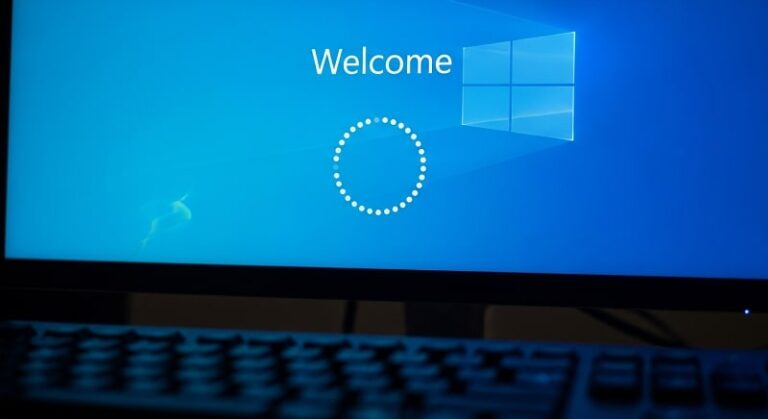
Encountering a situation where your computer refuses to progress beyond the initial greeting can disrupt your workflow and cause unnecessary stress. This common issue affects many users, often manifesting as an endless loading circle or a frozen display after entering your credentials. While it may seem daunting, there are systematic approaches to resolve it without needing advanced technical expertise.
The problem typically arises from software conflicts or system errors that prevent the operating system from loading properly. Recognizing the symptoms early, such as prolonged spinning dots or no response after password input, allows for quicker intervention. Fortunately, most cases can be addressed through built-in tools and simple adjustments, restoring access to your desktop efficiently.
Before diving into solutions, it’s essential to approach the process calmly and methodically. Gathering necessary tools like a bootable USB drive in advance can save time. This guide will walk you through each step, ensuring you understand the rationale behind every action to empower you in handling similar issues in the future.
Patience is key during troubleshooting, as some procedures may require multiple restarts or extended scanning times. If you’re dealing with this on a laptop, ensure it’s plugged in to avoid power interruptions. By following these instructions, you’ll likely regain control of your system without resorting to professional help.
Understanding the Common Causes
To effectively tackle this issue, it’s helpful to know what might be triggering it. Various factors can lead to your system halting at this stage, ranging from recent changes to underlying hardware problems. Identifying the root cause can guide you toward the most appropriate fix and prevent recurrence.
One prevalent reason involves corrupted system files that disrupt the boot sequence. These corruptions often occur due to improper shutdowns or malware interference. When the operating system attempts to load user profiles, it encounters errors, resulting in the freeze.
Another frequent culprit is incompatible or outdated drivers, especially those related to graphics or storage. After a system update, new drivers might conflict with existing configurations. This mismatch can cause the loading process to stall as the system tries to initialize hardware components.
- Recent Windows updates: Sometimes, patches intended to improve security or performance introduce bugs that affect the login process. These updates might alter registry settings or system services, leading to instability. Rolling back the update can often resolve the conflict without losing data.
- Fast Startup feature: Designed to speed up boot times, this option can sometimes cause issues by saving system states incorrectly. It hybridizes shutdown and hibernation, potentially leading to corrupted sessions. Disabling it allows for a cleaner boot cycle each time.
- Hardware conflicts: Faulty peripherals or internal components like RAM modules can interfere with the startup. Loose connections or failing hardware might prevent proper initialization. Testing by removing non-essential devices helps isolate the problem.
- Malware or virus infections: Malicious software can modify critical files or processes, causing hangs during login. Regular scans with reliable antivirus tools are crucial. Infections often stem from unsafe downloads or email attachments.
- Overheating issues: Excessive heat can throttle system performance or cause temporary failures during boot. Dust buildup in fans or poor ventilation exacerbates this. Ensuring proper cooling maintains stable operation.
- Corrupted user profiles: If the problem occurs only for specific accounts, the user profile might be damaged. This affects personalized settings and loaded applications. Creating a new profile can bypass the issue while preserving system integrity.
- Insufficient disk space: Low storage on the system drive can hinder temporary file creation needed for login. Fragmented or full drives slow down read/write operations. Freeing up space improves overall responsiveness.
- Power supply problems: Unstable power delivery, especially in desktops, can interrupt boot sequences. Faulty PSUs or battery issues in laptops manifest as freezes. Verifying power sources eliminates this variable.
By pinpointing these causes, you can prioritize troubleshooting steps that align with your recent system activities. For instance, if the issue started after an update, focus on reversal methods first. This targeted approach saves time and reduces frustration.
Preparation Before Starting Troubleshooting
Setting up properly ensures a smoother resolution process. Collect essential items and note important information beforehand. This preparation minimizes risks like data loss and allows for efficient execution of fixes.
Create a bootable Windows 10 USB drive if you don’t have one. This tool is invaluable for accessing repair options when normal boot fails. Download the media creation tool from Microsoft’s official site on another computer and follow the prompts to prepare the drive.
Back up critical files using external storage or cloud services. Although most fixes preserve data, unforeseen complications can arise. Prioritize documents, photos, and other irreplaceable items to safeguard against worst-case scenarios.
Document your system specifications, including hardware details and recent changes. This information aids in identifying compatible drivers or updates. Knowing your setup also helps in seeking specific advice if needed.
Ensure a stable power source and internet connection where possible. Interruptions can complicate procedures requiring downloads or online verification. For laptops, keep the charger connected throughout.
Basic Fixes to Try First
Begin with simple solutions that often resolve the issue quickly. These methods require minimal technical knowledge and can be performed without advanced tools. They address common temporary glitches effectively.
Perform a Force Restart
Hold down the power button for 10-15 seconds until the system shuts off completely. Wait for about a minute before turning it back on. This clears temporary memory and can resolve minor software hiccups causing the freeze.
If the problem persists after one restart, repeat the process two more times. On the third boot, the system may automatically enter recovery mode. From there, you can access additional troubleshooting options.
Monitor for any unusual sounds or lights during startup. These indicators might point to hardware issues. If successful, proceed to check for updates immediately to prevent recurrence.
Disconnect All External Devices
Remove peripherals like USB drives, printers, and external hard drives. These can sometimes cause conflicts during boot. Restart the computer after disconnection to see if the issue resolves.
Reconnect devices one by one after successful login. This helps identify if a specific item is causing the problem. Update drivers for any problematic hardware through Device Manager.
For wireless devices, ensure they’re powered off or removed from range. Interference from Bluetooth gadgets can occasionally affect the login process. Test in a minimal setup for best results.
Check for Overheating
Feel the computer’s vents and base for excessive heat. If hot, allow it to cool down completely before attempting to boot again. Overheating can cause protective shutdowns or freezes.
Clean dust from fans and vents using compressed air. Regular maintenance prevents thermal issues. Consider using a cooling pad for laptops prone to heat buildup.
Monitor temperatures using built-in tools or third-party software once accessed. High readings indicate need for further cleaning or hardware inspection. Addressing heat extends component lifespan.
Advanced Troubleshooting Methods
When basic fixes fall short, escalate to more in-depth procedures. These involve accessing system tools and making targeted changes. Follow steps carefully to avoid unintended modifications.
Boot into Safe Mode
From the login screen, click the power icon while holding Shift, then select Restart. This initiates the recovery environment. Navigate to Troubleshoot, then Advanced options, followed by Startup Settings, and finally Restart.
After reboot, press 4 or F4 to enter Safe Mode. Here, the system loads with minimal drivers and services. This mode allows you to perform repairs without the full interface loading.
Once in Safe Mode, you can uninstall recent software or updates that might be causing conflicts. Use this opportunity to run scans and checks. Exit Safe Mode by restarting normally when done.
Run System File Checker and DISM Tools
Open Command Prompt as administrator in Safe Mode. Type dism /online /cleanup-image /restorehealth and press Enter. This scans and repairs the Windows image, which can take some time to complete.
Follow up by entering sfc /scannow. The System File Checker will verify and replace corrupted system files. Allow the process to finish without interruption for best results.
If errors are found and fixed, restart the computer to test. These tools address integrity issues that often cause boot hangs. Repeat if necessary after updates.
Perform a System Restore
Search for “System Restore” in Safe Mode and open the tool. Select a restore point from before the issue began. Confirm the action and let the process complete, which may involve a restart.
This reverts system settings and files to a previous state without affecting personal data. It’s effective for undoing problematic changes. Create regular restore points for future protection.
If no points are available, consider enabling System Protection in System Properties. This ensures options for reversal in similar situations. Note any installed programs that might need reinstallation post-restore.
Disable Fast Startup Feature
Access Power Options in Control Panel while in Safe Mode. Click “Choose what the power buttons do” on the left. Then, select “Change settings that are currently unavailable” to enable modifications.
Uncheck “Turn on fast startup” and save changes. Restart the system normally. This feature, while convenient, can cause session conflicts leading to freezes.
Disabling it ensures a full shutdown each time, clearing potential issues. You can re-enable it later if no problems persist. This fix is particularly useful for systems with hybrid sleep enabled.
Update or Roll Back Drivers
Open Device Manager in Safe Mode. Expand categories like Display adapters or Network adapters. Right-click suspicious devices and select Update driver, searching automatically for updates.
If recent updates caused the issue, choose Roll Back Driver instead. This reverts to a previous version. Focus on graphics and storage drivers, as they commonly affect boot.
Test after each change by restarting. Keeping drivers current prevents many compatibility problems. Use manufacturer sites for the latest versions if Windows search fails.
Run Startup Repair
Boot from the Windows USB drive if normal access is impossible. Select Repair your computer, then Troubleshoot, Advanced options, and Startup Repair. The tool will automatically detect and fix boot issues.
Follow on-screen prompts and allow time for completion. This addresses corrupted boot files or configurations. It’s a non-destructive option worth trying early.
If repair fails, note any error codes for further research. Multiple runs might be needed in stubborn cases. This method preserves user data while targeting startup problems.
Check for Windows Updates in Recovery
From the recovery environment, access Command Prompt. Use commands to check for pending updates or install them. Alternatively, boot to Safe Mode with Networking for direct update access.
Go to Settings, Update & Security, and Windows Update. Install any available patches. Updates often include fixes for known boot issues.
If stuck after an update, use the Uninstall updates option in recovery. This removes problematic patches. Stay current to benefit from ongoing improvements.
Reset Your PC as Last Resort
In recovery, select Troubleshoot, then Reset this PC. Choose to keep files if possible. This reinstalls Windows while preserving personal data, though apps may need reinstallation.
Follow the guided process, which can take an hour or more. Use this when other methods fail. Back up first despite the keep files option for safety.
After reset, set up the system anew and install updates. This refreshes the installation, eliminating deep-seated issues. Consider upgrading to newer Windows versions post-reset for better support.
Preventing Future Occurrences
Implementing preventive measures reduces the likelihood of repeats. Regular maintenance keeps your system stable. Adopt habits that promote smooth operation over time.
Schedule weekly scans with Windows Defender or trusted antivirus software. This catches threats early. Avoid suspicious downloads and use safe browsing practices.
Keep drivers and software updated through official channels. Automatic updates ensure timely fixes. Periodically check for hardware firmware updates too.
Maintain adequate free space on your system drive. Use Disk Cleanup regularly. Defragment HDDs if applicable for optimal performance.
Avoid abrupt shutdowns by using proper power options. Invest in a UPS for desktops to handle power fluctuations. For laptops, monitor battery health.
Pro Tips
- Use keyboard shortcuts for quick access: Press Ctrl + Alt + Delete on the stuck screen to bring up options like Task Manager. This can sometimes bypass the freeze and allow sign-out or restart. It’s a handy trick when mouse input fails.
- Create multiple user accounts: Set up an administrator account as backup. If one profile corrupts, switch to another for troubleshooting. This provides flexibility without full system resets.
- Monitor system logs: Use Event Viewer in Safe Mode to check error messages. Look under Windows Logs for clues. Understanding logs helps diagnose recurring issues proactively.
- Optimize startup programs: Disable unnecessary apps in Task Manager’s Startup tab. Fewer programs loading reduces conflicts. Review and trim regularly for faster boots.
- Test hardware components: Run Memory Diagnostic tool for RAM checks. Use chkdsk for disk errors. Early detection prevents escalation to boot problems.
- Enable automatic backups: Use File History or OneDrive for continuous data protection. This ensures quick recovery if resets are needed. Set it up for peace of mind.
- Keep BIOS updated: Check manufacturer site for firmware updates. These can resolve compatibility issues. Follow instructions carefully to avoid risks.
Frequently Asked Questions
What if Safe Mode also gets stuck?
Try booting from a USB drive to access recovery tools directly. Run Startup Repair or Command Prompt fixes from there. If hardware is suspected, test components individually.
Can this issue cause data loss?
Typically no, as fixes target system files. However, always back up before major changes like resets. Use external methods if internal access is blocked.
Why does it happen after sleep mode?
Hibernation files might corrupt. Disable Fast Startup and use full shutdowns. Clear hibernation data with powercfg commands if persistent.
Is upgrading to Windows 11 a solution?
It can be, as newer versions have improved stability. Check compatibility first. Use the upgrade assistant for a smooth transition if hardware supports it.
What if the problem returns after fixing?
Investigate recent installations or changes. Run thorough malware scans. Consider professional diagnostics for potential hardware failures.
How long should I wait on the welcome screen?
No more than a few minutes. If stuck longer, force restart. Prolonged waits rarely resolve on their own and may indicate deeper issues.
Does this affect all users on the PC?
Not always; it could be profile-specific. Try logging in with another account. If successful, repair or recreate the affected profile.
Conclusion
Addressing a stuck welcome screen requires a structured approach, starting from basic restarts to advanced repairs. By understanding causes and applying targeted fixes, most users can resolve the issue independently. Regular maintenance and updates play a crucial role in prevention, ensuring reliable performance. If problems persist despite these steps, seeking expert assistance may be necessary to rule out hardware faults. With these strategies, you’ll maintain a smooth computing experience.