

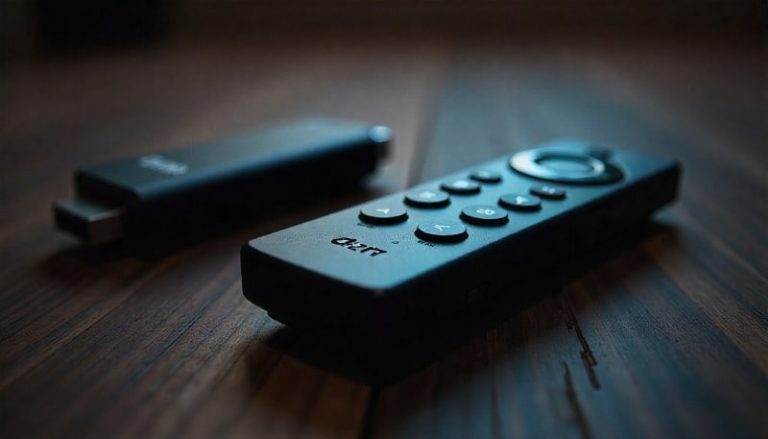
A non-responsive Fire Stick remote can turn your streaming experience into a frustrating ordeal. Whether your remote is unresponsive, failing to pair, or experiencing connectivity issues, this guide provides 12 proven fixes to get your Fire Stick remote working again. We’ve analyzed the latest user trends, top-ranking solutions, and expert recommendations to bring you the most effective troubleshooting steps for 2026.
Why Is Your Fire Stick Remote Not Working?
Before diving into fixes, it’s important to understand the common causes behind a malfunctioning Fire Stick remote:
- Dead or Faulty Batteries: The most common issue. Even new batteries can sometimes be defective or improperly inserted.
- Pairing Issues: If your remote isn’t paired correctly with your Fire Stick, it won’t respond to any commands.
- Interference: Other wireless devices, such as routers or Bluetooth speakers, can interfere with the remote’s signal.
- Software Glitches: A minor software bug or outdated firmware can cause the remote to stop working.
- Physical Damage: Drops, spills, or wear and tear can damage the remote’s internal components.
- Obstructions: Objects blocking the line of sight between the remote and Fire Stick can disrupt connectivity.
- Hardware Failure: In rare cases, the remote or Fire Stick itself may have a hardware defect.
Step-by-Step Guide to Fix Your Fire Stick Remote
1. Check and Replace the Batteries
The first and simplest step is to check the batteries. Even if you recently replaced them, they might be faulty or improperly inserted.
- Remove the battery cover and take out the old batteries.
- Insert a fresh set of AAA batteries, ensuring they are placed correctly (+/- alignment).
- Close the battery cover and wait 30 seconds before testing the remote.
- If the remote still doesn’t work, try a different set of batteries to rule out defects.
2. Restart Your Fire Stick
A simple restart can resolve many software-related issues.
- Unplug the Fire Stick from the power source.
- Wait at least 30 seconds before plugging it back in.
- Allow the device to fully reboot and check if the remote works.
3. Re-Pair the Remote
If the remote is not paired with your Fire Stick, it won’t respond. Here’s how to re-pair it:
- Unplug your Fire Stick and wait 60 seconds.
- Plug it back in and wait for the home screen to load.
- Hold the Home button on the remote for at least 10 seconds.
- Release the button and wait for the remote to pair. The LED light should blink rapidly and then stop.
- Test the remote to see if it’s working.
4. Use the Fire TV App as a Temporary Remote
If your physical remote is still not working, use the Fire TV app as a temporary solution:
- Download the Fire TV app from the App Store or Google Play Store.
- Connect your phone to the same Wi-Fi network as your Fire Stick.
- Open the app and select your Fire Stick device.
- Use the app to navigate and control your Fire Stick.
5. Reset the Remote
If re-pairing doesn’t work, try resetting the remote:
- Press and hold the Left button, Menu button, and Back button simultaneously for 12 seconds.
- Release the buttons and wait 5 seconds.
- Remove the batteries, wait 60 seconds, and reinsert them.
- Re-pair the remote by holding the Home button for 10 seconds.
6. Check for Obstructions and Interference
Ensure there are no physical obstructions between the remote and Fire Stick. Additionally, other wireless devices can interfere with the remote’s signal.
- Move any objects blocking the line of sight between the remote and Fire Stick.
- Turn off other wireless devices, such as routers or Bluetooth speakers, to check for interference.
- Try using the remote from different angles and distances.
7. Update Fire Stick Software
An outdated software version can cause compatibility issues with the remote.
- Use the Fire TV app to navigate to Settings > My Fire TV > About > Check for Updates.
- If an update is available, install it and restart your Fire Stick.
8. Factory Reset Your Fire Stick
If all else fails, a factory reset can resolve persistent software issues. Note: This will erase all your settings and installed apps.
- Use the Fire TV app to navigate to Settings > My Fire TV > Reset to Factory Defaults.
- Confirm the reset and wait for the device to reboot.
- Set up your Fire Stick again and re-pair the remote.
9. Use a Universal Remote or Keyboard
If your Fire Stick remote is still not working, consider using a universal remote or a USB keyboard:
- Purchase a universal remote compatible with Fire Stick.
- Use a USB keyboard or mouse via an OTG adapter to control your Fire Stick.
10. Check for Hardware Damage
Inspect the remote for physical damage, such as cracks, water exposure, or worn-out buttons.
- If the remote is damaged, consider purchasing a replacement remote from Amazon or a trusted retailer.
11. Contact Amazon Support
If none of the above steps work, contact Amazon Customer Support for further assistance. They can provide advanced troubleshooting or arrange a replacement if your remote is under warranty.
12. Prevent Future Issues
To avoid future problems with your Fire Stick remote:
- Use high-quality batteries and replace them every 6 months.
- Keep the remote away from liquids and extreme temperatures.
- Store the remote in a safe place to prevent physical damage.
- Regularly update your Fire Stick software.
Pro Tips
- Quick Re-Pairing: If your remote stops working suddenly, try pressing the Home button 5-10 times in quick succession. This can sometimes re-sync the remote with your Fire Stick.
- Use Voice Commands: If your remote has a voice button, use it to navigate menus hands-free.
- Check for App Updates: Ensure the Fire TV app is updated to the latest version for seamless control.
- Alternative Remotes: Consider using a Bluetooth keyboard or game controller for easier navigation.
Frequently Asked Questions
- Why is my Fire Stick remote not pairing?
The remote may not be paired due to dead batteries, interference, or a software glitch. Try replacing the batteries, restarting your Fire Stick, and re-pairing the remote. - Can I use my phone as a Fire Stick remote?
Yes, you can use the Fire TV app on your smartphone as a remote. Download the app, connect to the same Wi-Fi network, and select your Fire Stick device. - How do I reset my Fire Stick remote?
Press and hold the Left, Menu, and Back buttons simultaneously for 12 seconds. Remove the batteries, wait 60 seconds, and reinsert them before re-pairing. - What should I do if my Fire Stick remote is still not working?
If all troubleshooting steps fail, contact Amazon Support for a replacement or further assistance.
Conclusion
A non-responsive Fire Stick remote can be frustrating, but with the right troubleshooting steps, you can quickly resolve the issue. Start with simple fixes like replacing the batteries and restarting your device. If the problem persists, try re-pairing the remote, using the Fire TV app, or performing a factory reset. For hardware-related issues, consider purchasing a replacement remote or contacting Amazon Support.
By following this guide, you’ll be back to enjoying your favorite shows and movies on your Fire Stick in no time!


