It is incredibly frustrating to plug in your phone at night only to wake up and realize the battery is still in the red. While it is easy to assume the hardware has failed, the reality is that most Android charging problems have nothing to do with a broken phone. Technical data shows that the majority of these failures are caused by simple issues like a dirty port, a failed cable, or a software glitch that a quick restart can resolve in under a minute.
This guide walks through 12 proven fixes in order from fastest to most involved, ensuring you spend the least amount of time troubleshooting before getting your device back on charge. Before you begin: identify whether your phone is completely dead and won’t show any sign of life, or whether it shows a charging indicator but charges slowly or stops at a specific percentage.
These are two different technical problems. If your phone is completely unresponsive, start at Fix 1 and work through Fix 4. If the phone recognizes the cable but behaves strangely or provides a “slow charging” notification, you can skip the initial power checks and move directly to Fix 5.
Fix 1 — Force Restart Your Phone First
Before touching cables, ports, or settings, do a force restart. This solves the problem more often than you would expect. A software crash can freeze the charging circuit in a state where the phone refuses to accept power even though the hardware is fine. I have seen this happen after app updates, after Android system updates, and randomly on phones that have been running for weeks without a restart.
Hold the Power button for 10 seconds until the phone vibrates or the screen goes black. On Samsung Galaxy devices, hold Power + Volume Down simultaneously for 10 seconds. On Google Pixel, hold the Power button for 30 seconds. Once the phone restarts, plug in your charger and wait 60 seconds. If the charging indicator appears, you are done.
If the phone is completely dead and will not respond to a long press, leave it on charge for 15 minutes using a known working cable before attempting the force restart. A fully depleted battery sometimes needs a small charge before it can power on enough to restart.
Fix 2 — Test a Different Cable
The charging cable is the single most common cause of Android charging problems, and it is also the easiest thing to rule out. USB-C and Micro-USB cables fail from the inside — the internal wires fray at the connector ends while the outer sleeve still looks fine. A cable that worked yesterday can stop working today with no visible damage.
Borrow a cable from a friend, use a spare from a different device, or test with a cable you have not used in a while. Plug it in and watch for the charging indicator. If the phone immediately starts charging, your original cable is the problem and needs replacing. Do not waste time on any other fix until you have eliminated the cable.
If you are using a third-party cable, this matters more. Cheap cables often lack the correct internal wiring to support fast charging protocols and can fail entirely within weeks. Replace it with a cable from your phone’s manufacturer or a reputable brand that meets USB-IF certification standards.
Fix 3 — Test a Different Charger and Power Source
The wall adapter fails almost as often as the cable. Test with a different charger — borrow one, use a USB port on a laptop, or try a power bank. Also test a completely different wall outlet. Power strips and surge protectors can fail silently, delivering no power to devices plugged into them even when the indicator light shows green.
If your phone charges on a laptop USB port but not from the wall adapter, the adapter has failed. If it charges from a power bank but not from any wall outlet, the outlet or power strip is the issue. Systematically eliminating each component tells you exactly what to replace without guessing.
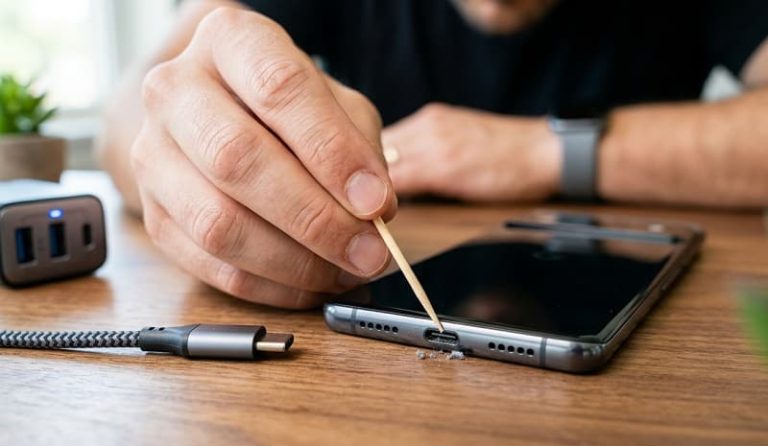
Fix 4 — Clean the Charging Port
A dirty charging port is the second most common cause of charging failures, and it is almost always fixable at home without any tools. Pocket lint, dust, and debris compact into the port over time and physically prevent the cable connector from making proper contact with the pins. The phone may show no charging indicator at all, or it may show charging but stop after a few minutes.
How to Clean Your Android Charging Port Safely
- Turn the phone off completely before cleaning.
- Shine a flashlight directly into the port — you are looking for grey or brown compacted lint sitting at the back of the port.
- Use a wooden or plastic toothpick — never metal. Metal tools can bend or break the charging pins permanently.
- Insert the toothpick gently and scrape along the back wall of the port to loosen compacted debris. Work slowly.
- Blow the loosened debris out with short puffs of air, or use a can of compressed air held upright at least 2 cm from the port.
- Inspect again with the flashlight. The port should look clean with visible metal pins intact.
- Plug in the cable firmly — after cleaning, a cable that previously felt loose should now seat properly and click into place.
Do not use cotton swabs — the fibres shed inside the port and make the problem worse. Do not use isopropyl alcohol unless you are experienced with electronics cleaning. In most cases, the toothpick method alone solves the problem completely.
Fix 5 — Remove the Phone Case
Thick phone cases, especially rugged or waterproof cases, can partially obstruct the charging port opening. The cable appears to be plugged in but is not fully seated against the charging pins. Remove the case entirely and plug the cable in directly. If the phone starts charging immediately, either trim the port opening on your case with a sharp blade or switch to a case with a wider port cutout.
Fix 6 — Check for Water or Moisture Damage
If your phone has been exposed to rain, sweat, humidity, or any liquid, moisture inside the charging port will prevent charging and can trigger a moisture detection warning on newer Android phones. Samsung phones in particular display an explicit “Moisture Detected” notification and will refuse to charge via cable until the port is dry.
Do not use a hairdryer — forced hot air can damage internal components. Instead, leave the phone in a dry environment at room temperature with the port facing downward for at least two to four hours. A small bag of silica gel packets placed near the port speeds up the drying process. Once dry, plug in the cable. On Samsung devices, the moisture warning clears automatically when the port is confirmed dry.
If your phone supports wireless charging, use it while the port dries. This keeps your phone powered and usable without risking further damage to the port.
Fix 7 — Disable USB Charging Optimization and Battery Settings
Android’s battery optimization features can interfere with charging in ways that look like hardware failures. Some Android versions slow or pause charging overnight to protect battery health, which can make it appear the phone is not charging when it is simply in a managed charging state. On some devices, third-party battery apps aggressively restrict charging current to extend battery lifespan.
Samsung Galaxy — Disable Adaptive Charging
Go to Settings → Battery and Device Care → Battery → More Battery Settings and turn off Adaptive charging. Samsung’s adaptive charging feature deliberately slows charging overnight if it predicts you will wake up at a consistent time, which can look like a charging problem at 2 AM.
Google Pixel — Disable Adaptive Charging
Go to Settings → Battery → Adaptive charging and toggle it off. Pixel phones using Adaptive charging will hold at 80% for extended periods before completing the charge to 100%, which many users mistake for a charging failure.
OnePlus — Disable Optimized Charging
Go to Settings → Battery → Optimized Charging and disable it. OnePlus devices are particularly aggressive about this feature and will pause charging entirely under certain conditions.
Fix 8 — Boot Into Safe Mode to Rule Out App Interference
A third-party app — particularly a battery manager, task killer, or power-saving app — can override charging behavior at the system level. Booting into safe mode disables all third-party apps and lets you test charging in a clean environment. If your phone charges normally in safe mode, one of your installed apps is causing the problem.
To enter safe mode on most Android phones: hold the Power button until the power menu appears, then long-press the Power Off option until a prompt asks if you want to reboot to safe mode. Tap OK. The phone restarts with “Safe Mode” displayed at the bottom of the screen. Plug in your charger and test. To exit safe mode, simply restart normally.
If charging works in safe mode, uninstall battery-related apps one by one and test after each removal until the problem resolves in normal mode.
Fix 9 — Clear the Cache Partition
Corrupted system cache files can interfere with core Android functions including charging management. Clearing the cache partition removes these temporary files without deleting any personal data — your apps, photos, and settings remain completely intact.
- Power off the phone completely.
- Boot into Recovery Mode. On most Samsung devices: hold Power + Volume Up + Bixby simultaneously. On Pixel: hold Power + Volume Down. On OnePlus: hold Power + Volume Up.
- Use the volume buttons to navigate to Wipe Cache Partition and confirm with the Power button.
- Select Reboot System Now when complete.
- Test charging after the phone restarts.
Fix 10 — Update or Roll Back Android Software
Android software updates occasionally introduce bugs that affect charging behavior. A well-documented example affected several Samsung Galaxy S series phones after a specific One UI update that caused charging to stop at 85% randomly. Conversely, if you are running an outdated Android version, a known charging bug may already have been patched in a newer release.
Check for updates at Settings → System → System Update (or Settings → Software Update on Samsung). If an update was recently installed around the time charging problems started, check XDA Developers or your phone manufacturer’s community forums for reports of charging issues on that build. If a bug is confirmed, the fix is usually a subsequent patch — sign up for beta updates if available to get the fix faster.
Fix 11 — Check USB Debugging and Developer Options
If USB Debugging is enabled in Developer Options, some Android phones behave differently when a cable is connected — treating it as a data connection rather than a charging connection. This can reduce or stop charging current on certain devices and cable combinations.
Go to Settings → Developer Options and toggle off USB Debugging. If Developer Options is not visible, it has not been enabled and this fix does not apply to you. Reconnect your charger and test. This fix is more relevant for developers and power users who have previously enabled this setting and forgotten about it.
Fix 12 — Perform a Factory Reset as a Last Resort
If every fix above has failed and your phone still will not charge, a factory reset eliminates the possibility of a deep software corruption that cannot be resolved any other way. This is a last resort because it erases everything on the device. Back up your data to Google Drive or a computer before proceeding.
Go to Settings → General Management → Reset → Factory Data Reset (Samsung) or Settings → System → Reset Options → Erase All Data (stock Android). After the reset, test charging before restoring any apps or data. If the phone charges after the reset but the problem returns after restoring, a specific app or setting you restored is the cause — restore selectively.
If the phone still does not charge after a factory reset, the problem is hardware. Proceed to the repair cost guide below.
Brand-Specific Fixes Worth Knowing
Samsung Galaxy — Moisture Warning That Won’t Clear
If your Samsung shows a moisture warning that will not clear even after the port is dry, go to Settings → Apps → show system apps → USB Settings and clear its cache and data. This resets the moisture detection sensor log and often clears a false positive warning that persists after the port has been dry for hours.
Google Pixel — Battery Health Check
Pixel phones running Android 14 and later include a Battery Health screen under Settings → Battery. If battery health is shown as degraded, the phone may charge slowly or stop at lower percentages as a protective measure. A degraded battery reading on a Pixel under two years old may be covered under warranty — contact Google Support before paying for a replacement.
OnePlus — WARP and SUPERVOOC Charging Issues
OnePlus fast charging (WARP or SUPERVOOC) only works with the original cable and adapter that came in the box. Third-party cables reduce the phone to standard 5W charging, which charges so slowly it can appear the phone is not charging at all, especially if the screen is on. Always use the original OnePlus cable for fast charging and confirm the charging animation shows the WARP or SUPERVOOC indicator, not the standard charging icon.
When to Take Your Phone to a Repair Shop
If you have worked through all 12 fixes and the phone still will not charge, the problem is physical hardware — either a damaged charging port or a degraded battery. Both are repairable at reasonable cost and do not require buying a new phone.
Charging port replacement costs between $50 and $100 USD at most independent repair shops, depending on your phone model. USB-C ports on flagship phones cost more due to the labor involved in disassembly. The repair typically takes one to two hours. Before paying, ask the shop to confirm whether the port is damaged or simply dirty — a thorough cleaning is far cheaper and sometimes all that is needed.
Battery replacement costs between $40 and $80 USD for most Android phones. If your phone is over three years old and charges slowly even with a working cable and clean port, the battery has likely lost significant capacity and replacement will immediately improve charging speed and daily battery life. Samsung, Google, and many manufacturers offer official battery replacement programs that are worth checking before going to a third-party shop.
Frequently Asked Questions
Why is my Android phone suddenly not charging?
The most common causes of sudden charging failure are a damaged cable, a dirty charging port, or a software glitch. Before assuming hardware damage, force restart the phone, test with a different cable and adapter, and clean the port with a toothpick. In most cases one of these three steps resolves the problem without any cost or technical knowledge required.
How do I clean my Android charging port safely?
Turn the phone off, then use a wooden or plastic toothpick to gently scrape compacted lint from the back of the port. Never use metal tools, cotton swabs, or liquid cleaners. Shine a flashlight into the port before and after to confirm the debris has been removed. The cable should seat firmly and click into place once the port is clean.
How do I know if my charging port is damaged?
Signs of a damaged port include a cable that feels loose or wobbles when plugged in, visible bent or broken pins inside the port when viewed with a flashlight, a phone that only charges at certain angles, or a port that shows no charging response even with a known working cable after cleaning. If the port passes a visual inspection but the phone still will not charge, test with a wireless charger to confirm whether the port specifically is the issue.
Why does my Android charge slowly but not fully?
Slow or incomplete charging is usually caused by a third-party cable that does not support the phone’s fast charging protocol, adaptive charging features deliberately slowing the charge overnight, or a battery that has degraded below 80% health. Disable adaptive charging in settings, switch to the original manufacturer cable, and check battery health under Settings → Battery to identify which applies to your situation.
Why is my phone not charging without a case?
If removing the case suddenly allows charging, the case port cutout is too narrow and is preventing the cable from fully seating against the charging pins. The connector needs to click firmly into place to make proper contact. Either trim the port opening on your case or replace it with one that has a wider cutout designed for your specific phone model.
Can a bad cable stop my phone from charging completely?
Yes — a failed cable is the single most common cause of Android charging failures. Internal cable wires fray at the connector ends while the outer sleeve remains intact, making the damage invisible. Always test with a second cable before concluding the phone has a hardware problem. A replacement USB-C cable from a reputable brand costs under $15 and resolves the majority of charging complaints.