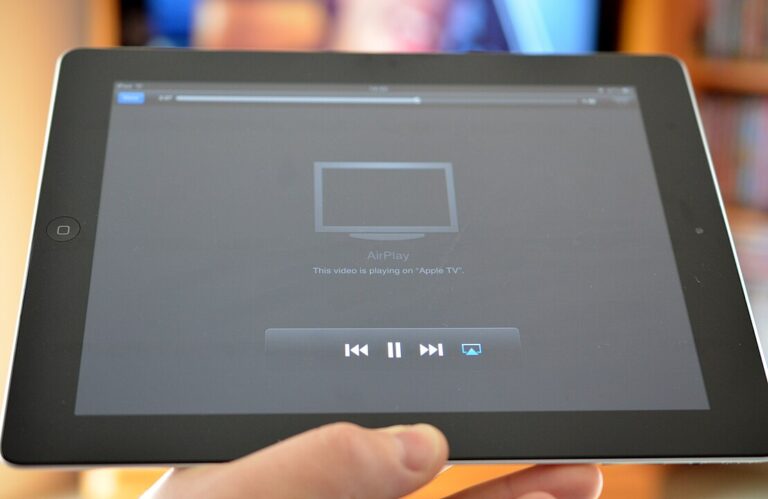
Screen mirroring utilizing AirPlay technology allows iPhone users to extend their device display to a television or Apple TV, enabling shared viewing of applications, videos, photos, and other content on a larger screen. A frequent obstacle in this process is the lack of audio output on the receiving device, even when video transmission occurs without interruption. This issue can arise in various setups, including those involving Apple TV or AirPlay-compatible smart televisions from manufacturers such as Samsung, LG, or Roku.
As of December 23, 2025, the latest software versions—iOS 18.2 for iPhones and tvOS 18.2 for Apple TV—include optimizations for AirPlay stability, particularly in audio synchronization during mirroring sessions. These updates address previous reports of intermittent audio dropouts. However, user-specific configurations, network conditions, or overlooked settings may still trigger the problem. This guide provides a detailed, step-by-step framework to troubleshoot and resolve no-sound issues, drawing from standard practices applicable to current systems.
AirPlay operates by sending separate streams for video and audio over a local Wi-Fi network, which explains why video often remains unaffected while audio fails. Factors such as routing preferences, device compatibility, and environmental interference play significant roles. The following sections explore common causes before delving into structured solutions, ensuring a logical progression from basic to advanced remedies.
Many instances stem from simple misconfigurations rather than defects, making systematic checking essential. Testing audio after each step helps identify the resolution point efficiently.
Comprehensive Analysis of Common Causes
Before initiating fixes, understanding the underlying reasons for audio absence during screen mirroring enhances diagnostic accuracy. The list below outlines eight primary causes, each with detailed explanations and implications for troubleshooting.
- Volume Controls and Mute Functions: Audio output may be suppressed because volume is set too low or mute is activated on the iPhone, Apple TV, or television. The iPhone distinguishes between ringer and media volume, so adjustments during mirroring must target media levels specifically. This cause accounts for a substantial percentage of cases, as users may adjust ringer volume inadvertently, leaving media silent.
- Silent Mode on iPhone: Devices with a physical Ring/Silent switch can extend silent mode to AirPlay sessions, muting output despite visual indicators suggesting otherwise. This hardware feature, designed for quick notification silencing, overrides media playback in connected scenarios. Flipping the switch resolves it instantly in affected models.
- Network Configuration Mismatches: When devices connect to different Wi-Fi networks or bands (2.4 GHz versus 5 GHz), audio packets experience delays or loss while video, being more buffered, continues. Uniform network assignment is critical, as AirPlay relies on peer-to-peer communication within the same subnet. Router settings often default to band steering, causing unintended separations.
- Bluetooth Device Interference: Paired Bluetooth accessories, such as earbuds or speakers, can capture audio streams intended for AirPlay, redirecting them away from the television. Even inactive pairings maintain priority in iOS routing logic. Disconnecting all Bluetooth devices during testing isolates this factor effectively.
- Audio Format Compatibility Issues: The receiving device may not support the selected audio format, like Dolby Atmos or Dolby Digital, leading to automatic muting to prevent errors. Defaulting to Stereo ensures broad compatibility across hardware. This is common with older televisions or when advanced formats are enabled post-update.
- Outdated System Software: Running prior versions of iOS or tvOS can perpetuate known bugs in audio handshaking, fixed in releases like 18.2. Updates include protocol refinements for better stream integrity. Incompatible versions between sender and receiver exacerbate desynchronization.
- HDMI and Physical Connection Problems: In wired setups with Apple TV, loose HDMI cables, faulty ports, or disabled ARC (Audio Return Channel) block audio passthrough from the box to the television speakers. High-quality cables and enabled CEC (Consumer Electronics Control) features synchronize operations. Vibration or wear over time contributes to intermittent failures.
- Restrictive Device Modes: iPhone features such as Do Not Disturb, Focus modes, or Low Power Mode limit background processes or output to conserve resources, impacting AirPlay audio. These modes alter system priorities, treating mirroring as non-essential. Accessibility settings like mono audio can also reroute or alter sound unexpectedly.
This foundational knowledge informs the targeted application of solutions, reducing trial-and-error.
Step 1: Basic Volume and Mute Verifications
Commence with the most accessible checks, as they rectify the majority of no-sound scenarios. On the iPhone, initiate screen mirroring to the television, then press the side volume buttons to increase media volume while content plays. Observe the on-screen volume indicator to confirm it affects playback, not the ringer.
For iPhones with a Ring/Silent switch (typically older models), ensure it is positioned to Ring. Silent mode can propagate to external outputs, a behavior consistent across iOS versions. Swipe down from the top-right corner to open Control Center, tap the AirPlay icon in the media playback section, and select the television to establish or refresh the connection.
Shift focus to the receiving end. Using the television or Apple TV remote, raise the volume and check for any mute symbols on screen. If a soundbar or external audio system is connected via HDMI-ARC, verify its volume and input source independently, as it may override the television’s speakers.
Advanced Volume Routing Check
In Control Center during active mirroring, long-press the now-playing card to expand output options. Confirm that both video and audio are directed to the same AirPlay device; if split, drag the audio icon to match. This step addresses routing splits introduced by prior Bluetooth or app-specific selections.
Test with a short system sound, such as an alarm tone from the Clock app, mirrored via AirPlay. Immediate feedback validates the fix or indicates persistence.
Step 2: Network Compatibility Assurance
AirPlay demands devices on the identical Wi-Fi network for seamless communication. Access iPhone Settings > Wi-Fi to note the connected network name and signal strength. Repeat on Apple TV via Settings > Network > Wi-Fi, ensuring exact match, including case sensitivity in SSID.
In dual-band routers, manually select the 2.4 GHz band for both devices, as it offers better penetration through walls and less interference for audio streams compared to 5 GHz. Log into the router’s admin interface (usually 192.168.1.1) to separate bands if merged, then reconnect accordingly.
Restart the router by unplugging it for 30 seconds, allowing full capacitor discharge and IP refresh. Disable any active VPN on the iPhone, as it encrypts traffic and blocks local Bonjour discovery used by AirPlay.
Signal Strength and Interference Mitigation
Position devices within 30 feet of the router with minimal obstructions. Pause bandwidth-heavy activities on other network devices, such as downloads or streaming. If using mesh systems, verify all nodes are online and synchronized.
For guest networks or extenders, transition to the primary network. Strong signal (at least three bars) is prerequisite for reliable audio packet delivery.
Step 3: Software and Firmware Updates
Ensure all devices run the latest versions to benefit from audio-related patches. On iPhone, navigate to Settings > General > Software Update; install iOS 18.2 if available, connecting to power and Wi-Fi for the process.
On Apple TV, go to Settings > System > Software Updates > Update Software. Enable automatic updates to prevent future lapses. Restart both devices post-installation to activate changes.
For third-party smart TVs with AirPlay support, check the manufacturer’s app or settings menu for firmware updates. Brands like Samsung use SmartThings, LG employs ThinQ—apply any pending patches for protocol alignment.
Update Verification and Rollback Options
After updating, retest mirroring. If issues worsen (rare but possible in betas), consider stable release reversion via recovery mode, though this is seldom necessary in official 18.2 builds.
Batch updates across the ecosystem maintain version parity, avoiding handshake failures.
Step 4: Audio Output and Format Adjustments
On Apple TV, proceed to Settings > Video and Audio > Audio Format, choosing Stereo or Auto to sidestep unsupported Dolby options. Disable Surround Sound if enabled, as it may conflict in mirroring mode.
For smart TVs, enter sound settings and select internal speakers or correct HDMI input. Turn off enhancements like virtual surround or equalizer presets that process audio incompatibly.
Bluetooth and Accessory Disconnection
In iPhone Settings > Bluetooth, forget all paired devices temporarily. This prevents hijacking, a common culprit in hybrid audio environments.
Reconnect only essentials post-resolution.
Step 5: Device and Router Restarts
Power cycle systematically: iPhone (hold side and volume down until slider, shut down, wait 30 seconds, restart); Apple TV (Settings > System > Restart); router (unplug 30 seconds).
If needed, reset iPhone network settings: Settings > General > Transfer or Reset iPhone > Reset > Reset Network Settings (re-enter Wi-Fi passwords afterward).
Soft vs. Hard Resets
Soft restarts clear caches; hard (via recovery) for deeper issues, but avoid unless directed by support.
Step 6: HDMI and Physical Connection Inspection
Reseat HDMI cables at both ends, checking for bent pins or dust. Test with a known-good cable rated for 4K/HDR if applicable.
Enable HDMI-CEC on TV (branded as Anynet+ on Samsung, SimpLink on LG) for auto-switching and volume sync.
Bypassing Intermediaries
Connect Apple TV directly to TV, bypassing AV receivers initially to isolate.
Step 7: Mode and Restriction Deactivation
Disable Focus/Do Not Disturb in Settings > Focus. Turn off Low Power Mode in Settings > Battery.
Check Accessibility > Audio/Visual for mono audio or balance issues; revert to defaults.
Content Restrictions on Apple TV
Review Settings > General > Restrictions for app-specific mutes.
Step 8: Diagnostic Testing and Isolation
Use Clock app alarm via AirPlay for pure audio test. Try different apps to rule out source-specific problems.
On Apple TV, run built-in diagnostics if available in settings.
Pro Tips
Use 2.4 GHz exclusively for AirPlay in challenging environments. Update during off-hours. Invest in HDMI 2.1 cables for future-proofing.
Create a dedicated guest network for AirPlay devices to isolate traffic. Monitor via router apps for real-time bandwidth.
Label cables and note successful settings. Enable AirPlay from lock screen for quick access.
Avoid beta software for critical setups. Clean ports quarterly.
Integrate HomePod for audio relay if available. Test new updates in non-production first.
Frequently Asked Questions
Why is video present but audio missing? Routing defaults to internal speakers; check Control Center.
Silent switch impact? Yes on applicable models; set to Ring.
Best Wi-Fi band? 2.4 GHz for range.
Bluetooth role? Disconnect to test.
Post-update persistence? Reset network settings.
Mirroring vs. streaming difference? Mirroring duplicates entire screen, requiring unified routing.
Third-party TV fixes? Update firmware, select AirPlay input.
Soundbar integration? Set as default output in TV settings.
Prevention strategies? Routine restarts and updates.
Support escalation? Use Apple Support app with diagnostics.
Conclusion
Troubleshooting no sound when screen mirroring an iPhone to a TV through AirPlay involves progressive steps from volume checks and network alignment to software updates, output configurations, restarts, connection inspections, mode deactivations, and diagnostic tests. Implementing these in iOS 18.2 and tvOS 18.2 environments reliably restores audio. Pro tips and FAQs further empower users, while preventive maintenance ensures long-term stability in Apple ecosystems.