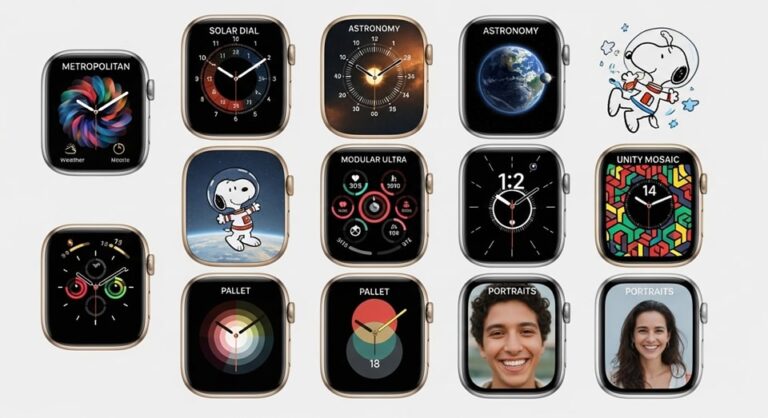
Understanding Apple Watch Faces and Their Importance
The Apple Watch has revolutionized personal technology by bringing powerful computing capabilities directly to your wrist. At the heart of this experience lies the watch face, which serves as both the primary interface and a reflection of personal style. Unlike traditional timepieces with fixed displays, Apple Watch faces offer unprecedented customization options that allow users to tailor their device to match their lifestyle, preferences, and daily needs.
Watch faces are far more than aesthetic choices. They represent the most frequently viewed screen on your Apple Watch, making their selection and customization crucial for both functionality and user satisfaction. Each face offers unique capabilities, from displaying health metrics and weather information to providing quick access to favorite applications through complications. Understanding how to effectively find, download, customize, and manage these faces can dramatically enhance your Apple Watch experience.
The ability to personalize your Apple Watch face has become increasingly sophisticated with each watchOS update. As of 2024, users have access to an extensive library of native watch faces developed by Apple, along with the ability to create custom configurations using third-party applications. This comprehensive guide explores everything you need to know about Apple Watch faces, from the basics of customization to advanced techniques for creating truly unique displays.
Native Apple Watch Faces: Built-in Options and Features
Apple provides a substantial collection of pre-installed watch faces, each designed with specific use cases and aesthetic preferences in mind. These native faces are accessible through the Face Gallery within the Watch app on your paired iPhone, offering immediate customization without requiring additional downloads or purchases.
Popular Native Watch Faces
The Infograph face stands out as one of the most information-dense options available, supporting up to eight complications simultaneously. This makes it ideal for users who want comprehensive at-a-glance information, including weather conditions, calendar events, activity progress, and more. The face features four corner complications, four subdial complications in the center, and maintains excellent readability despite the information density.
For those seeking a more refined appearance, the California face combines elegance with functionality. It offers a choice between full-screen and circular layouts, with support for up to four complications in the circular configuration. The face features a mix of Roman and Arabic numerals, creating a sophisticated aesthetic suitable for both professional and casual settings. Its always-on display implementation is particularly well-executed, maintaining clarity even when the screen dims.
The Modular face provides a clean, digital interface with large, easily readable modules. Available in several variants including Modular Compact and Modular Duo, this face emphasizes functionality over ornamentation. The Modular Ultra, exclusive to Apple Watch Ultra models, offers seven complication slots plus customizable bezel information, making it the most data-rich option for outdoor enthusiasts and fitness-focused users.
Fitness and Health-Focused Faces
Several native faces prioritize health and fitness tracking. The Activity face places your activity rings front and center, allowing you to monitor move, exercise, and stand progress throughout the day. The circular design supports three additional complications, perfect for displaying heart rate, workout shortcuts, or weather information.
The Breathe face encourages mindfulness by prompting users to take calming breaths. When activated, it displays animated patterns synchronized with breathing exercises. This face represents Apple’s commitment to mental health and stress management, offering a moment of tranquility in busy schedules.
Photo and Portrait Faces
Personal photography takes center stage with the Photos and Portrait faces. The Photos face, significantly enhanced in watchOS 11, now uses machine learning to automatically select the best images from your library based on composition, facial expressions, and image quality. Users can choose from categories including People, Pets, Nature, and Cities, with the ability to customize time size and layout.
The Portrait face specifically focuses on people and pets, utilizing depth information to layer the time behind or in front of your subject. This creates a striking three-dimensional effect that brings photos to life on your wrist. The face supports two complications and various color filter options to match different moods and settings.
New Faces in watchOS 11
The latest watchOS 11 update introduced two innovative faces. Flux displays time in bold numerals with a dynamic fill-up effect showing passing seconds. On Apple Watch Series 10 with LTPO 3 display technology, this animation continues even in always-on mode, creating a mesmerizing visual experience.
Reflections offers a more artistic approach with abstract, refracted light patterns that change throughout the day. Both faces demonstrate Apple’s continued innovation in watch face design, balancing aesthetic appeal with functional timekeeping.
Customizing Your Apple Watch Face
Customization transforms a standard watch face into a personalized tool perfectly suited to your needs. The process involves selecting colors, styles, complications, and other elements that define how information appears on your display.
Customization Methods
You can customize watch faces directly on your Apple Watch or through the Watch app on your iPhone. To customize on the Apple Watch itself, press and hold the current watch face until it shrinks, tap Edit, then swipe left and right to access different customization options. Use the Digital Crown to scroll through available choices for each element.
The iPhone method offers a larger screen for easier navigation. Open the Watch app, navigate to either My Faces or Face Gallery, select the face you want to customize, and tap on individual elements to modify them. Changes appear instantly in the preview, allowing you to experiment with different combinations before committing.
Understanding Complications
Complications are small widgets that display information from apps directly on your watch face. They provide at-a-glance access to data without opening apps, significantly enhancing the utility of your Apple Watch. The number and type of complications available depends on the watch face selected.
Common complication types include:
- Activity rings showing your daily move, exercise, and stand progress in a colorful circular display. This complication motivates users to close their rings and maintain consistent activity levels throughout the day.
- Weather information displaying current temperature, conditions, and forecasts. Popular weather apps like CARROT Weather offer enhanced complications with personality and additional meteorological data.
- Calendar events showing upcoming appointments and meetings. This ensures you never miss important commitments and can plan your day effectively.
- Heart rate monitoring providing real-time cardiovascular data. Third-party apps like HeartWatch offer enhanced visualizations including minimum, maximum, and average rates.
- Battery status indicating remaining charge levels. Essential for ensuring your watch stays powered throughout the day, especially during extended activities.
Third-party applications have expanded complication possibilities significantly. Apps like Fantastical offer sophisticated calendar complications, while fitness apps such as Strava and Gentler Streak provide workout-specific data. The key to effective complication use is selecting information truly useful for your daily routine rather than simply filling every available slot.
Third-Party Watch Face Applications
While Apple doesn’t permit true third-party watch faces, several applications work within the system’s framework to offer enhanced customization options. These apps create configurations based on Apple’s native faces but with additional features and creative designs.
Facer: Community-Driven Customization
Facer represents one of the most popular third-party watch face platforms, boasting thousands of user-created designs. The application offers both free and premium faces, with a subscription service unlocking additional features and designs. Users can browse faces by category, popularity, or creator, making discovery straightforward.
Installing a Facer watch face involves opening the app on your iPhone, selecting your desired design, and tapping the add button. The face appears in your Watch app’s My Faces section within seconds, ready for immediate use. Facer designs often incorporate custom activity tracking widgets and weather information, though some features require HealthKit permissions.
The premium subscription, priced at seven dollars monthly, grants access to exclusive designs and removes advertisements. However, compatibility issues occasionally arise with older Apple Watch models, as many designs target newer hardware with enhanced displays and processing capabilities.
Buddywatch: Social Watch Face Sharing
Buddywatch combines watch face discovery with social features, allowing users to share their creations within a community environment. The application includes search functions with category and compatibility tags, ensuring users find faces suitable for their specific Apple Watch model.
Unique features include watch band matching, which suggests faces complementing your current strap, and personalized recommendations based on viewing history. Users can link multiple watches to their profile, enabling easy synchronization of faces across devices. The VIP subscription unlocks exclusive features and early access to new designs.
Clockology: Advanced Custom Creation
Clockology appeals to users seeking complete creative control over their watch face design. The application provides tools for building faces from scratch, including layer management, custom graphics, and complex complication arrangements. Users can incorporate time displays, activity rings, weather data, and personal photographs into their designs.
The setup process, while more complex than other applications, rewards users with truly unique watch faces. Designs must be synced through a companion app, and continuous functionality requires keeping the Clockology app open on the Apple Watch. Battery consumption can increase with complex designs, though the trade-off may be worthwhile for users prioritizing personalization.
Watchsmith: Dynamic Complication Management
Watchsmith takes a different approach by focusing on complication creation and management rather than complete watch faces. The application allows users to design custom complications that change automatically throughout the day based on time, location, or other contextual factors.
For example, a Watchsmith complication might display weather information during morning hours, switch to calendar events during work hours, and show fitness metrics in the evening. This dynamic behavior maximizes the utility of limited complication slots, ensuring the most relevant information always appears on your watch face.
Watch Face Sharing Feature
Apple introduced watch face sharing in watchOS 7, enabling users to exchange their customized faces with friends, family, and the broader Apple Watch community. This feature has transformed watch faces from purely personal configurations into shareable creative expressions.
How to Share Watch Faces
Sharing from your Apple Watch requires navigating to the face you want to share, pressing and holding until the share button appears, then selecting a recipient. You can choose from recent contacts or search for specific individuals. The shared face includes all customizations and complications, though personal data never transfers.
Sharing from iPhone provides more flexibility. Open the Watch app, select the face from My Faces or Face Gallery, tap the share icon, and choose your preferred method. Options include Messages, Mail, AirDrop, or saving the face file to cloud storage services for broader distribution.
Shared faces use a special .watchface file format containing all configuration information. Recipients must have watchOS 7 or later to receive and install shared faces. When complications reference apps not installed on the recipient’s device, they receive App Store links for easy download.
Websites and Communities for Watch Face Discovery
Several websites have emerged as hubs for watch face sharing. Watchfacely offers a curated collection of community-created faces installable through QR codes or direct links when visiting the site on your iPhone. Each face includes a preview and compatibility information.
These platforms leverage watchOS’s native sharing feature, meaning downloaded faces integrate seamlessly with your existing collection. The sites regularly update with new designs, often themed around holidays, seasons, or current events. Users can also submit their own creations, contributing to the growing library of available options.
Advanced Customization Techniques
Beyond basic customization, several advanced techniques can elevate your Apple Watch face experience to new levels of personalization and functionality.
Creating Photo-Based Watch Faces
The Photos face offers extensive customization beyond simply selecting images. In watchOS 11, the face’s machine learning algorithms analyze your photo library, identifying images with optimal composition, proper facial framing, and suitable color balance for watch display.
Users can manually curate photo collections by creating albums in the Photos app, then selecting these specific albums in the watch face settings. This ensures only chosen images appear in rotation. Time positioning options allow the clock to overlay images naturally, while color filters can create cohesive aesthetic themes across different photos.
Strategic Complication Placement
Effective complication use involves understanding which information you access most frequently throughout the day. Analytics suggest most users check weather and activity data more often than other metrics, making these ideal candidates for prominent positions on your watch face.
Consider creating multiple watch faces optimized for different contexts. A work face might emphasize calendar events and communication apps, while a fitness face prioritizes activity rings, heart rate, and workout shortcuts. The ability to quickly switch between faces makes this strategy practical for daily use.
Color Coordination with Watch Bands
Many watch faces offer extensive color customization options. Matching these colors to your watch band creates visual harmony and elevated aesthetic appeal. Buddywatch and similar applications explicitly support this use case with band-matching features that suggest complementary color schemes.
watchOS 11 Enhancements and Features
The watchOS 11 update, released in September 2024, brought significant improvements to watch face functionality and overall system capabilities. These enhancements reflect Apple’s ongoing commitment to making the Apple Watch more personalized and intelligent.
Smart Stack Improvements
The Smart Stack, introduced in watchOS 10, received substantial upgrades in watchOS 11. It now uses intelligence to automatically add and suggest widgets based on time, date, location, and established routines. Live Activities integration allows real-time updates for ongoing events, ticket countdowns, and delivery tracking to appear prominently in the stack.
New widgets including Photos, Distance, and Shazam expand the Smart Stack’s utility. Interactive widgets enable direct app interaction without fully launching applications, streamlining common tasks. The Smart Stack essentially provides face-agnostic information access, reducing the need for complication-heavy faces.
Photos Face Redesign
The Photos face redesign represents one of the most visible watchOS 11 improvements. Machine learning algorithms now automatically curate your photo library, selecting images with the best facial expressions, colors, and composition. Dynamic mode refreshes the displayed photo each time you raise your wrist, providing constant variety.
Users can select from predefined categories or manually choose specific photos and albums. The face offers increased customization for time display size and position, along with new layout options that better integrate complications with photo content.
New Native Faces
Flux and Reflections joined the watch face lineup with watchOS 11. Flux features large, bold numerals with a fill-up animation showing passing seconds. On devices with LTPO 3 displays, this animation continues in always-on mode, creating dynamic visual interest without compromising battery life.
Reflections takes an artistic approach with abstract patterns and refracted light effects. The face changes subtly throughout the day, offering visual variety while maintaining clear time display. Both faces support standard complications, balancing artistic expression with practical functionality.
Health and Fitness Integration
While not directly related to watch faces, watchOS 11’s new Vitals app and Training Load features influence complication choices. Users interested in these metrics can now add relevant complications to their faces, accessing comprehensive health data without opening multiple applications.
The ability to pause Activity rings without breaking streaks also affects how users configure fitness-focused faces. This feature acknowledges that rest days are crucial for long-term health, removing pressure to close rings during recovery periods.
Best Practices for Watch Face Management
Effective watch face management involves more than simply creating attractive displays. Consider these strategies for maximizing the utility and enjoyment of your Apple Watch faces.
Creating Contextual Face Collections
Build a library of watch faces optimized for specific situations. A sleep face with minimal information and subdued colors promotes rest, while a work face emphasizes productivity tools like calendar events and reminders. Exercise faces should prioritize activity metrics and heart rate data.
Travel faces might include world clock complications and weather for multiple locations. Weekend faces can focus on leisure activities with fewer work-related complications. This approach ensures your watch face always aligns with your current context and needs.
Regular Face Rotation
Periodically refreshing your active watch face prevents aesthetic fatigue and encourages exploration of different features. Even rotating between variations of the same base face with different color schemes or complication arrangements can maintain visual interest.
Seasonal rotations offer another dimension of personalization. Holiday-themed faces during festive periods, bright colors for summer, and muted tones for autumn create connections between your watch and the world around you.
Balancing Aesthetics and Functionality
The most effective watch faces balance visual appeal with practical utility. While minimalist faces look elegant, they may lack the information density active users require. Conversely, complication-heavy faces provide extensive data but can appear cluttered and difficult to read at a glance.
Experiment with different configurations to find your personal balance. Some users prefer simple, beautiful faces for social occasions and save information-dense options for workdays. Others find a single versatile face serving all their needs effectively.
Troubleshooting Common Watch Face Issues
Despite the generally smooth experience, users occasionally encounter issues with watch faces. Understanding common problems and their solutions ensures minimal disruption to your Apple Watch experience.
Compatibility Problems
Third-party watch face applications sometimes create designs incompatible with older Apple Watch models. This occurs because newer watches support features and display characteristics unavailable on previous generations. When downloading faces from apps like Facer or Buddywatch, check compatibility information before installation.
If a face installs but displays incorrectly, verify that your watchOS version meets the face’s requirements. Some complications may not function properly if required apps aren’t installed or haven’t granted necessary permissions like HealthKit access.
Complication Update Failures
Complications occasionally fail to refresh with current information, displaying outdated data. This typically occurs due to background app refresh limitations or connectivity issues between your iPhone and Apple Watch. Force closing and reopening the relevant app on both devices often resolves the problem.
For persistent issues, verify that background app refresh is enabled for the complication’s source app in iPhone Settings. Ensuring strong Bluetooth connectivity between devices also improves complication reliability.
Battery Drain from Complex Faces
Elaborate custom faces, particularly those created in Clockology, can increase battery consumption. If you notice shortened battery life after installing a new face, consider simplifying the design by reducing animated elements or the number of active complications.
Always-on display settings also affect battery life. While modern Apple Watches handle this feature efficiently, particularly complex faces may benefit from disabling always-on mode to extend battery duration during long days away from chargers.
Future of Apple Watch Faces
The evolution of Apple Watch faces continues with each software update, reflecting broader trends in wearable technology and user interface design. Understanding likely future directions helps users appreciate current capabilities while anticipating upcoming enhancements.
Artificial Intelligence Integration
Machine learning already plays a role in the Photos face and Smart Stack suggestions. Future updates will likely expand AI integration, potentially creating faces that automatically reconfigure based on learned user patterns. Imagine a face that knows you check weather every morning and automatically prioritizes that complication during breakfast hours.
Contextual awareness could extend beyond simple time-based changes to incorporate location, calendar events, and activity patterns. Your watch face might automatically adopt a fitness-focused configuration when you arrive at the gym or switch to a professional appearance during scheduled meetings.
Enhanced Third-Party Integration
While Apple maintains tight control over watch face creation, gradual expansion of third-party capabilities seems likely. The introduction of complications from non-Apple apps established a precedent for external developer involvement. Future updates might allow deeper customization while maintaining Apple’s quality and performance standards.
Display Technology Advances
Improvements in display technology, such as the LTPO 3 panels in newer models, enable more sophisticated watch face designs without sacrificing battery life. As these technologies become standard across the Apple Watch lineup, expect faces with richer animations, higher refresh rates, and more dynamic visual effects.
Pro Tips for Apple Watch Face Enthusiasts
These expert recommendations can help you get the most from your Apple Watch face experience, whether you’re a new user or a seasoned enthusiast.
- Leverage face sharing for backup purposes. Email yourself your favorite custom watch faces periodically. This creates a backup that survives device changes or accidental deletions. The .watchface file can be stored in cloud services or on your computer, ensuring your carefully configured faces remain accessible even after years.
- Use the Photos app album feature strategically. Create specific albums for watch face rotation rather than allowing the Photos face to access your entire library. This gives you control over which images appear while maintaining the convenience of automatic photo selection.
- Experiment with monochromatic color schemes. Single-color watch faces with matching complications often appear more elegant and professional than multicolored alternatives. Black, white, and navy blue schemes work well in formal settings while maintaining excellent readability.
- Consider time zone complications for remote work. If you regularly collaborate with people in different time zones, adding world clock complications keeps you aware of their local times. This prevents scheduling mistakes and demonstrates consideration for colleagues’ work-life balance.
- Rotate faces seasonally for fresh perspectives. Changing your watch face with the seasons creates anticipation and renewed interest in your device. Spring florals, summer brightness, autumn warmth, and winter minimalism all offer distinct aesthetic experiences.
- Take advantage of Nike and Hermès faces. watchOS 9 made Nike-branded faces available to all Apple Watch users, not just those who purchased Nike editions. These faces offer unique designs and color schemes previously exclusive to specific models.
- Disable unused complications to reduce visual clutter. Not every complication position needs to be filled. Strategic emptiness can improve readability and create cleaner, more focused displays. If you’re uncertain whether a complication adds value, try removing it for a week to see if you miss the information.
- Combine Shortcuts with complications for advanced automation. The Shortcuts complication can trigger complex automation sequences with a single tap. Create shortcuts for common task sequences like starting navigation home, texting arrival notifications, and playing specific playlists.
Frequently Asked Questions
Can I create completely custom Apple Watch faces without using Apple’s templates?
No, Apple does not allow true custom watch faces that don’t use their native designs as a foundation. All third-party watch face apps, including Facer and Clockology, work within Apple’s framework by creating configurations of existing face types. While these apps offer extensive customization options, they cannot create entirely new face architectures from scratch. This restriction maintains performance standards and ensures consistent battery life across all watch faces.
Why do some watch faces drain my battery faster than others?
Battery consumption varies based on face complexity, animation frequency, and always-on display behavior. Faces with constantly updating complications, continuous animations, or high-contrast elements that prevent screen dimming in always-on mode consume more power. Simple, static faces with minimal complications typically offer the best battery life. If battery conservation is a priority, consider using faces like Simple or Utility with limited complications and disable always-on display.
How many watch faces can I have stored on my Apple Watch?
There is no official limit to the number of watch faces you can store on your Apple Watch. However, practical limits exist based on storage capacity and performance considerations. Most users maintain between five and fifteen faces in their collection, finding this range sufficient for different contexts and occasions without creating overwhelming choice paralysis. You can always delete unused faces to free up space if needed.
Do shared watch faces transfer personal data like health metrics or messages?
No, shared watch faces never include personal data. When you share a face with complications, only the complication configuration transfers, not the actual data it displays. The recipient sees sample data in the preview, and once installed, complications populate with their own information from relevant apps. This privacy protection ensures you can safely share faces without exposing personal health metrics, messages, or other sensitive information.
Can I use third-party watch faces without an iPhone nearby?
Third-party watch face applications like Facer and Clockology typically require your iPhone for initial setup and periodic synchronization. However, once configured, most faces function normally on your Apple Watch even when your iPhone isn’t nearby. Some advanced features, particularly those requiring real-time data updates from iPhone apps, may have reduced functionality when operating independently. Native Apple watch faces always work regardless of iPhone connectivity.
Why can’t I see certain complications on my chosen watch face?
Different watch faces support different complication layouts and types. Some faces offer limited complication slots, while others support up to eight. Additionally, certain complications require specific slot sizes that may not be available on your chosen face. If you need particular complications, select a face known to support them. Infograph and Infograph Modular offer the most complication flexibility among native faces.
How do I permanently delete a watch face I no longer want?
To delete a watch face from your Apple Watch, press and hold the current face until all your faces appear in a scrollable view. Swipe to the face you want to remove, swipe up on it, then tap Remove. Alternatively, open the Watch app on your iPhone, tap Edit in the My Faces section, tap the red minus icon next to the face you want to delete, then tap Remove. Deleted faces can always be re-added later from the Face Gallery.
Will older Apple Watch models get new faces from recent watchOS updates?
Most new watch faces introduced in watchOS updates become available on all compatible Apple Watch models. However, faces with specific hardware requirements, such as those using advanced display features or certain sensors, may remain exclusive to newer models. For example, faces utilizing LTPO 3 display capabilities work only on devices with that hardware. Always check the compatibility information in the Face Gallery to confirm whether new faces work with your specific model.
Conclusion
The Apple Watch face ecosystem represents one of the device’s most compelling features, offering unprecedented personalization options within a wearable platform. From Apple’s extensive library of native faces to third-party applications enabling creative customization, users have remarkable control over their watch’s appearance and functionality. The introduction of watch face sharing in watchOS 7 transformed faces from purely personal configurations into shareable creative expressions, fostering community engagement and inspiration.
Effective watch face management requires balancing aesthetic preferences with practical functionality. The most successful configurations provide essential information at a glance while reflecting personal style and context. Whether you prefer the data-dense Infograph face, the elegant California design, or creative custom faces from applications like Facer, the key lies in selecting options that genuinely enhance your daily Apple Watch experience.
The watchOS 11 update demonstrates Apple’s continued commitment to watch face innovation, introducing machine learning-powered photo curation, new artistic faces like Flux and Reflections, and enhanced Smart Stack intelligence. These improvements, combined with advanced complication options from third-party developers, ensure the Apple Watch remains the most customizable and personal device in your technology ecosystem.
As display technologies advance and artificial intelligence capabilities expand, the future of Apple Watch faces promises even greater personalization and contextual awareness. For now, users can enjoy the extensive customization options currently available, creating watch face collections that adapt to different aspects of their lives while maintaining the functional excellence that defines the Apple Watch experience.