

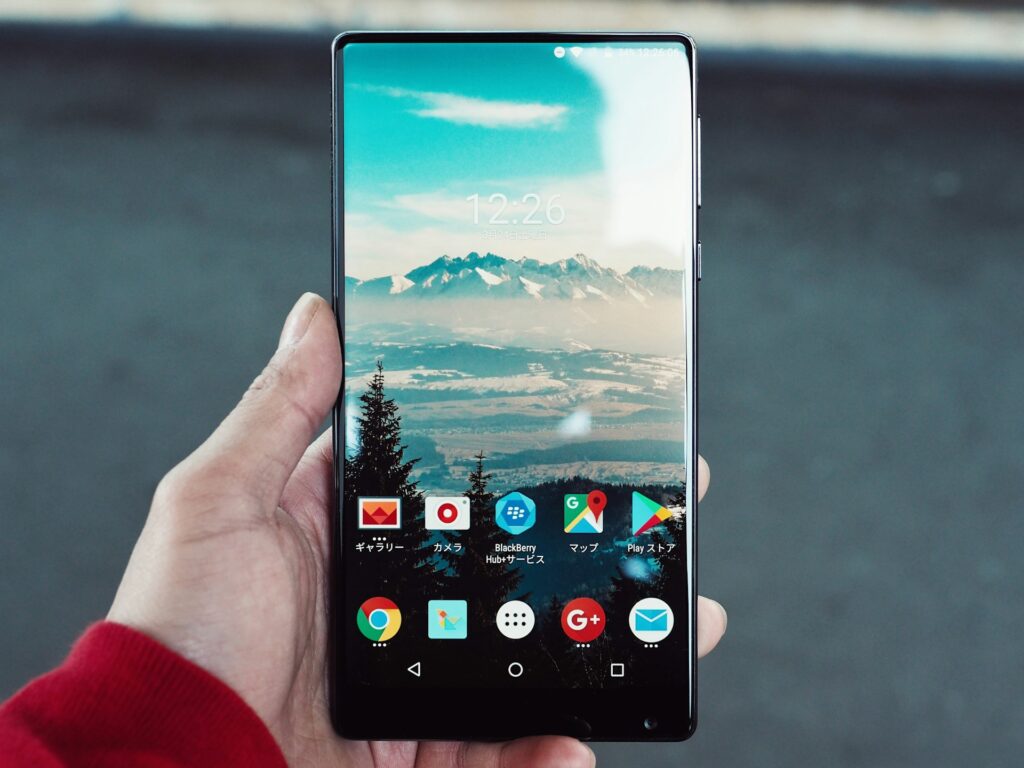
Google Images remains one of the most powerful tools for discovering visuals across the web, offering billions of photos, illustrations, and graphics at your fingertips. Whether you’re a content creator sourcing inspiration, a student building a presentation, or simply someone curating a personal collection, knowing how to extract these assets efficiently is essential. This comprehensive guide walks you through every method to download high-quality images from Google Images, ensuring you get crisp, full-resolution files without compromising on ease or legality. From basic right-click saves to advanced bulk tools, we’ll cover desktop, mobile, and specialized techniques tailored for 2026’s updated interfaces and features.
With Google’s ongoing emphasis on user privacy and content rights, downloading images has evolved to prioritize ethical practices. You’ll learn not just the how, but the why—avoiding common pitfalls like low-res previews or copyright infringements. By the end, you’ll be equipped to handle any download scenario, saving time and frustration while respecting creators.
Getting Started: Navigating Google Images Effectively
Before diving into downloads, familiarize yourself with Google Images’ layout. Launch your browser and head to images.google.com, or use the Images tab on the main Google search page. Enter your query in the search bar—be specific for better results, like “vintage car illustrations high resolution” instead of just “cars.” The results grid displays thumbnails, but clicking one expands it to reveal source details, size, and usage rights.
Google’s tools enhance precision: Use the “Tools” dropdown to filter by size (large, medium, icon), color, type (photo, clipart), and crucially, usage rights (labeled for reuse, non-commercial reuse). This step prevents downloading restricted content and ensures higher quality from the start. For 2026, AI-powered suggestions now appear under “Similar images,” helping refine your search without extra effort.
Always preview the full image by clicking the thumbnail. This opens a pop-up with metadata, including the original site’s URL. Note the file size here—aim for at least 1MB for high quality—to gauge if it’s worth downloading.
Downloading on Desktop: Simple and Advanced Techniques
Basic Right-Click Method for Single Images
On Windows, Mac, or Linux desktops, the simplest way starts with your preferred browser—Chrome, Firefox, Edge, or Safari. Perform your search, then hover over the desired thumbnail and right-click. From the context menu, select “Save image as…” or “Download image.” A dialog box appears; choose your save location, rename if needed, and hit Save. This captures the preview resolution, often around 800×600 pixels, which suits casual use but not professional editing.
For better results, click the thumbnail first to open the full view. Right-click the expanded image and choose the same option. This pulls the higher-res version from the source, typically 1920×1080 or more, depending on the original. Browsers like Firefox often default to original quality, while Chrome may compress—check your settings under Privacy and Security to disable image optimization.
Pro tip: If the right-click menu lacks download options, it’s likely due to site protections. In that case, copy the image URL (right-click > Copy image address) and paste it into a new tab for direct access.
Using Browser Extensions for Enhanced Control
Extensions supercharge the process, especially for quality-conscious users. Install “Image Downloader” from the Chrome Web Store—it’s free and highly rated. After setup, search as usual, then click the extension icon. It scans the page, displaying a grid of all images with filters for size, type, and dimensions. Select multiples, adjust quality, and download in batches as ZIP files.
Another standout is “Bulk Image Downloader,” which supports Google Images natively. Configure it to auto-detect high-res files over 2MP, ignoring thumbnails. For Mac users, “Downie” integrates seamlessly with Safari, queuing downloads with progress bars. These tools respect Google’s terms by linking to originals, avoiding scraping violations.
Installation is straightforward: Search the store, add to browser, and grant permissions for image access. Test on a small search to verify compatibility—most handle PNG, JPG, and WebP formats flawlessly in 2026.
Mobile Downloads: Android and iOS Strategies
Android Devices: Chrome and Built-in Tools
Android users have native advantages with Chrome’s deep Google integration. Open Chrome, search images.google.com, and tap a thumbnail to expand. Long-press the image until a menu pops up—select “Download image.” It saves to your Downloads folder, accessible via the Files app. For higher quality, tap “Open image in new tab” first, then long-press again for the full-res option.
Enable desktop mode for richer results: Tap the three-dot menu, select “Desktop site,” and proceed as on PC. This unlocks full filters and avoids mobile-optimized previews. Samsung Galaxy users can leverage the Gallery app’s direct import from searches, auto-organizing by date and source.
If downloads fail, clear Chrome’s cache via Settings > Apps > Chrome > Storage. This resolves glitches from overzealous ad blockers interfering with image loads.
iOS Devices: Safari and App Alternatives
On iPhone or iPad, Safari mirrors the process. Search in Safari, long-press the thumbnail, and choose “Download Image” from the menu. It lands in the Photos app’s Downloads album. For expanded views, tap to open, then use the share sheet (square with arrow) and select “Save Image.”
Switch to desktop mode via the “aA” icon in the address bar for advanced filters. Third-party apps like “Imageye” from the App Store offer one-tap bulk saves, scanning results and exporting to Files or Photos. Ensure permissions for camera roll access during setup.
iOS 18’s enhancements include AI-suggested edits post-download, like auto-cropping for wallpapers. Always verify file sizes in Photos > Select > Info to confirm high-res captures.
Bulk Downloading: Handling Multiple Images Efficiently
When one image isn’t enough, bulk methods save hours. Start with Google’s own tools: After searching, click “Visit” under a result to reach the source page, then use browser dev tools (F12 > Elements) to extract all images. But for automation, extensions shine—Image Downloader lists every asset, letting you checkbox-select by criteria like “over 1MB” or “JPG only.”
Online services like “Google Images Download” (via extensions or scripts) allow URL-based grabs. Paste your search link, set limits (e.g., first 100 results), and download as a folder. Free tiers handle 50 images; premium unlocks unlimited with watermark removal.
For developers, Python’s “google-images-download” library automates via command line. Install via pip, run with your query, and it fetches originals respecting robots.txt. Example command: googleimagesdownload –keywords “sunset beach” –limit 20 –format jpg. This outputs organized folders, ideal for datasets.
Monitor quotas—Google limits aggressive scraping to prevent abuse. Space requests with delays, and always attribute sources in final use.
Consider ethical bulk practices: Filter for Creative Commons via Tools > Usage rights. This ensures downloads are reusable, aligning with fair use doctrines.
Ensuring High Resolution and Quality
Low-res woes plague casual downloads—thumbnails max at 640×480. To snag full glory, always expand images before saving. Look for the “Original” label in the info panel; if absent, visit the source site directly via the link below the preview. There, images often load at native resolutions, like 4K for stock photos.
Format matters: Prioritize PNG for transparency, JPG for photos. WebP is Google’s default—convert via tools like XnConvert if your software balks. Check resolution post-download with Preview (Mac) or Properties (Windows); resize up only if vector-based to avoid pixelation.
Advanced: Use reverse image search (camera icon) to find higher-res variants. Upload your preview, and Google surfaces alternatives from upscale sources.
Troubleshooting Common Quality Issues
Blurry saves? Disable browser zoom or extensions like uBlock that throttle loads. Corrupted files point to network hiccups—retry on stable Wi-Fi. For persistent problems, switch browsers; Edge often pulls cleaner metadata than Chrome.
Mobile compression is rampant—iOS saves at 72 DPI by default. Edit in Photos app to export at 300 DPI for print-ready files.
Legal and Ethical Considerations for Image Use
Downloading isn’t free-for-all—respect copyrights. Google’s usage rights filter is your ally: “Labeled for reuse” means commercial okay with attribution; “Non-commercial” limits to personal projects. Always credit originals via links or captions to honor creators.
Fair use applies in education or criticism, but consult guidelines from the U.S. Copyright Office. Avoid modified images without permission to dodge DMCA notices. For businesses, stock sites like Unsplash offer royalty-free alternatives post-download.
Track changes: In 2026, EU’s DSA mandates clearer licensing in search results, making compliance easier. Document sources in a spreadsheet for audits.
Build good habits: Watermark your edits if redistributing, and support artists by purchasing when possible. This sustains the ecosystem fueling Google Images.
Pro Tips for Mastering Google Image Downloads
Optimize searches with operators: “sunset filetype:png site:edu” narrows to educational PNGs. Combine with time filters (Tools > Time) for fresh 2026 content.
Automate workflows: Integrate with Zapier—trigger downloads on search completion, filing to Drive. Saves for power users juggling projects.
Enhance security: Use VPNs for public Wi-Fi downloads, preventing ISP logging of queries. Scan files with antivirus post-save.
Batch rename: Tools like Bulk Rename Utility organize by keyword, e.g., “sunset_001.jpg,” streamlining libraries.
Go beyond statics: Download GIFs via the same methods, but use GIPHY for optimized loops.
Leverage AI: Google’s Gemini suggests edits pre-download, like “enhance contrast,” previewing in-browser.
Archive smartly: Compress folders with 7-Zip to free space without quality loss.
Collaborate: Share collections via Google Drive links, embedding metadata for team access.
Frequently Asked Questions
Can I download images from Google Images for commercial use?
Yes, but only those labeled for reuse with modifications allowed. Always verify on the source site and attribute properly to avoid legal issues.
Why are my downloaded images low resolution?
Previews are compressed; expand to full view or visit the source for originals. Browser settings may also limit quality—adjust under advanced options.
How do I download multiple images at once on mobile?
Use apps like Imageye for iOS or extensions in Chrome for Android. They scan results and queue batches, exporting to your gallery.
Is bulk downloading against Google’s terms?
Not if respectful—avoid rapid scraping. Use delays and limits to comply with robots.txt.
What if the download button is missing?
Copy the image URL and open in a new tab. Long-press or right-click there for save options.
Can I convert WebP to JPG after downloading?
Absolutely—use free converters like CloudConvert online, preserving quality in seconds.
How do I find Creative Commons images?
Tools > Usage rights > Creative Commons licenses. This filters for freely usable content.
Conclusion
Mastering downloads from Google Images empowers you to curate visuals that elevate any project, from personal hobbies to professional portfolios. We’ve explored desktop right-clicks, mobile long-presses, bulk extensions, and ethical filters, ensuring high-quality results across devices in 2026. Remember, the key lies in specificity, respect for rights, and troubleshooting savvy—turning casual searches into efficient harvests. With these steps, you’re set to build stunning collections responsibly, unlocking creativity without bounds.
