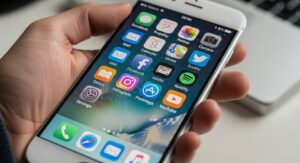
Personalizing your iPhone home screen has become one of the most popular ways to make your device truly unique. While Apple traditionally maintained strict control over the visual appearance of iOS devices, recent software updates have opened new doors for customization enthusiasts. The ability to change app icons transforms your iPhone from a standard device into a personalized digital canvas that reflects your individual style and aesthetic preferences.
The process of customizing app icons involves using Apple’s built-in Shortcuts application, which was originally designed for automation but has evolved into a powerful tool for visual personalization. This comprehensive guide will walk you through everything you need to know about customizing your iPhone app icons, from understanding the basic methods to implementing advanced techniques that create a cohesive, professional-looking home screen.
Understanding iPhone Icon Customization Capabilities
Before diving into the customization process, it’s essential to understand what’s possible with iPhone icon personalization and the limitations you’ll encounter. Apple introduced native customization options in iOS 18, allowing users to modify icon appearances through system settings. These built-in features include adjusting icon sizes, applying color tints, switching between light and dark modes, and creating translucent effects.
However, the most extensive customization possibilities come through the Shortcuts app method, which enables users to replace standard app icons with completely custom images. This approach offers unlimited creative freedom, allowing you to design or download icon packs that match any aesthetic vision. From minimalist monochrome themes to vibrant gradient designs, neon aesthetics to vintage styles, the possibilities are virtually endless.
The native iOS 18 customization features work differently from the Shortcuts method. When you use built-in options, you’re applying system-wide styling to existing icons, maintaining their basic shape while changing colors or opacity. The Shortcuts method, conversely, creates new launcher icons that sit alongside your original apps, functioning as visual alternatives that open the corresponding applications when tapped.
Native iOS 18 Icon Customization Features
iOS 18 introduced several built-in customization options that require no third-party apps or complex workarounds. These features provide quick styling changes for users who want aesthetic improvements without the time investment of creating individual custom shortcuts. To access these native options, touch and hold any empty space on your home screen until the icons begin to jiggle, then tap the Edit button in the top-left corner and select Customize.
The customization menu presents several styling choices. The Light option maintains the standard appearance with full-color icons on a light background. Dark mode inverts this scheme, creating darker icons suitable for nighttime use or users who prefer subdued aesthetics. The Auto setting intelligently switches between light and dark appearances based on time of day, providing optimal visibility throughout different lighting conditions.
One of the most dramatic options is the Clear style, which makes icons semi-transparent with a glass-like appearance. This effect works particularly well with vibrant wallpapers, allowing background colors and patterns to show through the icons while maintaining readability. Users can adjust wallpaper brightness using the sun toggle if text becomes difficult to read. The Tinted option applies color overlays to icons, either automatically matching your iPhone’s physical color, your MagSafe case color, or any custom color you select manually using sliders or an eyedropper tool.
Additionally, iOS 18 allows icon size adjustments through a simple toggle. Users can switch between standard and large sizes, though the large size removes app name labels beneath icons for a cleaner, more minimalist appearance. These native features provide convenient styling options without requiring the creation of individual shortcuts, making them ideal for users seeking quick aesthetic changes.
Prerequisites for Custom Icon Creation
Essential Requirements and Preparations
Successfully customizing iPhone app icons requires several preparatory steps and understanding of necessary components. First, ensure your iPhone runs iOS 16 or later, as earlier versions lack full Shortcuts functionality for icon customization. The process works on all compatible iPhone models, from iPhone SE to the latest iPhone 17 series, though older devices may experience minor performance variations.
You’ll need the Shortcuts app installed on your device. This application comes pre-installed on most modern iPhones, but if you’ve previously removed it, download it free from the App Store. The Shortcuts app serves as the foundation for creating custom app launchers that use your selected icon images.
Icon images represent the most important preparation element. You can obtain custom icons through multiple methods including downloading pre-made icon packs from websites, purchasing premium themed collections, creating your own designs using graphic design applications, or using AI generation tools. Icon images should ideally be square format with dimensions of at least 1024×1024 pixels for optimal quality, though smaller sizes work adequately for most purposes.
Popular sources for icon packs include WidgetClub, which offers over ten thousand aesthetic icon options in various styles; Design Shack, providing free minimal icons in multiple color variations; Flaticons, featuring thousands of free icons across different categories; and specialized designers who create premium themed collections. Many icon packs come in coordinated themes, making it easier to create visually cohesive home screens without designing individual icons.
Organizing Your Icon Library
Proper organization of icon files before beginning the customization process saves considerable time and frustration. Create a dedicated album in your Photos app specifically for icon images, or establish a folder in the Files app. This centralized location makes icons quickly accessible when creating shortcuts, eliminating the need to search through your entire photo library for each app.
Consider naming icon files descriptively based on their corresponding apps. For example, naming files “Instagram_Icon,” “Messages_Icon,” or “Spotify_Icon” helps you identify the correct image quickly during the shortcut creation process. This organizational step becomes particularly valuable when customizing dozens of apps simultaneously.
If you plan to implement a themed home screen with multiple coordinated elements, download all components of your chosen theme simultaneously. Many icon pack creators offer complete packages that include matching widgets, wallpapers, and icons in consistent styles. Having all elements ready before starting ensures visual harmony throughout your completed design.
Step-by-Step Icon Customization Process
Creating Your First Custom App Icon
The process of creating a custom app icon through Shortcuts follows a straightforward sequence, though it requires attention to detail for optimal results. Begin by launching the Shortcuts app from your home screen or App Library. You’ll arrive at the main Shortcuts interface, which displays any existing shortcuts you’ve previously created.
Tap the plus icon located in the top-right corner of the screen to initiate creation of a new shortcut. This action opens the shortcut editor, where you’ll build your custom app launcher. Some iOS versions display “Open App” as a suggested action immediately; if you see this suggestion, tap it to skip directly to app selection. Otherwise, tap the “Add Action” button to access the action library.
In the search field at the top of the action library, type “Open App” and select the corresponding action when it appears in results. This action type specifically launches applications, making it perfect for creating app shortcuts. After adding the Open App action, you’ll see a highlighted “App” field within the action block. Tap this field to reveal a list of all applications installed on your device.
Scroll through the app list or use the search function to locate the specific application you want to customize. For this example, let’s assume you’re customizing Instagram. Tap “Instagram” from the list, and it will be inserted into your Open App action. Your shortcut now possesses the core functionality needed to launch Instagram when activated.
Customizing Icon Appearance and Details
With the basic functionality established, you’ll now configure the visual appearance and home screen behavior of your custom icon. Locate the small information icon, typically appearing as a circled “i” or downward-facing chevron near the top of the shortcut editor. Tap this icon to access the shortcut’s details and customization options.
The details screen presents various configuration options. Find and tap “Add to Home Screen,” which appears among the list of options. This action opens the home screen configuration interface, where you’ll define how your shortcut appears when added to your home screen.
You’ll see a default placeholder icon image, usually a colored square or the Shortcuts app icon. Tap this placeholder image to access icon selection options. A menu appears offering several choices: “Choose Photo” allows selection from your Photos library, “Take Photo” activates your camera for capturing a new image, and “Choose File” enables selection from your Files app. Select the appropriate option based on where you stored your custom icon images.
Navigate to your icon storage location and select the image you want to use for this app. The image will immediately appear as your new icon preview. Below the icon, you’ll find a text field containing the default shortcut name, typically matching the app name. Tap this field to modify the name that will appear beneath your custom icon on the home screen.
You can rename the shortcut to match the original app name exactly, choose a shortened version, or select an entirely different name based on your preferences. Some users prefer removing the name entirely for a cleaner, more minimalist aesthetic by deleting all text from the field. However, remember that completely removing names can make apps harder to identify, especially if you use abstract icon designs.
Finalizing and Adding the Icon
After configuring your icon image and name, tap the “Add” button in the top-right corner of the screen. iOS will process your request and add the new custom icon shortcut to your home screen. The icon appears in the next available space on your current home screen page, just like any newly installed app.
Test your new custom icon by tapping it. The icon should launch the corresponding app directly without significant delay. In iOS versions prior to iOS 14.3, tapping custom icons briefly displayed a notification banner showing the Shortcuts app before opening the target app. However, current iOS versions launch apps directly, providing a seamless experience nearly identical to tapping original app icons.
You now have one custom app icon successfully created. To customize additional apps, simply repeat this entire process for each application you want to personalize. While this method requires individual creation for each app, the process becomes faster with practice, and many users find the time investment worthwhile for achieving their desired aesthetic.
Managing Original App Icons
Hiding Standard Icons for Clean Aesthetics
Creating custom icons doesn’t replace or remove original app icons; instead, it adds new shortcuts alongside the existing icons. This means you’ll temporarily have two icons for each customized app on your home screen. To achieve a clean, cohesive look, you’ll need to hide or remove the original icons while keeping the custom versions visible.
The simplest approach involves removing original icons from the home screen while keeping them accessible in the App Library. To do this, touch and hold the original app icon until a context menu appears. Select “Remove App” from the menu options, then choose “Remove from Home Screen” rather than “Delete App.” This critical distinction is essential because deleting the app would render your custom shortcut non-functional, as shortcuts merely launch existing apps rather than replacing them.
After removing the original icon from your home screen, it remains fully accessible through the App Library, which you can access by swiping left past your last home screen page. The App Library automatically organizes all installed apps into categories, ensuring you never lose access to any application, even those without home screen icons.
An alternative organizational approach involves creating a dedicated home screen page for all your original app icons. To do this, simply create a new home screen page and move all standard icons to this page. Then, you can hide this entire page from view by entering home screen editing mode, tapping the page indicator dots at the bottom of the screen, and deselecting the page containing original icons. This method provides quick access to standard icons when needed while keeping your customized screens pristine.
Considerations for App Functionality
While custom app icons provide aesthetic benefits, users should understand certain functional differences between shortcuts and original icons. Standard app icons display notification badges showing unread message counts, pending updates, or other alerts. Custom shortcut icons, however, don’t support notification badges, meaning you won’t see visual indicators of new activity on customized apps.
This limitation doesn’t prevent you from receiving notifications themselves. Your iPhone will still deliver notification banners, sounds, and alerts as normal. You simply won’t see the red badge counter on your custom icons. For apps where monitoring unread counts is crucial, consider keeping the original icon accessible in your App Library or a hidden home screen page.
Additionally, certain interactive features available on standard icons may not work with shortcuts. For example, 3D Touch or Haptic Touch quick actions that appear when you long-press an icon typically won’t function on custom shortcuts. The long-press gesture on a shortcut icon only displays options for editing or deleting the shortcut itself, rather than app-specific quick actions.
Advanced Customization Techniques
Creating Complete Themed Home Screens
Moving beyond individual icon customization, many users aspire to create completely themed home screens where every visual element works together harmoniously. This advanced approach requires coordinating multiple components including icons, widgets, wallpapers, and dock appearances to achieve a cohesive aesthetic vision.
Start by selecting a theme concept that resonates with your personal style. Popular themes include minimalist monochrome designs featuring only black and white elements; pastel aesthetics with soft, muted colors; neon themes incorporating vibrant, glowing elements; vintage or retro styles reminiscent of older operating systems; nature-inspired designs with organic imagery; and brand-coordinated themes matching your iPhone’s physical color.
Once you’ve chosen a theme direction, source all necessary components from coordinated collections when possible. Many icon designers create complete theme packages that include matching icons, widgets, and wallpapers, ensuring visual consistency throughout your design. These packages save considerable time compared to sourcing individual elements from different creators.
Widget customization plays a crucial role in themed home screens. Applications like Widgetsmith, Color Widgets, and WidgetClub allow extensive widget personalization, enabling you to create custom widgets that match your icon theme perfectly. Design widgets with colors, fonts, and visual styles that complement your icons, creating seamless integration between different screen elements.
Utilizing Advanced Tools and Automation
For users seeking to streamline the customization process, several advanced tools and shortcuts can significantly reduce time investment. SkyBoard represents one such solution, functioning as an automated shortcut specifically designed for iOS 18 that accelerates custom icon creation. Rather than manually creating individual shortcuts for each app, SkyBoard enables bulk shortcut creation where you can add custom icons for multiple apps simultaneously.
SkyBoard supports various icon themes including jailbreak themes in formats like SnowBoard themes. It can process theme files in ZIP, DEB, or THEME formats, automatically extracting and applying icons to your apps. The tool offers two operational modes: a simple mode for quick setup and a sophisticated mode providing granular control over each app’s icon customization.
Another significant advantage of SkyBoard is its ability to remove notification banners that traditionally appeared when opening apps through shortcuts on devices without Dynamic Island. This creates a cleaner, more streamlined experience that more closely mimics native app launching behavior.
Other automation tools include Moloka, an app that simplifies icon theming by providing pre-loaded themes you can install with minimal setup. Moloka includes over thirty themes in various styles and automatically creates shortcuts for system apps based on your selected theme. While convenient, some themes require purchases, and the app only covers system icons by default, leaving third-party apps for manual customization.
Icon Pack Resources and Design Options
Free Icon Pack Sources
Numerous websites and applications offer free icon packs suitable for iPhone customization, providing accessible options for users who want quality designs without financial investment. Flaticons maintains one of the largest free icon libraries with thousands of options across different categories and styles. Users can browse pre-made collections or search for specific apps, downloading icons individually or in complete sets depending on their membership level.
Design Shack offers a free iOS icon pack featuring one hundred fifty minimal icons in black and white variations. This collection covers most common apps and provides clean, professional designs suitable for minimalist aesthetics. The free version includes every icon in black, while a premium version offers multiple color variations and editable source files.
WidgetClub serves as both an icon source and a comprehensive home screen customization platform. The app provides thousands of free and premium icon options across numerous aesthetic categories including cute, simple, dark, neon, pastel, and natural styles. Beyond icons, WidgetClub offers widgets and wallpapers, making it a one-stop solution for complete home screen transformations.
Canva’s iOS icon template collection enables users to design custom icons using an intuitive drag-and-drop interface. Even users without graphic design experience can create professional-looking icons by customizing pre-made templates. The platform offers thousands of design elements, fonts, and color schemes, providing complete creative control over your icon designs.
Premium and Specialized Icon Collections
While free options provide excellent starting points, premium icon packs often offer superior quality, more comprehensive app coverage, and unique artistic styles. Many professional designers create specialized icon collections featuring consistent visual languages and meticulous attention to detail.
Solt Wagner offers several premium collections including neumorphism gradient style packs with over one hundred twenty icons, dark mode collections inspired by iOS 18 featuring detailed designs with subtle shadows and smooth color transitions, and specialized themes like Vision Pro-inspired icons with grain textures and floating effects. Premium packs typically include regular updates, the ability to request new icons, and both light and dark mode variations.
Gridfiti provides color-matched icon packs designed to complement specific iPhone models. Their collections include themes based on iPhone colorways, allowing users to match icons to their device’s physical color or preferred aesthetic. Each pack contains over eight hundred icons in four shade variations, ensuring comprehensive app coverage.
Better Creating offers integrated design packs that span multiple Apple platforms including iOS, iPadOS, and even Notion. These collections provide coordinated icons, widgets, and wallpapers in six color variations, enabling users to create seamless aesthetic experiences across all their devices. The packs include setup guide videos and customizable widget templates for comprehensive personalization.
Troubleshooting Common Issues
Resolving Performance and Launch Problems
Users occasionally encounter issues when implementing custom app icons, ranging from minor inconveniences to functionality problems. Understanding common issues and their solutions ensures smooth customization experiences. One frequent concern involves launch delays when tapping custom icons. While modern iOS versions launch apps directly, some users still experience brief delays compared to original icons.
If you notice significant delays or the Shortcuts app briefly appearing before launching your target app, ensure your iPhone runs the latest iOS version. Apple continuously improves shortcut performance through software updates, and outdated systems may exhibit slower response times. Navigate to Settings, General, Software Update to check for available updates.
Custom icons occasionally stop functioning after iOS updates or when moving icon images to different storage locations. If an icon fails to launch its app, open the Shortcuts app and locate the corresponding shortcut. Edit the shortcut and verify the Open App action still references the correct application. If necessary, delete the non-functional shortcut and recreate it following the standard creation process.
Addressing Visual and Aesthetic Issues
Icon quality problems often stem from image resolution or format issues. Blurry or pixelated icons typically result from using images with insufficient resolution. For optimal results, use icon images with dimensions of at least 1024×1024 pixels. If you’ve downloaded an icon pack with lower resolution images, consider finding higher-quality alternatives or upscaling images using photo editing applications.
Some users experience misalignment or inconsistent sizing between custom icons. This typically occurs when mixing icons from different sources with varying dimensions or padding. To ensure visual consistency, try using icons from the same pack or designer, as these collections maintain consistent dimensions and styling. Alternatively, edit icons in a graphic design application to standardize dimensions before applying them to shortcuts.
Color matching problems may arise when icons don’t complement your chosen wallpaper or overall theme. Many icon designers provide multiple color variations of their packs specifically to address this issue. Experiment with different color options from your icon pack, or use image editing tools to adjust hue, saturation, and brightness until icons harmonize with your wallpaper.
Pro Tips
Expert Strategies for Superior Customization
Experienced iPhone customizers employ various techniques to maximize aesthetic impact while maintaining functionality. These professional tips help you avoid common pitfalls and achieve results that rival professionally designed interfaces.
- Batch Process Your Icons: Rather than customizing apps randomly as you think of them, create a complete list of all apps you want to customize before beginning. This approach allows you to work efficiently through your list, maintaining consistency and avoiding the need to repeatedly context-switch between planning and execution. Allocate a dedicated block of time for customization rather than spreading the process across multiple sessions.
- Maintain a Backup Icon Set: Save all your icon images in both your Photos app and Files app as redundancy against accidental deletion. Consider also backing up your icon collection to iCloud Drive or another cloud storage service. This precaution ensures you won’t need to re-download entire icon packs if you need to recreate shortcuts after an iOS update or device replacement.
- Create a Testing Page: Before committing to a full home screen design, create a dedicated test page where you experiment with different icon combinations, widget arrangements, and wallpaper pairings. This sandbox environment allows you to preview layouts without disrupting your functional home screen setup. Once satisfied with your test design, implement it on your primary screens.
- Strategic Icon Naming: While many users remove icon labels for minimalist aesthetics, this choice can make apps difficult to identify, especially with abstract icon designs. Consider a hybrid approach where frequently-used, easily recognizable apps have no labels, while less familiar or rarely-used apps retain their names for quick identification. This strategy balances aesthetics with usability.
- Leverage Focus Modes: iOS Focus modes allow you to create multiple home screen configurations that automatically activate based on context. Set up different icon themes for work, personal, and evening contexts, with each Focus mode displaying relevant apps and aesthetics. This approach provides variety without requiring manual switching between themes.
- Consider Accessibility: When selecting icon designs and color schemes, ensure adequate contrast between icons and your wallpaper for easy visibility. Users with visual impairments should prioritize clear, high-contrast designs over purely aesthetic choices. Test your custom home screen under various lighting conditions to verify readability.
- Document Your Setup: Screenshot your completed home screen layouts and save them to a dedicated album. These reference images prove invaluable if you need to recreate your setup after device replacement, iOS updates, or accidental shortcut deletion. Additionally, maintain a list of icon pack sources and widget configurations for easy reconstruction.
- Gradual Implementation: Rather than attempting to customize your entire home screen simultaneously, start with one page or a small group of frequently-used apps. This incremental approach prevents overwhelming yourself with the time-intensive process and allows you to refine your technique before tackling larger projects. You can always expand customization to additional apps later.
Frequently Asked Questions
Common Questions About iPhone Icon Customization
Will custom icons drain my iPhone battery faster?
Custom app icons created through Shortcuts don’t significantly impact battery life. While shortcuts technically launch an additional process before opening your target app, the energy consumption is negligible. The Shortcuts app itself uses minimal resources, and modern iOS versions optimize shortcut execution efficiently. Battery impact from customization is far less than factors like screen brightness, background app refresh, or location services.
Can I restore original icons if I change my mind about customization?
Yes, reverting to original icons is straightforward. Simply delete the custom shortcut icons from your home screen by long-pressing them and selecting “Remove from Home Screen” or “Delete Shortcut.” Your original app icons remain in the App Library regardless of customization, and you can re-add them to your home screen anytime by locating them in the App Library and long-pressing to select “Add to Home Screen.”
Do custom icons work with all apps?
Custom icons work with virtually all apps installed on your iPhone, including both Apple’s native apps and third-party applications from the App Store. The Shortcuts app can create launchers for any app accessible on your device. However, system features like Control Center, Settings, and certain built-in functions cannot be customized using this method.
Will iOS updates break my custom icons?
Major iOS updates occasionally affect shortcut functionality, though Apple has improved stability in recent versions. If an update causes issues, your icons typically still appear on your home screen but may temporarily fail to launch apps correctly. In such cases, you may need to recreate affected shortcuts using the same icon images. This is why maintaining backups of your icon files is important.
Can I share my custom icon setup with friends?
While you can share icon image files with friends, shortcuts themselves don’t transfer between devices in a meaningful way for icon customization purposes. Your friends would need to obtain the same icon images and create their own shortcuts following the standard process. However, you can share icon pack links, theme recommendations, and screenshots to help others recreate similar aesthetics on their devices.
Why don’t my custom icons show notification badges?
Notification badges don’t appear on custom shortcut icons because these icons aren’t technically the apps themselves but rather launchers that open apps. iOS only displays notification badges on actual app icons. While this limitation can’t be circumvented through the Shortcuts method, you’ll still receive all notification banners, sounds, and alerts as normal. To check unread counts, access the original app icon in your App Library.
Is there a limit to how many custom icons I can create?
There’s no specific limit to the number of custom icons you can create through Shortcuts. However, practical limitations exist based on available home screen space and your iPhone’s storage capacity for icon images. Each shortcut consumes minimal storage, but large icon image files can accumulate if you customize hundreds of apps. For typical users customizing dozens of apps, storage impact remains negligible.
Can custom icons affect app functionality or updates?
Custom icons don’t interfere with app functionality, updates, or performance in any way. Shortcuts merely create alternative launchers for apps; they don’t modify the actual applications. Apps continue receiving updates through the App Store normally, maintain all features and capabilities, and function identically whether launched through custom icons or original icons. The underlying app remains completely unchanged by icon customization.
Conclusion
Customizing iPhone app icons represents one of the most impactful ways to personalize your device and create a home screen that reflects your unique style and preferences. While the process requires time investment and attention to detail, the results enable you to transform your iPhone from a standard device into a customized digital environment that brings joy every time you unlock your screen.
The methods outlined in this guide provide comprehensive approaches to icon customization, from using iOS 18’s native styling features for quick aesthetic changes to implementing the Shortcuts method for unlimited creative control. Understanding both approaches allows you to choose the customization level that best suits your needs, whether you prefer simple system-wide styling or meticulously crafted individual icons.
Success in iPhone customization depends on careful planning, consistent execution, and patience throughout the process. Start with clear aesthetic goals, source high-quality icons that align with your vision, and systematically work through your app list to create cohesive designs. Remember that customization is iterative; you can always refine, adjust, or completely redesign your home screen as your preferences evolve.
The thriving community of iPhone customization enthusiasts continues to create innovative icon packs, widgets, and design resources, ensuring fresh options constantly emerge. Whether you gravitate toward minimalist aesthetics, vibrant themes, vintage styles, or cutting-edge designs, resources exist to support your creative vision. Engage with online communities, explore new icon releases, and don’t hesitate to experiment with different styles until you discover the perfect look for your device.
As Apple continues refining iOS customization capabilities with each software update, the possibilities for personalization will likely expand further. The company has demonstrated increased openness to user customization in recent years, suggesting future versions may introduce even more native options for icon personalization. Until then, the Shortcuts method remains the most powerful tool for achieving truly custom iPhone home screens.
Ultimately, customizing your iPhone app icons transcends mere aesthetics. The process represents an opportunity to engage creatively with your technology, making your most-used device feel genuinely personal rather than identical to millions of other iPhones. Whether you invest an afternoon customizing a few key apps or dedicate weeks to creating an elaborate themed masterpiece, the result is a device that feels uniquely yours, bringing satisfaction and enjoyment to your daily digital interactions.