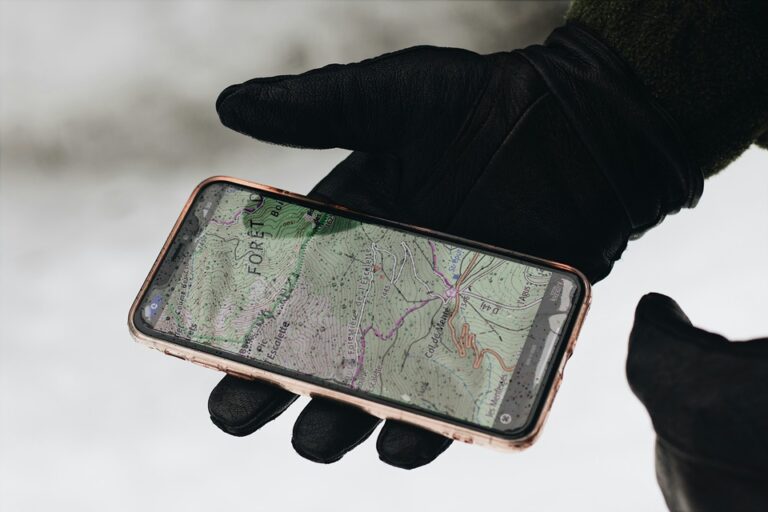
Custom maps let you turn location data into clear, shareable guides, route plans, or interactive embeds for websites and presentations. This guide covers the complete process for building custom maps in Google My Maps, from initial setup and data import to styling, collaboration, and embedding. It is written for users who want practical, step-by-step instructions and real examples they can follow immediately.
Getting started: Why use Google My Maps
Google My Maps is a free tool layered on Google Maps that lets you create personalized maps with markers, lines, shapes, and multiple layers. It is useful for trip planning, visualizing business locations, creating custom routes, publishing interactive maps on websites, and collaborating with teams. Unlike the standard Google Maps app, My Maps focuses on customization and data import/export features that suit both casual users and professionals.
Before you begin, ensure you have a Google account and are signed in. Access My Maps from the Google Maps menu or via the dedicated My Maps page. Having your data in a spreadsheet (CSV or Google Sheets) makes import easier, but you can create markers manually as well.
Step 1 — Create a new map and basic navigation
Open My Maps and create
On a computer, go to My Maps and click Create a new map. A blank map opens with an initial “Untitled layer.” Use the top-left menu to set the map title and description; descriptive titles help with internal organization and sharing clarity.
Map components
The main elements you will use are layers (to group related markers or shapes), markers (pins), lines and shapes (routes and areas), and import (to add bulk data). You can add multiple layers and toggle them on or off to control visibility.
Step 2 — Add and edit markers
Adding single markers
Click the marker icon on the toolbar, then click the map where you want the pin. Give it a useful name and description — descriptions can include contact info, hours, links, or notes. Use consistent naming patterns if you’re mapping many places.
Bulk adding with import
To add many locations at once, prepare a CSV or Google Sheet with at least two columns: latitude and longitude or an address column. Use the Import button on a layer to upload the file. My Maps will prompt you to choose which columns correspond to location and to use a column for names.
Step 3 — Working with layers and organization
Why layers matter
Layers let you separate types of data — for example, hotels, restaurants, and attractions. Each layer can have its own styles, visibility toggles, and imported datasets. Use layers to present different scenarios or to let users turn categories on and off.
Best practices for layering
Use layer names that are short and descriptive. Limit each layer to a logical group — avoid dumping unrelated points into one layer. If you’re sharing the map with stakeholders, include a legend in the map description to explain color and icon meaning.
Step 4 — Styling markers, lines, and areas
Customize marker icons and colors
Select a marker or a group of markers to change color and icon style. My Maps provides a palette of colors and a library of icons; you can also use custom icons by URL for brand consistency. Use contrasting colors to improve readability, and reserve bright colors for priority items.
Style lines and shapes
Lines (routes) and shapes (polygons) can be drawn freehand or across points. Set stroke width and opacity for lines and fill colors for shapes. Thinner lines work for routes; filled polygons help define neighborhoods or zones.
Step 5 — Importing advanced data and syncing with Sheets
Using Google Sheets for dynamic updates
If your dataset changes frequently, use Google Sheets and import the sheet into My Maps. Though imported Sheets are not live-synced in every case, reimporting updated Sheets is straightforward. For truly dynamic maps, consider exporting Sheets as KML via external tools or using platform integrations that support live feeds.
Supported data formats and fields
My Maps supports CSV, XLSX, KML, and GeoJSON for imports. Include columns for name, description, address or lat/long, and category to enable automatic mapping and easier styling. For complex datasets, GeoJSON retains geometry and property data better than CSV.
Key checklist for successful imports
- Prepare location columns: Ensure addresses or lat/long are correctly formatted to avoid failed matches. Bad formatting leads to unmatched rows that you must fix and reimport.
- Use consistent naming: Standardize columns like “Name”, “Category”, and “Description” so My Maps can map fields cleanly. This speeds up styling and layer splitting later.
- Break big files into chunks: Very large CSVs can be slower to import; split by category or region if needed. Smaller imports make it easier to catch errors.
- Test with a sample set: Import a few rows first to validate column mapping and styles before full import. This helps avoid widespread formatting issues.
- Keep backups: Save a copy of original data to revert or reprocess if an import misbehaves. That way you can try different formatting without losing the source data.
Step 6 — Sharing, permissions, and collaboration
Share settings and visibility
Click the Share button to manage access. You can keep maps private, share with specific Google accounts, or publish the map with a link. For public maps, choose the appropriate visibility: view-only for general audiences, or editor access for collaborators who should be able to add and modify data.
Version control and collaborative workflows
When multiple editors are involved, decide on an edit protocol (who changes what) and use clear layer ownership. Periodically export a KML copy as a snapshot to preserve known-good versions if you need to roll back changes.
Sharing tips
- Use descriptive titles and descriptions for public maps to help users understand purpose and context. Good descriptions also help when embedding maps on pages with SEO goals.
- Limit editor access to trusted collaborators to avoid accidental deletes or mis-styling. Keep one “master” editor responsible for final publishing.
- Publish a read-only link for broad audiences and a separate editor link for contributors; do not share the editor link publicly. This minimizes accidental edits.
- Use layer-level descriptions as mini-legends to explain icon meanings or data sources to viewers. That helps users interpret the map quickly.
- Embed maps in pages that also include text context and a static image fallback for sites that block embedded content. This preserves usability for all readers.
Step 7 — Embedding maps on websites and presentations
Get the embed code
Open the map, click the three-dot menu and select Embed on my site to copy the iframe HTML. Paste this into your page where you want the interactive map to appear. Adjust width and height attributes to fit your layout and ensure the container is responsive.
Responsive embed strategies
Wrap the iframe in a responsive container with CSS that uses aspect-ratio or padding-top tricks to maintain the map’s aspect. Many content management systems offer built-in responsive embed modules; use them to avoid overflow on smaller screens.
Step 8 — Exporting and using map data: KML, GeoJSON, and printing
Export formats and when to use them
Use KML/ KMZ for Google Earth compatibility, GeoJSON for web mapping libraries, and CSV for spreadsheet workflows. Export via the three-dot menu or by layer to preserve segmentation. KML retains styling and geometry, while CSV is simplest for tabular uses.
Printing and static images
If you need a printable map, use the browser print function or take a high-resolution screenshot. For professional print layouts, export KML and import into GIS or mapping tools that support high DPI outputs.
Troubleshooting common issues
Locations not importing
Check formatting: addresses should be complete and lat/long should be numeric and use the correct decimal separator. For persistent mismatches, geocode coordinates externally, then reimport lat/long values as precise placements.
Icons not showing or custom icon errors
Custom icons must be accessible via a valid URL. If an icon is blocked by CORS or the host, replace with a hosted icon on a reliable CDN or use the built-in icon set.
Advanced tips and integrations
Use cases for teams and businesses
Sales teams can map leads and territories; event planners can plot venues and logistics; educators can create interactive lessons with location context. For each use case, keep datasets small, categorized, and updated to ensure clarity.
API and developer considerations
My Maps itself is not an API product, but you can export GeoJSON/KML for use with Google Maps Platform, Leaflet, Mapbox, or other mapping libraries. For live or interactive developer integrations, use the Google Maps JavaScript API and host your own data endpoints to feed dynamic layers.
Accessibility and usability
Provide textual descriptions and alternate content for users who cannot interact with embedded maps. Include a simple list of locations or a downloadable CSV so users with assistive technologies can access the same data. Use clear color contrasts and avoid relying on color alone to convey important distinctions.
Practical examples and workflows
Example 1 — Trip planning map
Create layers for Day 1, Day 2, and Dining. Add markers for attractions and restaurants, style each layer with a different color, and include directions between major stops to visualize travel time. Export a PDF or shared link for travel companions to access on mobile.
Example 2 — Local business guide
Import a CSV of business addresses, style by category, and add descriptions with hours and web links. Embed the map on a neighborhood page and include the CSV as a downloadable resource; this improves discoverability and user trust.
Security and privacy considerations
Be mindful when sharing maps that include private addresses or sensitive locations. Use restricted sharing settings for maps containing employee home addresses, proprietary sites, or personal data. For public guides, anonymize exact addresses when necessary and provide general area markers instead.
Common mistakes to avoid
- Ignoring consistent naming conventions — inconsistent names make search and filtering harder for users who view the map.
- Publishing editor links publicly — this can invite accidental content changes or data deletion by third parties.
- Using overly bright or similar colors — reduces readability and makes categories hard to distinguish.
- Not providing an alternative data download — some users cannot access embedded content and need a CSV or list.
- Forgetting to test on mobile — many viewers will open the map on phones and tablets, so test responsiveness and readability.
Maintenance and updates
Set a cadence for updates if the map is operational (monthly for business listings, weekly/daily for event maps). Keep a master dataset in Google Sheets or your CMS and reimport or replace layers when major changes occur. Archive versions by exporting KMZ snapshots so you can return to a previous state if needed.
Conclusion
Google My Maps is a flexible, accessible tool for turning spatial data into shareable, customizable maps. By following organized steps — from initial map creation and clean data import to careful styling, sharing, and embedding — you can create maps that are visually clear, easy to use, and tailored to your audience’s needs. Maintain good data hygiene, use layers for clarity, and choose the right export formats for further integration. Whether you are planning a trip, visualizing business locations, or embedding interactive maps on your site, practicing the steps in this guide will help you produce reliable, professional custom maps that meet both user and technical requirements.

Full-stack developer at Scylla Technologies (USA), working remotely from Bangladesh. Adobe Certified Magento Developer.