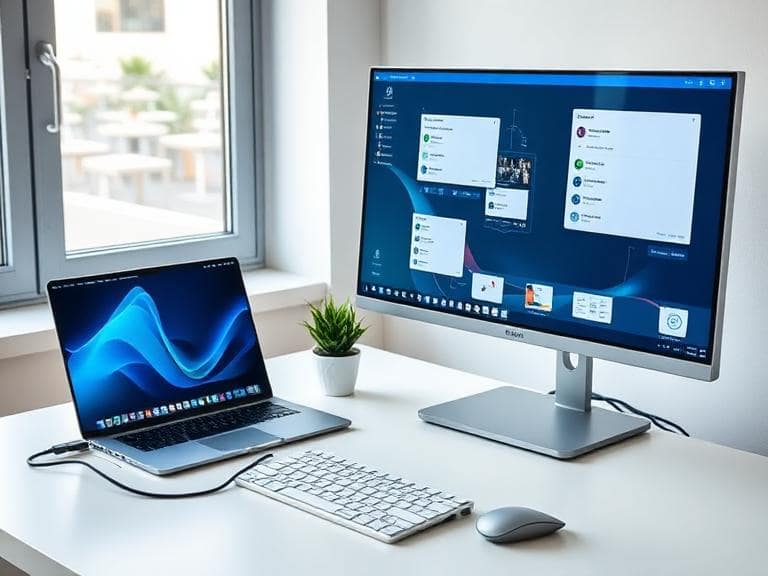
Connecting a laptop to an external monitor has become an essential skill for professionals, students, and anyone seeking to expand their digital workspace. Whether you need more screen real estate for multitasking, want to enjoy content on a larger display, or require a dual-screen setup for enhanced productivity, understanding how to properly connect your laptop to a monitor can significantly improve your computing experience. This comprehensive guide walks you through every aspect of connecting external displays to your laptop, covering cable types, connection methods, configuration settings, and troubleshooting solutions for both Windows and Mac systems.
Understanding Display Ports and Cable Types
Before attempting to connect your laptop to an external monitor, you must first identify the available ports on both devices. Modern laptops and monitors feature various connection options, each with distinct capabilities and compatibility requirements. The type of port your laptop has will determine which cable you need and what features your setup can support, including resolution, refresh rate, and audio transmission.
HDMI Connections
High-Definition Multimedia Interface (HDMI) remains the most widely used connection standard for linking laptops to external displays. HDMI ports are found on the vast majority of modern laptops, monitors, televisions, and projectors, making them the go-to choice for most users. One of the primary advantages of HDMI is its ability to transmit both high-definition video and audio signals through a single cable, eliminating the need for separate audio connections. The compact design of HDMI connectors makes them ideal for slim laptop designs.
HDMI technology has evolved through several versions, with newer iterations supporting higher resolutions and refresh rates. Current HDMI standards can handle 4K resolution at 60Hz, providing crisp, smooth visuals for demanding applications. When purchasing HDMI cables, ensure they meet the specifications required for your desired resolution and refresh rate. For basic 1080p displays, any modern HDMI cable will suffice, but 4K setups may require HDMI 2.0 or higher certified cables.
USB-C and Thunderbolt Connections
USB-C represents the newest standard in display connectivity and offers remarkable versatility. Unlike older connection types, USB-C ports can handle multiple functions simultaneously, including video output, data transfer, and power delivery. This means a single USB-C cable can potentially charge your laptop while transmitting video to your monitor and enabling data transfer between devices. However, not all USB-C ports support video output, which is a critical distinction many users overlook.
To use USB-C for display connections, your laptop’s port must support DisplayPort Alternate Mode or Thunderbolt 3 or 4. DisplayPort Alternate Mode allows USB-C to carry DisplayPort signals, enabling connection to monitors without requiring active adapters. Thunderbolt ports, identifiable by a lightning bolt symbol next to the port, provide even greater capabilities, supporting higher bandwidth for multiple 4K displays and faster data transfer rates. Thunderbolt 4 ports are particularly powerful, capable of driving dual 4K displays at 60Hz simultaneously while maintaining data transfer speeds of up to 40 Gbps.
When shopping for USB-C cables, quality matters significantly. Early USB-C implementations suffered from non-compliant cables that could damage devices. Always purchase cables from reputable manufacturers, and look for USB-IF certification when possible. For display purposes, ensure your USB-C cable explicitly states support for video transmission, as basic USB-C cables designed only for charging or data transfer will not work for monitor connections.
DisplayPort Connections
DisplayPort is a digital display interface developed specifically for connecting video sources to display devices. While less common on consumer electronics than HDMI, DisplayPort is frequently found on computer monitors and many laptops, particularly business and professional models. DisplayPort offers several advantages over HDMI, including support for higher resolutions and refresh rates, making it the preferred choice for gaming monitors and professional displays.
DisplayPort 1.2 and higher versions support Multi-Stream Transport (MST), a feature that enables daisy-chaining multiple monitors from a single port. This technology allows you to connect one monitor to your laptop, then connect additional monitors to the first monitor in a chain configuration, reducing cable clutter and conserving laptop ports. DisplayPort cables come in both full-size and Mini DisplayPort variants, with the mini version commonly found on compact laptops and tablets.
Legacy Connections: VGA and DVI
While increasingly rare on modern devices, VGA (Video Graphics Array) and DVI (Digital Visual Interface) connections still exist on older laptops and monitors. VGA, identifiable by its blue trapezoid-shaped connector with 15 pins arranged in three rows, is an analog standard that only transmits video signals. VGA connections are limited to lower resolutions and do not support audio transmission, making them obsolete for current display standards.
DVI represents an improvement over VGA, offering digital video transmission with better image quality. However, like VGA, DVI does not carry audio signals, requiring separate audio cables for sound. If your setup involves older equipment with VGA or DVI connections, adapters are readily available to convert these signals to HDMI or DisplayPort, though you may experience limitations in resolution and refresh rate.
Step-by-Step Connection Guide for Windows Laptops
Connecting an external monitor to a Windows laptop is typically a straightforward process, but following the proper sequence ensures optimal results and prevents potential issues. The steps outlined below apply to Windows 10 and Windows 11 systems, which offer nearly identical display management interfaces.
Physical Connection Process
Begin by identifying the appropriate ports on both your laptop and monitor. Match the cable type to the available ports, or obtain the necessary adapter if direct connection is not possible. Before making any connections, it is advisable, though not mandatory, to power off your laptop. While modern systems handle hot-plugging well, powering down eliminates any risk of hardware issues during connection.
Ensure your external monitor is plugged into a power source and powered on. Connect one end of your chosen cable (HDMI, DisplayPort, or USB-C) to your laptop’s corresponding port. Connect the other end to the monitor’s input port. If using an adapter, connect the adapter to your laptop first, then attach the appropriate cable to the adapter. Once connections are secure, power on your laptop if it was shut down.
Windows should automatically detect the external display within seconds. You will typically hear a notification sound, and your screen may flicker briefly as the system configures the new display. If your laptop does not automatically detect the monitor, proceed to manual configuration steps outlined below.
Configuring Display Settings in Windows
To access display configuration options in Windows, right-click on an empty area of your desktop and select Display settings from the context menu. Alternatively, navigate through Settings > System > Display. The Display settings window shows all connected displays, each numbered for identification. Windows assigns number 1 to your primary display, typically the laptop’s built-in screen.
If your external monitor is not automatically detected, scroll to the Multiple displays section and click the Detect button. This forces Windows to scan for connected displays. If detection still fails, verify all cable connections are secure and that the monitor is set to the correct input source using the monitor’s on-screen menu buttons.
Once detected, you can configure how Windows uses the external display by selecting from several display modes:
- Duplicate these displays: This mode mirrors your laptop screen on the external monitor, showing identical content on both displays. Duplicate mode is useful for presentations where you need to show the same content to different audiences, or when you want the same view on both screens. The resolution will default to the lower of the two displays to ensure compatibility.
- Extend these displays: Extend mode treats both screens as a single, continuous desktop space. You can drag windows and applications from one screen to another, effectively doubling your workspace. This is the most popular configuration for productivity work, as it allows you to view different applications simultaneously without overlapping windows. You can position reference materials on one screen while working on another.
- Show only on 1 (or 2): These options display content on only one screen at a time. “Show only on 1” uses just your laptop screen and disables the external monitor, while “Show only on 2” displays only on the external monitor, turning off your laptop display. The latter option is particularly useful if you want to use your laptop as a desktop replacement with the lid closed.
You can quickly switch between these modes by pressing Windows key + P, which opens a sidebar with display options labeled as PC screen only, Duplicate, Extend, and Second screen only.
Arranging and Customizing Displays
When using multiple displays in Extend mode, proper arrangement ensures smooth cursor movement between screens. In Display settings, you’ll see blue rectangles representing each display. These rectangles can be dragged and positioned to match the physical arrangement of your monitors. If your external monitor sits to the right of your laptop, drag its rectangle to the right side. If positioned above, drag it upward. This arrangement determines how your mouse cursor moves between displays.
Click the Identify button to display large numbers on each screen, helping you determine which number corresponds to which physical monitor. This is especially helpful when working with multiple external displays.
Each display can be individually configured for resolution, scaling, and orientation. Select a display by clicking its numbered rectangle, then scroll down to adjust settings:
- Display resolution: Choose the native resolution of your monitor for optimal clarity. Most monitors display a “(Recommended)” label next to their ideal resolution. Using non-native resolutions may result in blurry text or scaling issues.
- Scale and layout: This setting adjusts the size of text, apps, and other interface elements. Higher resolution displays often benefit from scaling above 100% to maintain comfortable readability. Common scaling options include 100%, 125%, 150%, and 175%.
- Display orientation: Rotate the display between Landscape, Portrait, Landscape (flipped), and Portrait (flipped). Portrait orientation is popular for coding, document editing, and web browsing, as it displays more vertical content.
Using Your Laptop with the Lid Closed
Many users prefer to operate their laptop with the lid closed when using an external monitor, keyboard, and mouse. By default, Windows puts laptops to sleep when the lid closes, disrupting your workflow. To change this behavior, access Control Panel > Hardware and Sound > Power Options, then click Choose what closing the lid does in the left sidebar. Under “When I close the lid,” select Do nothing for both battery and plugged-in states. Click Save changes to apply the setting.
Step-by-Step Connection Guide for Mac Laptops
Mac laptops, including MacBook Air and MacBook Pro models, offer seamless external monitor connectivity through built-in features and intuitive configuration interfaces. The process differs slightly from Windows but is equally straightforward once you understand the steps.
Identifying Mac Ports and Connections
Modern MacBook models primarily use Thunderbolt 3 or Thunderbolt 4 ports, which use USB-C connectors and support DisplayPort Alternate Mode. These versatile ports can connect to HDMI, DisplayPort, Mini DisplayPort, or VGA displays through appropriate adapters or cables. Older MacBook models may feature HDMI ports, Mini DisplayPort, or Thunderbolt 2 (Mini DisplayPort shape with a Thunderbolt logo).
Apple’s Thunderbolt ports provide exceptional display capabilities. A single Thunderbolt 3 port can drive a 5K display at 60Hz, or two 4K displays at 60Hz when using a dock or adapter. Thunderbolt 4 maintains these capabilities while improving minimum specifications for connected devices. When selecting cables or adapters for Mac connections, ensure they explicitly state Mac compatibility and support for the resolutions you require.
Connecting and Configuring Displays on macOS
Connect your external monitor to your Mac using the appropriate cable or adapter. Ensure the monitor is powered on and set to the correct input source. macOS typically detects external displays automatically within seconds of connection, requiring no manual intervention. Your Mac will immediately extend the desktop to the new display, providing instant additional workspace.
To adjust display settings, click the Apple menu in the top-left corner of your screen and select System Settings (macOS Ventura and later) or System Preferences (earlier versions). Navigate to Displays to access configuration options. If your display does not appear, hold the Option key and click the Detect Displays button to force detection.
Within the Displays preferences pane, you can adjust several parameters for each connected monitor:
- Resolution: macOS offers “Default for display” and “Scaled” options. The default setting uses the monitor’s native resolution. Scaled options allow you to increase or decrease the effective workspace, making interface elements larger or smaller. This is particularly useful for high-resolution displays where native resolution produces tiny text.
- Refresh rate: If your monitor supports multiple refresh rates, you can select your preferred rate. Higher refresh rates (above 60Hz) provide smoother motion, beneficial for gaming and video editing.
- Color profile: macOS allows you to select color profiles optimized for your specific monitor model. Proper color profiling ensures accurate color reproduction, critical for photography and design work.
Arranging Displays on Mac
Click the Arrangement tab in Display settings to see visual representations of your connected displays. Drag these blue rectangles to match the physical positioning of your monitors. The display with a white menu bar at the top is designated as the primary display. To change which display is primary, simply drag the white menu bar from one display rectangle to another.
For mirrored displays where both screens show identical content, check the Mirror Displays option. This is useful for presentations or when you want the same view on both screens. When Mirror Displays is enabled, both displays will use the resolution of the lower-resolution screen to ensure compatibility.
MacBooks support clamshell mode, allowing you to use your laptop with the lid closed and an external keyboard, mouse, and monitor. To activate clamshell mode, connect your external peripherals and monitor, ensure your MacBook is connected to power, and then close the lid. Press any key on your external keyboard to wake the system, which will then display only on the external monitor.
Connecting Multiple Monitors to Your Laptop
While single external monitor setups are straightforward, connecting two or more monitors requires additional consideration of your laptop’s capabilities and the connection methods available. Dual and triple monitor configurations dramatically increase productivity but demand proper planning and sometimes additional hardware.
Checking Laptop Display Support
Not all laptops support multiple external displays simultaneously. The number of displays you can connect depends on several factors, including your graphics card (GPU), available ports, and the version of display protocols supported. Integrated graphics chips in budget and mid-range laptops typically support one or two external displays, while dedicated GPUs in gaming and professional laptops can often drive three or more monitors.
To determine your laptop’s multi-display capabilities, consult your laptop’s technical specifications document or visit the manufacturer’s support website. Search for specifications related to “maximum supported displays” or “multi-monitor support.” Additionally, your graphics driver software often indicates display limitations. On Windows, right-click the desktop, select your graphics control panel (Intel Graphics Command Center, NVIDIA Control Panel, or AMD Radeon Settings), and review multi-display options.
Direct Multi-Monitor Connections
The simplest method for connecting multiple monitors uses separate ports on your laptop. For example, if your laptop has both an HDMI port and a USB-C port with DisplayPort support, connect one monitor to each port using appropriate cables. This direct connection method requires no additional hardware and often provides the most reliable performance.
When using direct connections, ensure each port can independently output video. Some laptops share display bandwidth between ports, meaning only specific port combinations will work simultaneously. Test different port combinations if you encounter issues with certain configurations.
Using Docking Stations for Multiple Displays
Laptop docking stations provide the most elegant solution for multi-monitor setups, especially in fixed desk environments. A quality docking station connects to your laptop through a single cable, typically USB-C or Thunderbolt, and provides multiple video outputs, additional USB ports, Ethernet connectivity, and power delivery to charge your laptop simultaneously.
When selecting a docking station for multi-monitor use, verify it explicitly supports the number of displays you need and the resolutions you want to use. Some key specifications to evaluate include:
- Video outputs: Count the number and types of video ports (HDMI, DisplayPort, USB-C). Ensure the dock has sufficient outputs for all your monitors.
- Resolution and refresh rate support: Confirm the dock supports your desired resolution on each output. Budget docks may limit simultaneous displays to 1080p, while premium models support dual 4K at 60Hz or higher.
- Power delivery: Check the wattage provided through the dock’s upstream connection. Higher-end laptops require 65W, 85W, or even 100W charging. Insufficient power delivery will drain your battery during intensive use.
- Host connection type: Ensure your laptop has the required port type (USB-C, Thunderbolt 3, or Thunderbolt 4). Thunderbolt docks offer the highest bandwidth but cost more and require Thunderbolt-equipped laptops.
- Operating system compatibility: Most docks work with both Windows and macOS, but some features may be platform-specific. Verify compatibility with your specific operating system version.
Popular docking stations for multi-monitor setups include the Dell WD19TB, Plugable UD-6950H, CalDigit TS3 Plus, and OWC Thunderbolt Dock. These models offer dual 4K support, extensive port selection, and reliable performance across various laptop brands.
DisplayPort Multi-Stream Transport (MST)
DisplayPort 1.2 and newer versions support Multi-Stream Transport, allowing daisy-chaining of multiple monitors from a single DisplayPort output. With MST, you connect the first monitor to your laptop, then connect the second monitor to the first monitor’s DisplayPort output, and continue the chain for additional displays. This topology reduces cable clutter at your laptop and makes for a cleaner workspace.
To implement MST daisy-chaining, you need monitors that specifically support DisplayPort MST with DisplayPort output ports. Not all monitors include this feature, so verify compatibility before purchase. Enable MST in each monitor’s on-screen menu, typically found under DisplayPort settings. Your laptop’s graphics driver must also support MST; most modern systems do, but older integrated graphics may not.
Keep in mind that display bandwidth is shared across the entire daisy chain. Connecting multiple high-resolution displays may require reducing the refresh rate or resolution to stay within DisplayPort’s bandwidth limits. DisplayPort 1.4 offers significantly more bandwidth than 1.2, enabling more ambitious multi-display configurations.
USB Adapters for Additional Displays
If your laptop lacks sufficient video outputs, USB-to-HDMI or USB-to-DisplayPort adapters provide an alternative path to multi-monitor setups. These adapters use DisplayLink technology, which transmits video data through standard USB ports using software compression. DisplayLink adapters work with USB-A and USB-C ports that don’t support video output.
DisplayLink adapters require driver installation on your laptop. Once installed, they appear as additional graphics adapters in your system, enabling connection of monitors beyond your laptop’s native display limits. Performance is generally suitable for productivity work, document editing, and web browsing, though DisplayLink is not ideal for gaming or video editing due to compression and latency.
When using DisplayLink adapters, purchase from reputable brands like Plugable, StarTech, or Cable Matters. Install the latest DisplayLink drivers from the official DisplayLink website to ensure compatibility with your operating system version.
Troubleshooting Common Connection Issues
Even with proper setup procedures, external monitor connections sometimes fail to work as expected. Understanding common problems and their solutions helps you quickly resolve issues and get your displays functioning correctly.
Monitor Not Detected
If your laptop fails to detect a connected external monitor, several factors could be responsible. Start by verifying all physical connections are secure. Remove and reconnect cables at both ends, ensuring they click or lock into place. Inspect cable ends for bent or damaged pins, particularly with DisplayPort and DVI connections.
Confirm the monitor is powered on and set to the correct input source. Most monitors have multiple input ports and require manual selection of the active input through on-screen menus accessed via buttons on the monitor. Navigate through the monitor’s input options until you select the port your laptop is connected to.
Try using the detect function in your operating system’s display settings. On Windows, click Detect in Display settings. On Mac, hold Option and click Detect Displays. If detection still fails, restart both your laptop and monitor with the cable connected.
Update your graphics drivers to the latest version. Outdated drivers frequently cause display detection failures. On Windows, access Device Manager, expand Display adapters, right-click your graphics card, and select Update driver. On Mac, ensure your operating system is current through System Settings > Software Update, as graphics updates are included in macOS updates.
Black Screen or No Signal Error
When your monitor powers on but displays a black screen or “No Signal” message, the monitor is not receiving video data from your laptop. This differs from detection issues and typically indicates a cable problem, incorrect input selection, or graphics driver issue.
Verify you’re using a functioning cable by testing it with different devices if possible. Try an alternate cable type if your setup allows. For example, if using HDMI isn’t working and your laptop also has DisplayPort, try a DisplayPort cable instead.
Ensure your laptop is actually outputting video to the external port. On some laptops, especially older models, you must press a function key combination to activate external display output. Common combinations include Fn+F4, Fn+F5, Fn+F7, or Fn+F8. Look for a key with a monitor icon on your laptop’s function row.
Check that your laptop isn’t set to “PC screen only” or similar mode that disables external displays. Press Windows key + P and select Duplicate or Extend to enable the external monitor.
Poor Image Quality or Wrong Resolution
Blurry text, distorted images, or improper scaling often results from incorrect resolution settings. Always set displays to their native resolution for optimal clarity. Native resolution is the actual number of pixels in the display panel and is typically marked as “Recommended” in display settings.
If using older VGA connections, image quality may inherently suffer due to the analog nature of VGA signals. Consider upgrading to digital connections (HDMI or DisplayPort) if possible for significantly improved image quality.
For high-resolution displays like 4K monitors, you may need to adjust scaling settings to make text and interface elements readable. In Windows, adjust the Scale setting under Display settings. On Mac, use Scaled resolutions in Display preferences to find a comfortable balance between screen real estate and readability.
External Monitor Disconnects Randomly
Intermittent disconnection of external displays typically points to cable issues, power management settings, or graphics driver problems. Test with a different cable first, as faulty cables are a common culprit. Also ensure the cable is rated for the length you’re using; excessively long cables, particularly passive cables, may not reliably transmit signals at high resolutions.
Review power management settings that might be putting the graphics card or display into sleep mode. On Windows, access Power Options in Control Panel, click “Change plan settings” next to your active power plan, then “Change advanced power settings.” Expand “PCI Express” and “Link State Power Management,” and set to “Off.”
Update or roll back graphics drivers. Sometimes new driver versions introduce bugs that cause connection stability issues. If problems began after a recent driver update, consider rolling back to the previous version through Device Manager.
Laptop Not Supporting Multiple Displays
If your laptop connects to one external monitor successfully but won’t recognize a second display, you may be encountering hardware limitations. Check your laptop’s specifications to confirm it supports multiple external displays. Many budget and mid-range laptops with integrated graphics only support one external display in addition to the built-in screen.
Some USB-C ports on laptops only support data and power, not video output. Verify your USB-C port has DisplayPort Alternate Mode capability. Look for a DisplayPort logo next to the port or consult your laptop’s manual. If your USB-C port doesn’t support video, USB adapters based on DisplayLink technology can provide additional display outputs.
Optimizing Your Monitor Setup for Different Use Cases
The ideal monitor configuration varies depending on how you use your laptop. Tailoring your setup to match your specific workflows maximizes the benefits of external displays and enhances your productivity.
Productivity and Office Work
For general productivity work involving documents, spreadsheets, email, and web browsing, a dual-monitor setup with the laptop screen plus one external display provides an excellent balance of workspace and simplicity. Position your primary work application on the larger external monitor with reference materials, email, or communication tools on the laptop screen.
Consider a single large ultrawide monitor as an alternative to dual screens. Ultrawide displays (21:9 or 32:9 aspect ratio) provide extensive horizontal space in a single panel, eliminating bezels between screens and simplifying cable management. Many ultrawide monitors support picture-by-picture or picture-in-picture modes, allowing you to treat one monitor as two independent displays fed by different inputs.
Proper ergonomic positioning is crucial for extended use. Position monitors at arm’s length distance, with the top of the screen at or slightly below eye level. The monitor should be directly in front of you to avoid neck strain from constantly turning. If using dual monitors, arrange them at a slight angle with the center point between monitors directly ahead.
Programming and Development
Software developers benefit tremendously from multiple monitors or high-resolution displays. Typical development workflows involve viewing code, documentation, terminal windows, debuggers, and test results simultaneously. Many developers use a vertical (portrait orientation) monitor for code editing, as it displays significantly more lines of code than landscape orientation while maintaining comfortable line length.
A popular development configuration uses one 4K monitor in landscape orientation as the primary display for applications, IDEs, and browsers, with a second 1080p or 1440p display in portrait for code, logs, or documentation. This asymmetric setup adapts perfectly to development workflows without requiring excessive desk space or budget.
Color accuracy is less critical for development work compared to creative fields, so budget-conscious developers can focus on resolution and screen size over professional color calibration. However, ensure adequate brightness and contrast for comfortable extended viewing sessions.
Creative Work and Content Creation
Photo editing, video production, graphic design, and similar creative endeavors demand high-quality displays with accurate color reproduction. Invest in monitors with wide color gamuts (100% sRGB minimum, preferably Adobe RGB or DCI-P3 coverage), factory color calibration, and IPS or OLED panel technology for consistent colors at various viewing angles.
Resolution is critical for creative work. 4K (3840×2160) displays allow you to view high-resolution photos and videos at native resolution while maintaining space for editing tools and panels. For professional video editing, some creators prefer two identical 4K displays to view footage on one screen while editing timeline and tools on the other.
Consider using your laptop display for tool palettes, timeline, and controls while dedicating the larger, more accurate external monitor to viewing your actual content. This separation prevents tool windows from obstructing your view of the work itself.
Gaming
Gaming on external monitors connected to laptops requires consideration of refresh rate, response time, and resolution. Gaming laptops with dedicated graphics cards can drive high-refresh-rate monitors (120Hz, 144Hz, or higher), providing smoother gameplay than standard 60Hz displays. However, verify your laptop’s video output supports the desired refresh rate at your chosen resolution.
Many laptop HDMI ports are limited to HDMI 1.4 or 2.0 specifications, which may not support 4K at high refresh rates. DisplayPort and USB-C with DisplayPort support often provide better specifications for high-performance gaming displays. Check your laptop’s manual for video output specifications.
Variable refresh rate technologies like NVIDIA G-Sync and AMD FreeSync eliminate screen tearing and stuttering. Ensure your laptop’s GPU and the monitor support compatible technologies. G-Sync Compatible certification indicates that FreeSync monitors have been tested and approved for use with NVIDIA GPUs.
Pro Tips for External Monitor Setup
Enhance your external monitor experience with these expert recommendations that address common challenges and optimize performance:
- Invest in quality cables: Cheap cables often fail prematurely or cause intermittent connection issues. Purchase certified cables from reputable brands, especially for high-bandwidth applications like 4K at 60Hz or higher refresh rates. Cable length also matters; keep cables as short as practical for your setup, as longer cables may require active electronics to maintain signal integrity.
- Calibrate your displays: Even expensive monitors benefit from calibration. Use built-in calibration tools in Windows and macOS, or invest in a hardware colorimeter for professional-grade accuracy. Calibration ensures consistent colors across multiple displays and accurate color representation for creative work.
- Match monitor models for consistency: If using multiple external monitors, identical models ensure consistent color, brightness, and viewing angles. Mismatched monitors can be distracting and make color-critical work challenging.
- Use monitor arms: Adjustable monitor arms provide ergonomic positioning flexibility and free up desk space. They allow easy adjustment of height, tilt, and rotation to achieve optimal viewing angles throughout the day.
- Manage cable clutter: Use cable management solutions like cable trays, sleeves, or clips to route cables neatly. Clean cable management improves aesthetics and reduces the chance of accidentally disconnecting cables.
- Configure keyboard shortcuts: Learn display switching shortcuts. Windows key + P on Windows and F1 or display arrangement gestures on Mac let you quickly reconfigure displays for different tasks or presentations.
- Adjust lighting to reduce eye strain: Position monitors to minimize glare from windows or overhead lights. Consider bias lighting (a light source behind the monitor) to reduce eye strain during extended use in dim environments.
- Update firmware on monitors: Some monitors receive firmware updates that improve compatibility, add features, or fix bugs. Check the manufacturer’s website periodically for updates.
Frequently Asked Questions
Can I connect a 4K monitor to any laptop?
Most modern laptops can connect to 4K monitors, but not all can drive them at native 4K resolution or at 60Hz refresh rate. Your laptop needs an HDMI 2.0 or newer, DisplayPort 1.2 or newer, or USB-C with DisplayPort support. Additionally, your graphics card must have sufficient power to render 4K content. Check your laptop’s specifications for maximum supported resolution on external displays.
Why does my laptop run slower when using an external monitor?
Driving external displays, especially at high resolutions, increases the workload on your laptop’s graphics processor. If your laptop has an integrated GPU, it shares system RAM and CPU resources, which can impact overall performance. Using lower resolutions or refresh rates reduces this burden. Laptops with dedicated GPUs handle external displays with minimal performance impact on other tasks.
Can I use my laptop with the lid closed and only the external monitor active?
Yes, both Windows and Mac laptops support closed-lid operation with external monitors, known as clamshell mode. On Windows, you must configure power settings to prevent the laptop from sleeping when the lid closes by navigating to Control Panel, selecting Power Options, and choosing “Do nothing” for the lid close action. On Mac, clamshell mode activates automatically when your laptop is connected to power, has an external keyboard and mouse attached, and is connected to a monitor. Simply close the lid and press any key on the external keyboard to wake the display. Keep in mind that closed-lid operation may reduce cooling efficiency since air vents are often located near the hinge, so monitor system temperatures during intensive tasks to prevent overheating.
What is the maximum number of monitors I can connect to my laptop?
The maximum number of external monitors depends on your laptop’s graphics hardware and available ports. Most laptops with integrated graphics support one or two external displays in addition to the laptop screen. High-end gaming and professional laptops with dedicated GPUs may support three or more external monitors. Check your laptop’s technical specifications or contact the manufacturer for exact limitations. Using docking stations or DisplayLink adapters can sometimes extend beyond native hardware limits.
Do I need special software to use multiple monitors?
No special software is required for basic multi-monitor functionality. Windows and macOS include built-in display management tools that handle multiple monitors. However, third-party utilities like DisplayFusion, PowerToys for Windows, or Rectangle for Mac offer advanced features such as custom window snapping, per-monitor wallpapers, taskbar customization, and enhanced keyboard shortcuts that can improve multi-monitor workflows.
Will using an external monitor drain my laptop battery faster?
Yes, external monitors increase power consumption because your graphics processor must render content for additional displays. The impact varies depending on monitor resolution, refresh rate, and whether you are duplicating or extending displays. For extended work sessions with external monitors, keep your laptop plugged into power. If you must work on battery, lowering the external monitor’s brightness and resolution can help conserve energy.
Can I connect my laptop to a TV instead of a monitor?
Yes, you can connect laptops to TVs using HDMI cables, as most modern TVs include multiple HDMI inputs. TVs work identically to monitors from a connection perspective. However, TVs are optimized for viewing from a distance and may not provide the same text clarity as monitors when used at desk distance. TVs also typically have higher input lag than monitors, which can affect gaming or applications requiring precise timing. Enable “PC mode” or “Game mode” in your TV’s settings for better performance when used as a monitor.
Why is my external monitor showing a different color than my laptop screen?
Color differences between displays occur because each monitor has unique color calibration, panel technology, and color gamut capabilities. Laptop screens and external monitors use different panels with varying quality levels. To minimize differences, calibrate both displays using built-in operating system tools or professional calibration hardware. Adjust brightness, contrast, and color temperature settings on both displays to achieve closer matching. For professional color-critical work, invest in color-accurate monitors with factory calibration and wide color gamuts.
What should I do if my laptop’s ports are damaged or not working?
If your laptop’s video ports are damaged, you have several alternatives. USB-to-HDMI or USB-to-DisplayPort adapters using DisplayLink technology can provide video output through standard USB-A or USB-C data ports. These adapters require driver installation but offer a practical solution when native video ports fail. Alternatively, laptop docking stations connect through undamaged ports and provide multiple video outputs. If all ports are compromised, professional repair services can replace damaged port assemblies, though costs may be substantial depending on laptop design.
Can I use wireless display technology instead of cables?
Yes, wireless display technologies like Miracast for Windows or AirPlay for Mac allow cable-free connections to compatible displays. However, wireless connections typically introduce latency, may reduce video quality through compression, and require both devices to support the same wireless standard. Wireless displays work well for presentations, media playback, and casual use, but wired connections remain superior for professional work, gaming, and scenarios requiring maximum image quality and responsiveness. Ensure your monitor or TV supports the wireless standard your laptop uses before attempting wireless connections.
Conclusion
Connecting your laptop to an external monitor significantly enhances your computing experience by providing additional screen real estate, improved ergonomics, and the flexibility to create workspaces tailored to your specific needs. Whether you are setting up a simple single-monitor extension for occasional use or building a comprehensive multi-display workstation for professional work, understanding the connection types, configuration options, and potential challenges ensures a smooth setup process.
Modern laptops offer diverse connectivity options including HDMI, DisplayPort, USB-C, and Thunderbolt, each with distinct capabilities suited to different scenarios. Windows and macOS both provide intuitive interfaces for managing external displays, allowing you to duplicate screens for presentations, extend desktops for multitasking, or use external monitors as primary displays while operating your laptop in clamshell mode. The key to successful implementation lies in matching your equipment capabilities with your intended use case and following proper configuration procedures.
For users seeking to maximize productivity through multi-monitor setups, options range from direct port connections to sophisticated docking stations that consolidate all peripherals through a single cable. Understanding your laptop’s capabilities and limitations prevents frustration and helps you invest in compatible equipment that delivers the performance you need. When issues arise, systematic troubleshooting focusing on cable connections, driver updates, input source selection, and display settings typically resolves most problems quickly without requiring technical expertise.
The investment in external monitors pays dividends in improved productivity, reduced eye strain through better ergonomics, and more enjoyable computing experiences across all types of work. Creative professionals gain access to color-accurate displays for precise editing work, developers benefit from expanded code viewing space and reference material positioning, gamers enjoy larger screens with higher refresh rates, and office workers appreciate the ability to view multiple documents simultaneously without constant window switching.
By following the comprehensive guidance provided in this tutorial, you can confidently connect your laptop to one or multiple external displays and configure them optimally for your specific work style and requirements. Remember to consider ergonomic factors in your physical setup, maintain updated graphics drivers for optimal compatibility, use quality certified cables appropriate for your resolution and refresh rate needs, and take advantage of your operating system’s built-in display management tools to create efficient workflows. With proper setup and configuration, external monitors transform your laptop into a versatile workstation capable of handling demanding professional tasks while maintaining the portability that makes laptops invaluable in modern work environments.