The digital pen has evolved from a niche accessory to a powerful tool for creativity, productivity, and navigation on Windows 10. Whether you are an artist bringing visions to life, a student annotating lecture notes, or a professional marking up documents, unlocking the full potential of your stylus is key. This comprehensive guide delves deep into the configuration settings, advanced features, and customization options that transform a simple pointing device into a personalized extension of your hand. We will explore everything from basic button assignment to troubleshooting common issues, ensuring you have the knowledge to tailor the experience perfectly to your workflow.
Modern pens, such as the Microsoft Surface Pen, the HP Pen, and the Lenovo Digital Pen, offer varying levels of pressure sensitivity and programmability. The operating system provides a centralized hub within the Windows Settings to manage these devices, but many users are unaware of the depth of control available. Understanding these settings not only enhances usability but can also significantly speed up common tasks. This guide is designed for users of all levels, from those unboxing their first pen to seasoned professionals looking to refine their setup.
The integration of pen functionality in Windows 10 is a cornerstone of the platform’s commitment to versatile computing. It bridges the gap between traditional mouse input and the intuitive nature of touch, offering precision that fingers cannot. By customizing how your pen behaves, you create a more efficient and enjoyable interaction with your device, whether it’s a dedicated 2-in-1 laptop, a tablet, or a device with an external drawing pad.
Accessing the Pen & Windows Ink Settings
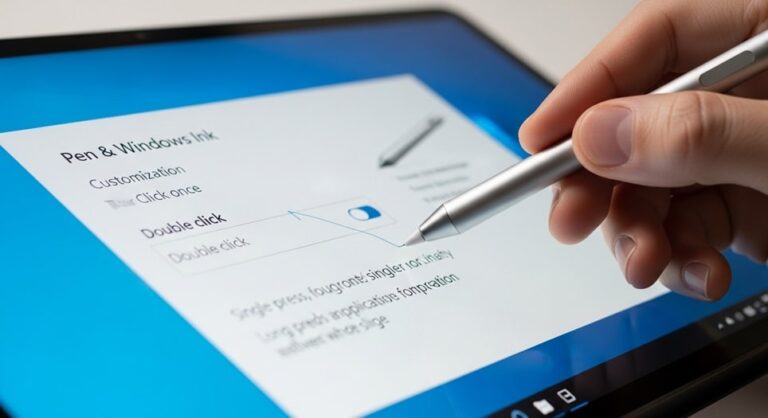
All configuration for your digital pen begins in the Windows Settings menu. To access the core controls, click the Start button and select the gear-shaped Settings icon. From there, navigate to Devices and then select Pen & Windows Ink from the left-hand sidebar. This dedicated section is the command center for all things related to your stylus. If your pen is properly paired and connected, you will see a suite of options available for customization.
Within the Pen & Windows Ink menu, you will find several distinct sub-sections. The primary area is often labeled “Choose which hand you write with,” which is a fundamental setting that adjusts the interface to prevent palm rejection issues. Below this, you will encounter the crucial “Pen shortcuts” section, which is where the physical buttons on your pen can be assigned specific functions. Another key area is “Visual effects,” which controls the cursor and feedback you receive when using the pen.
It is important to note that the availability of certain features can depend on your specific hardware and pen model. For instance, some third-party pens may not support the same level of button customization as the first-party Microsoft Surface Pen. If you do not see the Pen & Windows Ink option at all, it is likely that Windows does not detect a compatible pen device, or the necessary drivers are not installed. In such cases, visiting the manufacturer’s website for your device or pen to download the latest drivers is the recommended first step.
Configuring Pen Button Actions for Maximum Efficiency
The physical buttons on your digital pen are its most customizable features, offering shortcuts to your most frequently used actions. Typically, a pen will have at least one barrel button, and often a top eraser button as well. The “Pen shortcuts” section in the settings allows you to define what happens when you single-press, double-press, or press and hold these buttons. The default actions are a great starting point, but tailoring them to your specific needs can dramatically improve your workflow.
For the single-press action, common and highly useful options include opening a specific app like Whiteboard or Sticky Notes, acting as a right-click, or triggering a screen snip. Assigning the single-press to a right-click is particularly powerful, as it mirrors the standard mouse interaction, allowing you to access context menus without needing to use your other hand or tap and hold on the screen. This is invaluable for designers working in software like Photoshop or architects using CAD applications.
The double-press action is perfect for more specific, secondary commands. A popular choice is setting it to quickly capture a screenshot and enter the Screen Sketch mode, which lets you immediately annotate and share what’s on your display. Alternatively, you could set a double-press to switch between your current app and the last one used, facilitating rapid multitasking. The “press and hold” function is often used to right-click, but if you’ve already assigned that to the single-press, you might consider disabling it to avoid accidental activation or assigning it to a different, less critical function.
- Single-Press as Right-Click: This configuration turns your pen into a complete navigation tool. It enables you to effortlessly open context menus, manipulate objects, and access additional options in software without any other input method, streamlining your creative and administrative tasks.
- Double-Press for Screen Snip: Ideal for researchers, students, and collaborators, this setting allows you to instantly capture any part of your screen and mark it up. It eliminates the need to fumble with keyboard shortcuts or the Snipping Tool interface, making the process of gathering and annotating information seamless.
- Top Button as Eraser: For artists and note-takers, this is arguably the most intuitive setup. It allows you to flip your pen and use the top button as an eraser in supported apps like OneNote and Fresh Paint, closely mimicking the experience of using a real pencil or pen on paper.
- Single-Press to Launch Whiteboard: This is perfect for brainstorming sessions or quick sketches. With one click, you can jump directly into a digital canvas to jot down ideas, draw diagrams, or collaborate in real-time with others, making your pen a dedicated idea-generation tool.
- Double-Press to Open Sticky Notes: This transforms your pen into a digital notepad. It provides a lightning-fast way to create a quick reminder, a to-do list, or a phone number, ensuring that your fleeting thoughts are captured before they are forgotten.
Calibrating Your Pen for Pinpoint Accuracy
Calibration is a critical step that ensures the point of your pen’s tip aligns perfectly with the cursor on your screen. An uncalibrated pen can feel imprecise and frustrating, especially when working on detailed tasks. Windows 10 includes a built-in calibration tool to correct this. To access it, go to Settings > Devices > Pen & Windows Ink and click on the “Calibrate” button under the “Pen” section. This will launch a dedicated calibration utility.
The calibration process involves tapping a series of crosshairs that appear on the screen. You will be prompted to tap points in the center and around the edges of the display. It is crucial to hold the pen as you normally would during this process and to tap the center of each target as accurately as possible. The system uses your inputs to build a profile that maps the pen’s physical position to the correct screen coordinates. You can create and save different calibration profiles for different orientations, such as portrait and landscape, which is particularly useful for 2-in-1 devices.
If you find that your pen is consistently off-target after calibration, you may need to update your touch or pen display drivers. Persistent issues can sometimes be resolved by removing the current calibration data and starting the process over. In the same settings area, you will find an option to reset the calibration to its default state. For users who work with extreme precision, such as digital illustrators, taking the time to perform a careful calibration is one of the most impactful steps for improving the overall experience.
Mastering Palm Rejection and Writing Preferences
Palm rejection technology is what allows you to rest your hand comfortably on the screen while writing or drawing without causing unintended marks or cursor movements. Windows 10 handles this remarkably well, but its effectiveness can be fine-tuned. The first and most important setting is telling Windows which hand you are using. In the Pen & Windows Ink settings, the “Choose which hand you write with” option adjusts the active area of the screen to ignore input from the side where your palm would naturally rest.
Beyond the hand selection, many applications have their own built-in palm rejection settings. Applications designed for pen use, like OneNote, Adobe Fresco, and Clip Studio Paint, often feature advanced palm rejection that can be adjusted within the app’s preferences. If you are experiencing issues where your palm is still registering touches, it is worth exploring the settings within your specific software. Additionally, using a drawing glove can be a practical solution; these gloves cover the palm and little finger, providing a physical barrier that prevents any potential interference with the screen.
Another related setting is “Show visual effects when I use my pen.” This option controls whether a small circle or cursor appears at the tip of your pen before you touch the screen. Some users find this visual feedback helpful for precise targeting, while others prefer to disable it for a more natural, pen-on-paper feel. Experimenting with this setting can help you determine which mode feels more comfortable and improves your accuracy.
Leveraging the Windows Ink Workspace
The Windows Ink Workspace is a dedicated hub that provides quick access to pen-friendly applications and features. You can typically open it by clicking the small pen icon in your system tray on the taskbar or by pressing a dedicated button on the side of some pens. The Workspace is divided into several panels, including shortcuts to Whiteboard, Snip & Sketch, and a section for recently used ink-enabled apps. Even if you don’t use the Workspace itself, understanding its components can reveal useful tools.
Whiteboard is an infinite digital canvas ideal for collaboration and brainstorming. Snip & Sketch, which has largely replaced the older Snipping Tool, allows you to take screenshots and annotate them immediately with your pen. The “Recent apps” section ensures that your go-to creative or note-taking software is always just a click away. While some users disable the Workspace to declutter their taskbar, it serves as a powerful reminder of the pen-centric capabilities built directly into the Windows 10 ecosystem.
You can customize which apps appear in the Windows Ink Workspace by going to Settings > Devices > Pen & Windows Ink > Windows Ink Workspace. Here, you can choose to show or hide the recommended apps and control whether the Workspace button appears on the taskbar. For a minimalist workflow, you can disable the taskbar button entirely and rely on your pen’s custom buttons to launch your most important apps directly.
Pro Tips for Power Users
To truly master your digital pen, moving beyond the basic settings is essential. Power users can employ several advanced techniques and lesser-known features to enhance their productivity and creativity. These tips often involve combining pen use with keyboard shortcuts or diving deeper into specific application settings.
- Use Keyboard Shortcuts with Your Pen: While your pen is great for direct manipulation, don’t forget the keyboard. Holding the Ctrl key while using the pen wheel button to zoom in and out in applications like Photoshop or your web browser can be faster than navigating menus. Similarly, using Ctrl+Z for undo with one hand while drawing with the other is a fundamental workflow accelerator.
- Customize Per-Application Settings: Many advanced applications allow you to customize pen pressure curves and button mappings within the app itself. For example, in Clip Studio Paint, you can set a specific button to act as an eyedropper tool for color picking, while in OneNote, you can set a button to switch to the highlighter. Explore the preferences of your primary software to unlock this deeper level of integration.
- Manage Your Pen’s Battery Life: If your pen is battery-powered, being mindful of its power source is key. The Microsoft Surface Pen (and similar models) use an AAAA or a lithium battery. You can check the battery level by going to Settings > Devices > Bluetooth & other devices, finding your pen, and checking the properties. For pens with rechargeable batteries, establishing a routine, such as charging it overnight, ensures it’s always ready for use.
- Explore Third-Peer Stylus Software: For artists, third-party utilities like Lazy Nezumi Pro can offer superior line smoothing, stabilization, and scripting features that go far beyond what the operating system provides. This software can be a game-changer for achieving ultra-smooth lines and complex patterns.
- Enable Pen Flicks for Navigation: This is a legacy feature that can still be enabled for certain tasks. In the old Pen and Input Devices control panel (which can be found by searching for “flicks” in the Start menu), you can configure “flicks” to perform actions like back, forward, delete, or right-click with a quick gesture of the pen. This can be an efficient way to navigate without reaching for the keyboard.
Frequently Asked Questions
My pen is connected, but the buttons are not working. What should I do?
First, ensure your pen has a charged battery. Then, check the Bluetooth connection by going to Settings > Devices > Bluetooth & other devices. If the pen is connected, try removing it and re-pairing it. Also, verify that the button assignments are correctly set in the Pen & Windows Ink settings. If the problem persists, check the manufacturer’s website for a firmware update for your specific pen model.
Why is my pen cursor inaccurate, especially near the edges of the screen?
This is a classic sign that your pen needs calibration. Go to Settings > Devices > Pen & Windows Ink and click “Calibrate.” Follow the on-screen instructions to tap the crosshairs accurately. Remember to calibrate for both landscape and portrait orientations if you use your device in multiple modes.
Can I use a digital pen from one manufacturer with a device from another?
It depends on the technology. Most modern pens use either Active ES (AES) or MPP (Microsoft Pen Protocol) standards. While there is some cross-compatibility, for the best experience with full pressure sensitivity and button support, it is highly recommended to use a pen designed for your specific device. Using a non-certified pen may result in limited functionality or no functionality at all.
How do I change the pressure sensitivity of my pen?
Global pressure sensitivity settings are not available in Windows 10 itself. Instead, pressure sensitivity is controlled on an application-by-application basis. Look for a “Brush” or “Pen” settings panel in your drawing or note-taking app. Applications like Krita, Photoshop, and OneNote allow you to adjust how the app responds to different levels of pressure from your pen.
What is the difference between the Windows Ink Workspace and the Pen & Windows Ink settings?
The Pen & Windows Ink settings menu is the control panel where you configure system-wide behavior for your pen, such as button assignments, calibration, and which hand you use. The Windows Ink Workspace, on the other hand, is a quick-launch menu that provides fast access to specific, ink-enabled apps and features like Whiteboard and Snip & Sketch. One is for configuration, the other is for quick access.
Troubleshooting Common Pen Issues
Even with a perfectly configured system, you may occasionally encounter issues with your digital pen. A systematic approach to troubleshooting can resolve most problems quickly. A common issue is an unresponsive pen. The first step is always to check the battery. A low battery can cause erratic behavior, including failure to connect or buttons not working. Replace or recharge the battery as needed.
If the pen is powered but not connecting, the Bluetooth connection may be the culprit. Navigate to Settings > Devices > Bluetooth & other devices and ensure Bluetooth is on. If your pen is listed but not connected, select it and choose “Remove device.” Then, put your pen into pairing mode (usually by holding down the top button for 5-7 seconds until an LED light flashes) and re-pair it with your PC. Driver issues can also cause malfunctions. Visit the official support website for your PC or pen manufacturer and download the latest drivers for your specific model.
For problems related to accuracy or jittery lines, recalibration is the first line of defense. If recalibration doesn’t help, interference from other electronic devices or a damaged pen tip could be the cause. Try replacing the pen tip with a spare, as worn tips can affect performance. Also, ensure you are not using the pen near strong magnetic fields or other wireless devices that could cause interference. If all else fails, a system restart can often resolve temporary software glitches affecting pen input.
Conclusion
Configuring your digital pen on Windows 10 is a process that pays significant dividends in both efficiency and user satisfaction. By meticulously adjusting button actions to serve as personalized shortcuts, calibrating the device for flawless accuracy, and fine-tuning palm rejection settings, you transform a generic input tool into a bespoke instrument tailored to your unique workflow. The integration of the Windows Ink Workspace and the ability to delve into application-specific settings further expand the pen’s utility, making it indispensable for artists, note-takers, and professionals alike. Mastering these configurations ensures that your interaction with your Windows device is not just functional, but intuitively seamless and powerfully productive, fully unlocking the potential of digital ink.

Full-stack developer at Scylla Technologies (USA), working remotely from Bangladesh. Adobe Certified Magento Developer.