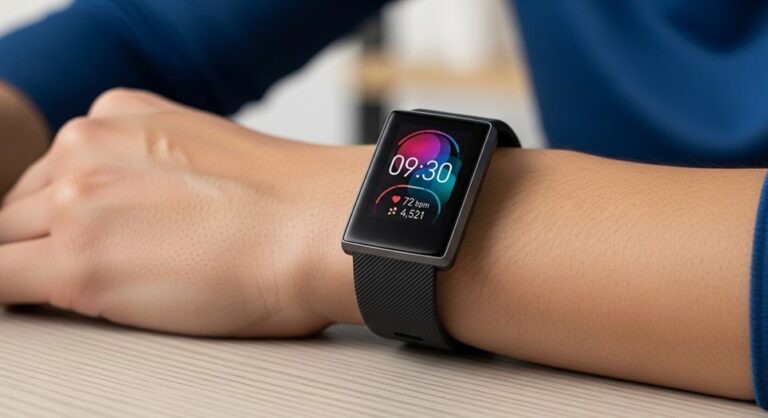
Managing the time settings on your Fitbit smartwatch or fitness tracker is essential for accurate activity tracking, proper sleep monitoring, and reliable notifications. Whether you’ve traveled across time zones, experienced daylight saving time changes, or simply noticed your device displaying incorrect time, understanding how to adjust these settings ensures your Fitbit remains a dependable companion for your health and fitness journey. This comprehensive guide walks you through every method available to change the time on your Fitbit device, troubleshoot common synchronization issues, and maintain accurate time settings across all situations.
Unlike traditional analog watches where you can manually turn the crown to adjust time, Fitbit devices rely on digital synchronization with your smartphone or computer. This automated approach typically keeps your device perfectly synchronized, but circumstances like extended battery depletion, airplane mode usage during travel, or connectivity issues can cause time discrepancies. The good news is that fixing these problems is straightforward once you understand the various methods available and the underlying sync mechanics that govern how Fitbit devices maintain accurate time.
Understanding How Fitbit Time Synchronization Works
Before diving into the step-by-step instructions, it’s important to understand how Fitbit devices manage time settings. Your Fitbit doesn’t have an independent internal clock system that you can set directly on the device itself. Instead, it relies entirely on synchronization with your paired smartphone or computer to obtain the correct time information. Every time your Fitbit syncs with the Fitbit app, it pulls the current time, time zone, and clock format settings from your phone or computer, ensuring that your wearable device displays the same time as your primary mobile device.
This synchronization-based approach offers significant advantages. When your phone automatically updates for daylight saving time or when you travel to a different time zone with automatic time zone detection enabled on your smartphone, your Fitbit should theoretically update accordingly during the next sync. However, this dependency also means that if your phone’s time settings are incorrect, those errors will propagate to your Fitbit. Similarly, if synchronization fails or doesn’t occur for an extended period, your Fitbit may continue displaying outdated time information.
Common Reasons for Incorrect Time Display
Several factors can cause your Fitbit to display the wrong time. The most common scenario occurs when your device has been completely discharged for several days without syncing to your phone. When the battery dies, your Fitbit loses its temporary time data and needs to resync to obtain current information. Another frequent cause is international travel, particularly when you’ve kept your phone in airplane mode throughout the flight and haven’t synced your devices after landing in the new time zone. The automatic time zone feature relies on regular syncing to detect location changes and adjust accordingly.
Daylight saving time transitions also create opportunities for time display issues, especially if your Fitbit hasn’t synced recently when the clocks change. Some users report that even with automatic settings enabled, their devices don’t update immediately when daylight saving time begins or ends, requiring a manual sync or time zone adjustment to correct the display. Bluetooth connectivity problems, aggressive battery-saving modes that restrict background app activity, and outdated Fitbit app versions can all interfere with regular synchronization and lead to persistent time accuracy problems.
How to Change Time on Fitbit Using iPhone
If you’re using an iPhone with your Fitbit device, the process for adjusting time settings is streamlined through the Fitbit app. Before beginning, ensure that Bluetooth is enabled on your iPhone and that your Fitbit is within range for a successful connection. The steps may vary slightly depending on whether you’re signed in with a Fitbit account or a Google account, but the core process remains consistent across all Fitbit models including the Charge, Versa, Sense, Inspire, and newer Google-branded Fitbit devices.
Step-by-Step Instructions for iPhone Users
Begin by opening the Fitbit app on your iPhone and navigating to the Today tab, which typically appears as a rhombus icon at the bottom of your screen. Once you’re on the Today tab, look for your profile picture or the settings icon in the upper portion of the screen. If you’ve signed in using your Google account, you’ll tap your profile picture. For traditional Fitbit accounts, you’ll see a settings icon that resembles a gear. Tapping this element takes you to your account settings page where all device and app configurations are managed.
Within the account settings screen, scroll down until you locate the section labeled App Settings. This area contains various configuration options that affect how your Fitbit device operates and displays information. Tap on App Settings to access the deeper menu structure. Inside App Settings, you’ll find an option called Time Zone. This is the critical setting that controls how your Fitbit interprets and displays time information. When you tap on Time Zone, you’ll see a toggle switch labeled Set Automatically. This automatic feature allows your Fitbit to use your iPhone’s location services and time zone settings to automatically adjust the displayed time.
To manually set a specific time zone, you need to turn off the Set Automatically option by tapping the toggle switch so it moves to the off position. Once disabled, you’ll see a new option appear labeled Time Zone where you can select from a comprehensive list of global time zones. Scroll through the list and tap on the correct time zone for your current location. After selecting the appropriate time zone, you need to sync your Fitbit device to apply these changes. You can initiate a sync by returning to the account settings screen and tapping on your Fitbit device name, then scrolling down to find the Sync Now option. Alternatively, you can simply return to the Today tab and pull down on the screen, which triggers an immediate synchronization.
Troubleshooting iPhone Sync Issues
If you’ve followed the steps above but your Fitbit still displays the incorrect time, several troubleshooting approaches can help resolve the issue. First, verify that your iPhone’s own time settings are correct by going to Settings on your iPhone, selecting General, then Date and Time. Ensure that Set Automatically is enabled here, which allows your iPhone to receive accurate time information from cellular networks. If your iPhone’s time is wrong, correcting it first and then syncing your Fitbit will solve the problem.
Another effective troubleshooting technique involves logging out of the Fitbit app completely and then logging back in before attempting another sync. This process refreshes the connection between your account, the app, and your Fitbit device, often resolving persistent synchronization issues. To log out, tap your profile picture in the app, scroll to the bottom, and select the log out option. Wait a few seconds, then log back in using your credentials. After logging back in, immediately pull down on the Today tab screen to force a sync while your Fitbit is nearby.
In more stubborn cases, restarting both your iPhone and your Fitbit device can clear temporary software glitches affecting time synchronization. To restart most Fitbit devices, navigate to Settings directly on your wearable by swiping or pressing the side button, find the About or Device Info section, and select Shutdown or Restart. For your iPhone, hold down the power button and either volume button simultaneously until the power off slider appears, then slide to power off. Wait thirty seconds before powering both devices back on, then attempt the time zone adjustment process again.
How to Change Time on Fitbit Using Android
The process for changing time settings on Fitbit using an Android smartphone closely mirrors the iPhone procedure, with only minor interface differences. Android users benefit from the same automatic time synchronization features, and the Fitbit app maintains consistent functionality across both operating systems. Before starting, confirm that Bluetooth is active on your Android device and that location permissions are granted to the Fitbit app, as these permissions are necessary for automatic time zone detection and device synchronization.
Android-Specific Instructions
Launch the Fitbit app on your Android device and tap the Today tab at the bottom of the screen. From the Today tab, locate the settings icon or your profile picture at the top of the interface. The exact appearance depends on your Fitbit app version and whether you’re using a Google account or traditional Fitbit account for authentication. Tapping this element brings you to the main account and device management screen where you can configure all aspects of your Fitbit experience.
Once in the account settings area, scroll down to find App Settings and tap to open this section. Within App Settings, look for an option labeled either Time Zone or Date, Time and Units depending on your app version. When you tap into the time zone settings, you’ll encounter a toggle switch for Automatic Time Zone or Set Automatically. This feature, when enabled, instructs your Fitbit to adopt the time zone information from your Android phone, which in turn obtains this data from cellular networks and GPS location services.
To manually specify a time zone, disable the automatic option by tapping the toggle so it moves to the off position. A new menu option will appear allowing you to Select Time Zone from a complete list of world time zones. Browse the list and tap your current time zone to select it. After making your selection, you’ll see a checkmark or blue tick indicating your choice. Navigate back to the previous screen and ensure your changes are saved. Finally, sync your Fitbit device by either tapping your device name in the account settings and selecting Sync Now, or by pulling down on the Today tab screen to trigger an immediate synchronization.
Android-Specific Troubleshooting
Android devices offer various power-saving features and app background restriction settings that can interfere with Fitbit synchronization. If your time isn’t updating correctly despite following the proper steps, check your Android device’s battery optimization settings. Go to Settings on your Android phone, select Battery or Battery Optimization, find the Fitbit app in the list of applications, and ensure it’s set to Don’t Optimize or Not Optimized. This prevents aggressive power management from killing the Fitbit app’s background processes, which are essential for maintaining regular synchronization.
Location permissions also play a crucial role in automatic time zone detection on Android devices. Navigate to Settings, then Apps or Applications, find and tap Fitbit in your app list, then tap Permissions. Ensure that Location permission is set to Allow All the Time or Allow While Using the App. Without proper location access, your Fitbit app cannot determine your current time zone and apply automatic adjustments when you travel. After verifying these permissions, force a sync and check whether your time display has corrected itself.
If problems persist, clearing the Fitbit app’s cache can resolve corrupted data issues that prevent proper synchronization. In your Android Settings, go to Apps, select Fitbit, then tap Storage. You’ll see options for Clear Cache and Clear Data. Start by tapping Clear Cache, which removes temporary files without deleting your account information. After clearing the cache, open the Fitbit app and attempt to sync again. Only if this doesn’t work should you consider Clear Data, which will log you out and require you to sign in again, but this often resolves deeper synchronization problems.
Changing Time Using Fitbit Website Dashboard
For users who prefer working on a computer or who encounter issues with the mobile app, the Fitbit website dashboard provides an alternative method for adjusting time zone settings. This web-based approach offers the same functionality as the mobile app and can be particularly useful when troubleshooting persistent problems that seem app-specific. The dashboard method also allows for easier navigation of settings on a larger screen, making it simpler to verify all your account configurations at once.
Desktop Browser Method
Using your preferred web browser on a desktop or laptop computer, navigate to the official Fitbit website and log into your account using your credentials. If you’ve migrated to a Google account for your Fitbit, use those login details instead. Once logged in, you’ll arrive at your personal dashboard displaying your recent activity data, step counts, and other fitness metrics. Look for the gear icon located in the upper-right corner of the dashboard interface. This gear icon serves as the universal symbol for settings across the Fitbit platform.
Click on the gear icon and select Settings from the dropdown menu that appears. This action takes you to a comprehensive settings page containing numerous configuration options organized into different sections. Navigate to the Personal Info section, which typically appears near the top of the settings menu. Within Personal Info, scroll down toward the bottom of the page where you’ll find the Advanced Settings area. This section contains less commonly adjusted options, including Clock Display Time and Time Zone settings.
To change your time zone, click on the dropdown menu next to Time Zone. A list of all available time zones will expand, allowing you to scroll through and select the correct one for your current location. After selecting your desired time zone, scroll to the very bottom of the Personal Info page and click the Submit button to save your changes. This step is crucial because changes won’t take effect until you explicitly submit them. After clicking Submit, you’ll need to sync your Fitbit device for the new time zone setting to transfer to your wearable. You can sync through the Fitbit app on your phone or by connecting your Fitbit directly to your computer if you’re using a model that supports USB charging and data transfer.
How to Change Clock Format Between 12-Hour and 24-Hour Display
Many Fitbit users prefer military time or the 24-hour clock format instead of the standard 12-hour format with AM and PM indicators. Conversely, some users who purchase Fitbit devices in regions that default to 24-hour time want to switch to the more familiar 12-hour display. Fortunately, Fitbit provides straightforward options to customize your clock display format according to your personal preference, and this setting is independent of your time zone configuration.
Changing Clock Format in the Mobile App
To change your clock display format using the Fitbit mobile app, open the app and navigate to the Today tab. Tap your profile picture or the settings icon at the top of the screen to access your account settings. Scroll down to find App Settings and tap to enter this section. Within App Settings, look for an option labeled Date, Time and Units. Tapping this option reveals additional time-related configuration choices, including your clock display preference.
Inside the Date, Time and Units menu, locate the Clock Display Time option. Depending on your app version, you might see arrow buttons next to the current format or a direct menu selection. Tap on Clock Display Time and you’ll be presented with two choices: 12-hour and 24-hour. Select your preferred format by tapping on it. After making your selection, the setting should automatically save. Navigate back to the main app screen and sync your Fitbit device by pulling down on the Today tab. Your device will update to display time in your chosen format during the next successful synchronization.
Changing Clock Format Through the Website
The web dashboard provides another avenue for changing your clock display format. Log into your Fitbit account at the official website and click the gear icon for Settings. Navigate to Personal Info and scroll down to the Advanced Settings section. Here you’ll find Clock Display Time with a dropdown menu offering 12-hour clock and 24-hour clock options. Select your preferred format from the dropdown, then scroll to the bottom of the page and click Submit to save your changes. After submitting, sync your Fitbit device either through the mobile app or by connecting it to your computer to apply the new clock format to your wearable device.
Automatic Time Updates and Daylight Saving Time
One of the most convenient features of Fitbit devices is their ability to automatically adjust for daylight saving time changes when the automatic time zone setting is enabled. This functionality relies on your smartphone or computer to detect when clocks should spring forward or fall back, then propagates that information to your Fitbit during the next synchronization. In theory, this means you should never need to manually adjust your Fitbit for seasonal time changes, as long as regular syncing occurs and your phone’s automatic time settings are properly configured.
How Automatic Updates Work
When your phone receives a daylight saving time update from cellular networks or internet time servers, it automatically adjusts its displayed time according to your local time zone’s rules. If your Fitbit’s Set Automatically option is enabled and your device syncs shortly after the time change occurs, your wearable will adopt the new time seamlessly. Most users find that syncing their Fitbit the morning after a time change ensures accurate display throughout the day. However, if you haven’t synced in several days leading up to the time change, your Fitbit may continue showing the old time until a successful sync completes.
Some users report that despite having automatic settings enabled, their Fitbit doesn’t update immediately for daylight saving time. This delay typically stems from one of several issues: the Fitbit app hasn’t synced recently, Bluetooth connectivity problems prevent synchronization, or background app restrictions on your phone interfere with the automatic update process. If you wake up after a time change and notice your Fitbit still displays the previous time, simply open the Fitbit app and manually trigger a sync by pulling down on the Today tab screen. This forced sync should immediately update your device to reflect the correct time.
Disabling Automatic Updates
While automatic time zone updates offer convenience, some users prefer manual control over their time settings. Frequent travelers who cross multiple time zones in short periods might find that automatic updates cause confusion, especially if they want their Fitbit to remain on their home time zone while abroad. To disable automatic updates, follow the time zone adjustment steps outlined earlier in this guide, but instead of selecting a time zone after turning off Set Automatically, you can simply leave it disabled and let your device maintain whatever time zone was last set. Keep in mind that with automatic updates disabled, you’ll need to manually adjust your time zone whenever traveling or when daylight saving time changes occur.
Syncing Your Fitbit Device Properly
Successful synchronization is the foundation of accurate time display on your Fitbit. Understanding how to initiate, monitor, and troubleshoot sync operations ensures that time settings and all other data transfer correctly between your device and the Fitbit app. While sync typically happens automatically throughout the day when your Fitbit is near your phone and both devices have Bluetooth enabled, knowing how to manually trigger a sync gives you control when time accuracy matters most.
Manual Sync Procedures
The simplest way to manually sync your Fitbit using the mobile app is through the pull-down gesture. Open the Fitbit app and ensure you’re on the Today tab. With your Fitbit device within Bluetooth range of your phone, touch the screen near the top and pull down slowly. You’ll see a spinning animation or loading indicator appear, signaling that synchronization is in progress. Keep the app open and your phone’s screen awake until you see a completion message or the timestamp under your device name updates to show the current date and time. This confirmation indicates that sync completed successfully and all settings, including time information, have transferred to your wearable device.
Alternative sync methods exist depending on your device model. Some users can initiate sync by tapping their device name on the account settings screen, then tapping a Sync Now button that appears. This method works identically to the pull-down gesture but provides a more explicit interface for users who prefer button-based actions. If you’re using a computer with a Fitbit device that supports USB data transfer, connecting the device via its charging cable to your computer while logged into the Fitbit dashboard may trigger an automatic sync, though this method is less common with newer Bluetooth-only models.
Confirming Successful Synchronization
After initiating a sync, it’s important to verify that the operation completed successfully rather than merely assuming it worked. In the Fitbit app, tap your profile picture or settings icon, then tap your device name. On the device information screen, look for text that says Last Synced followed by a timestamp. If this timestamp shows the current date and a very recent time, your sync completed successfully. If the timestamp is old, dated hours or days ago, the sync attempt likely failed and you should troubleshoot connectivity issues before trying again.
When sync fails repeatedly, several factors might be responsible. Bluetooth interference from other devices, excessive distance between your phone and Fitbit, low battery on either device, or software glitches can all prevent successful synchronization. Try moving closer to your phone, ensuring Bluetooth is enabled, restarting the Fitbit app, or toggling your phone’s Bluetooth off and on again. These simple steps resolve the majority of sync failures and restore normal time update functionality.
Troubleshooting Persistent Time Issues
When standard time adjustment procedures don’t resolve incorrect time displays, more aggressive troubleshooting steps may be necessary. These advanced techniques should be attempted only after verifying that basic sync operations, time zone settings, and phone time configurations are all correct. While more involved, these methods often resolve stubborn problems that resist simpler solutions.
Restarting Your Fitbit Device
A device restart clears temporary memory, resets internal processes, and often resolves software glitches affecting time display. The restart procedure varies across Fitbit models, so consult your device’s specific instructions. For most Fitbit smartwatches like the Versa and Sense series, swipe to the Settings app on your device, scroll down to About, and tap Shutdown or Restart. Confirm the action and wait approximately thirty seconds before powering the device back on. For Fitbit trackers without touchscreens, you typically need to connect the charging cable and then press and hold the device’s button for ten to fifteen seconds until you see the Fitbit logo, indicating a restart has occurred.
After restarting your Fitbit, open the Fitbit app on your phone and immediately force a sync by pulling down on the Today tab. This post-restart sync often successfully updates time settings that were previously stuck or incorrect. The restart process doesn’t erase your fitness data or require you to set up your device again, making it a safe troubleshooting step that carries no risk of data loss.
Logging Out and Back Into the Fitbit App
Account-level connectivity issues sometimes prevent proper time synchronization even when device-level sync appears to complete successfully. Logging out of the Fitbit app and logging back in refreshes your account connection, clears cached authentication data, and re-establishes the communication pathway between the Fitbit servers, your app, and your device. To log out, open the Fitbit app, tap your profile picture, scroll to the bottom of the account screen, and select Log Out. After logging out, wait approximately thirty seconds, then log back in using your username and password or Google account credentials.
Once you’ve logged back in, verify that your time zone settings are still correct by navigating to App Settings and checking the Time Zone configuration. Sometimes logging out resets certain preferences to default values, so confirming your settings after logging back in prevents future time accuracy issues. After verifying settings, force a sync and check whether your Fitbit now displays the correct time. This logout-login procedure resolves many persistent synchronization problems that resist other troubleshooting attempts.
Unpairing and Re-Pairing Your Device
When all other methods fail, completely removing your Fitbit from your account and setting it up again as a new device can resolve deep-seated connectivity or synchronization problems. This process is more involved than a simple restart and requires more setup time, but it’s highly effective for fixing stubborn issues. Begin by opening your phone’s Bluetooth settings and locating your Fitbit in the list of paired devices. Tap on your Fitbit’s name and select Forget This Device or Unpair to remove the Bluetooth connection.
Next, open the Fitbit app, navigate to your account settings, and tap your device name. Scroll down and look for an option to Remove This Device or similar wording. Confirm the removal. Your Fitbit is now completely disconnected from your account, though all previously synced data remains stored on Fitbit’s servers. To re-add your device, tap the plus icon or Set Up a Device option in the Fitbit app and follow the on-screen instructions to pair your Fitbit again as if it were brand new. During the setup process, the app will configure your device with your current account settings, including the correct time zone, ensuring accurate time display from the moment setup completes.
Factory Reset as a Last Resort
A factory reset returns your Fitbit device to its original out-of-box state, erasing all settings, alarms, and on-device data. This drastic measure should only be attempted when all other troubleshooting has failed and you’ve verified that the problem is definitely with your device rather than your phone or account settings. Before proceeding with a factory reset, ensure you’ve synced your Fitbit recently so that all your fitness data is safely stored in the Fitbit cloud servers. Data that hasn’t been synced will be permanently lost during a factory reset.
The factory reset procedure varies by device model. For touchscreen Fitbits, navigate to Settings on the device itself, find the About section, and look for Factory Reset or Clear User Data options. Follow the on-screen prompts to confirm and complete the reset. For tracker models, you may need to use the Fitbit app to initiate a factory reset by going to device settings and selecting a factory reset option if available. After the reset completes, set up your Fitbit again through the Fitbit app, which will establish fresh connections and settings, including correct time information drawn from your current phone settings.
Pro Tips for Maintaining Accurate Time
Implementing a few simple habits and best practices can prevent most time accuracy issues before they develop, saving you the frustration of troubleshooting incorrect displays. These proactive strategies take minimal effort but significantly improve your Fitbit experience by ensuring consistently accurate time information.
- Daily Syncing Routine: Make it a habit to open the Fitbit app at least once daily and allow a full sync to complete. Many users incorporate this into their morning routine while checking their overnight sleep data or reviewing the previous day’s statistics. Regular syncing ensures that your device receives frequent updates to time, time zone, and all other settings, preventing drift or staleness. Even if your Fitbit appears to sync automatically, manually triggering a daily sync adds an extra layer of reliability and takes only a few seconds of your time.
- Maintain Proper Charging Habits: Never allow your Fitbit battery to remain completely depleted for extended periods. When your device dies and stays uncharged for days, it loses its temporary time data and requires a full resync to restore accurate time display. Establish a regular charging schedule, such as charging every few nights or whenever your battery drops below twenty percent. Keeping your Fitbit consistently charged prevents the time display issues that often follow complete battery depletion and ensures your device is always ready to track your activities.
- Pre-Travel Time Zone Check: Before embarking on trips that cross time zones, verify that your phone’s automatic time zone setting is enabled. This preparation ensures that when you arrive in your destination and take your phone off airplane mode, it will immediately detect the new time zone and pass that information to your Fitbit during the next sync. Consider syncing your Fitbit immediately after landing and disabling airplane mode rather than waiting hours until you remember to check your device settings.
- Bluetooth Stability Practices: Avoid rapidly toggling your phone’s Bluetooth on and off throughout the day, as this can leave orphaned connections and prevent successful syncing. If you need to disconnect Bluetooth temporarily, allow at least thirty seconds in each state before switching again. Maintaining stable Bluetooth connectivity ensures that your Fitbit and phone can communicate reliably whenever a sync is needed, whether initiated manually or occurring automatically in the background.
- Keep Software Updated: Regularly update both your Fitbit device firmware and the Fitbit mobile app to the latest available versions. Updates often include bug fixes that improve synchronization reliability and time accuracy. The Fitbit app typically notifies you when updates are available, but you can manually check by visiting your device settings in the app or looking for Fitbit updates in your phone’s app store. Firmware updates for your wearable device are delivered through the app during sync operations when new versions become available for your specific model.
- Monitor Location Permissions: Ensure that the Fitbit app has continuous access to your phone’s location services, as automatic time zone detection depends on location data. Periodically review your phone’s app permissions and verify that Fitbit is set to Allow All the Time or Always Allow location access. Some phone operating systems reset app permissions after major updates, so checking these settings quarterly prevents unexpected loss of automatic time zone functionality.
- Verify Phone Time Settings: Quarterly or after major phone operating system updates, double-check that your phone’s own date and time settings are configured correctly. Navigate to your phone’s Settings, find Date and Time, and confirm that Set Automatically is enabled. Since your Fitbit inherits time information from your phone, ensuring your phone has accurate time is fundamental to maintaining correct time display on your wearable device.
- Create a Time Change Reminder: For regions that observe daylight saving time, set a phone reminder to sync your Fitbit immediately after time changes occur in spring and fall. While automatic updates should handle these transitions, manually syncing provides peace of mind and immediately corrects any issues that might arise from the automatic process. This simple precaution takes less than a minute and prevents spending your first morning after a time change with an incorrect device display.
Frequently Asked Questions
Can I change the time directly on my Fitbit device without using my phone?
Unfortunately, the vast majority of Fitbit devices do not allow you to manually set the time directly on the device itself. Fitbit’s design philosophy centers on automatic time synchronization through the mobile app or computer dashboard, eliminating the need for manual time entry on the small screen interface of the wearable. While some older Fitbit models may have offered limited on-device time adjustment, current models including the Charge, Versa, Sense, and Inspire series all require the Fitbit app or web dashboard to configure time settings. This approach ensures consistency across your devices and reduces the likelihood of user error when setting time manually. If you’re in a situation where you don’t have access to your phone or computer but need your Fitbit to display the correct time, your best option is to wait until you can access your paired device and perform a proper sync with the correct time zone configured.
Why does my Fitbit show the wrong time even after syncing?
When your Fitbit continues displaying incorrect time despite successful synchronization, the root cause typically lies in your phone’s time settings rather than the Fitbit device or app itself. Your Fitbit adopts whatever time information your phone provides during sync, so if your phone’s time zone is set incorrectly or if automatic time detection is disabled while you’re in the wrong zone, your Fitbit will mirror these errors. Check your phone’s Settings, navigate to Date and Time, and verify that Set Automatically is enabled. If your phone’s time displays correctly but your Fitbit doesn’t match after syncing, try manually setting the time zone in the Fitbit app by disabling the Set Automatically option in App Settings, selecting the correct time zone explicitly, then syncing again. This manual override often resolves situations where automatic detection fails to recognize your actual location. Additionally, logging out of the Fitbit app and logging back in before syncing can clear cached settings that might be causing persistent time display errors.
How long does it take for time changes to appear on my Fitbit after adjusting settings?
Time changes should appear on your Fitbit device almost immediately after a successful synchronization completes. The actual sync process typically takes between fifteen and forty-five seconds depending on how much data needs to transfer, your Bluetooth connection strength, and when your device last synced. After you make time zone adjustments in the Fitbit app and initiate a sync, watch your device screen for any indication that sync is occurring, such as a small syncing icon or animation. Once the sync completes, your Fitbit should display the updated time instantly. If more than one minute passes after sync completion and your device still shows the old time, try restarting your Fitbit device by holding its button or using the shutdown option in device settings, then sync again immediately after the restart completes. This restart-then-sync sequence clears any temporary glitches preventing the time update from displaying properly.
Will changing my time zone delete my fitness data?
Changing your time zone settings will not delete any of your historical fitness data, step counts, heart rate records, sleep logs, or exercise sessions. All of this information is safely stored on Fitbit’s cloud servers and remains permanently associated with your account regardless of time zone changes. However, you may see a warning message when changing time zones that mentions potential data loss or discrepancies. This warning refers specifically to how recently recorded data might be timestamped during the transition period, particularly if you’re changing time zones in the middle of a day when you’ve already accumulated steps or other activities. The app needs to determine whether activities recorded before the time change should retain their original timestamps or be adjusted to the new time zone. To minimize any confusion in your activity timeline, the best practice is to change time zone settings either early in the morning before significant activity has been recorded or late at night after you’ve finished your daily activities and allowed a full sync to complete. This timing ensures that each day’s data is cleanly associated with a single time zone and timestamp system.
Do I need to change my time zone when traveling internationally?
Whether you need to manually change your time zone when traveling depends on your personal preferences and how you want your Fitbit to track your activities. If you want your device to display local time at your destination and have your daily activity summaries align with the local day cycles, then yes, you should update your time zone after arriving in the new location. Most travelers prefer this approach because it keeps their Fitbit synchronized with local schedules, meal times, an

Full-stack developer at Scylla Technologies (USA), working remotely from Bangladesh. Adobe Certified Magento Developer.