Purchasing Kindle books has become increasingly convenient across multiple platforms, yet many users find themselves confused by the various methods available for different devices. Whether you’re using a desktop computer, smartphone, tablet, or dedicated Kindle e-reader, understanding the proper purchasing process ensures you can access millions of titles from Amazon’s extensive digital library without frustration. This comprehensive guide walks through every method of buying Kindle books across all supported devices, including recent changes that have made the process more streamlined for mobile users.
The Kindle ecosystem represents one of the largest digital book marketplaces in the world, offering readers instant access to bestsellers, classics, academic texts, and independent publications. However, platform restrictions, particularly on mobile devices, have historically complicated the purchasing experience. Recent regulatory changes and updated app features have introduced new purchasing options, making it essential for users to understand the most current methods available for their specific devices.
Understanding Why You Cannot Buy Kindle Books in Mobile Apps
One of the most common sources of confusion for Kindle users involves the inability to purchase books directly through the Amazon or Kindle mobile applications. This limitation stems from platform fee structures imposed by Apple and Google on digital content sales within their respective app stores. When developers offer in-app purchases of digital goods, both Apple and Google historically required a commission ranging from fifteen to thirty percent of each transaction. Amazon chose not to absorb these fees or pass them along to customers, instead opting to disable in-app purchasing functionality.
This business decision means that while users can browse the Kindle catalog, read sample chapters, and manage their existing library through mobile apps, the actual purchase transaction must occur outside the app environment. Understanding this distinction helps prevent frustration when the familiar purchase buttons appear unavailable within the app interface. The restriction applies specifically to purchasing new content, while borrowed books through Kindle Unlimited subscriptions can be accessed directly in the app since they do not constitute individual purchases subject to platform fees.
Recent legal developments have begun changing this landscape. Court rulings in ongoing litigation between Epic Games and Apple have forced modifications to App Store policies regarding external payment links and developer communications about alternative purchasing options. As of May 2025, Amazon introduced a new feature in the iOS Kindle app that displays a prominent button labeled “Get Book” on title listings. While this does not enable true in-app purchasing, it streamlines the process by directing users directly to the Amazon mobile website in their default browser where the transaction can be completed.
How to Buy Kindle Books on Desktop and Laptop Computers
Purchasing Kindle books from a desktop or laptop computer remains the most straightforward method available to users. The process works identically across Windows PCs, Mac computers, and Linux systems since all transactions occur through a standard web browser interface. To begin, navigate to the Amazon website appropriate for your region, such as Amazon.com for United States customers or Amazon.co.uk for United Kingdom residents. Sign into your Amazon account using your registered email address and password. If you maintain multiple Amazon accounts, ensure you log into the account associated with your Kindle devices and reading apps.
Once logged in, access the Kindle Store through several methods. You can click the menu icon typically located in the upper left corner of the Amazon homepage, then select the option for Kindle E-readers and Books followed by Kindle Books. Alternatively, use the main search bar and include the term “Kindle” along with your desired book title or author name. When viewing search results, filter specifically for Kindle editions to avoid confusion with physical books, audiobooks, or other formats. Individual product pages clearly display format options, allowing you to confirm the Kindle edition before proceeding.
The purchase process requires just a single click when you have one-click ordering configured in your Amazon account settings. Look for buttons labeled “Buy now with 1-Click” or “Buy for [price]” on the product page. Clicking this button immediately processes your payment using the default payment method associated with your Amazon account and delivers the book to your Kindle library. The book becomes available across all registered devices and apps within seconds to minutes, depending on network conditions. If you have not configured one-click ordering, you will proceed through a standard checkout process where you can review your order details and select a payment method before finalizing the purchase.
For users who prefer purchasing books directly from the Kindle desktop application, Amazon provides integrated Kindle Store access within the Kindle for PC and Kindle for Mac apps. After downloading and installing the appropriate application for your operating system from Amazon’s official download page, launch the program and sign in with your Amazon account credentials. The Kindle Store icon appears prominently in the upper right corner of the application window. Clicking this icon opens an embedded browsing interface where you can search for titles, browse categories, and view recommendations based on your reading history.
When you locate a book you wish to purchase within the desktop app’s Kindle Store, the buying process mirrors the website experience. Click the purchase button to complete the transaction, and the book immediately appears in your library section within the same application. This integrated approach eliminates the need to switch between a web browser and reading application, providing a seamless experience for users who primarily read on their computer. The desktop apps support Windows versions from Windows eight onward and Mac systems running OS X ten point fourteen or higher.
Purchasing Kindle Books from iPhone and iPad Devices
Apple device users historically faced the most cumbersome Kindle book purchasing process due to restrictions Apple imposed on external payment systems and developer communications about alternative purchasing methods. Prior to recent regulatory changes, iOS users had to manually navigate to the Amazon website through Safari or another mobile browser, complete their purchase, then return to the Kindle app to access the newly acquired title. While this workflow remains valid and widely used, new features have simplified the experience considerably.
The traditional method for purchasing Kindle books on iPhone or iPad begins by opening Safari or your preferred mobile web browser. Navigate directly to the Amazon website by typing the URL into the address bar rather than tapping a link, as links often redirect to the Amazon shopping app where book purchases remain disabled. Once on the Amazon mobile site, you may encounter prompts encouraging you to open the Amazon app. Ignore these prompts and remain in the browser environment to maintain access to purchasing functionality. Sign into your Amazon account if not already authenticated, then use the search functionality to locate your desired title.
When viewing a book’s product page on the mobile website, carefully verify you have selected the Kindle edition rather than a physical format or audiobook version. The format selection typically appears as buttons or tabs near the book title and cover image. After confirming the Kindle format, locate and tap the “Buy now with 1-Click” button. The website processes your payment immediately and delivers the book to your Kindle library. You can then switch to the Kindle app on your iOS device, navigate to your library, and tap the newly purchased book to download it for offline reading.
The streamlined approach introduced in May 2025 significantly reduces friction in this process. Within the updated Kindle app for iOS, book listings now display a prominent “Get Book” button. Tapping this button automatically launches your default mobile browser and navigates directly to that specific book’s product page on the Amazon website. This eliminates the need to manually search for the title after switching to your browser. Complete the purchase through the standard one-click ordering process in the browser, then the system returns you to the Kindle app where the book syncs to your library automatically.
Buying Kindle Books on Android Smartphones and Tablets
Android device users experienced similar limitations to iOS users regarding in-app purchases, though recent developments have created a more favorable situation for Android customers. In 2022, Amazon disabled the ability to purchase Kindle books directly within the Kindle app downloaded from the Google Play Store after Google began mandating that all digital content sales use Google’s billing system, which charged substantial commission fees. This change forced Android users to adopt the browser-based purchasing method similar to iOS users.
The browser purchasing process on Android devices mirrors the iOS workflow. Open Chrome, Firefox, or your preferred mobile browser and navigate to the Amazon website appropriate for your region. Sign into your Amazon account and use the search functionality to find your desired book title. As with iOS devices, you may encounter prompts suggesting you open the Amazon app. Resist these prompts and complete your transaction within the browser environment where purchasing remains enabled. Select the Kindle edition of your chosen book, then tap the “Buy now with 1-Click” button to finalize your purchase. The book delivers to your Kindle library immediately, accessible through the Kindle app after a brief sync.
Significant changes arrived in late 2024 and early 2025 following court decisions in the United States that altered the landscape for digital content sales on mobile platforms. Google modified its policies to allow developers to implement their own billing systems for in-app purchases without requiring exclusive use of Google Play Billing. Amazon took advantage of these regulatory changes by re-enabling direct in-app purchases within the Kindle app for Android devices in the United States. Users who download or update to the latest version of the Kindle app from Google Play now find full purchasing functionality restored within the application itself.
This restoration of in-app purchasing on Android represents a substantial improvement in user experience, eliminating the need to switch between applications and browsers to complete transactions. When browsing the Kindle Store within the updated Android app, users can now tap purchase buttons directly on book listings, complete the transaction through Amazon’s payment processing, and immediately begin downloading the book without leaving the app environment. This functionality currently remains limited to United States users, with availability in other regions dependent on local regulatory frameworks and Amazon’s rollout schedule.
Purchasing Books Directly on Kindle E-Reader Devices
Kindle e-reader devices offer the most integrated purchasing experience since they exist specifically within Amazon’s ecosystem without third-party platform restrictions. All Kindle e-reader models from the basic Kindle through the Kindle Paperwhite, Kindle Oasis, and Kindle Scribe include built-in access to the Kindle Store. To purchase books directly on your Kindle device, ensure the device maintains an active Wi-Fi connection and has been registered to your Amazon account during the initial setup process.
From your Kindle’s home screen, locate the shopping cart icon positioned near the search bar at the top of the display. Tapping this icon opens the Kindle Store interface where you can browse featured titles, bestseller lists, and personalized recommendations based on your reading history. Use the search functionality to find specific books by entering titles, author names, or keywords. The Kindle Store interface on e-reader devices provides access to the same vast catalog available through other purchasing methods, including new releases, classics, and independent publications.
When you identify a book you wish to purchase, tap the book cover or title to view its detailed product page. This page displays the book description, customer reviews, ratings, and pricing information. Look for the purchase button which typically reads “Buy for” followed by the book’s price or “Buy now with 1-Click” depending on your account settings. Tapping this button immediately processes the purchase using the default payment method associated with your Amazon account. The book begins downloading automatically to your device, with the download progress indicated by a progress bar beneath the book cover.
One important consideration when purchasing directly on Kindle devices involves the instant nature of these transactions. Unlike web browsers or mobile apps that may offer confirmation screens, purchases made through the Kindle Store on e-reader devices process immediately upon tapping the buy button. This streamlined approach enhances convenience but requires attention to avoid accidental purchases. Amazon’s return policy for digital content allows you to request refunds for accidental purchases within seven days, though excessive returns may trigger account reviews. To prevent unintended purchases, some users enable password protection for purchases through the device settings menu.
Using the Kindle Cloud Reader for Web-Based Access
The Kindle Cloud Reader provides an alternative method for accessing your Kindle library that does not require downloading and installing dedicated software. This web-based application runs entirely within your internet browser, making it particularly useful when using public computers, borrowed devices, or systems where you cannot install software due to administrative restrictions. While the Cloud Reader primarily serves as a reading platform rather than a purchasing interface, understanding its relationship to the broader Kindle ecosystem helps users manage their libraries effectively.
Access the Kindle Cloud Reader by navigating to read.amazon.com in any modern web browser including Chrome, Firefox, Safari, or Edge. Sign in with your Amazon account credentials to view your complete Kindle library. The interface displays all books you have purchased or borrowed, organized by recent activity and collection assignments. Double-click or double-tap any book cover to open it in the browser-based reading interface. The Cloud Reader requires an active internet connection to function, as it streams content from Amazon’s servers rather than storing books locally on your device.
While you cannot directly purchase new books through the Cloud Reader interface itself, you can easily switch to a standard Amazon browser tab to complete purchases, then return to the Cloud Reader where newly acquired books appear automatically after refreshing your library. This workflow proves particularly efficient for desktop users who prefer browser-based reading to installed applications. The Cloud Reader supports essential reading features including adjustable font sizes, background colors, bookmarking, highlighting, and note-taking, though it may lack some advanced features available in dedicated Kindle apps and devices.
Managing Delivery Options and Device Selection
Amazon’s Kindle ecosystem allows users to maintain multiple registered devices and applications simultaneously, providing flexibility in how and where you access your digital library. When purchasing a book through the website, you encounter an option to specify delivery destinations. A dropdown menu labeled “Deliver to” appears on the product page, listing all devices and apps currently registered to your Amazon account. This includes Kindle e-readers by their assigned names, Kindle apps on smartphones and tablets identified by device type, and desktop applications on computers.
Selecting a specific delivery destination tells Amazon where to send the purchased book initially. However, this choice does not limit your access to only that device. All Kindle content purchased through your Amazon account remains permanently accessible through any registered device or app. If you purchase a book for delivery to your Kindle Paperwhite, you can still open the Kindle app on your phone hours or days later and find the same book available for download in your library. This universal access represents a core benefit of the Kindle ecosystem, allowing seamless transitions between devices based on your current reading context.
The synchronization system Amazon employs extends beyond simple book availability to include reading progress, bookmarks, highlights, and notes. When you read several chapters on your e-reader then switch to your phone app, the system prompts you to sync to the furthest page read, allowing you to continue exactly where you stopped. This synchronization occurs automatically when devices connect to the internet, though you can manually trigger sync operations through the settings or tools menu in any Kindle app or device. Managing your registered devices through the “Manage Your Content and Devices” section of your Amazon account allows you to review which devices have access to your library and remove old or unused registrations.
Understanding Kindle Unlimited and Prime Reading
In addition to individual book purchases, Amazon offers subscription-based access to Kindle content through two primary programs: Kindle Unlimited and Prime Reading. These services alter the acquisition process since you do not purchase books individually but instead borrow them as part of your subscription benefits. Kindle Unlimited costs approximately ten dollars per month in the United States and provides access to over four million titles including books, audiobooks, and magazines. Subscribers can borrow up to twenty titles simultaneously, keeping them for as long as the subscription remains active.
The borrowing process for Kindle Unlimited differs from purchasing in several important ways. First, not all books in the Kindle Store participate in the Kindle Unlimited program. Publishers and authors choose whether to enroll their titles, meaning many popular bestsellers and new releases may not be available for borrowing. Second, borrowed books through Kindle Unlimited can be added directly through mobile apps including both iOS and Android versions, since borrowing does not constitute a purchase subject to platform fees. This represents an exception to the general rule prohibiting in-app transactions for Kindle content.
Prime Reading offers a more limited selection of books as a benefit included with Amazon Prime membership at no additional cost. Prime Reading provides access to a rotating catalog of approximately one thousand titles at any given time, with members able to borrow up to ten books simultaneously. The Prime Reading selection includes a curated mix of popular titles, classics, and Amazon exclusive publications. Like Kindle Unlimited, Prime Reading titles can be borrowed directly through Kindle apps on mobile devices without requiring browser-based transactions. Both services allow borrowed books to be returned at any time through the “Manage Your Content and Devices” section of your Amazon account, freeing up space in your borrowing allowance for new selections.
Setting Up One-Click Ordering for Faster Purchases
Amazon’s one-click ordering system streamlines the book purchasing process by eliminating checkout screens and confirmation steps. When properly configured, one-click ordering allows you to complete Kindle book purchases with a single button press, immediately processing payment and delivering content to your library. Setting up this feature requires accessing your Amazon account settings through a web browser on either a desktop computer or mobile device.
Navigate to the Account and Lists section from the Amazon homepage, then select the option for “Your Payments” or “Payment Options” depending on your account configuration. Within this section, locate the settings for one-click ordering and verify that you have designated a default payment method and shipping address. For digital content like Kindle books, the shipping address serves primarily as a billing address for tax calculation purposes. You can also specify a default Kindle device or app for automatic delivery when the system presents delivery options during purchase.
Security considerations warrant attention when enabling one-click ordering. The convenience of instant purchases comes with increased risk of accidental transactions, particularly when family members share devices or accounts. Amazon provides parental control features and purchase password requirements that can be enabled through the settings menu on Kindle devices and in the account management section online. These safeguards require entering a password before completing any purchase, even when one-click ordering remains active. Consider enabling these restrictions if children access your devices or if you want additional confirmation before finalizing transactions.
Troubleshooting Common Purchasing Issues
Despite the generally reliable nature of Amazon’s Kindle platform, users occasionally encounter problems when attempting to purchase books. Understanding common issues and their solutions helps resolve difficulties quickly without requiring customer service intervention. Payment method failures represent one of the most frequent obstacles to successful purchases. If your default credit card has expired, reached its limit, or been flagged for suspicious activity, Kindle purchases will fail. Access your Amazon account payment settings to verify your payment methods remain current and add backup payment options to prevent future disruptions.
Geographic restrictions sometimes prevent purchases of specific titles based on your account’s registered location. Publishers maintain different rights agreements for various regions, resulting in some books being unavailable in certain countries. If you encounter a message indicating a book cannot be purchased from your location, this stems from publishing rights rather than technical issues with your account. Some users attempt to circumvent these restrictions by changing their account address, though this practice violates Amazon’s terms of service and may result in account suspension.
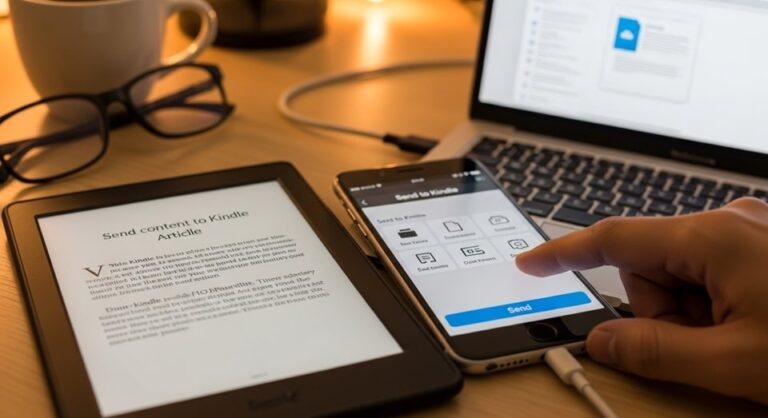
Device registration problems can create confusion when purchased books fail to appear in your library. If you complete a purchase but cannot locate the book in your Kindle app or device, first verify that the device has been properly registered to the same Amazon account used for the purchase. Access the “Manage Your Content and Devices” section of your Amazon account through a web browser to view all registered devices and your complete content library. You can manually send books to specific devices from this interface by selecting the book, clicking the actions button, and choosing “Deliver to” followed by your desired device.
Syncing Issues and Library Management
Synchronization between Amazon’s cloud servers and your local devices occasionally experiences delays or failures, resulting in purchased books not appearing immediately in your Kindle app or device. Manual sync operations usually resolve these issues. On Kindle e-readers, access the device settings by tapping the three-dot menu icon in the upper right corner of the home screen, then select “Sync and Check for Items” or similar wording depending on your device model. This forces the device to communicate with Amazon’s servers and update your library with any recent purchases or changes.
In mobile apps, the sync function typically appears in the hamburger menu or settings section. On the Kindle app for iOS, tap the three-line menu icon and select “Sync” to refresh your library. Android users find similar functionality in the app’s menu system. Desktop applications for Windows and Mac include sync options in their tools or settings menus. After triggering a manual sync, allow several seconds for the operation to complete, then check your library again for the missing content.
Library organization becomes increasingly important as your Kindle collection grows. Amazon provides collection features that allow you to group books by genre, reading status, or any custom category you create. Collections sync across devices, maintaining consistent organization regardless of which device you use for reading. Create and manage collections through the “Manage Your Content and Devices” section of your Amazon account online, or directly on Kindle e-readers through the device interface. Mobile apps support viewing and filtering by collections but may not offer full collection management capabilities depending on the app version.
Gift Options and Family Library Sharing
Amazon enables users to purchase Kindle books as gifts for other readers, providing a digital alternative to physical book gifts. The gift purchasing process begins on the product page for any Kindle book. Instead of clicking the standard purchase button, look for an option labeled “Give as a Gift” or “Buy for Others” depending on the specific page layout. Clicking this option opens a new interface where you specify the recipient’s email address, add a personal message, and select a delivery date for the gift notification.
The recipient receives an email from Amazon containing your message and instructions for claiming their gift. They must have an Amazon account to accept the gift, though they do not need to own a Kindle device since the Kindle app works on various devices. If the recipient already owns a copy of the gifted book, they can choose to receive an Amazon gift card credit equivalent to the book’s purchase price instead. This flexibility ensures gifts provide value even when duplication occurs.
Amazon Household and Family Library features allow family members to share purchased Kindle content without requiring separate purchases for each person. Amazon Household accommodates up to two adults and up to four children, with adults able to share eligible digital content including Kindle books. Setting up Family Library requires accessing the Amazon Household settings through your account management section online. Each adult confirms participation and links their accounts for content sharing. Not all Kindle books qualify for Family Library sharing, as publisher restrictions may limit sharing capabilities for certain titles. Shared content appears in the libraries of all participating family members, though simultaneous reading of the same title may face restrictions depending on publisher policies.
Pro Tips for Enhanced Kindle Book Purchasing
Experienced Kindle users employ various strategies to maximize value and convenience when purchasing digital books. Price tracking tools and browser extensions monitor Kindle book prices and alert you when titles on your wish list drop in price. Amazon frequently runs promotions on Kindle books, with daily deals, monthly discounts, and seasonal sales offering significant savings. Adding books to your Amazon wish list or Kindle wish list ensures you receive notifications when these titles participate in promotional pricing.
The sample feature available for virtually all Kindle books allows you to preview content before committing to a purchase. Samples typically include the first chapter or approximately ten percent of the book’s content, providing sufficient material to evaluate writing style, pacing, and subject matter. Request samples through the product page by clicking “Send a Free Sample” rather than the purchase button. Samples deliver to your Kindle library like purchased books but remain clearly marked as sample content. After reading the sample, you can choose to purchase the full book directly from within the sample itself through a convenient purchase link that appears at the sample’s conclusion.
Leverage Amazon’s customer review system to inform purchase decisions. Sort reviews by “Most Recent” to see current reader opinions rather than older feedback that may not reflect revised editions or updated content. The “Verified Purchase” badge indicates reviewers actually bought the book through Amazon rather than receiving free copies, potentially providing more objective assessments. Reading both positive and critical reviews helps develop a balanced understanding of a book’s strengths and weaknesses before purchasing.
Consider creating browser bookmarks specifically for the Kindle Store sections you access most frequently. Direct links to new releases in your favorite genres, bestseller lists, or daily deals pages save time compared to navigating through Amazon’s general homepage. On mobile devices, iOS users can create home screen shortcuts that launch Safari directly to specific Kindle Store pages, while Android users can create browser shortcuts for similar quick access functionality.
Frequently Asked Questions
Can I buy Kindle books without owning a Kindle device? Yes, you can purchase and read Kindle books without owning a dedicated Kindle e-reader. The free Kindle app works on smartphones, tablets, and computers running iOS, Android, Windows, and Mac operating systems. Additionally, the Kindle Cloud Reader provides browser-based access to your library without requiring any software installation. Your Amazon account stores all purchased Kindle content regardless of which devices you own, allowing you flexibility in how you access your books.
Why is the Kindle version of a book sometimes unavailable when physical copies exist? Publishers control which formats they make available for each title. Some publishers choose not to release Kindle editions due to distribution agreements, pricing strategies, or concerns about digital piracy. In other cases, Kindle versions may be temporarily unavailable while publishers update content, negotiate new terms with Amazon, or address technical issues. Geographic restrictions may also limit availability in certain regions even when Kindle editions exist in other markets.
How many devices can I download a purchased Kindle book to? Most Kindle books allow simultaneous downloads to up to six devices or apps. This limit exists to prevent excessive sharing while accommodating users who read across multiple devices. When you attempt to download a book to a seventh device, Amazon displays a license limit error. Resolve this by deregistering old devices you no longer use through the “Manage Your Content and Devices” section of your account. Some publishers impose stricter limits, particularly for textbooks and professional materials, so individual books may vary from the standard six-device allowance.
What happens to my Kindle books if I cancel my Amazon account? Canceling your Amazon account results in permanent loss of access to all Kindle content purchased through that account. Amazon’s terms of service specify that users license rather than own Kindle books, with access dependent on maintaining an active account in good standing. Before closing an Amazon account, consider whether the loss of your entire digital library justifies the action. Unlike physical books, Kindle purchases cannot be transferred to a new account or retained after account closure.
Can I read Kindle books purchased from different Amazon regions on the same device? Kindle devices and apps can only be registered to one Amazon regional account at a time. If you purchase books from Amazon.com and Amazon.co.uk using different accounts, you cannot access both libraries simultaneously on a single device. Switching between regional accounts requires deregistering from one and registering to another, a process that removes access to content from the original account until you switch back. Some users maintain multiple devices registered to different regional accounts to access content from various markets simultaneously.
Are there any restrictions on lending Kindle books to friends? Amazon’s Kindle lending program allows you to lend eligible books to other Amazon users for a fourteen-day period. However, lending availability depends on the publisher enabling this feature for specific titles. Many publishers do not participate in lending, making their books ineligible for sharing. During the lending period, you cannot access the lent book yourself, and loans cannot be extended beyond fourteen days. Recipients do not need to own a Kindle device but must have an Amazon account to receive and read lent books.
What happens if I accidentally purchase the wrong book? Amazon provides a return process for accidental Kindle book purchases within seven days of the original transaction. Access the “Manage Your Content and Devices” section of your account, locate the book you wish to return, and select the option to return for refund. Amazon processes the refund to your original payment method, typically within a few business days. However, Amazon monitors return patterns, and excessive returns may result in restrictions on future return requests or account reviews to prevent abuse of the system.
Conclusion
Purchasing Kindle books across different devices and platforms has evolved significantly over the years, with recent regulatory changes improving accessibility on mobile devices. Understanding the distinct purchasing methods required for desktop computers, mobile apps, e-readers, and web-based interfaces ensures you can acquire new books efficiently regardless of your current device. Desktop and laptop users enjoy the most straightforward experience through direct browser purchases or integrated Kindle Store access in desktop applications. Mobile users benefit from recent improvements including the “Get Book” button on iOS devices and restored in-app purchasing on Android devices in the United States.
Kindle e-readers continue to offer the most seamless purchasing experience with built-in Kindle Store access free from third-party platform restrictions. The variety of purchasing methods accommodates different user preferences and situations, from quick mobile purchases during commutes to browsing extensive catalogs on large desktop screens. Familiarizing yourself with one-click ordering, device management, and troubleshooting procedures enhances your overall Kindle experience and minimizes friction when expanding your digital library.
The Kindle ecosystem’s flexibility represents its greatest strength, allowing readers to maintain a single library accessible across unlimited devices and platforms. Whether you prefer dedicated e-readers for long reading sessions, mobile apps for quick access during brief moments throughout the day, or desktop applications for reading at your computer, Amazon’s synchronization ensures seamless transitions between contexts. By mastering the purchasing processes outlined in this guide, you position yourself to take full advantage of the vast Kindle catalog and the convenience of digital reading in all its forms.