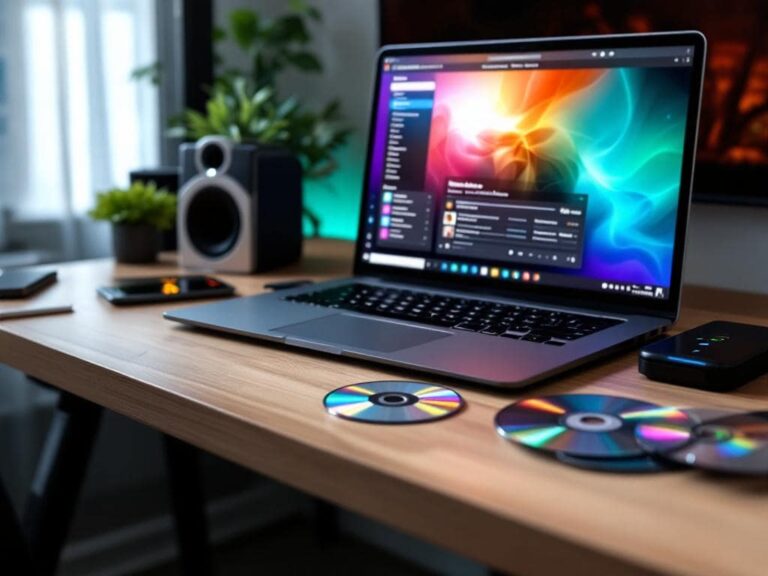
Burning a CD in 2025 may seem like a relic of the past, but it remains a useful skill for music lovers, archivists, and anyone who needs a physical backup or wants to enjoy their favorite tunes in a car or home stereo. Whether you’re creating a mixtape, backing up important files, or archiving audio, this guide will walk you through the entire process—from choosing the right software to finalizing your disc—on both Windows and Mac.
In this article, you’ll learn:
- Why burning CDs is still relevant in 2025 and what you’ll need to get started.
- Step-by-step instructions for burning audio and data CDs on Windows and Mac, using both free and paid tools.
- Pro tips for avoiding common mistakes and ensuring high-quality results.
- Answers to frequently asked questions about CD burning, compatibility, and troubleshooting.
Why Burn a CD in 2025?
Despite the rise of streaming and cloud storage, burning CDs still offers unique advantages:
- Physical backups: CDs are immune to ransomware, hard drive crashes, or accidental deletions. They provide a tangible, offline copy of your data or music.
- Compatibility: Many cars, home stereos, and DJ equipment still rely on CD players. Burning a CD ensures your music or files can be played anywhere.
- Gifting and sharing: A custom CD makes for a personal, nostalgic gift—whether it’s a mixtape for a friend or a collection of family photos for relatives.
- Archival quality: When burned correctly, CDs can last decades, making them ideal for long-term storage of important files or memories.
What You’ll Need to Burn a CD
Before you start, gather the following:
- Blank CD-R or CD-RW discs: CD-Rs are best for permanent storage, while CD-RWs allow you to rewrite data multiple times.
- CD/DVD burner drive: Most modern laptops no longer include built-in optical drives, so you may need an external USB CD/DVD burner.
- CD burning software: Windows and Mac come with built-in tools (Windows Media Player, iTunes, or Finder), but third-party software like Nero Express, CDBurnerXP, or Burn offers more features.
- Audio or data files: For audio CDs, use WAV or FLAC files for the best quality. For data CDs, any file type (MP3, PDF, JPG, etc.) will work.
Step-by-Step Guide: How to Burn a CD on Windows
Method 1: Using Windows Media Player (Free)
Windows Media Player is a built-in tool that’s perfect for burning audio CDs. Here’s how to use it:
- Insert a blank CD: Place a blank CD-R or CD-RW into your computer’s CD/DVD burner drive.
- Open Windows Media Player: Search for “Windows Media Player” in the Start menu and launch it.
- Create a burn list: Click the Burn tab in the top-right corner. Drag and drop the songs or files you want to burn into the burn list on the right side of the window.
- Arrange your tracks: Reorder the songs by dragging them up or down in the burn list. Windows Media Player will display the total time remaining on the CD.
- Start burning: Click the Start burn button. The process will take a few minutes, depending on the size of your files and the speed of your burner.
- Eject your CD: Once the burning process is complete, Windows Media Player will notify you. Eject the CD and test it in a CD player to ensure it works.
Method 2: Using CDBurnerXP (Free)
CDBurnerXP is a lightweight, free tool that supports both audio and data CDs. Follow these steps:
- Download and install CDBurnerXP: Visit the official website to download and install the software.
- Insert a blank CD: Place your blank disc into the burner drive.
- Launch CDBurnerXP: Open the program and select Audio Disc or Data Disc, depending on your needs.
- Add files: Drag and drop your audio or data files into the program window. For audio CDs, ensure your files are in a compatible format (WAV, MP3, FLAC, etc.).
- Adjust settings: Click the Burn button. Choose your burner drive, set the burn speed (slower speeds often yield better results), and click Burn Disc.
- Test your CD: Once burning is complete, eject the disc and test it in a CD player or computer.
Step-by-Step Guide: How to Burn a CD on Mac
Method 1: Using iTunes (Free)
iTunes remains one of the easiest ways to burn audio CDs on a Mac. Here’s how:
- Open iTunes: Launch iTunes from your Applications folder or Dock.
- Create a playlist: Click File > New > Playlist and name it (e.g., “My CD”). Add the songs you want to burn to this playlist.
- Insert a blank CD: Place a blank CD-R into your Mac’s optical drive or an external burner.
- Burn the playlist: Select your playlist, then click File > Burn Playlist to Disc. Choose your burner, set the burn speed, and click Burn.
- Eject and test: Once the process is complete, eject the CD and test it in a CD player.
Method 2: Using Burn (Free)
Burn is a free, user-friendly alternative for Mac users. Follow these steps:
- Download and install Burn: Visit the official website to download and install the app.
- Insert a blank CD: Place your blank disc into the burner drive.
- Open Burn: Launch the app and select Audio or Data from the top menu.
- Add files: Drag and drop your audio or data files into the Burn window. For audio CDs, ensure your files are in a compatible format.
- Burn the disc: Click the Burn button, select your burner, and choose your burn speed. Click Burn to start the process.
- Test your CD: Eject the disc and test it in a CD player or computer.
Pro Tips for Burning CDs in 2025
Follow these expert tips to ensure the best results:
- Use high-quality blank CDs: Cheap discs are more prone to errors. Brands like Verbatim, TDK, or Sony offer reliable results.
- Burn at lower speeds: Burning at 4x or 8x speeds reduces errors and improves compatibility, especially for audio CDs.
- Close the disc: If you’re creating a final version, close the disc to prevent further writes. This is especially important for audio CDs to ensure compatibility with all players.
- Check file formats: For audio CDs, use WAV or FLAC files for the best quality. MP3s will work for data CDs but may not play in all CD players.
- Test before gifting: Always test your burned CD in the intended player (car stereo, home CD player, etc.) to ensure compatibility.
- Label your discs: Use a CD marker or printable labels to identify your discs easily. Avoid sticky labels, as they can cause imbalance and damage over time.
- Store CDs properly: Keep discs in a cool, dry place, away from direct sunlight. Store them vertically in jewel cases to prevent warping.
Frequently Asked Questions (FAQs)
Can I burn a CD without a CD burner drive?
No, you need a CD/DVD burner drive to burn a CD. If your computer doesn’t have one, you can purchase an external USB CD/DVD burner for under $30.
Why does my burned CD skip or not play in my car?
Skipping or playback issues are often caused by:
- Burning at too high a speed. Try burning at 4x or 8x.
- Using low-quality blank CDs. Opt for reputable brands.
- Finalizing the disc improperly. Ensure the disc is closed after burning.
- Incompatible file formats. Use WAV or FLAC for audio CDs.
Can I burn an MP3 CD that will play in any CD player?
No, standard CD players only recognize the Red Book audio CD format (WAV, AIFF, or FLAC). MP3 CDs will only play in computers or CD players that support MP3 playback.
How do I burn a CD with album art and track information?
Use software like iTunes, Nero, or Burn to add metadata (track names, artist, album art) before burning. Ensure your audio files include ID3 tags for the best results.
Is it legal to burn CDs from streaming services like Spotify or Apple Music?
No, burning CDs from streaming services violates their terms of service and copyright law. Only burn CDs from files you own or have permission to use.
Can I burn a CD from YouTube videos?
Technically, yes, but it’s illegal to download or burn copyrighted content without permission. Use only royalty-free or personally owned audio files.
Conclusion
Burning a CD in 2025 is a straightforward process, whether you’re using built-in tools like Windows Media Player or iTunes, or third-party software like CDBurnerXP or Burn. By following the steps outlined in this guide—and applying the pro tips—you can create high-quality audio or data CDs that are compatible with any player.
While digital music and cloud storage dominate today’s landscape, CDs remain a reliable, tangible way to enjoy and share your favorite content. Whether you’re archiving memories, creating a mixtape, or backing up important files, burning a CD is a skill worth mastering.