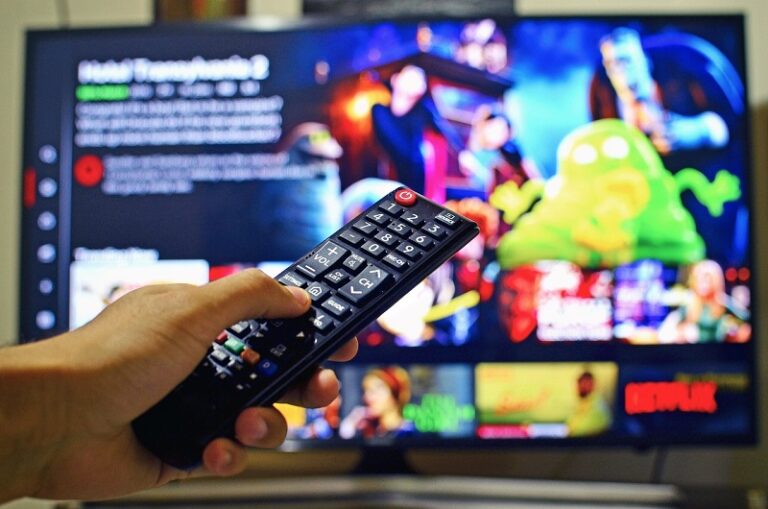
You settle in for a movie night, click play on your favorite Netflix show, and the screen immediately dims to a murky, frustrating level. This pervasive problem, often called the “Netflix dimming bug,” plagues countless Windows 10 laptop users. The issue isn’t just about personal preference; it can ruin the viewing experience, making dark scenes impossible to decipher and draining the vibrancy from colorful animations. Contrary to what many believe, this isn’t a simple setting you can toggle off in Netflix itself. The root cause is a complex interplay between Windows power management, display drivers, video playback technologies, and sometimes even the laptop’s own hardware firmware. This guide provides a comprehensive, step-by-step walkthrough to diagnose and permanently resolve low brightness when streaming Netflix on your Windows 10 laptop, ensuring your screen stays bright and consistent.
The dimming typically occurs because Windows and your laptop’s hardware are trying to conserve battery power. Features like “Adaptive Brightness” and “Display Power Saving Technology” misinterpret the high-power demand of video streaming as a signal to lower brightness. Furthermore, the use of hardware-accelerated video playback (like HEVC or PlayReady) in modern apps such as the Netflix app from the Microsoft Store or through browsers like Microsoft Edge can trigger these power-saving protocols. Understanding this ecosystem is the first step toward an effective fix. We will explore solutions ranging from quick settings adjustments to deep driver and registry edits, catering to users of all technical levels.
Initial Quick Fixes and Basic Checks
Before diving into advanced troubleshooting, it’s crucial to eliminate simple causes. Start with these fundamental steps, as they resolve the issue for a significant number of users.
First, check your laptop’s physical brightness keys. On most laptops, the function keys (F1-F12) have brightness symbols, usually a sun icon. Press the “Increase Brightness” key (often Fn + F12 or just F12) to see if it overrides the dimming. Next, ensure your device is plugged into a power source. Windows aggressively throttles brightness on battery power. Plugging in the charger often immediately restores full brightness. Also, inspect the Netflix video quality setting within the Netflix app or website. While lower resolutions like 480p shouldn’t affect brightness, ensuring you have a stable, high-bandwidth connection can sometimes prevent playback issues that might be confused with dimming.
Disabling Windows and GPU Power-Saving Features
If the quick checks fail, the next line of defense involves disabling the automated power-saving features built into Windows and your graphics card’s control panel. These features are the most common culprits.
Step 1: Adjust Windows Power Plan Settings. Navigate to the Windows Search bar and type “Choose a power plan,” then select it. Click on “Change plan settings” next to your active plan (usually “Balanced” or “Power saver”). Then, click “Change advanced power settings.” In the new window, find and expand the “Display” section. Look for sub-options like “Enable adaptive brightness” and set it to “Off” for both “On battery” and “Plugged in.” Also, look for a setting called “Display brightness” and ensure the plugged-in value is at 100%.
Step 2: Modify Graphics Control Panel Settings (Intel, NVIDIA, AMD). This is a critical step. Right-click on your desktop and select “Graphics Properties” or “NVIDIA Control Panel” or “AMD Radeon Software.”
- For Intel Graphics: Go to “Power” or “On Battery” settings and disable “Display Power Saving Technology,” “Extended Battery Life for Gaming,” or “Panel Self Refresh.” The exact name varies by driver version.
- For NVIDIA: Under “Manage 3D settings,” go to the “Program Settings” tab, find “Microsoft Edge” or the “Netflix” app. If they aren’t listed, add them. Then, find the setting “Power management mode” and set it to “Prefer maximum performance.”
- For AMD: In the “Graphics” settings, find “Vari-Bright” and turn it OFF. This feature dynamically adjusts contrast and brightness to save power and is a notorious cause of dimming during video playback.
Configuring Display and Video Playback Settings in Windows
Windows 10 has several built-in features designed to enhance video playback and HDR content, but they can conflict with standard streaming. Configuring these correctly is essential.
Step 1: Disable Windows HD Color and HDR (For Non-HDR Screens). Many laptops without true HDR capabilities still have these settings, which can cause brightness problems. Go to Settings > System > Display. Scroll down and click on “Windows HD Color settings.” If you see a toggle for “Play HDR games and apps,” turn it OFF. This setting is only beneficial if you have a certified HDR display, and on most standard laptops, it leads to washed-out or dim colors in SDR content like Netflix.
Step 2: Adjust Video Playback Settings in the Netflix App & Browser. If you’re using the Netflix app from the Microsoft Store, its use of the Windows 10 video playback framework can trigger dimming. Try switching to a browser. Google Chrome, however, limits Netflix playback to 720p. For Full HD or 4K, you must use Microsoft Edge or the Netflix app. In Edge, go to Settings > System and performance and try disabling “Use hardware acceleration when available.” Restart Edge and test Netflix. This forces software decoding, which may bypass the GPU power-saving trigger.
Updating and Rolling Back Critical Drivers
Outdated, corrupted, or buggy display drivers are a primary source of this issue. Conversely, a new driver update can sometimes introduce the problem, requiring a rollback.
Step 1: Update Display and Graphics Drivers. Do not rely solely on Windows Update for graphics drivers. Visit your laptop manufacturer’s support website (Dell, HP, Lenovo, etc.) and input your specific model number to download the latest display driver package. Also, visit the chipset manufacturer’s site (Intel, NVIDIA, AMD) and use their auto-detect tool to find the latest generic drivers, which may be newer than your laptop vendor’s. Installing the latest GPU driver can resolve known bugs related to video playback and power management.
Step 2: Update the Monitor (Panel) Driver. This is an often-overlooked step. Press Windows Key + X and select “Device Manager.” Expand the “Monitors” section. Right-click on the “Generic PnP Monitor” (or similar) and select “Update driver.” Choose “Browse my computer for drivers,” then “Let me pick from a list of available drivers.” If you see a driver with your monitor’s specific name (e.g., “LG Display” or “AUO”), select it instead of the generic one. If not, try selecting a different generic driver from the list to see if it changes behavior.
Step 3: Roll Back a Problematic Driver. If the dimming issue started after a recent driver update, rolling back may be the solution. In Device Manager, right-click on your display adapter under “Display adapters” and select “Properties.” Go to the “Driver” tab and click “Roll Back Driver” if the option is available. This will revert to the previous driver version.
Advanced Registry and Group Policy Editor Tweaks
For persistent cases, advanced system modifications may be necessary. These steps involve editing the Windows Registry or Local Group Policy Editor. Warning: Incorrect changes to the Registry can cause system instability. Always create a system restore point before proceeding.
Method 1: Disabling Adaptive Brightness via Registry. Sometimes, the setting persists despite being turned off in the control panel. Press Windows Key + R, type regedit, and press Enter. Navigate to: HKEY_LOCAL_MACHINE\SOFTWARE\Intel\Display\igfxcui\profiles\Media\Brighten Movie. You may need to explore similar paths for your GPU brand. Look for a DWORD value related to “Power Savings” or “Brightness.” Changing its value data may disable it. Because registry paths vary, this method is recommended only for advanced users who can find specific guides for their GPU model.
Method 2: Using Local Group Policy Editor (Windows 10 Pro Only). If you have Windows 10 Pro, Education, or Enterprise, press Windows Key + R, type gpedit.msc, and press Enter. Navigate to Computer Configuration > Administrative Templates > Windows Components > File Explorer. In the right pane, find the setting “Turn off Windows presentation settings.” Double-click it, set it to “Enabled,” and click OK. This policy can prevent Windows from automatically adjusting settings for presentations and media playback, which can sometimes affect Netflix.
Pro Tips for a Perfect Netflix Viewing Experience
Beyond fixing the dimming bug, these expert tips can enhance your overall Netflix streaming quality and system performance.
- Calibrate Your Display: Use the built-in Windows Color Calibration tool (search for “Calibrate display color”) to adjust gamma, brightness, and contrast settings manually. A properly calibrated screen improves clarity regardless of the app.
- Create a Dedicated “Media” Power Plan: Duplicate the “High performance” power plan and name it “Media Mode.” In its advanced settings, ensure all display and PCI Express link state power management settings are set to maximum performance. Switch to this plan before watching Netflix.
- Manage Startup and Background Apps: Too many background processes can contend for GPU resources. Use Task Manager (Ctrl+Shift+Esc) to disable unnecessary startup apps and close background programs before launching Netflix.
- Check for BIOS/UEFI Updates: Your laptop’s motherboard firmware can contain fixes for display and power management issues. Visit your manufacturer’s support page to see if a BIOS update is available and recommended.
- Use an External Monitor: As a diagnostic step, connect your laptop to an external TV or monitor via HDMI. If the brightness is fine on the external display, the issue is almost certainly with your laptop’s built-in display drivers or power settings, not the Netflix stream itself.
- Consider a Clean Boot: Performing a clean boot starts Windows with a minimal set of drivers and startup programs. This can help you identify if background software is interfering with video playback.
Frequently Asked Questions (FAQ)
Q1: Why does Netflix dim my screen but other streaming services like YouTube or Amazon Prime Video do not?
A: Netflix uses different digital rights management (DRM) and video playback technologies, such as PlayReady and often higher bitrate HEVC streams, especially for HD and 4K content. These technologies engage the GPU’s hardware decoder more intensely, which can trigger power-saving features that mistake the activity for a static, non-demanding application. YouTube and others may use software decoding or different DRM that doesn’t activate the same power thresholds.
Q2: I’ve tried everything, and my screen is still dim. What now?
A: If all software solutions fail, the issue could be hardware-related. Some laptops have ambient light sensors that automatically adjust brightness. Check your manufacturer’s utility software for a setting to disable this sensor. In rare cases, it could indicate a failing backlight or display panel. Contact the laptop manufacturer’s technical support for hardware diagnostics.
Q3: Does this issue affect desktop PCs as well?
A: It is far less common on desktop PCs because they are not governed by aggressive battery-saving policies. However, desktop users with certain power supply settings or specific GPU control panel configurations (like AMD’s Vari-Bright or NVIDIA’s BatteryBoost) could experience similar dimming.
Q4: Will upgrading to Windows 11 fix this problem?
A> Not necessarily. While Windows 11 has a refined HDR and display settings panel, the core power management and driver interaction mechanisms remain. Many users report the same issue on Windows 11. The troubleshooting steps are largely identical.
Q5: Is using the Netflix app better than a browser for brightness?
A: It varies. The app often provides higher resolution (like 4K) and uses system-level video playback, which can be good or bad. For some, the app works perfectly; for others, it’s the source of the dimming. The browser (specifically Microsoft Edge for HD) can be a more stable workaround as it allows you to easily disable hardware acceleration, which often solves the dimming.
Conclusion
Resolving Netflix’s low brightness issue on a Windows 10 laptop is a systematic process of elimination, targeting the intersection of power management, display drivers, and video playback frameworks. The journey typically begins with simple adjustments to Windows power plans and GPU control panel settings, where features like adaptive brightness and Vari-Bright are commonly to blame. Progressing further involves ensuring display drivers are up-to-date or rolling back problematic updates, and meticulously configuring Windows HD Color and browser hardware acceleration settings. For the most stubborn cases, advanced measures like registry edits or BIOS updates may be the final key. This guide provides a comprehensive roadmap through each layer of potential conflict. By methodically applying these solutions, you can reclaim the vibrant, consistent brightness your Netflix content deserves, transforming a frustrating technical glitch into a seamless viewing experience. Remember, the goal is to instruct your system to prioritize performance and quality during media playback, overriding its default inclination to conserve power at the expense of your entertainment.

Full-stack developer at Scylla Technologies (USA), working remotely from Bangladesh. Adobe Certified Magento Developer.