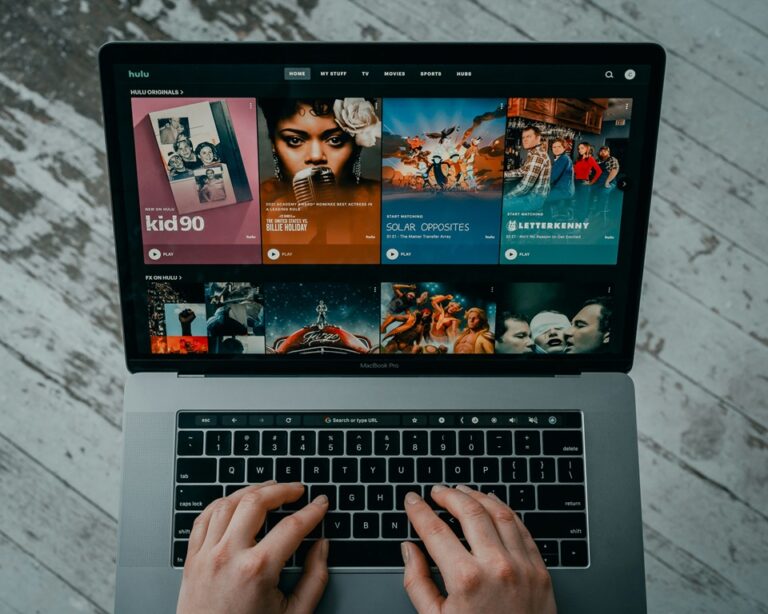
Hulu buffering, login errors, and playback failures can almost always be fixed by power cycling your devices and router, clearing the app cache, or reinstalling Hulu. This guide covers every fix in order — from a 60-second restart to advanced error code solutions — so you can get back to watching without contacting support.
Check Hulu’s Service Status First
Before touching a single setting on your device, spend 60 seconds confirming the problem is not on Hulu’s end. Server outages are infrequent but real, and no amount of local troubleshooting will fix a platform-wide problem. Go to Downdetector and search for Hulu — the spike graph and live user reports will immediately tell you whether others are experiencing the same issue. Check Hulu’s official account on X (formerly Twitter) as well, where the company posts service updates during widespread disruptions.
If an outage is confirmed, your only option is to wait. If the status checks come back clean and Hulu’s servers are running normally, every problem you are experiencing is local — and fixable using the steps below.
Fix Hulu Buffering: Step-by-Step
Buffering is the most commonly reported Hulu problem and has a clear hierarchy of causes: network instability first, device memory second, app data third. Work through these steps in order rather than jumping to reinstallation immediately.
Step 1: Power Cycle Everything
A full power cycle is the single most effective fix for Hulu buffering and freezing across all devices. The key is doing it correctly — standby mode does not count. Turn off your streaming device, TV, modem, and router completely. Unplug all of them from power and wait a full 60 seconds. Then plug in the modem first, wait for all its status lights to stabilize, plug in the router next, wait another 30 seconds, then power on your TV and streaming device. This sequence clears memory on every component in the chain simultaneously and re-establishes a clean connection to your ISP.
Most Hulu buffering issues that survive a simple app restart disappear after a proper full power cycle. Test Hulu immediately after this step before moving forward.
Step 2: Test Your Internet Speed on the Affected Device
Hulu’s speed requirements are specific: 3 Mbps for on-demand content, 8 Mbps for Hulu with Live TV, and 16 Mbps for 4K Ultra HD. These are minimums for a single stream — households with multiple connected devices need significantly more headroom. Run a speed test directly on the device you use to watch Hulu, not just on your phone. The result may surprise you. A TV across the house from the router may be getting 8 Mbps while your phone next to the router gets 150 Mbps.
If the speed test result is below Hulu’s requirements for your chosen quality, the fix is network-level, not app-level. Switch from Wi-Fi to a wired Ethernet connection if your device supports it. This eliminates wireless interference, signal drop, and congestion from neighboring networks in a single step and is consistently the most effective fix for persistent buffering on smart TVs and streaming boxes.
Step 3: Clear the Hulu App Cache
Corrupted cached data is a common cause of Hulu buffering, freezing mid-episode, and black screens that occur after an ad plays. The cache builds up over time and can contain outdated or broken files that interfere with playback. Clearing it forces Hulu to rebuild its local data cleanly from Hulu’s servers. The process varies by device:
- Android TV and Fire TV: Go to Settings > Applications > Manage Installed Applications > Hulu > Clear Cache and Clear Data. Restart the device before reopening Hulu.
- Samsung Smart TV: Go to Settings > Support > Device Care > Start Device Care. On newer models, go to Settings > Apps > Hulu > Clear Cache directly.
- Roku: Roku does not support per-app cache clearing. Instead, remove and reinstall the Hulu channel — press the star (*) button while hovering over Hulu, select Remove Channel, restart the Roku, then re-add Hulu from the Channel Store.
- Apple TV: Go to Settings > General > Manage Storage > Hulu > Delete App, then reinstall from the App Store.
- PlayStation and Xbox: Access the application management menu in system settings, find Hulu, and clear the saved data or cache files. The exact path varies by console generation.
Step 4: Improve Your Wi-Fi Signal
Speed test results measure bandwidth but not signal quality. A connection with adequate speed but poor stability — caused by distance, thick walls, or interference from microwaves and cordless phones — produces exactly the same buffering symptoms as a slow connection. If switching to Ethernet is not possible, there are several effective ways to improve Wi-Fi performance for streaming:
- Switch to the 5GHz band: Most modern routers broadcast on both 2.4GHz and 5GHz. The 5GHz band is faster and less congested, though it has a shorter range. Connect your streaming device to the 5GHz network if it is within reasonable distance of the router.
- Reduce competing devices: Temporarily disconnect other devices from Wi-Fi while streaming to confirm whether network congestion is contributing to buffering.
- Enable QoS on your router: Quality of Service settings in your router’s admin panel let you prioritize streaming traffic over downloads and other background activity. This is one of the most underused fixes for Hulu buffering in busy households.
- Reposition the router: Moving the router to a central location in the home, elevated off the floor, with minimal obstructions between it and your streaming device makes a measurable difference in signal stability.
Fix Hulu Login Errors
Login problems on Hulu fall into three categories: forgotten or changed credentials, two-factor authentication loops, and account or subscription issues. Each has a specific fix.
Credential and Password Issues
- Use the Forgot Password link: On the Hulu login screen, select Forgot Password and follow the email reset process. Check your spam folder if the reset email does not arrive within two minutes.
- Confirm the correct email address: Hulu accounts are tied to a single email address. If you have multiple email accounts, try each one on the Forgot Password page until the reset email arrives.
- Clear browser data if logging in on a computer: Go to your browser settings and clear cookies, cache, and browsing history, then attempt to log in again. Stored session data can conflict with a new login attempt.
Two-Factor Authentication Loop
Some users get stuck in a loop where Hulu repeatedly requests a verification code even after entering it correctly. The most reliable fix is to log in on a mobile device first — open the Hulu app on your phone, complete the verification there, then attempt to sign in on your TV or streaming device. The mobile session establishes a verified account state that the TV app can then authenticate against without triggering the loop again.
Too Many Simultaneous Streams
Hulu’s base on-demand plan allows two simultaneous streams. Attempting a third stream from a separate device triggers an error that looks like a login problem but is actually a concurrent streams limit. Log into your Hulu account at hulu.com, go to Account > Manage Devices, and sign out of any devices you are no longer actively using. Upgrading to Hulu with Live TV or adding the Unlimited Screens add-on removes this restriction for home network viewing.
Fix Common Hulu Error Codes
Hulu displays specific error codes when it can identify the nature of a problem. Knowing what each code means eliminates guesswork and points directly to the correct fix.
Network and Server Error Codes
- Error 500, 503, 504: These are Hulu server-side errors unrelated to your device or connection. Wait five minutes and try again. If they persist, check Downdetector for a confirmed outage.
- Error RUNUNK13: A general playback error tied to connectivity or corrupted app data. Reset your router and clear the Hulu app cache. If it persists, reinstall the app.
- Error P-DEV320: This device-specific error appears most often on Roku and Fire TV and means the app cannot establish a secure connection to Hulu’s servers. Clear the app cache, restart the device, and check for firmware updates.
- Error P-TS207: A streaming token error that usually resolves by signing out of Hulu completely, closing the app, waiting two minutes, and signing back in.
Account and Authorization Error Codes
- Error 401 and 403: Authorization failures. Verify your subscription is active at hulu.com/account, check your payment method is current, and sign out and back in on the affected device.
- Error PLAYER-100: A playback initialization failure. Force close the Hulu app, clear its cache, restart the device, and reopen Hulu. If the error persists on one specific title, try a different show to determine whether the issue is content-specific or app-wide.
- PLATFORM errors (e.g., PLATFORM-1001): Device-specific errors that indicate an incompatibility between the current Hulu app version and your device’s firmware. Check for both a Hulu app update and a system firmware update for your device. If both are current and the error persists, reinstall the Hulu app.
Fix Hulu Audio Problems and Lip-Sync Issues
Audio failures on Hulu — no sound, distorted output, or dialogue out of sync with video — are almost always caused by a mismatch between the audio format Hulu is sending and the format your TV or sound system expects to receive.
Most Hulu content is encoded in standard stereo PCM audio. If your soundbar, AV receiver, or TV is configured to process audio as Dolby Digital or DTS surround sound, it may fail to decode the stereo signal correctly, producing distortion, dropout, or complete silence. Change the audio output setting on your streaming device to PCM or Stereo. On Roku, go to Settings > Audio > Audio Mode > Stereo. On Fire TV, go to Settings > Display & Sounds > Audio > Dolby Digital Output > Dolby Digital Plus Off.
Lip-sync issues are typically caused by HDMI ARC processing delays. The audio signal travels through the ARC channel and gets processed by the soundbar or receiver with a slight delay relative to the video signal. Try connecting your streaming device directly to the TV’s standard HDMI input rather than the ARC port, or use an optical audio cable from the TV to your sound system to bypass HDMI audio processing entirely.
Fix Hulu VPN and Regional Access Errors
Hulu actively blocks connections from VPN servers and proxy services due to content licensing restrictions. If you use a VPN for privacy or work, disable it completely before opening Hulu — not just paused or set to split tunneling, but fully off. Even if your physical location is within the United States, a VPN routes your connection through servers that Hulu’s detection systems flag and block.
Custom DNS settings can also cause location verification failures. If you have set a custom DNS server such as 8.8.8.8 or 1.1.1.1 on your device or router, revert to automatic DNS assignment and test Hulu again. Hulu is only available within the United States and certain territories — attempting to access it while traveling internationally will result in a regional block regardless of your account status or payment method.
Fix Hulu Playback Quality and Blurry Video
If Hulu is playing in low resolution or the picture looks blurry even on a fast connection, the cause is usually a quality setting override rather than a network problem.
- Disable Data Saver mode: Log into your Hulu account at hulu.com, go to Account > Privacy and Settings, and confirm Data Saver is turned off. This setting caps streaming quality and is easy to enable accidentally.
- Set quality to Best Available in the app: While watching a video, open the settings menu within the Hulu player and look for a Quality or Bandwidth option. Set it to Best Available or Highest Quality.
- Check your device’s display output settings: Go to your streaming device’s system settings and confirm the output resolution matches your TV’s native resolution — 1080p for full HD TVs, 2160p or 4K for Ultra HD displays.
- Verify your Hulu plan supports 4K: 4K streaming on Hulu requires the No Ads plan or Hulu with Live TV. The ad-supported base plan does not include 4K content regardless of your internet speed or TV capabilities.
Device-Specific Hulu Fixes
Samsung Smart TV
Samsung TVs are among the most commonly reported devices for Hulu freezing and black screen issues after ads. Beyond the standard cache clearing steps, Samsung TVs support a full Smart Hub reset that wipes all app data simultaneously. Go to Settings > Support > Device Care > Self Diagnosis > Reset Smart Hub and enter PIN 0000. You will need to sign back into all apps afterward, but this resolves persistent issues that survive individual app cache clears. Also check Settings > Support > Software Update > Update Now to ensure the TV firmware is current, as outdated Samsung firmware is a frequent source of Hulu compatibility problems.
Roku
On Roku, persistent Hulu errors that survive a channel reinstall often respond to a system restart performed through the settings menu rather than a remote power button press. Go to Settings > System > System Restart. If network errors persist after this, go to Settings > Network > Set Up Connection and reconnect to your Wi-Fi from scratch — this forces the Roku to renegotiate its network configuration rather than relying on potentially stale connection data.
Amazon Fire TV and Fire Stick
Fire Stick users experiencing Hulu errors should combine cache clearing with a full hardware reset. Go to Settings > Applications > Manage Installed Applications > Hulu > Clear Data and Clear Cache. Then unplug the Fire Stick from both the HDMI port and its power source for 30 seconds. Reconnecting forces a complete hardware restart rather than just a software reboot, which is more thorough for clearing stuck processes. If errors persist, go to Settings > My Fire TV > About > Check for Updates to confirm the Fire OS is current.
Managing Your Hulu Account and Subscription
Some Hulu problems have nothing to do with your network or device — they trace back to account or billing issues that prevent content access entirely.
Content Unavailability
Hulu’s content library changes monthly due to licensing agreements. If a show or movie you previously watched has disappeared, it may have rotated off the platform rather than being hidden behind a paywall. Check whether the title is available on another streaming service or whether it requires a premium add-on such as HBO Max, Showtime, or Starz within Hulu. Hulu’s bundle options with Disney+ and ESPN+ also affect which content appears in your library depending on which plan you are subscribed to.
Billing and Payment Issues
If Hulu prompts you to update your subscription or displays an account error, go to hulu.com/account and check the Billing Information section. Confirm your payment method is current and not expired. A failed payment puts accounts into a grace period during which streaming may be restricted. Updating the payment method and manually triggering a payment through the billing page restores access immediately in most cases.
Pro Tips to Prevent Hulu Problems
- Restart streaming devices weekly: A scheduled weekly restart prevents the memory buildup and cached data accumulation that causes most Hulu performance problems over time.
- Enable automatic app and firmware updates: Keeping both the Hulu app and your device firmware current eliminates the compatibility gaps that generate a large proportion of playback errors.
- Use Hulu’s Stats for Nerds tool on the web player: While watching on a browser at watch.hulu.com, press Ctrl+Shift+Alt+S on Windows or Ctrl+Shift+Option+S on Mac to open a real-time diagnostic overlay showing your connection speed, buffer health, and current video resolution. This tells you immediately whether a quality problem is network-related or stream-related.
- Download content for offline viewing: If you are on Hulu’s ad-free plan, downloading episodes before watching eliminates buffering entirely for that content. Downloaded titles play from local storage with no dependency on your network connection during playback.
- Use official apps only: Third-party or sideloaded Hulu apps bypass the DRM systems Hulu requires for licensed content, producing playback errors that cannot be resolved through standard troubleshooting.
Frequently Asked Questions
How do I fix Hulu buffering issues?
Start with a full power cycle — unplug your streaming device, TV, modem, and router for 60 seconds, then reconnect them in order starting with the modem. Run a speed test on the affected device and confirm you are meeting Hulu’s minimums: 3 Mbps for on-demand, 8 Mbps for live TV, 16 Mbps for 4K. If speeds are sufficient, clear the Hulu app cache through your device’s application settings. Switch from Wi-Fi to a wired Ethernet connection if possible. If buffering persists after all of these steps, reinstall the Hulu app completely.
Why am I getting an error when logging into Hulu?
Login errors on Hulu typically fall into three causes: incorrect credentials, a two-factor authentication loop, or a concurrent streams limit. Use the Forgot Password link to reset your password if you are uncertain of your credentials. If you are receiving a verification code loop, log in on a mobile device first to establish a verified session, then try your TV. If someone else is actively streaming on the account, the simultaneous stream limit may be blocking your access — log in at hulu.com and sign out unused devices under Manage Devices.
Is there a problem with Hulu login right now?
Check Downdetector for Hulu to see real-time user reports of login problems. If the spike graph shows a significant increase in reports within the last hour, a platform-wide issue is likely affecting login servers. Check Hulu’s official account on X for any service status announcements. If no outage is reported, the login problem is account-specific and the troubleshooting steps above will resolve it.
How do I clear the cache on my TV for Hulu?
On Samsung TVs, go to Settings > Apps > Hulu > Clear Cache, or run Device Care under Support for a full system cache clear. On Android TV and Fire TV, go to Settings > Applications > Manage Installed Applications > Hulu > Clear Cache. On Roku, cache clearing is not available per app — remove and reinstall the Hulu channel instead. On Apple TV, delete the Hulu app from Settings > General > Manage Storage, then reinstall from the App Store.
Conclusion
Hulu buffering, login errors, and playback failures are frustrating but almost always solvable without contacting support. The most effective approach starts broad — power cycle all devices, verify network speed, clear app cache — and then narrows to specific causes like error codes, audio settings, VPN conflicts, or account issues. Device-specific fixes for Samsung TVs, Roku, and Fire Stick resolve the cases that survive general troubleshooting. For the best streaming experience long term, a weekly device restart, automatic updates, and a wired Ethernet connection where possible will prevent most Hulu problems from appearing in the first place. If you are also experiencing issues on other platforms, many of the same network and device fixes apply across streaming services generally.