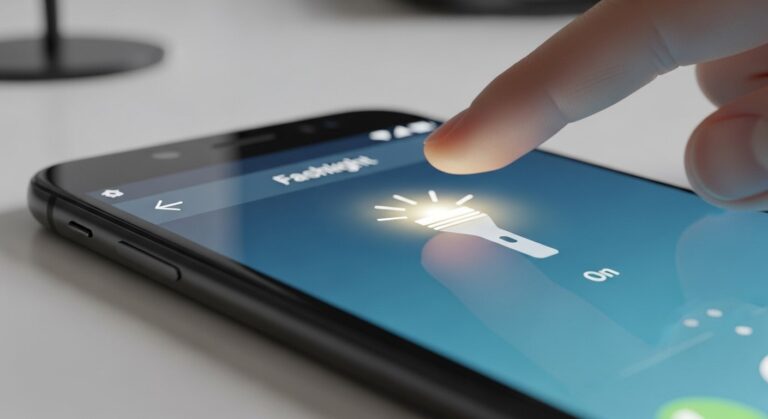
Introduction to Android Flashlight Control
The flashlight, also known as the torch feature, is one of the most frequently used utilities on Android smartphones. From navigating dark environments to emergency signaling, quick access to the flashlight has become a daily necessity for users in the USA and Europe.
Modern Android devices offer multiple ways to turn the flashlight on or off, far beyond the traditional quick settings toggle. These methods include system shortcuts, gestures, voice commands, accessibility tools, and automation features.
Understanding all available flashlight control options helps users save time, reduce frustration, and adapt the phone’s behavior to personal habits. Different Android versions and manufacturers may offer unique variations, but the core methods remain widely accessible.
Standard Built-In Ways to Turn Flashlight On or Off
Android includes native flashlight controls that work across most devices without installing third-party apps. These options are reliable, secure, and optimized for battery efficiency.
Built-in methods are recommended for everyday use because they integrate directly with system permissions and hardware controls.
Each method below works on most Android phones running Android 10 and above, including devices sold in the USA and Europe.
Using Quick Settings Panel
The Quick Settings panel is the most common way to access the flashlight. It allows instant control with a single tap and works even from the lock screen on many devices.
This method is ideal for users who want speed and simplicity without navigating menus.
- Swipe down from the top of the screen to open Quick Settings.
- Tap the Flashlight or Torch icon to turn it on.
- Tap the same icon again to turn it off.
- The flashlight icon can be rearranged for easier access.
Pricing: This feature is free and built into Android with no additional cost.
Using Lock Screen Shortcut
Many Android devices provide flashlight access directly from the lock screen. This is useful in emergencies when the phone is locked.
Availability depends on manufacturer settings and Android version.
- Wake the phone screen without unlocking.
- Tap or long-press the flashlight icon.
- The flashlight activates instantly.
- Repeat the action to turn it off.
Using Power Button Shortcuts
Some Android devices allow flashlight activation using the power button or hardware gestures. This feature is popular on devices that emphasize one-handed use.
It reduces the need to interact with the screen.
- Enable flashlight shortcut in system gesture settings.
- Press the power button twice or three times.
- The flashlight toggles on or off.
- Works even when the screen is off.
Voice and Assistant-Based Flashlight Controls
Voice commands offer hands-free control, especially useful while driving, cooking, or during emergencies.
Android integrates voice assistants deeply into system utilities, including the flashlight.
These methods require an active internet connection in most cases.
Using Google Assistant Voice Commands
Google Assistant allows users to turn the flashlight on or off using simple spoken commands. This feature works on most Android devices sold in the USA and Europe.
It is particularly helpful for accessibility and multitasking.
- Say “Hey Google” to activate the assistant.
- Say “Turn on the flashlight.”
- The flashlight activates immediately.
- Say “Turn off the flashlight” to deactivate.
Using Assistant Button or Gesture
Some devices provide a dedicated assistant button or gesture that triggers Google Assistant. This speeds up flashlight access without voice activation.
Gesture-based activation works even in noisy environments.
- Press and hold the assistant button or gesture area.
- Issue a flashlight command verbally.
- The flashlight toggles instantly.
- Works across supported Android versions.
Gesture-Based Flashlight Methods
Gesture-based controls have become popular due to their speed and convenience. They allow users to control the flashlight with physical movements.
These features are often manufacturer-specific but widely available.
Gestures reduce dependency on on-screen controls.
Shake to Turn Flashlight On or Off
Some Android devices or system utilities support shaking the phone to toggle the flashlight. This feature is often found in motion gesture settings.
It is useful when wearing gloves or in low-visibility conditions.
- Enable shake gesture in system or motion settings.
- Shake the phone firmly but safely.
- The flashlight toggles automatically.
- Repeat to turn it off.
Double Tap on Back Gesture
Newer Android versions support double-tap gestures on the back of the phone. This can be assigned to flashlight control.
It offers quick access without unlocking the device.
- Enable back tap gestures in settings.
- Assign flashlight toggle action.
- Double tap the back of the phone.
- The flashlight activates instantly.
Accessibility and Advanced System Options
Android accessibility tools provide alternative flashlight controls for users with mobility or vision challenges.
These features also benefit power users who want customized interactions.
Accessibility options are free and built into the system.
Using Accessibility Menu
The accessibility menu includes a flashlight toggle among other system controls. It floats on the screen for easy access.
This method is highly customizable.
- Enable Accessibility Menu in settings.
- Tap the floating accessibility icon.
- Select Flashlight.
- Tap again to turn it off.
Using Automation and Routines
Some Android devices support automation rules that turn the flashlight on or off based on conditions such as location or time.
This is useful for routine-based usage.
- Create automation rules in system settings.
- Define trigger conditions.
- Assign flashlight toggle action.
- Automation runs automatically.
Troubleshooting Flashlight Issues on Android
Flashlight problems are usually caused by software glitches, permission conflicts, or hardware limitations.
Most issues can be resolved without professional repair.
System diagnostics help identify the root cause.
- Restart the device to clear temporary bugs.
- Check camera app permissions.
- Ensure battery saver is not restricting flashlight use.
- Update Android to the latest version.
- Test hardware using built-in diagnostics.
Pro Tips for Faster Flashlight Access
Advanced users can optimize flashlight usage further by combining multiple methods.
- Place the flashlight toggle in the first row of Quick Settings.
- Enable at least one hardware or gesture shortcut.
- Use voice commands during hands-free situations.
- Disable flashlight when battery drops below 15 percent.
- Test shortcuts after system updates.
- Use accessibility shortcuts for emergency access.
Common Mistakes to Avoid
Some flashlight issues occur due to user misconfiguration.
- Leaving flashlight on accidentally, draining the battery.
- Using third-party apps that conflict with system controls.
- Disabling camera permissions required for flashlight.
- Ignoring overheating warnings.
- Relying on outdated Android versions.
Frequently Asked Questions
Why does the flashlight turn off automatically?
The system may disable the flashlight to prevent overheating or conserve battery power. This behavior is normal.
Can the flashlight work when the phone is locked?
Yes, many Android devices allow flashlight access from the lock screen depending on security settings.
Does using the flashlight damage the phone?
Normal use does not cause damage, but prolonged usage can generate heat and drain the battery quickly.
Why is the flashlight missing from Quick Settings?
The icon may be hidden. It can usually be added by editing the Quick Settings panel.
Can flashlight be controlled without touching the screen?
Yes, voice commands, hardware buttons, and gestures provide touch-free control.
Does flashlight work in airplane mode?
Yes, the flashlight works offline and does not require network connectivity.
Conclusion
Android offers multiple reliable ways to turn the flashlight on or off, catering to different user preferences and accessibility needs. From quick settings and gestures to voice commands and automation, users in the USA and Europe can tailor flashlight access for speed and convenience.
Choosing the right method improves usability, reduces battery waste, and ensures quick access during critical moments. With proper configuration, the Android flashlight becomes a seamless and dependable tool rather than a hidden feature.

Full-stack developer at Scylla Technologies (USA), working remotely from Bangladesh. Adobe Certified Magento Developer.