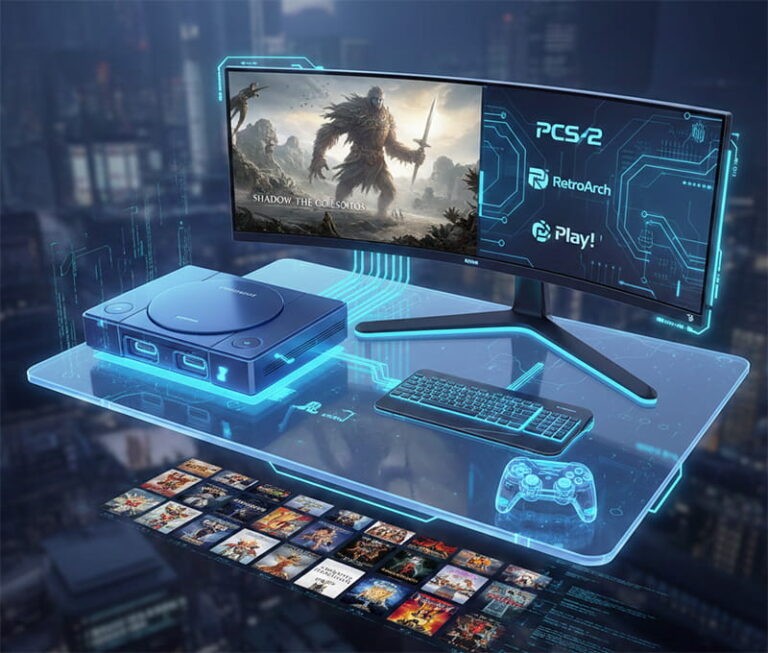
The PlayStation 2 has over 4,000 games and remains one of the most emulated consoles ever. PS2 emulation on PC is mature, stable, and capable of running most of the library at 4K resolution with better performance than the original hardware. PCSX2 2.6.0 — released January 2026 — brought major improvements in compatibility, performance, and graphics quality across all rendering modes. This guide covers the best PS2 emulators for PC, how to set them up, and which one is right for your system.
Best PS2 Emulators for PC — Quick Overview
The three emulators worth knowing about for PC are PCSX2, RetroArch with the LRPS2 core, and Play!. PCSX2 is the clear winner with ~99% library compatibility and active development. RetroArch suits users who want all their retro consoles in one interface, offering around 95% PS2 compatibility via its LRPS2 core. Play! requires no BIOS file and installs in under two minutes, but only runs about 25% of the library. NetherSX2 and AetherSX2 are Android-only — AetherSX2 is discontinued, NetherSX2 is its active replacement. Avoid DamonPS2 entirely — it is a paid app with ads and a history of questionable code origins.
Bottom line: For PC, use PCSX2. Nothing else comes close.
Legal Requirements Before You Start
PS2 emulators are legal software — free to download and use. What matters is where your files come from. You must dump the BIOS from your own PS2 console — downloading BIOS files from the internet is illegal. You must also rip game ISOs from physical discs you own — downloading ROMs you do not own is copyright infringement regardless of whether you have played the game before. PCSX2 requires a BIOS file to run. Play! is the only major emulator that does not.
PC Requirements for PS2 Emulation
PS2 emulation is more CPU-intensive than most people expect. A strong single-core CPU speed matters more than GPU power because PCSX2 is heavily CPU-bound. Vulkan or DirectX 11 GPU support is required — check that your card supports at least one before downloading.
For a minimum setup, an Intel Core i3 or Ryzen 3 paired with a GTX 1050 or RX 560 and 8GB RAM will run most games at 1080p with some settings adjustments. A recommended setup — Core i5 or Ryzen 5, GTX 1660 or RX 5600, 16GB RAM — handles the full library at 1440p smoothly. An optimal setup with a Core i7 or Ryzen 7, RTX 3060 or RX 6700, and 16GB RAM unlocks 4K upscaling on every game in the library. If you are shopping for gaming laptops to run PCSX2, prioritize single-core clock speed over core count.
If you are wondering whether upgrading to 16GB or 32GB of RAM is worth it for emulation, 16GB is the sweet spot for PCSX2 — 32GB of RAM adds no meaningful benefit.
1. PCSX2 — Best PS2 Emulator for PC
PCSX2 is the best PS2 emulator for PC and has been for over a decade. It is free, open-source, and actively maintained with weekly nightly builds. The January 2026 release of version 2.6.0 delivered major improvements across all rendering modes, better compatibility with previously broken titles, and significant performance gains on mid-range hardware. Compatibility covers approximately 99% of the PS2 library including its most demanding titles.
Why PCSX2 Stands Above Everything Else
- Covers nearly the entire 4,000+ game library — highest compatibility of any PS2 emulator
- Modern Qt interface — clean setup with no complicated plugin configuration
- Vulkan, DirectX 11, and OpenGL rendering all supported
- Internal resolution scaling up to 8x native — games look sharper than original PS2 hardware
- Per-game settings — configure each title individually for best results
- Widescreen patches, texture filtering, and anti-aliasing built in
- Active community on Discord and GitHub with weekly updates
- Latest stable release: PCSX2 2.6.0, January 2026
PCSX2 Minimum System Requirements
- Windows 10 or 11 (64-bit)
- CPU with SSE4.1 support — most CPUs from 2010 onwards qualify
- GPU supporting Vulkan or DirectX 11
- 8GB RAM minimum, 16GB recommended
How to Install PCSX2 Step by Step
- Go to pcsx2.net and download the latest stable Windows build — use the Nightly build for the newest features
- Extract the ZIP to a folder such as C:\Emulation\PCSX2
- Dump your PS2 BIOS from your own console using tools like USBUtil or a BIOS dumper homebrew app — place the .bin files in the bios subfolder
- Run pcsx2-qt.exe — the first-run wizard launches automatically
- Point the wizard to your BIOS folder — it detects the files automatically
- Plug in your controller — Xbox and PlayStation controllers are auto-detected via XInput
- Go to Settings → Graphics and select Vulkan as the renderer (use DirectX 11 if Vulkan causes issues)
- Set Internal Resolution to 2x or 3x for sharper visuals on modern monitors
- Load your game ISO via File → Boot ISO
Best PCSX2 Settings for Performance and Quality
Use Vulkan as your renderer — it delivers the best performance on both Nvidia and AMD hardware, with DirectX 11 as a fallback if issues occur. Set Internal Resolution to 2x–4x depending on your GPU: 2x for mid-range cards, 4x for an RTX 3060 or better. Enable MTVU (multi-threaded microVU) under Settings → Emulation to spread CPU load across threads — this is one of the most impactful settings on mid-range hardware. Set Texture Filtering to Bilinear (PS2) to smooth textures without introducing artifacts. Turn VSync off to reduce input lag, and set the Audio Backend to Cubeb for the lowest audio latency.
2. RetroArch with LRPS2 Core — Best for Multi-Console Libraries
RetroArch is a frontend that runs multiple emulators through a single unified interface. Its LRPS2 core is built on PCSX2’s engine and offers around 95% PS2 compatibility. It is the right choice only if you already use RetroArch for other consoles and want PS2 folded into the same library.
Strengths of RetroArch for PS2
- Unified interface for all retro consoles — PS1, PS2, SNES, N64 all in one place
- CRT shader support — recreates the look of games on a CRT television
- Netplay support for online multiplayer on compatible titles
- Run-ahead feature reduces input lag below what the original PS2 hardware produced
- Integrates cleanly with Steam Big Picture and launchers like LaunchBox
How to Set Up RetroArch for PS2
- Download RetroArch from retroarch.com
- Open RetroArch and go to Online Updater → Core Downloader
- Find and install Sony — PlayStation 2 (LRPS2)
- Place your PS2 BIOS files in the RetroArch system/ folder
- Go to Load Core → LRPS2, then Load Content to select your ISO
- In Settings → Video → Output, set the driver to Vulkan for best performance
- Enable Run-Ahead (2 frames) under Settings → Latency for reduced input lag
Important: The LRPS2 core is a fork and does not always receive the latest PCSX2 updates promptly. For the best PS2 emulation experience, use standalone PCSX2. Use RetroArch only if managing a multi-console library in one place is your priority.
3. Play! — Best for Beginners with No BIOS
Play! is the simplest PS2 emulator available. It requires no BIOS file, no complex configuration, and runs on Windows, Linux, macOS, and Android. The trade-off is significantly lower compatibility — only around 25% of the library runs properly. For casual users who want to try a specific game quickly without any setup friction, it is a reasonable starting point.
The main advantages of Play! are that it installs in under two minutes, runs on virtually any hardware, and weighs under 50MB. The drawbacks are hard to ignore though — no graphical enhancements, no resolution upscaling, limited community support, and many of the most popular PS2 titles simply do not run. Use PCSX2 for any serious PS2 gaming and reserve Play! only for quick tests on low-end or non-Windows hardware.
How to Install Play!
- Download from purei.org/downloads
- Extract and run Play.exe — no installation needed
- Select your ISO file directly from the file browser
- Graphics use OpenGL by default — no further setup required
Best PCSX2 Settings for Low-End PCs
If your PC is below the recommended spec, you can still run PS2 games on PCSX2 with the right adjustments. The goal is reducing CPU and GPU load without sacrificing playability.
For a low-end setup — Core i3, 8GB RAM, GTX 1050 class GPU — start by setting Internal Resolution to Native (1x). This single change produces the biggest performance gain of any setting. Enable MTVU under Settings → Emulation to spread CPU work across multiple threads. Use DirectX 11 as the renderer instead of Vulkan on older GPUs. For particularly demanding games like Gran Turismo 4, enable EE Cycle Skip set to 1 or 2. Disable texture preloading and anisotropic filtering, and turn on Fast Boot to skip the PS2 startup screen entirely.
With these adjustments, most PS2 games run at full speed on a low-end PC. Gran Turismo 4, Jak 3, and Burnout Revenge are the most CPU-intensive titles in the library and may still struggle. If games run slowly across the board, overclocking your CPU delivers a meaningful boost specifically for PCSX2 given its single-core dependency.
Best PS2 Emulator for Android
For Android, the recommended emulator is NetherSX2 — an active community fork of the discontinued AetherSX2. It offers around 90% PS2 library compatibility on modern Android devices and supports Bluetooth controllers. Download it from GitHub since it is not available on the Play Store. Play! also works on Android with no BIOS required, making it the easiest mobile option, though the 25% compatibility ceiling applies on Android as well. If you enjoy mobile gaming beyond emulation, there are plenty of excellent cross-platform games available across Android and PC worth exploring alongside your emulation setup.
PS2 Games That Run Best on PCSX2
The following titles represent the best of what PCSX2 can do — all run at full speed with enhancements enabled and look significantly better than they did on original hardware.
-
- God of War I & II — runs at 60 FPS with widescreen patch available
- Shadow of the Colossus — performs better than original hardware at 4K
Final Fantasy X / X-2 — full playthrough stable with no issues
- Metal Gear Solid 2 & 3 — 60 FPS with minor per-game tweaks
- Gran Turismo 3 & 4 — excellent benchmark for testing your PCSX2 setup
- Kingdom Hearts I & II — full playthrough at 60 FPS
- Resident Evil 4 — runs perfectly and is a great showcase for 4K upscaling
- Devil May Cry 1–3 — 60 FPS, very stable across all three titles
- Ico — runs more smoothly than it did on original PS2 hardware
- Okami — visually stunning at 4K with texture filtering enabled
Troubleshooting Common PS2 Emulation Problems
Black screen on launch
Verify BIOS files are correctly placed and named. Check the MD5 hash against known good values. Try a BIOS from a different region.
Game runs slowly or drops frames
Enable MTVU under Settings → Emulation. Switch to the Vulkan renderer. Lower internal resolution to 2x. Enable EE Cycle Skip for the most demanding titles.
Audio crackling or desync
Switch the audio backend to Cubeb. Increase the audio buffer size. Disable TimeStretch if you are using speedhacks.
Controller not detected
Plug the controller in before launching PCSX2. Go to Settings → Controllers and map inputs manually. Use DS4Windows for PlayStation controllers.
Game crashes mid-playthrough
Check the PCSX2 compatibility wiki for known issues with that specific title. Try switching to software rendering mode for problematic games.
Graphical glitches or visual artifacts
Switch between Vulkan and DirectX 11. Disable texture preloading. Try software rendering for the affected game.
BIOS not found error
Ensure .bin files are in the correct bios/ subfolder. Check that file names match the expected format — for example, scph10000.bin.
Slow loading times
Move your ISO files to SSD storage. Enable Fast Boot in PCSX2 settings to skip the PS2 splash screen on every launch.
Frequently Asked Questions
What is the best PS2 emulator for PC?
PCSX2 is the best PS2 emulator for PC by a significant margin. It is free, open-source, covers approximately 99% of the PS2 library, supports 4K upscaling, and receives regular updates. The latest version is PCSX2 2.6.0. Download it from pcsx2.net.
Is Dolphin or PCSX2 better?
They emulate different consoles — Dolphin handles GameCube and Wii, PCSX2 handles PlayStation 2. If you want PS2 games use PCSX2. If you want GameCube or Wii games use Dolphin. Both are the best-in-class emulators for their respective platforms and can be installed on the same PC without conflict.
Is using PCSX2 illegal?
PCSX2 itself is completely legal — it is free, open-source software. What matters is the source of your BIOS and game files. You must dump the BIOS from your own PS2 console and rip ISOs from discs you own. Downloading BIOS files or game ISOs from the internet is copyright infringement regardless of whether you own the originals.
Is PCSX2 safe for your PC?
Yes — PCSX2 is completely safe. Download it only from the official site at pcsx2.net. Avoid third-party download sites that may bundle malware with the installer. RetroArch from retroarch.com and Play! from purei.org are also safe. The emulator to avoid is DamonPS2, which has a history of questionable code practices and aggressive monetization.
Why was AetherSX2 removed?
AetherSX2’s developer discontinued it in early 2023 citing community harassment and burnout. The app was pulled from the Play Store. The active replacement is NetherSX2, a community fork that continues development and is available on GitHub.
Does PCSX2 need a BIOS file?
Yes — PCSX2 requires a PS2 BIOS file dumped from your own console. Play! is the only major PS2 emulator that does not require a BIOS, though its game compatibility sits around 25% compared to PCSX2’s 99%.
Can a low-end PC run PS2 emulation?
Yes with the right settings. An Intel Core i3 with 8GB RAM and a GTX 1050 can run most PS2 games in PCSX2 at full speed. Set internal resolution to Native (1x), enable MTVU, and use DirectX 11 as the renderer. Gran Turismo 4 and a handful of other demanding titles may still struggle on low-end hardware.
What PS2 games run best on PCSX2?
God of War, Shadow of the Colossus, Final Fantasy X, Kingdom Hearts, Metal Gear Solid 2 and 3, Resident Evil 4, and Gran Turismo 4 all run excellently. Most top PS2 titles are fully playable at better-than-original quality with 4K upscaling enabled.
Can PCSX2 run on Windows 11?
Yes — PCSX2 2.6.0 fully supports both Windows 10 and Windows 11 (64-bit). Community builds are also available for Linux and macOS.
PCSX2 receives frequent updates — always download the latest version from pcsx2.net for the best compatibility and performance.