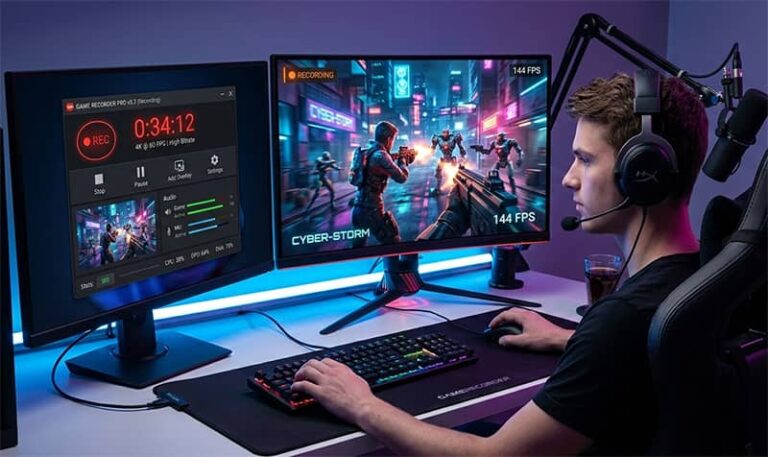
Recording your gameplay is no longer just for pros—it’s essential for improving skills, creating content, or sharing epic moments with friends. But not all game recorders are created equal. Some bog down your PC, slap watermarks on your clips, or bury you in complex settings. Today,the best free game recording software delivers premium features without the price tag: 4K resolution, hardware-accelerated encoding, instant replay, and even built-in editing tools.
After testing dozens of tools and analyzing the latest trends, we’ve curated the ultimate list of free game recorders that balance performance, ease of use, and creative freedom. Whether you’re a competitive gamer, a budding streamer, or just want to save your best plays, these tools will help you capture smooth, high-quality footage—without breaking the bank or your PC.
Why You Need a Dedicated Game Recorder
The right game recording software does more than just capture footage. Modern tools leverage GPU acceleration to record at 4K or 1440p with minimal FPS drops, offer instant replay for clutch moments, and even automate highlight detection. For streamers, features like webcam overlays, dual-source audio, and scene management are now standard in free tools. And with the rise of short-form content, built-in editors that trim, merge, and annotate clips save hours of post-production time.
But not all free recorders are equal. Some still suffer from lag, watermarks, or restrictive time limits. Others lack essential features like hardware acceleration or customizable hotkeys. The tools below have been rigorously tested for performance, usability, and feature depth—so you can focus on gaming, not troubleshooting.
How We Tested and Ranked the Best Free Game Recording Software
To compile this list, we evaluated each tool based on:
Performance: How much does it impact FPS during recording? Does it support hardware acceleration (NVIDIA NVENC, AMD AMF, Intel Quick Sync)?
Features: Does it offer 4K/1440p recording, instant replay, webcam overlay, dual-source audio, or built-in editing?
Usability: Is the interface intuitive? Are hotkeys customizable? How easy is it to set up and start recording?
Output Quality: Does it preserve visual fidelity and audio clarity? Are there watermarks or time limits?
Compatibility: Does it work with all games (DirectX, OpenGL, Vulkan)? Is it optimized for low-end or high-end PCs?
We also consulted real user feedback from Reddit, Steam forums, and tech communities to identify common pain points and standout features. The result? A list of tools that actually deliver on their promises.
Best Free Game Recording Software for PC
1. OBS Studio
OBS Studio remains the gold standard for free game recording, trusted by everyone from casual gamers to top Twitch streamers. Its open-source foundation means constant updates and a massive library of plugins. OBS supports unlimited recording time, 4K resolution, and hardware acceleration for NVIDIA, AMD, and Intel GPUs. The scene-based layout lets you switch between gameplay, facecam, and overlays mid-session, while the audio mixer ensures crystal-clear commentary.
What sets OBS apart is its flexibility. You can record full-screen gameplay, a specific window, or a custom region—ideal for both single-player and multi-monitor setups. The built-in streaming integration means you can go live on Twitch, YouTube, or Facebook with one click. And with community-created plugins, you can add features like automatic highlight detection, advanced noise suppression, and even AI-powered scene switching.
Key Features:
- Unlimited recording time, no watermarks
- Hardware acceleration (NVENC, AMF, Quick Sync)
- Multi-source audio mixing (game, mic, desktop audio)
- Customizable hotkeys and scene transitions
- Built-in streaming to Twitch, YouTube, Facebook
Where to get it: OBS Project
2. NVIDIA ShadowPlay (GeForce Experience)
If you have an NVIDIA GPU, ShadowPlay is the most seamless way to record gameplay. Built into GeForce Experience, it uses GPU encoding to capture footage with almost zero performance impact. ShadowPlay’s standout feature is Instant Replay, which continuously buffers your gameplay so you can save the last 5–20 minutes with a hotkey—perfect for unexpected highlights. It also supports 4K HDR recording at up to 60 FPS, with optional webcam and microphone overlay.
ShadowPlay is designed for gamers who want hassle-free recording. There’s no need to manually start or stop recordings; just enable the feature and let it run in the background. The software also includes automatic highlight detection for games like Fortnite, Apex Legends, and Valorant, tagging your best plays for easy sharing. And because it’s hardware-accelerated, it won’t drag down your frame rates even during intense sessions.
Key Features:
- Instant Replay (retroactive highlight saving)
- 4K HDR recording at 60 FPS
- Hardware-accelerated (NVENC)
- Automatic highlight detection for popular games
- Minimal performance impact
Where to get it: Built into GeForce Experience
3. AMD Radeon ReLive
AMD’s answer to ShadowPlay, Radeon ReLive, is a powerful recording tool for users with Radeon GPUs. Like its NVIDIA counterpart, ReLive uses hardware encoding to capture gameplay with minimal overhead. It supports up to 4K resolution at 60 FPS, with options for HDR and instant replay. The software also includes a built-in editor for trimming and merging clips, so you can polish your footage without leaving the app.
ReLive’s Instant GIF feature is a standout, letting you create and share short clips directly to social media. The tool also integrates with AMD’s performance monitoring tools, so you can track FPS, GPU usage, and temperatures while recording. For AMD users, ReLive is the most efficient way to capture high-quality gameplay without third-party software.
Key Features:
- Hardware-accelerated recording (AMF)
- 4K HDR at 60 FPS
- Instant Replay and Instant GIF
- Built-in video editor
- Performance overlay integration
Where to get it: Built into AMD Radeon Software
4. Bandicam
Bandicam is a favorite among gamers who need high-frame-rate recording without sacrificing quality. It supports up to 4K UHD at 480 FPS, making it ideal for fast-paced games like Valorant or CS2. Bandicam’s hardware acceleration works with NVIDIA, AMD, and Intel GPUs, ensuring smooth performance even on mid-range PCs. The software also includes a real-time drawing tool, so you can annotate your gameplay as you record.
One of Bandicam’s strongest features is its compression technology, which keeps file sizes manageable without losing visual fidelity. The free version includes a watermark, but it’s non-intrusive and removes if you upgrade. For gamers who need ultra-high-frame-rate footage—such as esports players analyzing their gameplay—Bandicam is a top-tier choice.
Key Features:
- 4K UHD recording at up to 480 FPS
- Hardware acceleration (NVIDIA, AMD, Intel)
- Real-time drawing and annotation
- Low CPU/GPU usage
- Direct upload to YouTube
Where to get it: Bandicam
5. EaseUS RecExperts
EaseUS RecExperts is a user-friendly recorder that balances simplicity with powerful features. It supports 4K recording at 60 FPS, with hardware acceleration for NVIDIA and AMD GPUs. The software includes a task scheduler, so you can set recordings to start and stop automatically—useful for long streaming sessions or overnight captures. RecExperts also offers a built-in video editor for trimming, cutting, and adding effects.
What makes RecExperts stand out is its flexibility. You can record full-screen, a selected region, or a specific window, and the software supports dual-source audio (game + mic). The free version includes a watermark, but it’s subtle and doesn’t obstruct gameplay. For gamers who want an all-in-one solution without a steep learning curve, RecExperts is a strong contender.
Key Features:
- 4K recording at 60 FPS
- Hardware acceleration (NVIDIA, AMD)
- Task scheduler for automated recording
- Built-in video editor
- Dual-source audio support
Where to get it: EaseUS RecExperts
6. Insights Capture
Insights Capture is designed specifically for gamers who want automatic highlight detection and instant clipping. The software runs in the background, buffering your gameplay so you can save the best moments with a hotkey. It supports 1440p and 4K recording, with hardware acceleration to minimize performance impact. Insights Capture also includes a built-in editor for trimming and merging clips, plus direct sharing to platforms like YouTube, Discord, and Twitter.
The tool’s AI-powered highlight detection is its killer feature. It automatically tags kills, headshots, and other in-game events, so you don’t have to manually scrub through footage. For competitive gamers who want to review their performance or share clips quickly, Insights Capture is a game-changer.
Key Features:
- AI-powered highlight detection
- 1440p/4K recording with hardware acceleration
- Instant replay and clipping
- Built-in editor and direct sharing
- Low system impact
Where to get it: Insights Capture
[article9]
7. Gecata by Movavi
Gecata by Movavi is a lightweight recorder that excels in simplicity. With one-click recording, it captures gameplay in up to 4K resolution with minimal setup. The software supports hardware acceleration for NVIDIA and AMD GPUs, ensuring smooth performance. Gecata also includes basic editing tools for trimming and adding annotations, making it a solid choice for casual gamers and content creators.
What makes Gecata appealing is its ease of use. There’s no complex configuration—just launch the app, select your recording area, and hit record. The free version includes a watermark, but it’s small and unobtrusive. For gamers who want a no-fuss recorder with decent features, Gecata delivers.
Key Features:
- One-click 4K recording
- Hardware acceleration (NVIDIA, AMD)
- Built-in trimming and annotation
- Lightweight and easy to use
- Direct streaming to Twitch/YouTube
Where to get it: Gecata
[article10]
8. FBX
FBX is a rising star in the game recording space, offering high-performance capture with a focus on streaming. It supports 4K recording at 60 FPS, with hardware acceleration for NVIDIA, AMD, and Intel GPUs. FBX’s standout feature is its built-in editor, which includes tools for adding overlays, transitions, and even green-screen effects. The software also integrates with popular streaming platforms, so you can go live with minimal setup.
FBX is particularly appealing to streamers who want to record and edit their content in one place. The interface is intuitive, and the free version includes most core features, with only advanced effects locked behind a paywall. For gamers who want a recorder that grows with their content creation needs, FBX is worth a look.
Key Features:
- 4K recording at 60 FPS
- Hardware acceleration (NVIDIA, AMD, Intel)
- Built-in editor with overlays and transitions
- Direct streaming integration
- Low latency and high performance
Where to get it: FBX
[article11]
9. Medal.tv
Medal.tv is a unique recorder focused on social sharing. It automatically captures your best gameplay moments and uploads them to the Medal platform, where you can share clips with friends or the broader gaming community. The software supports 1080p and 1440p recording, with hardware acceleration to keep performance smooth. Medal also includes a built-in editor for trimming and adding effects before sharing.
What sets Medal apart is its community features. You can join clans, participate in challenges, and even earn rewards for your clips. The free version is fully functional, with optional premium features for advanced users. For gamers who want to share their highlights socially, Medal.tv is a fun and functional choice.
Key Features:
- Automatic highlight capture and sharing
- 1080p/1440p recording with hardware acceleration
- Built-in editor and social platform
- Community challenges and rewards
- Low system impact
Where to get it: Medal.tv
[article12]
10. Xbox Game Bar (Windows 11/10)
For Windows users who want a built-in solution, Xbox Game Bar is a surprisingly capable recorder. It supports 1080p recording at 30 or 60 FPS, with optional microphone and system audio capture. The tool is lightweight and integrates seamlessly with Windows, so there’s no need to install third-party software. Xbox Game Bar also includes a performance overlay to monitor FPS, CPU, and GPU usage while recording.
While it lacks advanced features like 4K recording or hardware acceleration, Xbox Game Bar is perfect for quick clips and casual recording. The interface is simple, and the hotkey-based controls (Win + Alt + R) make it easy to start and stop recordings on the fly. For gamers who want a no-frills, built-in option, it’s a solid choice.
Key Features:
- Built into Windows 11/10
- 1080p recording at 30/60 FPS
- Performance overlay integration
- Hotkey controls (Win + Alt + R)
- No installation required
Where to get it: Built into Windows (search for “Xbox Game Bar”)
[article13]
11. Outplayed (formerly Plays.tv)
Outplayed is a gamer-focused recorder that specializes in automatic highlight capture. It runs in the background, buffering your gameplay so you can save the best moments with a hotkey. The software supports 1080p and 1440p recording, with hardware acceleration for smooth performance. Outplayed also includes a built-in editor for trimming and adding effects, plus direct sharing to platforms like YouTube and Twitch.
The tool’s AI-powered highlight detection is its strongest feature. It automatically tags kills, headshots, and other in-game events, so you don’t have to manually review footage. Outplayed also integrates with popular games like League of Legends, Valorant, and Fortnite, making it a favorite among competitive players.
Key Features:
- AI-powered highlight detection
- 1080p/1440p recording with hardware acceleration
- Instant replay and clipping
- Built-in editor and direct sharing
- Game-specific integrations
Where to get it: Outplayed
[article14]
12. Fraps
Fraps is a classic recorder that’s been a staple in the gaming community for years. While it lacks modern features like hardware acceleration or 4K support, it’s still a reliable choice for recording at 1080p with minimal performance impact. Fraps is particularly popular among benchmarkers, as it includes an FPS counter and frame-time measurement tools. The software is lightweight and doesn’t require complex setup, making it a good option for older PCs.
The free version of Fraps includes a watermark, but it’s small and doesn’t obstruct gameplay. For gamers who need a simple, no-frills recorder—especially for benchmarking or recording older games—Fraps remains a viable choice.
Key Features:
- 1080p recording with low performance impact
- Built-in FPS counter and benchmarking tools
- Lightweight and easy to use
- No time limits or restrictive features
- Works on older PCs and Windows versions
Where to get it: Fraps
[article15]
13. ShareX
ShareX is primarily a screenshot tool, but its screen recording features make it a surprisingly capable game recorder. It supports full-screen or region-based recording, with options for GIF capture and hardware acceleration. ShareX is completely free and open-source, with no watermarks or time limits. The software also includes a built-in editor for trimming and annotating recordings.
While ShareX isn’t as feature-rich as dedicated game recorders, its simplicity and lack of restrictions make it a great secondary tool. It’s particularly useful for capturing short clips or creating GIFs of gameplay highlights. For gamers who want a free, no-strings-attached recorder, ShareX is worth considering.
Key Features:
- Completely free and open-source
- Full-screen or region-based recording
- GIF capture and hardware acceleration
- Built-in editor for trimming and annotating
- No watermarks or time limits
Where to get it: ShareX
[article16]
14. Wondershare DemoCreator
Wondershare DemoCreator is a free recorder with a strong focus on editing. It supports 4K recording at 60 FPS, with hardware acceleration for NVIDIA and AMD GPUs. The software includes a full-featured editor with tools for adding annotations, transitions, and effects. DemoCreator also supports dual-source audio and webcam overlay, making it a solid choice for content creators.
The free version includes a watermark, but it’s removable with a one-time purchase. DemoCreator’s strength lies in its editing capabilities, which rival paid tools. For gamers who want to record and edit their footage in one place, it’s a powerful option.
Key Features:
- 4K recording at 60 FPS
- Hardware acceleration (NVIDIA, AMD)
- Full-featured video editor
- Dual-source audio and webcam overlay
- Direct export to YouTube and social platforms
Where to get it: Wondershare DemoCreator
[article17]
15. Icecream Screen Recorder
Icecream Screen Recorder is a user-friendly tool that supports 4K recording at 60 FPS. It includes hardware acceleration for NVIDIA and AMD GPUs, ensuring smooth performance. The software offers both full-screen and region-based recording, with options for webcam overlay and dual-source audio. Icecream also includes a built-in editor for trimming and adding annotations.
The free version includes a watermark, but it’s non-intrusive. Icecream’s strength is its simplicity—it’s easy to set up and use, making it a good choice for casual gamers. The software also supports scheduled recordings, so you can automate your capture sessions.
Key Features:
- 4K recording at 60 FPS
- Hardware acceleration (NVIDIA, AMD)
- Webcam overlay and dual-source audio
- Built-in editor for trimming and annotations
- Scheduled recording
Where to get it: Icecream Screen Recorder
[article18]
How to Choose the Best Free Game Recording Software for Your Needs
With so many options, selecting the right recorder depends on your specific needs. Here’s how to narrow it down:
For Competitive Gamers: Prioritize tools with low performance impact and instant replay features, such as NVIDIA ShadowPlay, AMD ReLive, or Insights Capture. These tools let you save highlights without disrupting gameplay, and their hardware acceleration ensures minimal FPS drops.
For Content Creators: Look for recorders with built-in editing tools and streaming integration, like OBS Studio, FBX, or Wondershare DemoCreator. These tools allow you to polish your footage and go live without switching apps.
For Casual Gamers: Simplicity is key. Tools like Gecata, Xbox Game Bar, or ShareX offer easy setup and basic recording features without overwhelming options.
For Low-End PCs: Lightweight recorders like Fraps, ShareX, or EaseUS RecExperts (with hardware acceleration enabled) will minimize performance impact. Avoid resource-heavy tools like OBS unless you optimize the settings.
For Streamers: OBS Studio and FBX are the best choices, thanks to their streaming integration and scene management features. These tools let you switch between gameplay, facecam, and overlays seamlessly.
Also consider the games you play. Some recorders, like Outplayed, integrate with specific titles (e.g., League of Legends, Valorant) for automatic highlight detection. If you play these games, such integrations can save you hours of manual editing.
[article19]
Pro Tips for Recording Gameplay Like a Pro
Use Hardware Acceleration: Always enable hardware encoding (NVENC for NVIDIA, AMF for AMD, Quick Sync for Intel) in your recorder’s settings. This offloads the recording process to your GPU, reducing CPU usage and minimizing FPS drops. In OBS, for example, go to Settings > Output and set the encoder to “NVIDIA NVENC” or “AMD AMF.”
Optimize Your Settings: For most games, 1080p at 60 FPS is the sweet spot between quality and file size. If you have a high-end PC, you can push to 1440p or 4K, but be mindful of storage space. Use a bitrate of 20–50 Mbps for 1080p and 50–100 Mbps for 4K to balance quality and file size.
Leverage Instant Replay: Tools like NVIDIA ShadowPlay, AMD ReLive, and Insights Capture offer instant replay, which buffers your gameplay so you can save the last few minutes with a hotkey. This is invaluable for capturing unexpected highlights without recording full sessions.
Use Dual-Source Audio: Record game audio and microphone input on separate tracks. This gives you more control in editing, allowing you to adjust volumes or remove background noise without affecting the gameplay audio. OBS and Bandicam both support this feature.
Customize Hotkeys: Set up hotkeys for starting/stopping recordings, saving highlights, and muting your mic. This lets you control everything without alt-tabbing. In OBS, go to Settings > Hotkeys to configure these.
Monitor Performance: Use tools like MSI Afterburner or the performance overlays in NVIDIA/AMD software to monitor FPS, CPU, and GPU usage while recording. If you notice significant drops, lower your recording resolution or bitrate.
Edit Efficiently: If your recorder includes a built-in editor (like EaseUS RecExperts or Wondershare DemoCreator), use it to trim and merge clips before exporting. This saves time and keeps your workflow streamlined.
[article20]
Frequently Asked Questions
What’s the best free game recorder for low-end PCs?
For low-end PCs, prioritize lightweight recorders with hardware acceleration. OBS Studio (with optimized settings), Fraps, and ShareX are excellent choices. Enable hardware encoding (NVENC/AMF/Quick Sync) and lower your resolution to 720p or 1080p to reduce CPU/GPU load. Avoid recording at high bitrates, as this can cause lag.
Can I record gameplay in 4K for free?
Yes, several free recorders support 4K recording, including OBS Studio, Bandicam, EaseUS RecExperts, and Gecata. However, 4K recording requires a powerful GPU and plenty of storage space. Ensure your PC meets the requirements and use hardware acceleration to minimize performance impact.
Do free game recorders add watermarks?
Some free recorders, like Bandicam and EaseUS RecExperts, add watermarks to recordings. Others, such as OBS Studio, NVIDIA ShadowPlay, and AMD ReLive, do not. Always check the software’s free version limitations before committing.
How do I record gameplay without lag?
To record without lag, use hardware acceleration (NVENC/AMF/Quick Sync), lower your recording resolution or FPS, and close background applications. Tools like NVIDIA ShadowPlay and AMD ReLive are optimized for minimal performance impact. In OBS, reduce the output resolution scaling if needed.
Can I record gameplay and my webcam at the same time?
Yes, most modern recorders support webcam overlay. OBS Studio, Bandicam, and EaseUS RecExperts all allow you to add a webcam feed to your gameplay recordings. Position the webcam window in a corner and adjust its size to avoid obstructing gameplay.
What’s the best free recorder for streaming?
OBS Studio is the best free recorder for streaming, thanks to its built-in integration with Twitch, YouTube, and Facebook. FBX is another strong option, with streaming features and a built-in editor. Both tools support multi-source audio, scene transitions, and overlays.
How much storage do I need for game recordings?
Storage needs depend on resolution and bitrate. A 10-minute 1080p recording at 30 FPS and 20 Mbps uses about 1.5 GB. For 4K at 60 FPS and 50 Mbps, expect 5–10 GB per 10 minutes. Use an SSD for recording to avoid dropped frames, and consider an external drive for long-term storage.
Can I record gameplay on a laptop?
Yes, but performance depends on your laptop’s GPU and cooling. Use hardware-accelerated recorders like OBS (with NVENC/AMF) or NVIDIA ShadowPlay/AMD ReLive if available. Lower your game’s graphics settings and recording resolution to 720p or 1080p to reduce strain. Ensure your laptop is plugged in and well-ventilated to prevent thermal throttling.
[article21]
Current Market Prices and Deals
While this guide focuses on free software, some tools offer premium versions with advanced features. Here’s a quick overview of pricing for popular options:
OBS Studio is completely free, with no premium version. NVIDIA ShadowPlay and AMD ReLive are also free for users with compatible GPUs. Bandicam’s free version includes a watermark; the full version costs $39.95 for a lifetime license. EaseUS RecExperts offers a free version with a watermark, while the Pro version starts at $19.95/month or $39.95/year. Wondershare DemoCreator’s free version includes a watermark, with the Pro version priced at $49.99/year.
Keep an eye out for seasonal sales, especially around Black Friday and the holidays. Many recording software developers offer discounts of 30–50% during these periods. Additionally, some tools (like EaseUS RecExperts) occasionally run limited-time free trials of their premium features.
[article22]
Conclusion: The Best Free Game Recorder for You
Choosing the right game recording software depends on your goals, hardware, and workflow. For most gamers, OBS Studio is the best all-around choice, offering unmatched flexibility, performance, and features—all for free. If you have an NVIDIA or AMD GPU, ShadowPlay or ReLive provide seamless, low-impact recording with instant replay. For content creators, tools like FBX or Wondershare DemoCreator combine recording and editing in one package.
No matter which tool you choose, the key is to optimize your settings for your PC’s capabilities. Enable hardware acceleration, adjust resolution and bitrate, and use hotkeys to streamline your workflow. With the right recorder, you can capture smooth, high-quality gameplay without sacrificing performance—or your wallet.
Ready to start recording? Pick the tool that best fits your needs, tweak the settings, and hit record. Your next gaming highlight reel is just a few clicks away.

Full-stack developer at Scylla Technologies (USA), working remotely from Bangladesh. Adobe Certified Magento Developer.