

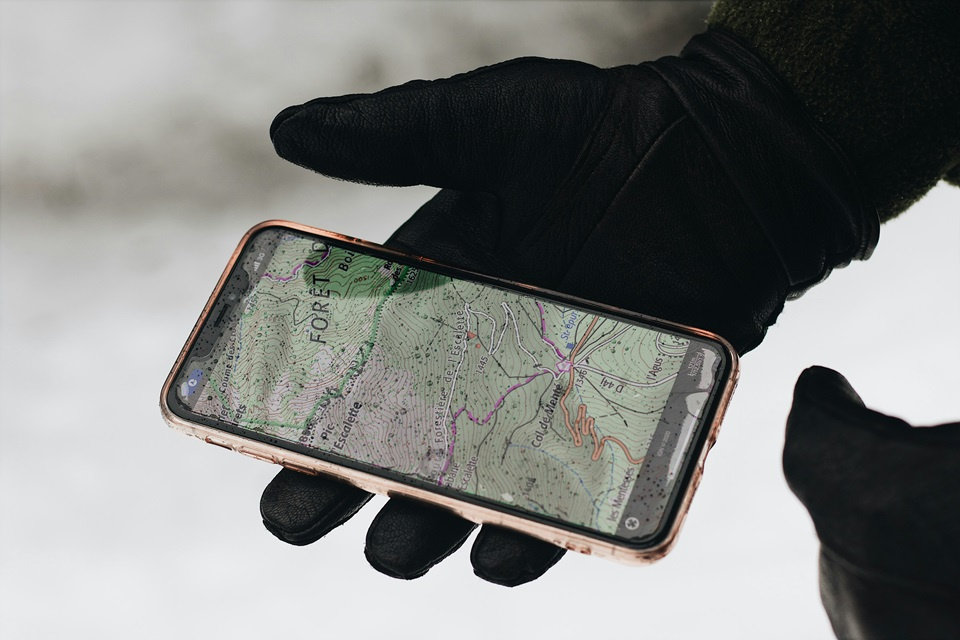
Google Maps has evolved from a simple digital atlas into a sophisticated geospatial tool that serves as the backbone for modern navigation, logistics, and personal exploration. At the heart of its most practical functionality is the “dropped pin.” While most users rely on the search bar to find established addresses, the ability to drop a pin allows for the identification and sharing of specific, unaddressed coordinates. Whether you are meeting a friend in the middle of a sprawling public park, marking a secret trailhead, or documenting a specific spot on a construction site, mastering the manual pin-offering technique is essential for precision in a world that isn’t always defined by street numbers.
The versatility of Google Maps across various operating systems—including iOS, Android, and web browsers—means that the process of dropping a pin varies slightly depending on the device you are using. Understanding these nuances ensures that you can navigate any environment regardless of the hardware in your hand. This guide provides an exhaustive breakdown of the manual pinning process, the management of saved locations, and the advanced sharing features that make Google Maps the industry standard for location-based services. By the end of this comprehensive manual, you will be able to utilize every facet of the pinning tool to enhance your travel, work, and social coordination.
Precision is the primary reason why dropping a pin is superior to simply sharing a general neighborhood or the nearest business name. GPS coordinates provided by a dropped pin are accurate to within a few meters, providing a level of reliability that text-based descriptions lack. This is particularly critical in rural areas or large urban complexes where a single address might cover several acres. In the following sections, we will explore the technical steps required to drop pins on all major platforms, how to label these spots for future reference, and how to integrate these locations into broader navigation routes.
How to Drop a Pin on Google Maps for Android Devices
For Android users, Google Maps is often deeply integrated into the system architecture, offering a seamless experience. To drop a pin on an Android smartphone or tablet, start by opening the Google Maps app. You can either browse the map manually by swiping and zooming or use the “My Location” button (the bullseye icon) to center the map on your current position. Once you have identified the exact spot where you want to place a marker, perform a long-press on the screen. A long-press involves holding your finger down on the specific spot for about two seconds until a red pin icon appears and a small information bar slides up from the bottom of the screen.
Once the pin is dropped, the bottom drawer provides several immediate options. You can see the approximate address or the latitude and longitude of the location. This drawer is your command center for the dropped pin; from here, you can start navigation to the spot, save it to a specific list (such as “Favorites” or “Want to Go”), or label it with a custom name. Labeling is particularly useful because it makes the pin searchable within your own account. For example, if you drop a pin at a specific spot in a park where you parked your car, labeling it “My Car” allows you to find it quickly later by simply typing that label into the search bar.
Sharing the pin from an Android device is equally intuitive. Within the information drawer that appears after dropping the pin, tap the “Share” button. This opens the Android system share sheet, allowing you to send the location via SMS, WhatsApp, email, or even copy the direct Google Maps URL to your clipboard. If you are sharing with someone who does not use Google Maps, the link will typically open in their device’s default mobile browser, still showing the exact coordinates you marked. This cross-platform compatibility is one of the reasons Google Maps remains the most popular mapping tool globally.
Dropping a Pin on iPhone and iPad (iOS)
Apple users often use a mix of Apple Maps and Google Maps, but the latter remains a favorite for its robust data and features. Dropping a pin on the iOS version of Google Maps is very similar to the Android process but features the distinct aesthetic of the iOS interface. Open the app and navigate to the desired area. Long-press on the map until the red marker drops. On iOS, you will notice a haptic feedback vibration confirming the pin has been placed. The “Dropped Pin” card will appear at the bottom, displaying the geographic details and available actions.
One of the unique features on iOS is the ability to easily integrate dropped pins with other Apple services. For instance, once you have dropped a pin, you can tap the “Directions” button to see various transit modes, including Apple Watch integration if you have one paired. If you need to adjust the location of the pin because you didn’t hit the exact spot on the first try, simply long-press a different area. The previous pin will disappear, and a new one will be placed. You can also “clear” a pin by tapping anywhere else on the map once or by hitting the “X” in the search bar that appears when a pin is active.
To maximize the utility of a dropped pin on iOS, consider using the “Measure Distance” tool found in the pin’s options menu. After dropping a pin, pull up the information card and select “Measure distance.” This allows you to add subsequent points on the map to calculate the exact distance between your dropped pin and other landmarks. This is an invaluable feature for hikers, urban planners, or anyone needing to know the physical span between two points where no road or path is officially mapped.
Managing Dropped Pins on Desktop and Laptop Browsers
While mobile devices are the primary way we use maps on the go, the desktop version of Google Maps is often superior for planning and high-level organization. Dropping a pin on a PC or Mac is done using a mouse or trackpad. Simply left-click on the desired spot on the map. Unlike the mobile version, a single click (not a long-hold) is usually enough to bring up a small box at the bottom of the screen containing the coordinates and a thumbnail of the location. If you want a full “Dropped Pin” marker (the red icon), you can right-click on the spot and select “Drop pin” or “Directions to here.”
The desktop interface provides a much larger canvas for managing your pins. When you click a location, the left-hand sidebar populates with extensive information, including Street View imagery (if available), the local timezone, and the “plus code” for the area. Plus codes are a digital address system based on latitude and longitude that provide a short, searchable string of characters for places without a traditional address. This is incredibly helpful for international travel in developing regions where street names may be non-existent or inconsistent.
One of the primary advantages of the desktop version is the ease of syncing. As long as you are signed into your Google Account, any pin you “Save” on your desktop will immediately appear in the “Saved” or “Your Places” tab on your mobile device. This allows for a seamless workflow where you can research a destination on your computer at night, drop and save pins for all the points of interest you want to visit, and then have those pins ready for navigation on your phone the next morning. You can also use the “Send to your phone” feature directly from the desktop browser to push a specific pin’s coordinates as a notification to your mobile device.
Advanced Features: Labels, Lists, and Custom Maps
Dropping a pin is only the first step in a broader ecosystem of location management. Once a pin is dropped, the “Label” feature allows you to bypass the generic “Dropped Pin” text and replace it with a personalized name. These labels are private and only visible to you. This is essential for distinguishing between multiple pins in the same area. For example, if you are scouting locations for a photography shoot, you can drop several pins and label them “Sunrise Spot,” “Golden Hour Bridge,” and “Equipment Drop-off.”
Beyond simple labels, Google Maps allows you to categorize your pins into “Lists.” The default lists include “Favorites,” “Want to Go,” and “Starred Places,” but you can create an unlimited number of custom lists. Lists are powerful because they can be shared in their entirety. Instead of sending one pin at a time, you can create a list called “Wedding Weekend Locations” and share the entire collection with your guests. They will see every pin you’ve added, complete with your notes and labels, providing a comprehensive guide to the event’s geography.
For even more advanced users, Google offers “My Maps,” a separate tool that works in conjunction with Google Maps. My Maps allows you to create highly detailed, multi-layered maps where pins can be color-coded, assigned different icons (like a house, a tree, or a car), and connected by lines or shapes. This is the professional version of dropping pins, used by researchers, journalists, and travel bloggers to create interactive maps for their audiences. You can import data from spreadsheets to drop hundreds of pins simultaneously, making it a robust tool for data visualization.
Essential Capabilities of Dropped Pins
- Coordinate Retrieval: Every dropped pin generates precise latitude and longitude data, which is essential for maritime navigation, search and rescue, or geological surveying where traditional addresses do not exist.
- Street View Integration: When you drop a pin on a road or near a building, Google Maps often provides a thumbnail of the Street View imagery, allowing you to visually confirm the surroundings before you arrive.
- Offline Access: If you drop a pin and then download an offline map of that area, your pin remains visible and accessible even when you have no cellular data or Wi-Fi connection.
- Real-Time Sharing: Dropped pins can be sent via various messaging platforms, allowing others to see your exact location in real-time or navigate to a static point you have identified.
- Parking Documentation: A common use for dropping a pin is to mark your parking spot in a massive lot or an unfamiliar city, ensuring you can find your way back using the walking directions feature.
- Business Identification: Dropping a pin on a commercial building often reveals the names and details of the businesses operating inside, even if they aren’t the primary search result for that area.
- Route Customization: You can use a dropped pin as a “stop” in a multi-destination route, allowing you to force the GPS to take you through a specific point that isn’t a standard landmark.
Common Troubleshooting and Accuracy Tips
While dropping a pin is generally straightforward, users may occasionally encounter issues with accuracy or visibility. One of the most common problems is “GPS Drift,” where the blue dot representing your location bounces around due to signal interference from tall buildings, heavy tree cover, or atmospheric conditions. To ensure you are dropping a pin in the correct spot, it is often better to zoom in as far as possible on the map and visually identify the landmark or terrain feature rather than relying solely on your current “My Location” blue dot.
Another issue is the disappearance of pins. A “dropped pin” is temporary unless it is saved or labeled. If you drop a pin and then perform a new search or close the app, that specific marker may vanish. To prevent this, always tap the “Save” or “Label” button immediately after dropping a pin you intend to use later. If you are using Google Maps on a web browser and the pin isn’t appearing, ensure that your browser’s “Location Services” are enabled and that you are not in an “Incognito” or “Private” mode that might restrict certain map functionalities.
For users in regions with restricted internet access, the accuracy of a dropped pin can be affected by the lack of “Assisted GPS” (A-GPS), which uses cell towers and Wi-Fi networks to speed up location fixes. In these cases, it may take several minutes for your device to achieve a high-accuracy lock. It is recommended to wait for the blue circle around your location dot to shrink (indicating higher accuracy) before dropping a pin that needs to be precisely placed for others to follow.
Pro Tips for Google Maps Pinning
Use Plus Codes for Remote Areas: If you are in a location without a street address, look for the “Plus Code” in the dropped pin’s information drawer. It is a short 6-7 character code like “8FVC9G86+J2.” These are much easier to dictate over a phone call or radio than long strings of latitude and longitude coordinates.
Master the Right-Click on Desktop: On the desktop version of Google Maps, right-clicking anywhere on the map opens a hidden context menu. This menu allows you to not only drop a pin but also instantly find out “What’s here?” which provides the most accurate address or landmark data for that specific pixel on the map.
Utilize Pins for Trip Planning: Before going on a trip, drop pins on all the restaurants, museums, and hotels you plan to visit. Color-code them using the “Lists” feature (e.g., green for parks, blue for food). This creates a visual heat map of your activities, helping you plan your days more efficiently based on geographic clusters.
Clear Your Screen Quickly: If your map becomes cluttered with too many dropped pins during a session, you can quickly clear them by tapping the “X” in the search bar. On desktop, clicking any “empty” part of the map (like the ocean or a park without a label) will usually deselect the current pin and clear the information sidebar.
Frequently Asked Questions
Can I drop multiple pins at once on Google Maps?
On the standard mobile and desktop apps, you can only have one active “dropped pin” (the red marker) at a time. However, you can save as many locations as you want. Each saved location will appear as a permanent icon (a heart, a star, or a green square) on your map, effectively allowing you to “drop” and view hundreds of pins simultaneously.
Will other people see my dropped pins?
No, dropped pins and labels are private to your Google Account. Nobody else can see them unless you explicitly choose to share a specific pin or a saved list with them. Even if someone uses your device, they would need to be logged into your account to see your saved “Your Places” data.
How do I delete a dropped pin?
To remove a temporary red pin, simply tap elsewhere on the map or click the “X” in the search bar. If you have “Saved” the pin and it has become a permanent icon, you must tap on the icon, go to the “Saved” menu, and uncheck the list it was added to. To remove a “Label,” you must tap the label name and select “Remove Label.”
Can I drop a pin using voice commands?
While you can use Google Assistant to “Navigate to [Address]” or “Find a gas station,” the physical act of dropping a manual pin on a specific set of coordinates usually requires manual input (touching the screen). However, you can say “Hey Google, remember where I parked,” which effectively drops a pin on your current location and saves it for later retrieval.
Why is my dropped pin in the wrong place?
This is usually due to the map not being fully zoomed in. When you are zoomed out, a single finger tap covers a large geographic area. For maximum precision, zoom in until you can see individual building outlines or path textures before long-pressing to drop your pin.
Conclusion
The ability to drop a pin on Google Maps is a fundamental skill that transforms a general navigation tool into a precision-grade geographical instrument. By mastering this feature on Android, iOS, and desktop platforms, you gain the power to define your own landmarks, coordinate complex meetups, and document the world with mathematical accuracy. Beyond the simple act of marking a spot, the integration of pins into lists, labels, and shared routes allows for a high degree of personalization and social collaboration. Whether you are using it for professional logistics or personal exploration, the humble dropped pin remains one of the most powerful features in the digital mapping landscape. As Google continues to update its mapping data, the reliability and utility of these markers will only increase, making them an indispensable part of our daily interaction with the physical world.
