

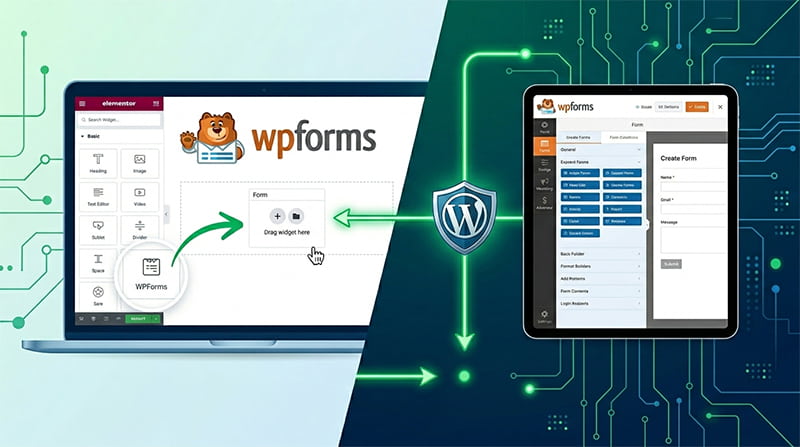
WPForms and Elementor are two of the most widely used plugins in the WordPress ecosystem, and combining them gives any website a powerful edge. Using WPForms with Elementor lets you embed fully functional, professionally designed forms directly inside Elementor’s drag-and-drop builder — without touching a line of code. Whether the goal is a contact form, a lead capture page, or a multi-step registration form, this integration handles it all from within the same visual editor.
The native WPForms widget ships built into Elementor, which means there is no third-party connector required. Both the free and Pro versions of Elementor support this widget. Even WPForms Lite, the completely free version, works seamlessly with Elementor out of the box. This guide covers every part of the process — from enabling the right settings to styling fields, handling display options, troubleshooting common issues, and choosing the best approach for your specific setup.
What You Need Before Getting Started
Before diving into the Elementor editor, a few prerequisites need to be in place. Both plugins must be installed and activated on the WordPress site. WPForms Lite is available free from the WordPress.org plugin repository, and Elementor Free is equally accessible. Neither plugin requires a paid license for basic integration to work, which makes this one of the most cost-effective combinations available for WordPress form management.
At least one form should already exist inside the WPForms dashboard before embedding it. Navigate to WPForms » Add New and build a form using any available template — the Simple Contact Form is the most common starting point. Once saved, that form becomes available for selection inside the Elementor widget dropdown. If no forms have been created yet, the widget will appear in the editor but the dropdown will be empty.
For users who want full styling control directly inside Elementor’s Style tab, Modern Markup must be enabled inside WPForms settings. Without it, the Style tab options inside the widget have limited effect. Enabling it is a one-time setup step covered in detail below.
How to Enable Modern Markup in WPForms
Modern Markup is a WPForms setting that updates the HTML structure of form output to make it compatible with Elementor’s advanced styling system. Without it enabled, the form will still display and function correctly, but the visual customization options in Elementor’s Style tab will be restricted.
To enable it, go to WPForms » Settings and click the General tab. Scroll down to the General section and locate the Include Form Styling dropdown. Set it to Base and form theme styling. Just below that, find the Use Modern Markup toggle and switch it to the ON position. Save the settings.
This change applies globally to all WPForms forms on the site. It does not break any existing forms, but it is worth checking a live form after enabling it to confirm the layout renders correctly. For sites managing forms across multiple WordPress form systems, confirming compatibility after this change is good practice.
How to Add WPForms to an Elementor Page
Once WPForms has at least one form created, the embedding process inside Elementor is straightforward. Open the page or post where the form needs to appear. If the page opens in the WordPress block editor, click the blue Edit with Elementor button to load the visual editor.
Inside the Elementor editor, look at the widget panel on the left sidebar. Under the Basic widgets section, there will be a widget labeled WPForms. Drag this widget and drop it into the desired section or column on the page canvas. Once placed, a dropdown menu appears in the left panel under the Content tab.
Click the dropdown and select the form to embed. The form renders immediately inside the Elementor canvas in a live preview. No page refresh is needed. If a new form needs to be created on the spot, clicking the + New Form option inside the dropdown launches the WPForms form builder directly within Elementor, so the workflow never needs to leave the page builder. After building and saving the new form, it populates automatically in the widget.
To display the form title or description on the frontend, expand the Display Options section in the left panel. Two toggles appear — Show Form Name and Show Form Description. Enable either based on the page’s layout requirements. These options are independent of the form’s internal title and description settings inside WPForms.
How to Style WPForms in Elementor
The Style tab inside the WPForms Elementor widget is where visual customization happens. With Modern Markup enabled, the Style tab exposes a full set of controls covering every visual element of the form. These controls are organized into logical sections and require zero CSS knowledge to use.
Styling Form Fields
The Field section in the Style tab controls the appearance of all input areas — text fields, email fields, dropdowns, and textareas. Background color, text color, border style, border radius, padding, and typography are all adjustable from here. Setting consistent border radius across fields gives forms a polished, modern appearance that matches most Elementor page designs.
Styling Labels
Labels sit above or beside each form field and represent the primary visual cue for users. The Label section offers font family, font size, font weight, text color, and spacing controls. Sub-labels — the smaller descriptive text that appears beneath certain field types — have their own separate section with identical controls, allowing for visual hierarchy between primary labels and secondary descriptions.
Styling the Submit Button
The submit button is arguably the most important clickable element on any form. The Button section in the Style tab provides controls for background color (including gradient support), text color, border, border radius, padding, width, position (left, center, or right alignment), and box shadow. Hover state styling is also available, allowing for a different appearance when a visitor moves their cursor over the button — a detail that improves perceived interactivity.
Applying Pre-Built Form Themes
For faster styling, WPForms includes a Themes feature accessible directly from the Style tab. These pre-built themes apply a coordinated color scheme, typography set, and background styling to the entire form in one click. Themes are particularly useful when building pages on a tight timeline or when working with clients who want a professional-looking form without custom design work. After applying a theme, individual elements can still be overridden manually for finer control.
Using the Shortcode Method as an Alternative
The native WPForms widget is the recommended approach for Elementor integration, but a shortcode method also works for edge cases. Every WPForms form has a unique shortcode visible from the WPForms » All Forms screen. The shortcode follows the format [wpforms id="123"] where 123 is the form’s ID number.
In Elementor, search for the Shortcode widget in the widget panel and drag it to the page. Paste the WPForms shortcode into the text field. The form renders on the canvas. This method works with Elementor Free and requires no additional setup beyond having WPForms active. The tradeoff is that the Shortcode widget does not expose styling controls inside Elementor’s Style tab — visual adjustments would then need to be handled through WPForms’ own styling settings or custom CSS.
How to Add WPForms to an Elementor Popup
Placing a WPForms form inside an Elementor Pro popup follows the same logic as embedding on a standard page, with one important configuration note. The popup builder in Elementor Pro is accessible from Templates » Popups in the WordPress admin sidebar. After creating a new popup and naming it, the WPForms widget appears in the same widget panel as in the standard editor. Drag it into the popup canvas and select the form from the dropdown.
One common issue specific to popups is that forms with file upload fields may behave unexpectedly if a visitor clicks outside the popup. To prevent this, enable Prevent Closing on Overlay Click in the popup’s advanced settings. This keeps the popup open while a file upload is in progress and prevents accidental form abandonment. For standard contact or lead forms without file uploads, this setting is not required.
Popup display conditions control when and where the popup appears. These are set in the same publishing panel used to go live with the popup. Conditions can target specific pages, post types, user roles, or URL paths, making it straightforward to show a form only on a particular landing page or product category.
WPForms vs Elementor Pro’s Built-In Form Widget
Elementor Pro includes its own Form widget that handles basic contact forms without a separate plugin. For simple single-page forms where submissions only need to go to email, it covers the basics adequately. However, WPForms is purpose-built for form management and pulls well ahead in several areas that matter for anything beyond a basic contact form.
WPForms includes built-in entry management, meaning every submission is stored in the WordPress database and accessible from the WPForms dashboard. The Elementor native form does not retain entries locally by default. WPForms also supports conditional logic on its paid plans — showing or hiding fields based on previous answers — which is critical for multi-step surveys, registration forms, and quote request forms. The Elementor native form has no conditional logic capability.
Payment integration is another significant gap. WPForms connects to Stripe, PayPal, Square, and Authorize.Net, enabling order forms, donation forms, and event registration with payments. Elementor’s native form does not process payments natively. For any site collecting money through forms, WPForms is the only viable choice within this integration.
WPForms also ships with over 2,000 pre-built templates spanning virtually every industry and use case. For developers and agencies building multiple client sites, this template library alone dramatically reduces the time spent building forms from scratch. The Elementor native form has no comparable template ecosystem for forms specifically. Understanding the broader context of a page builder’s role — as covered in resources on mastering on-page SEO — helps clarify why separating the form layer from the page builder layer generally produces more flexible, maintainable results.
Third-Party Add-Ons for Advanced WPForms Styling in Elementor
Beyond the native WPForms widget, several Elementor add-on plugins extend styling capability further. These are useful for teams that need granular control over form appearance without writing CSS.
Essential Addons for Elementor
Essential Addons is one of the most popular Elementor extension plugins, and it includes a dedicated WPForms widget with additional design controls beyond what the native widget offers. The EA WPForms widget allows control over container styling, field layout orientation (vertical or horizontal), and has a visual form preview mode within the Elementor editor. It is available on both the free and paid tiers of Essential Addons.
PowerPack Addons for Elementor
PowerPack includes a WPForms Styler widget that provides separate controls for input fields, labels, radio buttons, checkboxes, and the submit button. It adds support for hover state styling on input fields — a feature not exposed in the native widget — and allows custom sizing for radio and checkbox elements. The PowerPack WPForms widget is part of the paid plan.
The Plus Addons for Elementor
The Plus Addons offers a WP Forms widget with a notable feature: the ability to style checkbox and radio button elements with consistent cross-browser rendering. By default, browser-native checkboxes and radio buttons have inconsistent appearances across Chrome, Firefox, and Safari. The Plus Addons replaces these with custom-rendered elements that follow the design settings applied inside Elementor, resulting in a uniform look across all browsers. This matters particularly for forms displayed prominently on landing pages or pricing pages.
Troubleshooting Common Issues
WPForms Widget Not Appearing in Elementor
If the WPForms widget does not appear in the Elementor widget panel, the most common cause is that the WPForms plugin is inactive or was deactivated after a WordPress update. Verify the plugin status from the WordPress Plugins screen and activate it if necessary. After activation, refresh the Elementor editor page. The widget should appear in the Basic section of the widget panel without requiring any additional configuration.
Form Not Loading in Elementor Editor
If a form is selected from the dropdown but does not render on the canvas, enabling the Load Assets Globally option often resolves the issue. This setting is in WPForms » Settings and forces WPForms to load its scripts on every page rather than only on pages where a form shortcode is detected. This is particularly relevant for forms embedded via Elementor’s canvas, where WPForms’ standard asset detection may not register the form correctly. Issues with missing scripts in WordPress can also arise from jQuery conflicts, a topic covered in detail in the jQuery is not defined error guide for WordPress.
Style Tab Not Showing Full Controls
If the Style tab in the WPForms widget shows limited or no styling options, the likely cause is that Modern Markup is not enabled. Go to WPForms » Settings » General and turn on the Modern Markup toggle. Save and return to Elementor. The Style tab controls should now be fully populated. If the controls still appear restricted after enabling Modern Markup, confirm that the Include Form Styling option is set to Base and form theme styling rather than No Styling.
Form Submission Not Working Inside a Popup
Submission failures inside Elementor popups are typically caused by the popup closing before the form’s AJAX submission completes. The fix is enabling Prevent Closing on Overlay Click in the popup settings. Additionally, check that the popup’s close trigger is not set to fire on form submit, as this can interfere with WPForms’ success message display. For sites using caching plugins or Cloudflare’s HTML caching rules, confirming that the form page is not aggressively cached at the edge layer also rules out session-related submission errors.
Pro Tips for Using WPForms with Elementor
Copying style settings from one form to another saves significant time when a site has multiple forms that need a consistent appearance. Inside the WPForms Style tab in Elementor, a copy-paste option for style settings is available. Apply the settings to the first form, use the copy option to capture those settings as a code snippet, and paste them into subsequent forms. All forms will then share the same visual configuration without manually replicating each setting.
Testing a form before publishing the page is a step that saves debugging time later. WPForms has a testing guide specifically for this purpose. Within Elementor, the preview mode shows the form on the frontend without publishing the page, which makes pre-launch testing accessible without affecting live visitors.
For sites using user roles — such as membership sites or multi-author publishing setups — understanding how WordPress admin interface elements behave for different roles is part of maintaining a clean editing environment. Resources on hiding the WordPress admin bar for specific user roles are relevant to sites where Elementor is used by editors or contributors who should not see admin-level interface elements while editing pages.
Using Elementor’s responsive controls alongside WPForms ensures the embedded form renders correctly on mobile devices. Elementor’s Advanced tab inside the WPForms widget exposes padding and margin controls that can be adjusted independently for desktop, tablet, and mobile. Since the majority of contact form submissions on many sites come from mobile users, verifying the mobile layout before publishing is essential.
FAQ
Is WPForms compatible with Elementor Free?
Yes. WPForms works with both Elementor Free and Elementor Pro. The native WPForms widget appears in the Elementor widget panel regardless of which version of Elementor is active. No paid plan for either plugin is required to embed and display a working form on an Elementor page.
Can WPForms be added to an Elementor page using a shortcode?
Every WPForms form includes a shortcode visible from the All Forms screen. Paste this shortcode into Elementor’s Shortcode widget to embed the form. This method works but does not expose Elementor Style tab controls for the form. For styling capability, using the dedicated WPForms widget is the preferred approach.
Why is the WPForms Style tab not showing styling options in Elementor?
The Style tab requires Modern Markup to be enabled in WPForms settings. Navigate to WPForms » Settings » General, enable the Modern Markup toggle, and set Include Form Styling to Base and form theme styling. After saving, return to the Elementor editor and the full Style tab controls will be available.
Does WPForms work inside Elementor popups?
WPForms forms can be embedded inside Elementor Pro popups using the same WPForms widget used on standard pages. For forms with file upload fields, enabling Prevent Closing on Overlay Click in the popup settings prevents the popup from closing before the upload completes. Standard contact forms work without this setting.
What is the difference between WPForms and Elementor’s native form widget?
Elementor Pro includes a basic form widget that handles email delivery. WPForms is purpose-built for form management and adds entry storage, conditional logic, payment integrations, multi-page forms, and over 2,000 templates. For anything beyond a simple contact form, WPForms provides significantly more capability than the native Elementor form widget.
Conclusion
Using WPForms with Elementor is one of the most practical combinations available in the WordPress plugin ecosystem. The native integration requires no additional connectors, works with free versions of both plugins, and delivers a complete form-building and page-design workflow from within a single editor. Enabling Modern Markup is the only configuration step required before the full range of styling controls becomes available inside Elementor’s Style tab.
For teams that need deeper customization, third-party add-ons like Essential Addons, PowerPack, and The Plus Addons extend the styling system without requiring CSS. For use cases involving popups, payments, conditional logic, or entry management, WPForms consistently outperforms Elementor’s built-in form widget — making it the more scalable choice for any site expecting form functionality to grow over time. Understanding how a well-configured WordPress installation supports complex integrations like this — from managing forms to resolving script conflicts — makes the difference between a form that works reliably and one that becomes a support headache.
For developers building client sites, the combination of WPForms’ form builder depth and Elementor’s layout control reduces both development time and client training overhead. Forms look the way the design requires, behave reliably on submission, and store entries where they can be reviewed without a third-party service. That combination of reliability and design flexibility is why this integration remains one of the most recommended WordPress setups across developer communities.
