

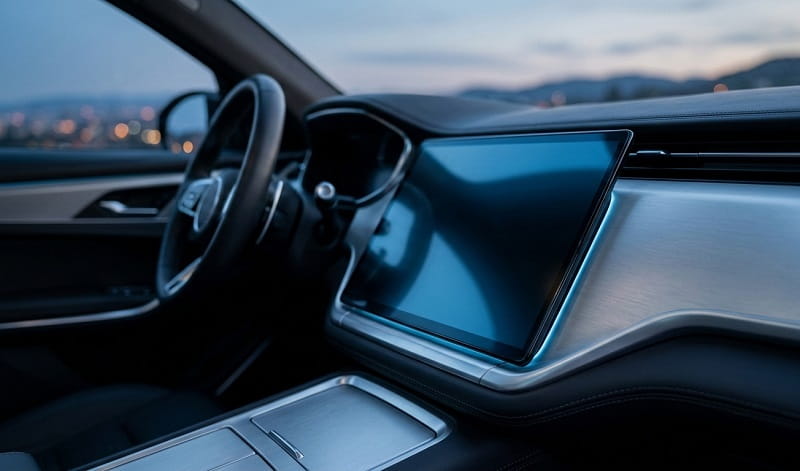
The modern driving experience has been transformed by Apple CarPlay, a sophisticated interface that brings the power of your iPhone to the vehicle dashboard. While Apple designed the platform primarily for navigation, communication, and music, many users find themselves wondering how to expand these capabilities. One of the most frequent questions from commuters and road-trippers alike is whether they can play Netflix on CarPlay during rest stops or long charging sessions. Because Apple prioritizes driver safety above all else, the standard version of CarPlay does not natively support video streaming apps, as moving visuals are considered a major distraction. However, as in-car infotainment screens grow larger and more vibrant, the demand for high-quality entertainment has led to several reliable workarounds for stationary viewing.
For those who spend significant time waiting in their vehicles—whether it is parents waiting for school pickup, EV owners at a Supercharger, or professional drivers on a break—the ability to access a streaming library is a game-changer. It is crucial to understand that these methods are intended strictly for use while the vehicle is parked. Attempting to watch video while the car is in motion is not only illegal in most jurisdictions but also poses a severe safety risk to the driver and others on the road. This guide explores the most effective hardware and software solutions available in 2026 to bridge the gap between Apple’s restrictive ecosystem and the desire for a cinematic experience inside your car.
The landscape of automotive technology has shifted toward “Software Defined Vehicles,” where the dashboard is no longer just a series of dials but a comprehensive digital hub. As this transition accelerates, the methods to bypass native restrictions have become more sophisticated and user-friendly. From plug-and-play AI boxes to advanced screen-mirroring techniques, there are now multiple ways to enjoy your favorite series without needing to jailbreak your primary smartphone. By selecting the right tools, you can transform your vehicle into a mobile theater that maintains the seamless connectivity you expect from the Apple ecosystem while unlocking the full potential of your car’s high-resolution display.
Understanding the Restrictions: Why Netflix Isn’t on CarPlay by Default
Apple enforces a strict set of developer guidelines for the CarPlay framework to ensure that every app appearing on the screen is optimized for “glanceable” information. This is why you see apps like Google Maps, Spotify, and Audible, which rely on large touch targets and voice commands, but never YouTube or Netflix. The CarPlay framework specifically blocks any app categorized under “video” or “gaming” from being projected onto the head unit. This is a deliberate design choice aimed at preventing driver distraction. Even if you have the Netflix app installed on your iPhone, it simply will not appear in the CarPlay menu because the metadata identifies it as a restricted category.
Furthermore, the communication protocol between the iPhone and the car’s head unit uses a specific video encoding process that is tuned for low latency rather than high-bitrate video playback. While the hardware in most modern cars is more than capable of rendering 1080p video, the software handshake prevents it. To get around this, enthusiasts and developers have created external hardware interfaces that “trick” the car into thinking it is connected to a standard CarPlay stream, while actually running a full version of Android in the background. This allows for the installation of any app from the Google Play Store, including Netflix, directly onto the interface that displays on your car’s screen.
Another layer of complexity involves Digital Rights Management (DRM). Netflix uses high-level encryption to prevent unauthorized screen recording or broadcasting. Many basic screen-mirroring apps fail to play Netflix because they cannot pass the HDCP (High-bandwidth Digital Content Protection) handshake required for video playback. This is why specialized hardware solutions are often superior to software-only hacks; they provide a dedicated hardware environment that supports the necessary security protocols to stream protected content in high definition without the “black screen” issues common with cheaper alternatives.
Method 1: Using an Advanced Multimedia AI Box
The most reliable and popular method for watching Netflix on a CarPlay-enabled vehicle in 2026 is the use of a Multimedia AI Box. These compact devices plug directly into the USB or USB-C port of your vehicle that you would normally use for wired CarPlay. Once connected, the car recognizes the device as an iPhone, but instead of the limited CarPlay interface, it launches a custom Android operating system. This environment is completely unlocked, allowing you to sign into the Google Play Store and download Netflix, Disney+, or even YouTube directly onto the device’s internal storage.
Setting up an AI Box is remarkably simple. After plugging the device into your car’s data port, you typically need to provide it with an internet connection. This can be done by enabling the Personal Hotspot on your iPhone or by inserting a dedicated 4G/5G SIM card into the device itself if it supports one. Once online, you simply open the pre-installed Netflix app or download it, log in with your credentials, and start streaming. Because the AI Box handles all the processing, your iPhone remains free to use for other tasks, and it can even connect to the box wirelessly to provide standard CarPlay functionality when you are ready to drive again.
The primary advantage of this method is that it requires no modifications to your car or your phone. There is no need to “jailbreak” your iPhone, which would void your warranty and compromise security. High-end AI boxes also feature powerful processors and dedicated graphics chips, ensuring that video playback is smooth and synced perfectly with the car’s audio system. These devices have become the gold standard for luxury car owners who want to maintain the original look of their interior while adding massive functional upgrades to their infotainment systems.
Method 2: Wireless Mirroring via Specialized Adapters
If you prefer a solution that relies more directly on your phone’s content, certain wireless adapters offer a “Mirroring” or “Cast” mode. Unlike standard CarPlay adapters that only facilitate a wireless connection for the Apple-approved interface, these specialized tools can switch modes to act as a Miracast or AirPlay receiver. This allows you to “beam” your iPhone’s entire screen to the car’s display. While this is a more cost-effective solution than a full AI Box, it does come with certain caveats regarding DRM content protection mentioned earlier.
To use this method, you would connect the adapter to your car’s USB port and then connect your iPhone to the adapter’s Wi-Fi signal. Once the link is established, you pull down the Control Center on your iPhone and select “Screen Mirroring.” Your car’s screen will then show exactly what is on your phone. However, users should be aware that Netflix often blocks mirroring of its video stream to prevent piracy. While some high-quality adapters have found ways to bypass these blocks, many will only show a black screen with audio. For this reason, mirroring is often better suited for sharing photos or non-DRM video content rather than premium streaming services.
Despite the potential DRM hurdles, mirroring remains a popular choice for those who want a versatile tool. It is particularly useful for showing presentations, browsing the web on a larger screen, or using apps that don’t have a dedicated TV or CarPlay version. If your primary goal is specifically Netflix, you must ensure that the adapter you purchase explicitly states support for Netflix video casting. Most manufacturers will list this in their technical specifications because it requires a specific licensed chipset to handle the encrypted video stream effectively.
Method 3: The Jailbreak Approach for Power Users
For the technically inclined who own older iPhones or devices running specific versions of iOS, “jailbreaking” remains an option. Jailbreaking involves removing the software restrictions imposed by Apple, allowing you to install apps and tweaks from third-party repositories like Cydia or Sileo. Once an iPhone is jailbroken, you can install a tweak called CarBridge. This legendary piece of software allows you to “bridge” any app from your iPhone onto the CarPlay display, effectively forcing Netflix to appear and function just like a native CarPlay app.
CarBridge offers two distinct modes: “Portal” and “Bridged.” Portal mode mirrors your phone’s screen directly into a window on the CarPlay display, while Bridged mode attempts to scale the app to fit the car’s screen natively. While this sounds like the perfect solution, it carries significant risks. Jailbreaking can make your device unstable, open it up to security vulnerabilities, and prevent you from using certain high-security apps like mobile banking. Furthermore, Apple frequently patches the exploits used for jailbreaking, meaning that if you update your phone, you might lose your ability to watch Netflix on CarPlay instantly.
Given these risks, jailbreaking is generally not recommended for your primary device. However, some enthusiasts keep a “car phone”—an older, jailbroken iPhone SE or iPhone 8—permanently plugged into the car’s USB port specifically for this purpose. This dedicated device acts as the media controller for the vehicle while the user carries a modern, secure iPhone for their daily needs. If you choose this path, you will need to research whether your specific iOS version is currently “jailbreakable,” as the community is constantly in a cat-and-mouse game with Apple’s security updates.
Essential Tips for the Best In-Car Streaming Experience
To ensure that your Netflix sessions are as enjoyable as possible, you should pay close attention to your data management and audio settings. Streaming high-definition video consumes significant amounts of data—up to 3GB per hour for HD quality. If you are using your phone’s hotspot to power an AI Box, ensure you have an unlimited data plan or have downloaded your favorite episodes for offline viewing within the Netflix app. Most AI boxes have internal storage or a microSD card slot, which is perfect for storing large movie files for long trips where cellular reception might be spotty.
Another critical factor is audio synchronization. Sometimes, when using wireless adapters or mirroring, there can be a slight delay between the video on the screen and the sound coming through the car’s speakers. This is often due to the latency in the Bluetooth or Wi-Fi audio buffer. To fix this, high-quality AI boxes allow you to adjust the “audio delay” in the settings menu, ensuring that the dialogue perfectly matches the actors’ lip movements. Additionally, for the best sound quality, check if your car supports “Wired Audio” through the USB port, which offers much higher fidelity than a standard Bluetooth connection.
Temperature management is an often-overlooked aspect of in-car electronics. Running a video stream, a GPS connection, and a wireless hotspot simultaneously generates a considerable amount of heat. If your iPhone or AI Box is hidden in a center console or glove box, it may overheat and throttle performance, leading to stuttering video. On hot days, try to keep your streaming hardware in a well-ventilated area or near an A/C vent. Keeping the devices cool not only ensures a smooth playback experience but also protects the long-term health of the batteries and internal components of your expensive gadgets.
Frequently Asked Questions
Can I watch Netflix on CarPlay while driving?
Technically, some third-party hardware allows this, but it is extremely dangerous and illegal. Most systems are designed with “Parking Brake” sensors that will automatically cut the video feed if the car is taken out of Park. You should only use these streaming methods when the vehicle is stationary and safely parked. Safety should always be your top priority, and even a few seconds of looking at a screen instead of the road can lead to catastrophic accidents.
Do I need a special cable to use an AI Box?
Most AI boxes come with high-quality USB-A to USB-C and USB-C to USB-C cables in the box. It is highly recommended to use the manufacturer’s provided cable, as many standard charging cables do not support the high-speed data transfer required to stream video. If you need a replacement, ensure it is a “USB 3.1” or “USB 4” rated cable capable of at least 10Gbps to prevent connection drops or laggy performance during high-bitrate scenes.
Will these methods work on every car with CarPlay?
Generally, these solutions work on any vehicle that has factory-installed “Wired CarPlay.” If your car only supports Wireless CarPlay natively, you may need a specific type of adapter designed for that protocol. Aftermarket head units from brands like Pioneer, Kenwood, and Alpine are also usually compatible. However, some vehicles with highly proprietary systems, such as certain newer BMWs or Teslas (which don’t use CarPlay at all), will require entirely different solutions or hardware modifications.
Does using an AI Box void my car warranty?
No, using an AI Box should not void your vehicle’s warranty. Because these devices are external and plug into a standard USB port, they do not require any permanent modifications to the car’s hardware or software. If you have an issue with your infotainment system and need to take the car to the dealership, you can simply unplug the device. It is much safer for your warranty than attempting to hack the car’s internal firmware or using “gray market” software patches.
Why is the video quality lower than on my iPad?
The resolution of your car’s screen is often the limiting factor. Many standard vehicle displays are 720p or lower, and they are designed for high contrast and brightness rather than color accuracy. Furthermore, if you are using a wireless connection, the video is often compressed to ensure smooth playback without buffering. For the best quality, use an AI Box with a direct wired connection and ensure the Netflix app settings are set to “High” or “Auto” under the cellular data usage menu.
Can I use my car’s steering wheel controls for Netflix?
With most high-quality AI boxes, the basic steering wheel controls like Volume Up/Down and Play/Pause will continue to function. However, “Next Track” buttons may not always work to skip episodes or move the seek bar in Netflix, as these buttons are mapped to the car’s media system rather than the Android app’s specific interface. You will likely need to use the touchscreen interface of your car’s display to navigate the Netflix menu and select content.
Troubleshooting Common Connection Issues
If you encounter a “Connection Failed” or “Device Not Recognized” error when plugging in your streaming adapter, the first step is to check for firmware updates. Most manufacturers of CarPlay AI boxes release regular updates to maintain compatibility as Apple updates iOS and car manufacturers update their firmware. You can usually update these devices by downloading a file to a microSD card or by using a built-in “Check for Updates” tool within the device’s settings menu. Keeping your hardware up to date is the best way to ensure long-term stability.
Another common issue is a “Black Screen” when starting a movie. This is almost always related to the DRM protection mentioned earlier. If this happens, try closing the Netflix app entirely and restarting the device. Ensure that your internet connection is stable, as a sudden drop in bandwidth can sometimes trigger a DRM error. If you are using a mirroring adapter, check to see if the manufacturer has a dedicated app in the App Store; sometimes these apps contain the necessary “keys” to allow protected video content to pass through to the car’s display.
Finally, if the audio is playing through your phone instead of the car speakers, check the “AirPlay” or “Media Output” settings on your iPhone. Sometimes the phone gets confused between the CarPlay connection and a standard Bluetooth pairing. Ensuring that the car is set to the correct “Source” (usually labeled as CarPlay or USB) will redirect the audio path correctly. If all else fails, a simple “Hard Reset” of your car’s infotainment system—usually done by holding the power button for 10 seconds—can clear out any temporary software glitches that are preventing a successful handshake.
Conclusion: The Future of In-Car Entertainment
While Apple continues to restrict video playback on CarPlay for legitimate safety reasons, the hardware market has provided elegant and powerful solutions for those who want more from their vehicles. Whether you choose the robust capabilities of an Android-based AI Box, the simplicity of a mirroring adapter, or the customization of a jailbroken device, the ability to watch Netflix on CarPlay is now more accessible than ever. These tools do not just provide entertainment; they add significant value to your vehicle, turning it into a versatile space that adapts to your needs whether you are on the move or taking a well-deserved break.
As we look toward the future, the integration of streaming services into vehicles will likely become more official. Many manufacturers are already building native apps like YouTube and Netflix into their own proprietary software stacks for use while parked. However, for the millions of drivers currently using Apple CarPlay, the third-party solutions discussed in this guide remain the most viable path forward. By investing in high-quality hardware and following the best practices for data and heat management, you can enjoy a seamless, cinematic experience right from your driver’s seat.
Ultimately, the goal of these modifications is to enhance the convenience of your digital life. The transition from a small smartphone screen to a 10-inch or 12-inch vehicle display makes a world of difference for long-form content. As long as you remain a responsible user and keep your eyes on the road while the car is in motion, these streaming workarounds offer a glimpse into a future where the car is much more than a tool for transportation—it is a mobile living room designed for both productivity and relaxation.

Loading comments…