

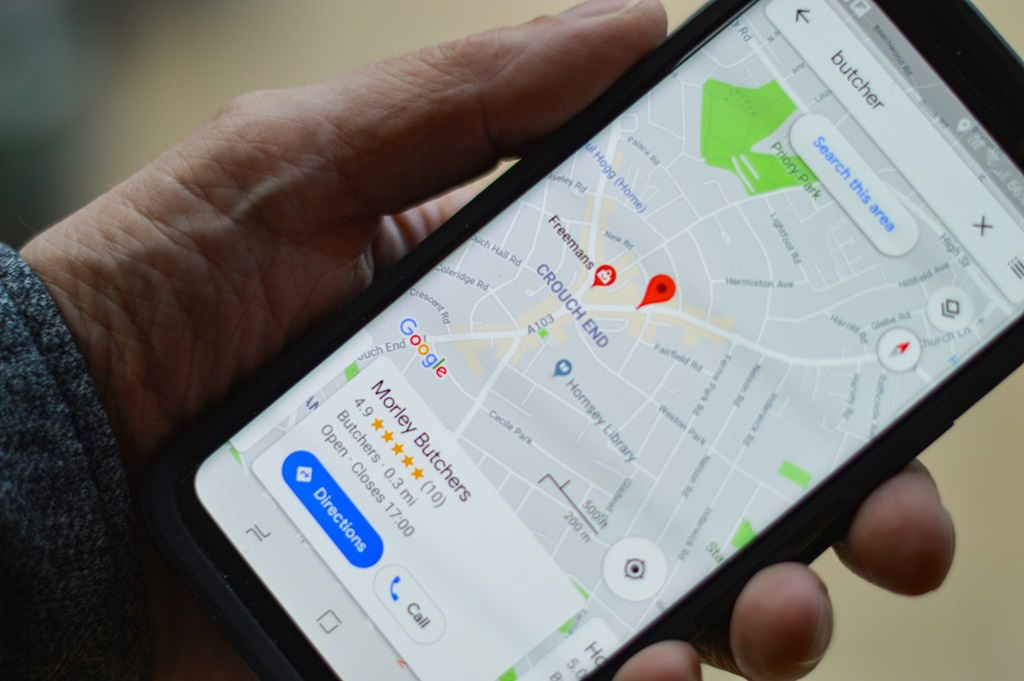
The digital landscape of navigation has undergone a radical transformation over the last two decades, evolving from static paper maps to dynamic, data-driven ecosystems that live in the palms of our hands. At the forefront of this revolution is Google Maps, a platform that has transcended its original purpose as a simple directory to become an indispensable tool for global travel, local exploration, and daily commuting. To truly master this application, one must look beyond the basic blue navigation line and explore the layers of functionality that integrate real-time data, augmented reality, and personalized location intelligence. Understanding the architecture of the interface and the breadth of its features allows users to navigate not just space, but time and logistics as well.
Modern navigation involves more than just finding the fastest route from point A to point B. It requires an understanding of how traffic patterns shift, how public transit systems interface with walking distances, and how to utilize regional data even when disconnected from the internet. Google Maps utilizes a combination of satellite imagery, street-level photography, and billions of data points provided by users to provide a comprehensive view of the world. By mastering the core functions of the application, such as searching for specific coordinates or utilizing the “Explore” tab, users can unlock a level of convenience that was once the stuff of science fiction.
The interface is designed for intuitive use, yet many of its most powerful tools are tucked away in secondary menus. For instance, the “Layers” button—represented by a stack of squares—is the gateway to various visualization modes, including satellite views, terrain maps, and real-time traffic overlays. Transitioning between these views allows a user to assess the physical geography of a hiking trail or the congestion levels of a city center during rush hour. Similarly, the search bar is no longer just for addresses; it functions as a semantic engine capable of interpreting queries like “coffee shops with Wi-Fi near me” or “quiet parks within five miles.”
Establishing a personalized profile within the application further enhances its utility. By setting home and work addresses, users allow the platform to provide automated commute times and proactive alerts regarding delays on their most frequent routes. This predictive capability is a hallmark of contemporary digital mapping, transforming the application from a reactive tool into a proactive personal assistant. As we delve deeper into the specific mechanics of the platform, it becomes clear that the key to mastery lies in the integration of basic search with advanced environmental awareness.
Navigating the Core Interface and Search Mechanics
The search bar is the primary point of interaction for most users, but its capabilities extend far beyond simple address lookups. When you type a query, the application uses sophisticated algorithms to match your intent with nearby businesses, landmarks, and coordinates. For example, typing “gas” will not only show nearby stations but will also display current fuel prices, allowing for informed decision-making before you even start the car. This level of granular detail is updated constantly through a combination of official business data and crowdsourced reports from millions of contributors globally.
Once a destination is selected, the application presents a detailed place card. This card is a repository of vital information, including operating hours, contact details, and peak occupancy times. The “Popular Times” graph is particularly useful for those looking to avoid crowds at grocery stores or tourist attractions, providing a historical look at foot traffic and a real-time estimate of current busyness. Users can also access user-generated photos and reviews to get an authentic sense of the atmosphere and quality of a location before they arrive.
Initiating navigation requires selecting the “Directions” button, which opens a secondary menu for choosing modes of transport. Google Maps offers specific routing for driving, walking, cycling, and public transit. Each mode provides unique insights; for instance, cycling routes prioritize bike lanes and flatter terrain, while transit routes offer precise schedules and platform numbers for trains and buses. The ability to toggle between these modes allows users to compare travel times and choose the most efficient or environmentally friendly option for their specific needs.
Voice commands represent another layer of interface mastery, particularly for those who are already in transit. By integrating with digital assistants, the application allows for hands-free adjustments. A driver can say “Find a gas station along my route” or “How is the traffic ahead?” without taking their hands off the steering wheel. This integration is designed to enhance safety by minimizing screen interaction during driving, and it utilizes natural language processing to understand complex requests that involve multiple variables, such as distance, price, and detour time.
Advanced Routing and Multi-Stop Itineraries
Complex travel often requires more than a single destination. Google Maps allows for the creation of multi-stop routes, which is an essential feature for road trips, delivery drivers, or anyone running several errands in one outing. To add a stop, users simply need to tap the three-dot menu icon in the top right corner of the directions screen and select “Add stop.” These stops can be reordered by dragging them into a different sequence, and the application will automatically recalculate the total travel time and distances between each point.
When planning long-distance travel, the “Route Options” menu becomes invaluable. This feature allows users to customize their journey by requesting the avoidance of tolls, highways, or ferries. This is particularly useful for budget-conscious travelers or those who prefer scenic routes over the efficiency of major interstates. Furthermore, the application now includes eco-friendly routing, which highlights the path that consumes the least amount of fuel based on factors like road incline and traffic patterns. This path is often denoted by a leaf icon, providing a sustainable choice for conscious commuters.
Real-time incident reporting is another critical aspect of modern navigation. While driving, users can report accidents, speed traps, roadwork, and lane closures. This crowdsourced data is instantly analyzed and shared with other drivers on the same route, creating a communal web of information that helps everyone avoid delays. When the application detects a significant slowdown ahead, it may offer a “faster route” notification, showing exactly how many minutes can be saved by taking an alternative path and allowing the user to accept the new route with a single tap.
For those using public transit, the routing is equally sophisticated. In many major cities, Google Maps provides “live transit” updates, which track the actual location of buses and trains via GPS. This eliminates the uncertainty of relying solely on static schedules, especially during delays or service changes. The application can even provide “last-mile” suggestions, combining a train journey with a short walk or a suggested ride-share to ensure the traveler reaches their final destination with minimal friction.
The Power of Offline Maps for Seamless Travel
One of the most frequent challenges for travelers is the loss of mobile data or cellular connectivity, especially in remote areas or foreign countries. Google Maps addresses this through its robust “Offline Maps” feature. This allows users to download specific geographic areas directly to their device’s storage. Once an area is downloaded, the application can provide turn-by-turn navigation and search for locations within that boundary without requiring an active internet connection. This is a vital preparation step for anyone venturing into national parks or international cities where roaming charges might be prohibitive.
To download a map, search for a city or region, tap its name or address at the bottom of the screen, and then select “Download” from the options menu. Users can pinch and zoom the selection box to define exactly how much area they want to save. Larger areas will naturally occupy more storage space on the device, but the application provides an estimate of the file size before the download begins. It is highly recommended to perform these downloads over a stable Wi-Fi connection to save on data usage and ensure a fast transfer speed.
Managing these offline areas is simple. Under the profile icon, the “Offline maps” section displays a list of all saved regions. These maps expire after a certain period—typically one year—to ensure the data remains relatively current. However, if the device is connected to Wi-Fi, the application will attempt to update these maps automatically in the background. Users can also manually update a map at any time to capture recent changes in road layouts or new business listings, ensuring that their offline data is as reliable as the live version.
While in offline mode, some features are naturally restricted. For example, real-time traffic updates, alternative route suggestions based on current congestion, and transit schedules are not available because they require a live data feed. However, the core navigation logic—the ability to find an address and receive voice-guided directions—remains fully functional. This feature acts as a safety net, ensuring that even if the network fails, the user is never truly lost.
Utilizing Augmented Reality and Street View for Visual Orientation
Sometimes, a 2D map is not enough to help a pedestrian understand exactly which way to turn in a complex intersection. This is where “Live View” comes into play. By using the smartphone’s camera and augmented reality (AR) technology, Google Maps overlays digital directions onto the real world. When walking, a user can tap the Live View button, and the application will identify the surroundings. Large arrows and street signs then appear on the screen, showing the exact path to follow. This is particularly helpful in urban environments where GPS signals can bounce off tall buildings and become inaccurate.
Street View remains one of the most powerful visualization tools in the digital mapping arsenal. By dragging the “Pegman” icon on a desktop or selecting the Street View layer on mobile, users can see 360-degree panoramas of almost any street in the world. This allows for virtual pre-travel scouting. One can check the parking situation in front of a restaurant, look for specific architectural landmarks to ease navigation, or simply explore a distant city from the comfort of their home. The historical imagery feature in Street View also allows users to see how a location has changed over time, providing a unique chronological perspective on urban development.
The “Indoor Maps” feature is a specialized extension of visual navigation designed for large buildings like airports, malls, and stadiums. When a user zooms in on a supported building, the map displays a detailed floor plan, including the location of gates, restrooms, elevators, and specific shops. This eliminates the frustration of wandering through massive terminals or multi-level shopping centers. Users can switch between floors using a level-selector tool that appears on the side of the screen, making it easy to find a specific departure gate or a hidden boutique on the third floor.
Beyond simple navigation, these visual tools are increasingly used for “Immersive View,” a newer feature that uses AI to fuse billions of Street View and aerial images. This creates a rich, digital model of a location that allows users to virtually fly over buildings and see what the area looks like at different times of the day or in various weather conditions. This “vibe check” capability helps travelers decide whether a neighborhood is suitable for their stay or if a particular outdoor venue will be comfortable during their planned visit.
Collaboration, Planning, and Social Integration
Google Maps is increasingly becoming a social and collaborative tool. The “Saved” tab serves as a central hub for planning future trips or keeping track of favorite local spots. Users can create custom lists—such as “Weekend Road Trip” or “Best Sushi in London”—and share these lists with friends or family. When a list is shared, others can contribute their own suggestions, creating a collaborative itinerary that everyone can access and navigate from their own devices. This is an essential feature for group travel coordination and event planning.
Location sharing is another critical feature, primarily used for safety and coordination. From the profile icon, users can choose “Location sharing” to send their real-time position to specific contacts for a set duration or indefinitely. This is particularly useful when meeting someone in a crowded park or ensuring that a family member arrives home safely after a late-night drive. The recipient can see the sender’s location on their own map, along with the sender’s device battery level, which provides extra context if a signal is lost.
The “Explore” tab acts as a local discovery engine, tailored to the user’s preferences and past activity. By analyzing previous searches and visited locations, Google Maps can suggest new restaurants, attractions, and events that the user is likely to enjoy. This discovery is bolstered by “The Match,” a percentage score that predicts how much a user will like a specific business based on their history. This personalized approach transforms the application from a neutral directory into a curated guide that evolves as the user explores more of the world.
For those who wish to contribute back to the community, the “Local Guides” program offers a way to improve the map for everyone. Users can earn points by writing reviews, uploading photos, answering questions about businesses, and verifying information like wheelchair accessibility or outdoor seating. These contributions are vital for maintaining the accuracy of the platform. High-level Local Guides often get early access to new features and rewards, fostering a sense of community and shared responsibility for the digital representation of the physical world.
Safety Features and Emergency Assistance
Safety is a core pillar of the Google Maps experience, and the platform has integrated several features designed to assist users in emergency situations. During natural disasters, such as wildfires, floods, or earthquakes, the application activates “Crisis Alerts.” These alerts provide real-time information, including emergency phone numbers, evacuation routes, and visual boundaries of the affected areas. This data is often sourced directly from government agencies and emergency responders, ensuring that users have the most accurate and life-saving information available at their fingertips.
For individual safety, the “Safety Check” and “Arrival Notifications” are integrated into the location-sharing framework. When navigating to a destination, a user can share their “Trip Progress.” This allows a designated contact to see the user’s live route, current location, and estimated time of arrival. Once the user reaches their destination, the sharing automatically stops. This feature provides peace of mind for both the traveler and their loved ones without requiring constant manual updates or text messages while driving.
Accessibility is another vital component of safety and inclusion. Google Maps provides detailed information regarding “Wheelchair Accessible” entrances, restrooms, and seating. For individuals with mobility challenges, this information is not just a convenience; it is a necessity for navigating urban environments safely. Users can turn on an “Accessible Places” feature in their settings, which makes wheelchair icons more prominent on the map, helping to identify accessible businesses at a glance and encouraging businesses to maintain high accessibility standards.
Furthermore, the application includes features for detecting “Air Quality” (AQI) and “Wildfire” layers. By checking the AQI layer, users with respiratory issues can make informed decisions about whether it is safe to engage in outdoor activities or if they should take a route that minimizes exposure to pollutants. These environmental layers are updated frequently using data from environmental monitoring stations and satellite sensors, providing a high-tech layer of protection against invisible environmental hazards.
Customizing Settings for an Optimized Experience
To get the most out of Google Maps, users should take the time to dive into the settings menu to customize the application to their specific preferences. One of the most impactful changes is the “Map Theme,” which allows for a permanent “Dark Mode” or an automatic toggle based on the time of day. Dark mode is not only easier on the eyes during nighttime driving but can also significantly conserve battery life on devices with OLED screens. Adjusting the “Navigation Settings” is also crucial; here, users can change the voice language, adjust the guidance volume, and choose whether the map should always “Keep North Up” or rotate with the car’s direction.
Privacy is a significant concern for many users, and Google Maps provides comprehensive controls over how data is stored and used. Under the “Your Data in Maps” section, users can view and delete their “Location History.” This history is what powers the “Timeline” feature—a digital diary of everywhere you have been—but it can be turned off entirely if a user prefers not to have their movements tracked. Additionally, “Incognito Mode” allows for browsing and navigation without any of the data being saved to the user’s Google Account, providing a way to search for sensitive locations privately.
Integration with other applications can also streamline the travel experience. In the settings, users can link their favorite music streaming services, such as Spotify or Apple Music, directly into the navigation interface. This allows for playback controls—like pausing, skipping, or switching playlists—without ever leaving the map screen. This integration reduces the need to switch between apps while driving, which is a major factor in maintaining focus on the road and improving overall travel safety.
Finally, for those who use the application for business or work, the “Commute” settings are essential. Users can specify their preferred mode of transport for their daily journey, set their typical working hours, and enable notifications for “Commute Information.” This ensures that every morning, the phone provides a proactive notification about traffic conditions on the way to work, allowing for a stress-free start to the day. By tailoring these granular settings, the user transforms a generic tool into a highly personalized navigation engine.
Pro Tips for Google Maps Power Users
- Master the One-Finger Zoom: To zoom in and out with just one hand, double-tap the map but hold your finger down on the second tap. Then, slide your finger up to zoom out or down to zoom in, allowing for easy map manipulation while on the move.
- Use Plus Codes for Remote Locations: In areas without traditional street addresses, like rural landscapes or large parks, you can use “Plus Codes.” These are short alphanumeric codes that represent a precise location; simply drop a pin to see the code and share it with others for exact meeting points.
- Check the Parking Difficulty: When looking at driving directions in major cities, look for a small “P” icon next to the travel time. This indicates how difficult it will be to find parking at your destination, ranging from “Easy” to “Limited,” helping you decide if you should leave earlier.
- Measure Distances Manually: If you want to know the exact distance between two points as the crow flies, right-click on a desktop or long-press on mobile to drop a pin, then select “Measure distance.” You can add multiple points to calculate the length of a custom path or boundary.
- Save Your Parking Spot: Once you arrive at a destination, tap the blue dot representing your location and select “Save your parking.” You can even add notes like the floor of the garage or a photo of the nearby signage to ensure you never lose your car again.
- Access Hidden “God Mode” with Keyboard Shortcuts: On the desktop version, pressing the “?” key will bring up a list of keyboard shortcuts. These allow you to quickly toggle layers, search for nearby items, and move the map without using a mouse, greatly increasing efficiency.
- Download Transformed Area Information: When downloading offline maps, you can now search for “OK Maps” in the search bar to immediately trigger the download interface for the currently visible area on your screen, saving several steps through the menu system.
Frequently Asked Questions
How do I update Google Maps to get the latest features?
To ensure you have access to the latest tools like Immersive View or AI-driven search, visit the Google Play Store on Android or the App Store on iOS. Search for “Google Maps” and tap “Update” if a new version is available. It is recommended to enable automatic updates in your phone settings to stay current without manual intervention.
Can I use Google Maps for indoor navigation in all buildings?
Indoor navigation is available for thousands of major locations worldwide, including airports, transit hubs, and large shopping centers. However, it is not available for every building. If a building is supported, you will see a detailed floor plan when you zoom in closely. If you do not see a floor plan, that specific building has not yet been mapped internally by Google.
Is my location data shared with third parties?
Google’s privacy policy states that your personal location history is private to you and is not sold to third parties. However, aggregated, anonymized data is used to calculate traffic patterns and business busyness. You can manage, view, or delete your location data at any time through the “Your Data in Maps” section within the app settings.
Does using Google Maps consume a lot of battery?
Navigation is a resource-intensive task because it requires constant GPS tracking and screen activity. To save battery, you can use Dark Mode, download offline maps to reduce data usage, and turn off the screen between voice-guided directions if you are not using a car charger. Many modern vehicles with Android Auto or CarPlay allow the car to power the device while navigating.
Can I add my own business to Google Maps?
Yes, business owners can add or claim their business through the “Google Business Profile” platform. This allows you to manage how your business appears on Maps, respond to reviews, and provide updated contact information. This is a free service that helps local customers find your services more easily through search and navigation.
How do I report a map error, such as a missing road or wrong address?
You can suggest an edit by tapping on the map, selecting the location, and choosing “Suggest an edit.” You can also report missing roads or incorrect business information. Google verifies these reports through community data and satellite imagery before updating the public map, which usually takes a few days to process.
Mastering Google Maps is an ongoing process of discovery, as the platform continues to integrate new technologies like generative AI and enhanced satellite data. By moving beyond simple navigation and utilizing the full suite of planning, exploration, and safety features, users can navigate the physical world with unprecedented confidence and efficiency. Whether you are planning a complex international journey or simply looking for a new local cafe, the tools provided within the application offer a comprehensive solution for modern life. By understanding the settings, leveraging offline capabilities, and participating in the local community, you transform Google Maps from a simple application into a powerful extension of your own spatial awareness.
