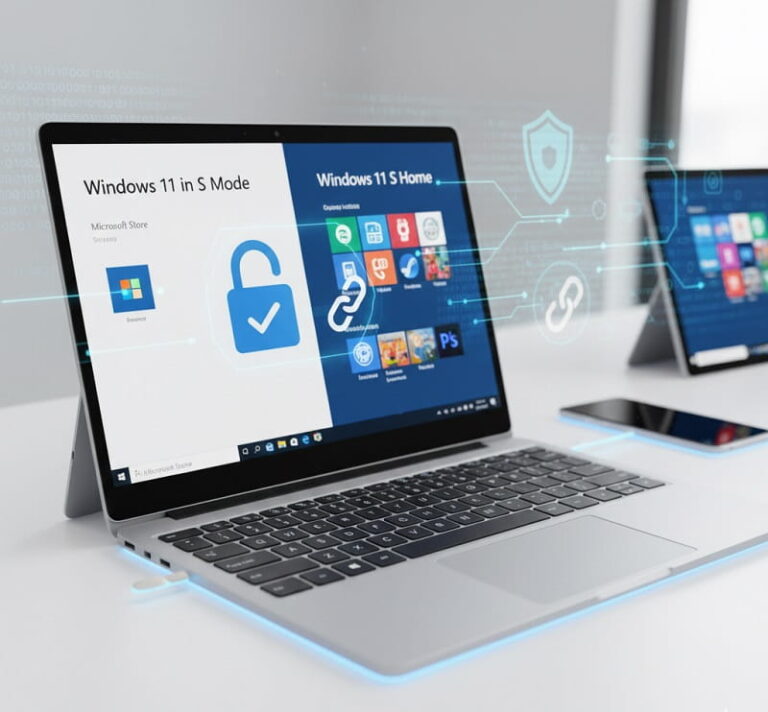
The landscape of personal computing has shifted toward a greater emphasis on security and simplified management, leading to the creation of Windows in S mode. Whether you are using Windows 10 or Windows 11, S mode represents a specialized configuration of the operating system designed to provide a streamlined, high-performance experience by strictly controlling the software environment. By limiting application installations to those available within the Microsoft Store and requiring Microsoft Edge as the default web browser, S mode creates a “walled garden” that mirrors the security models of modern mobile devices. For many users, particularly students, corporate employees, and individuals who prioritize stability over customization, this mode offers peace of mind against the ever-evolving threats of the digital world.
Operating in S mode fundamentally alters how a user interacts with their device. The primary objective of this configuration is to eliminate the risks associated with downloading executable files from unverified websites, which is the leading cause of malware infections and system slowdowns. When a device is in S mode, it only runs verified applications that have undergone Microsoft’s rigorous safety screening. This restricted environment ensures that the operating system remains “clean,” preventing the accumulation of “bloatware” and background processes that typically degrade PC performance over time. Consequently, devices in S mode often boast faster boot times and more consistent battery life compared to their standard counterparts.
While the security benefits are significant, the limitations of S mode are often the primary driver for users seeking to “switch out” to the standard version of Windows Home or Windows Pro. The most notable constraint is the inability to install third-party software from outside the Microsoft Store. This includes popular browsers like Google Chrome or Mozilla Firefox, specialized creative suites like the full version of Adobe Creative Cloud, and various legacy desktop applications. For power users, developers, and gamers who rely on specific launchers or modding tools, S mode can feel overly restrictive. Microsoft recognizes this and provides a free, one-way path to exit S mode, allowing users to unlock the full capabilities of their hardware at the cost of the added security layer.
Understanding the distinction between Windows 10 S mode and Windows 11 S mode is crucial for troubleshooting and optimization. In Windows 10, S mode was available across multiple editions, including Home, Pro, and Pro Education. However, with the launch of Windows 11, Microsoft simplified the offering, making S mode available exclusively for the Home edition. Users running Pro or Enterprise editions must use the standard configuration. This shift reflects Microsoft’s strategy to position S mode as the ideal entry-level experience for consumer devices, while professional and enterprise users are expected to utilize the advanced management features found in the standard versions of the OS.
Core Features and System Requirements
The technical architecture of Windows S mode is built on the same foundation as standard Windows, but with specific policy blocks enabled. These blocks prevent the execution of .exe and .msi files that are not digitally signed by the Microsoft Store. This means that even if a user downloads a legitimate piece of software from a developer’s website, the system will prevent it from running. Additionally, system management tools such as Command Prompt, PowerShell, and the Windows Registry Editor are disabled to prevent unauthorized changes to the system’s core files. This makes S mode particularly attractive for educational institutions and businesses that need to deploy devices to users without worrying about accidental system corruption.
From a hardware perspective, Windows S mode is frequently found on budget-friendly laptops, 2-in-1 devices, and Surface Go tablets. These devices often have more modest specifications, such as 4GB or 8GB of RAM and eMMC or lower-capacity SSD storage. Because S mode reduces the background overhead of the operating system, it allows these entry-level machines to feel more responsive and agile. It is important to note that while S mode is efficient, it does not change the physical hardware limits; it simply ensures that the software does not waste the resources that are available. Users should check their Windows Specifications under the System Settings to verify if their device is currently operating in this mode.
Security and Performance Benefits
The security model of S mode is centered on the concept of Verified Security. By restricting software to the Microsoft Store, the operating system effectively outsources its security vetting to Microsoft’s automated and manual review processes. This significantly reduces the likelihood of “zero-day” exploits or ransomware reaching the system through a rogue installer. Furthermore, Microsoft Defender Antivirus remains active and integrated, providing real-time protection that is optimized for the S mode environment. For users who are not tech-savvy, this creates a “set it and forget it” security posture that requires very little user intervention to maintain.
Performance consistency is another hallmark of the S mode experience. Traditional Windows installations tend to slow down as more applications are installed, many of which add themselves to the “Startup” list and consume CPU cycles even when not in use. Applications from the Microsoft Store are required to follow strict guidelines regarding background activity and resource usage. When an app is closed in S mode, its impact on the system is almost entirely removed. This leads to a device that stays “as fast as the day you bought it” for a much longer period. For students who need their laptops to last through a full day of classes, the improved power efficiency of S mode is a tangible benefit that outweighs the lack of third-party browser support.
How to Switch Out of S Mode: Step-by-Step
If you find that S mode is too restrictive for your needs, Microsoft allows you to switch to the standard version of Windows for free. It is vital to understand that this is a one-way process. Once you exit S mode, you cannot return to it without performing a full factory reset using a specialized recovery image from the manufacturer. Before proceeding, ensure that you have saved all your work and have a stable internet connection, as the process requires communication with the Microsoft Store servers to update your digital license.
- Open the Settings app by clicking the Start menu and selecting the gear icon, or by pressing Windows + I on your keyboard.
- Navigate to the System section (on Windows 11) or Update & Security (on Windows 10).
- Select Activation from the sidebar menu. This page displays your current Windows edition and activation state.
- Look for a section titled Switch to Windows 11 Home (or Pro) or Switch out of S mode. Click the link that says Go to the Store. Do not confuse this with the “Upgrade your edition of Windows” link, which is a different paid service.
- The Microsoft Store will open to a specific page titled Switch out of S mode. Click the Get or Install button.
- A confirmation message will appear once the process is complete. You do not usually need to restart your computer, and you can immediately begin installing software from any source, such as Google Chrome or Steam.
Compatibility with Peripherals and Software
A common concern for users in S mode is whether their existing hardware, such as printers, scanners, and specialized USB devices, will work. Most modern peripherals are “Plug and Play” and utilize drivers provided directly through Windows Update. These devices will function perfectly in S mode. However, if a device requires a specific piece of software or a custom driver installer downloaded from a manufacturer’s website (such as an older printer or a high-end gaming mouse with custom macro software), it may not be compatible. Users should check the Microsoft Store to see if the manufacturer has provided a compatible “app version” of their hardware management software.
Software compatibility is similarly binary. If an application is not in the Microsoft Store, it simply will not run. This includes the Windows Subsystem for Linux (WSL) and various developer tools like Visual Studio Code (unless the portable or Store version is used). For cloud-based users who do most of their work in a browser, S mode is rarely an issue, as Microsoft Edge is a Chromium-based browser that supports most modern web standards and extensions. If your workflow relies heavily on web apps like Google Workspace, Slack, or Discord (web version), you may find that staying in S mode provides all the functionality you need with none of the security risks.
Pro Tips for Windows S Mode Users
- Leverage Web Extensions: Since Microsoft Edge is based on Chromium, you can install almost any extension from the Chrome Web Store if you enable the setting to allow extensions from other stores. This can give you access to password managers, ad blockers, and productivity tools that might not be available as standalone apps in the Microsoft Store.
- Use the “Refresh” Option: If your S mode device feels sluggish, use the Reset this PC feature in settings. Since S mode doesn’t allow traditional bloatware, a refresh will return the system to its peak performance levels without the need for a complex reinstallation process.
- Check for App Alternatives: Before switching out of S mode just to get a specific tool, search the Microsoft Store for alternatives. Many popular open-source projects, such as VLC Media Player and LibreOffice, have official or well-maintained versions in the Store that are compatible with S mode.
- Audit Your Startup Apps: Even in S mode, some apps can set themselves to run at startup. Use the Task Manager (Ctrl + Shift + Esc) to disable any non-essential apps from starting automatically, which will further improve your boot times and battery life.
- Sync with OneDrive: Since S mode devices are often cloud-centric, ensure your OneDrive is properly configured. This allows you to access your files across devices and provides an extra layer of data redundancy if you ever decide to perform a full system reset to return to S mode later.
Frequently Asked Questions
Is Windows S mode the same as a Chromebook?
While they share a similar philosophy of restricted environments and cloud-first usage, they are different. Windows S mode is a full version of Windows that is simply “locked down” to the Microsoft Store. This means you still have the traditional Windows file explorer, desktop, and system settings. A Chromebook runs ChromeOS, which is a completely different operating system centered around the Google Chrome browser.
Does S mode make my computer faster?
S mode doesn’t necessarily make the processor faster, but it makes the computer feel faster by preventing background software from hogging system resources. By ensuring that only optimized apps run, the system avoids the “bit rot” that typically slows down Windows PCs after months of use. It is especially beneficial on hardware with 4GB of RAM.
Can I use Zoom or Microsoft Teams in S mode?
Yes, both Zoom and Microsoft Teams have official versions available in the Microsoft Store that are fully compatible with S mode. Most major communication and productivity apps have recognized the importance of S mode and have provided Store-certified versions for their users.
Is there a cost to switch out of S mode?
No, switching out of S mode is entirely free of charge. Microsoft previously experimented with a small fee for this transition during the Windows 10 S era, but they quickly moved to a free model. You just need a free Microsoft account to “purchase” the free license to switch in the Microsoft Store.
Why can’t I switch out of S mode even when I follow the steps?
This is usually caused by an outdated version of the Microsoft Store app or Windows itself. Ensure your device is fully updated by going to Windows Update. If the “Get” button in the Store is greyed out, try signing out and back into your Microsoft account, or resetting the Store cache by typing wsreset.exe in the Run dialog (Windows + R).
Can I go back to S mode after switching out?
For most users, the answer is no through standard settings. The switch is permanent because the standard version of Windows allows changes to the registry and system files that S mode’s security policy cannot account for. The only way to return to S mode is to use a factory recovery image provided by your PC manufacturer, which will wipe all your data.
Conclusion
Windows in S mode is a powerful tool for users who value security, simplicity, and sustained performance. By creating a controlled environment where only verified software can operate, Microsoft has provided a robust solution for those who want to avoid the complexities of traditional PC maintenance. Whether you choose to stay within the protected confines of S mode or decide to switch to the full Windows experience, understanding the mechanics of this mode is essential for making the most of your device. S mode represents a significant step toward a more secure digital future, offering a viable path for users who need a reliable, efficient, and safe computing platform in an increasingly connected world. As hardware continues to evolve, the balance between security and freedom remains a personal choice, but with S mode, Windows users have a clear and accessible option for both.