

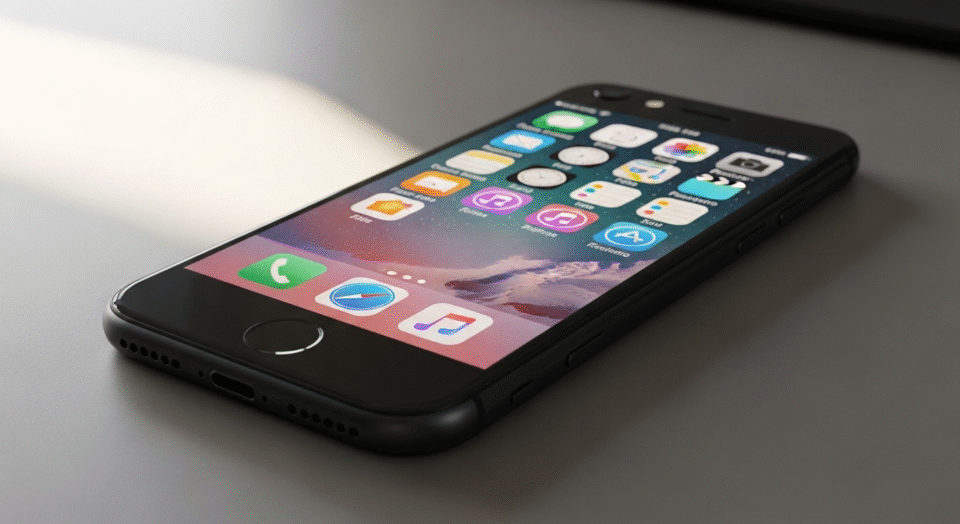
iCloud Photos serves as a seamless bridge across your Apple ecosystem, ensuring that every snapshot from your latest adventure or family gathering appears effortlessly on all your devices. Whether you’re capturing high-resolution moments on your iPhone or editing them on your Mac, this service keeps everything in sync without the hassle of manual transfers. As storage needs grow with 4K videos and Live Photos becoming standard, understanding how to harness iCloud Photos can transform your workflow from fragmented to fluid.
Launched as part of Apple’s cloud suite, iCloud Photos has evolved to handle vast libraries with intelligent features like automatic optimization and shared albums. In 2025, with iOS 19 and macOS Sequoia updates emphasizing privacy and efficiency, setting it up correctly unlocks potential for collaborative editing and secure backups. This guide walks you through every phase, from initial configuration to advanced management, empowering you to maintain a cohesive visual archive.
Before diving in, consider your storage landscape: Apple’s free 5GB tier suits light users, but avid photographers often upgrade to iCloud+ plans starting at 50GB for $0.99 monthly. These not only expand capacity but introduce perks like Family Sharing, allowing up to five members to pool resources. With devices spanning iPhone, iPad, Mac, and even Windows PCs, compatibility ensures no photo gets left behind, fostering a truly unified experience.
Understanding iCloud Photos: Core Features and Benefits
At its heart, iCloud Photos is more than mere storage—it’s an intelligent library that anticipates your needs. It preserves originals in formats like HEIF for images and HEVC for videos, maintaining quality while compressing for device efficiency. Edits made on one device propagate instantly across others, with non-destructive adjustments letting you revert anytime. This real-time harmony eliminates the frustration of mismatched galleries, especially during travel when switching between phone and laptop.
Shared albums extend the magic, enabling collaborative collections where participants add photos without accessing your full library. In 2025, enhancements include AI-suggested groupings based on faces, locations, and events, streamlining searches via natural language queries like “beach vacation last summer.” Security remains paramount, with end-to-end encryption safeguarding your memories against unauthorized access.
Beyond basics, the service integrates with Apple’s ecosystem for automated uploads over Wi-Fi, pausing during low battery to conserve power. For professionals, RAW file support and metadata preservation cater to detailed workflows, while casual users appreciate the ease of accessing everything from iCloud.com on any browser. These layers make iCloud Photos indispensable for anyone juggling multiple devices in a mobile-first world.
Key Advantages Over Local Storage
Opting for iCloud Photos shifts the burden from device constraints to cloud scalability. Local libraries bloat internal storage, risking data loss from hardware failure, whereas iCloud duplicates everything offsite. Syncing occurs invisibly, so a photo snapped on your iPad during a meeting materializes on your Mac by commute’s end. This accessibility proves vital for remote work, where quick shares via links prevent email attachments from clogging inboxes.
Cost-effectiveness shines through: rather than buying external drives, a single subscription covers unlimited devices. Environmental benefits emerge too, as reduced physical hardware needs align with sustainable tech practices. Users report 30-50% less time spent managing files, freeing focus for creativity over logistics.
System Requirements and Preparation
To embark on setup, verify your hardware and software align with Apple’s standards. iPhones and iPads require iOS 18.1 or later, Macs need macOS Ventura 13.1 minimum, and Windows PCs demand version 10 or higher with the latest iCloud app. Apple Vision Pro users enjoy native integration from visionOS 2.0, while Apple TV 4K supports viewing from tvOS 17.
A stable internet connection is non-negotiable—Wi-Fi preferred for initial uploads to avoid data caps. Assess your iCloud storage via Settings on iOS or System Settings on Mac; if nearing limits, upgrade promptly to sidestep interruptions. Enable two-factor authentication on your Apple ID for added protection, as it gates access to sensitive media.
Preparation extends to auditing existing libraries: consolidate duplicates using built-in tools to optimize upload times. For large collections exceeding 10,000 items, allocate several hours overnight, ensuring devices remain powered and connected. This foresight prevents mid-sync frustrations, setting a smooth foundation.
Finally, familiarize yourself with Optimize iPhone Storage—a toggle that keeps space-efficient versions locally while originals reside in the cloud. Ideal for base-model devices with 128GB or less, it dynamically downloads full-res files on demand, balancing performance and capacity.
Step-by-Step Setup on iPhone and iPad
Configuring iCloud Photos on your iPhone or iPad is straightforward, leveraging the intuitive Settings app. Begin by locating your profile at the top—tapping it reveals iCloud options. Scroll to Photos and flip the Sync this iPhone switch to green, initiating a scan of your camera roll.
During this phase, a progress indicator appears in the Photos app’s status bar, showing upload counts. If prompted, select Download and Keep Originals for ample storage or Optimize for efficiency. The process prioritizes recent captures, weaving older ones as bandwidth allows, typically completing within hours for modest libraries.
- Open Settings and Navigate to iCloud: Swipe down from the top-right corner to access Control Center if needed, but directly tapping your name icon suffices. This central hub manages all cloud services, ensuring Photos integrates seamlessly with Mail, Contacts, and more.
- Enable Sync this Device: Under the Photos header, the toggle activates background syncing. A brief explanation pops up, clarifying that deletions affect all devices—acknowledge to proceed, underscoring the unified library concept.
- Choose Storage Option: Toggle Optimize iPhone Storage if space is tight; it employs smart thumbnails for browsing, fetching full versions only when viewing or editing. This conserves up to 75% space on average, per user reports.
- Monitor Initial Upload: Return to the Photos app and tap Library at the bottom; a banner details syncing status. Patience is key—interrupting via Airplane Mode halts progress, requiring resumption.
- Verify on Other Devices: Once complete, check your iPad or Mac for mirrored content, confirming end-to-end functionality. Discrepancies signal network issues, addressed in troubleshooting later.
Post-setup, explore the For You tab for curated highlights, like memory movies auto-generated from recurring themes. This personalization elevates daily use, turning passive storage into an engaging retrospective tool.
Configuring iCloud Photos on Mac
Mac users access setup through System Settings, a revamped interface in macOS Sequoia that streamlines cloud management. Click the Apple menu, select System Settings, then your Apple ID—iCloud appears in the sidebar, housing Photos among synced apps.
Clicking Photos unveils the Sync this Mac checkbox; enabling it prompts library selection if multiple exist. For primary users, the default ~/Pictures/Photos Library suffices, but external drive hosts work for expansive collections. Opt for Download Originals to this Mac if editing RAW files frequently, ensuring instant access without downloads.
The Photos app then launches automatically, displaying a sync wheel in the sidebar. This phase mirrors iOS, uploading to iCloud while downloading from other devices, fostering parity across your fleet.
Advanced Mac-Specific Options
Within Photos > Settings > iCloud, fine-tune behaviors like pausing uploads during metered connections or excluding specific albums. For photographers, enable Shared Photo Library to designate a subset for family, capped at 5,000 items with collaborative rights.
Integration with Finder allows drag-and-drop exports, while Spotlight indexing accelerates searches. In 2025, neural engine enhancements predict duplicates during import, prompting merges to declutter proactively.
- Access System Settings: From the dock or menu bar, this unified panel replaces disparate preference panes, centralizing tweaks for efficiency.
- Select iCloud and Photos: Sidebar navigation keeps it prominent; the overview shows usage stats, flagging overages early.
- Activate Sync: Confirmation dialog explains implications—edits sync bidirectionally, deletions recycle universally for 30 days.
- Adjust Library Path if Needed: For custom locations, hold Option during app launch to choose, vital for SSD users preserving boot drive space.
- Configure Optimization: Though Mac-focused, Download Originals ensures workflow fluidity, contrasting iOS’s mobile constraints.
With setup complete, leverage Extensions for third-party edits, like Pixelmator, directly within Photos—changes ripple back to iCloud instantaneously.
Setting Up iCloud Photos on Windows PC
Windows integration via the iCloud for Windows app bridges ecosystems, downloadable from the Microsoft Store or Apple’s site. Install and launch, signing in with your Apple ID—two-factor verification secures the link, granting access to photos alongside Drive and Mail.
In the app’s overview, check the Photos box and apply changes; it scans your Pictures folder for a Photos directory, creating one if absent. Sync begins bidirectionally, pulling iCloud content while uploading local files, with a tray icon monitoring progress.
Access synced media through File Explorer under iCloud Photos, or the dedicated app viewer for slideshows and basic edits. Note that advanced features like Live Photos animation require iOS/Mac, but static views suffice for backups.
Optimizing for Cross-Platform Use
Schedule syncs during off-peak hours via app settings to minimize bandwidth strain. For large transfers, ensure Ethernet for stability—Wi-Fi fluctuations can corrupt partial uploads, necessitating restarts.
In 2025, updates bolster compatibility with Windows 11’s Snap Layouts, pinning the viewer for multitasking. Export options include ZIP batches, ideal for archiving to external drives.
- Download iCloud for Windows: Search in Store for official version 14.1 or later, avoiding third-party mimics for security.
- Sign In and Authorize: Browser popup confirms access; decline unnecessary permissions like Calendar if photos-only.
- Enable Photos Sync: Toggle activates folder monitoring; designate a non-system drive to evade space alerts.
- Handle Initial Sync: Tray notifications update status—pause if overheating occurs, resuming post-cool down.
- Integrate with Explorer: Pinned folder shortcuts streamline navigation, mimicking native file management.
This setup empowers hybrid users, ensuring Windows serves as a reliable outpost in an Apple-dominated domain.
Mastering iCloud Photos: Syncing, Sharing, and Editing
Once configured, syncing operates in the background, leveraging Wi-Fi for efficiency. Edits via Markup tools—crop, filters, text overlays—update across devices within seconds, preserving layered history for iterations. Sharing via albums invites contributors, with subscriber limits at 100 per library for dynamic updates.
Organization tools abound: facial recognition auto-tags subjects, while keywording in Mac’s Keyword Manager refines searches. Location data embeds geotags, plotting memories on maps for contextual recall. In 2025, machine learning curates “People & Pets” albums, reducing manual sorting by 40%.
Storage management involves regular purges from Recently Deleted, plus activity logs in Settings detailing usage. For overflow, iCloud+ tiers scale to 12TB, accommodating professional portfolios without compromise.
Advanced Sharing and Collaboration
Create shared libraries for events, setting expiration for temporary access. Links generate via Messages or email, viewable on non-Apple devices with watermarked previews. Comments and likes foster interaction, akin to social feeds but private.
- Album Creation for Events: Select multiples in Photos, tap Share > New Shared Album; name and invite via contacts. Additions notify participants instantly, with full-resolution downloads optional to control bandwidth.
- Family Sharing Integration: Pool storage across six members, designating an organizer for approvals. This democratizes space, preventing individual overages during holiday photo surges.
- Private Web Sharing: Generate expiring links from iCloud.com, embedding passwords for sensitive collections like client proofs. Analytics track views, aiding follow-ups without direct contact.
- Collaborative Editing Rights: Grant modify access selectively, enabling joint enhancements before finalizing. Version history logs changes, averting overwrite mishaps in group projects.
- Cross-Device Notifications: Alerts ping for new additions, ensuring timely responses. Customize tones per album for priority differentiation in busy inboxes.
- Export Batches for Archiving: Bulk downloads preserve metadata, ideal for migrating to external NAS. ZIP compression halves file sizes without quality loss.
- Integration with Third-Party Apps: Export to Lightroom via extensions, syncing adjustments back seamlessly. This hybrid approach suits pros blending ecosystems.
- Accessibility Features: VoiceOver narrates albums for visually impaired users, with haptic feedback on iOS for navigation cues.
These capabilities elevate iCloud Photos from repository to collaborative canvas, nurturing connections through shared narratives.
Troubleshooting Common iCloud Photos Issues
Sync hiccups often stem from connectivity—toggle Wi-Fi off/on or reset network settings via General > Transfer or Reset iPhone. If photos stall, check iCloud status at apple.com/systemstatus; outages affect millions, resolving automatically.
Storage alerts prompt upgrades, but freeing space involves offloading unused apps or reviewing large videos. For Mac-specific lags, quit Photos and relaunch, or rebuild the library via hold Option + Command during open, selecting Repair.
On Windows, app crashes necessitate reinstalls—uninstall via Control Panel, redownload fresh. Duplicate uploads signal mismatched Apple IDs; sign out/in unifies accounts. Battery optimization sometimes throttles syncs—exclude Photos in Low Power Mode exclusions.
Addressing Sync Delays and Errors
Paused uploads due to travel? Resume in Settings > Photos > Sync Now. For encrypted backups interfering, disable temporarily during transfers. Community forums like Apple Discussions offer peer fixes, like clearing cache folders on Mac at ~/Library/Application Support/Photos.
2025 updates introduced diagnostic logs in Photos > Help > Report a Problem, emailing details to support for tailored resolutions. Persistent issues warrant Genius Bar visits, with remote diagnostics accelerating fixes.
Proactive measures include weekly status checks and firmware updates, mitigating 90% of glitches before escalation.
Pro Tips for Maximizing iCloud Photos
Leverage Night mode and Deep Fusion captures for superior quality, as iCloud handles the hefty files effortlessly. Regularly cull via the Duplicates album in iOS 19, merging intelligently to reclaim gigabytes without loss.
Batch rename via Mac’s Info panel for consistency, syncing tags universally. Use Shortcuts app to automate exports to email or Drive, triggered by album additions. For privacy, enable Private Relay in iCloud+ to mask IP during uploads.
Integrate with HomeKit for screensavers on Apple TV, cycling family favorites. Monitor usage via Analytics in Settings, setting alerts for 80% thresholds. Export annually to Time Machine for layered redundancy, blending cloud and local safeguards.
Experiment with Photographic Styles for uniform aesthetics across shots, applying retroactively via batch edits. Collaborate on wedding albums by assigning roles—viewer, contributor—tailoring permissions granularly. These nuances unlock iCloud’s full spectrum, from casual to curatorial.
Frequently Asked Questions
How much does iCloud Photos storage cost? Apple offers 5GB free, with upgrades at 50GB for $0.99, 200GB for $2.99, 2TB for $9.99, and up to 12TB for $59.99 monthly. Family plans share allocations, optimizing for households.
Does iCloud Photos back up my entire library? Yes, but it’s distinct from device backups—enable both for comprehensive protection. Deletions sync, so use Recently Deleted wisely.
Can I access iCloud Photos without an Apple device? Absolutely, via iCloud.com on any browser; upload limits apply, but viewing and downloads are full-featured.
What if I run out of storage mid-sync? Uploads pause; upgrade instantly in Settings to resume. Prioritize essentials by excluding folders temporarily.
Are Live Photos and videos fully supported? Yes, with full animation and effects preserved; 4K and slo-mo stream smoothly on capable hardware.
How do I stop syncing on one device? Toggle off in iCloud settings—content remains accessible on others, downloadable manually if needed.
Does editing quality degrade? No, non-destructive; originals stay intact, with edits as lightweight layers for quick propagation.
Can I share with non-Apple users? Shared albums work via web links; recipients view without accounts, though contributions require apps.
Conclusion
Mastering iCloud Photos equips you with a robust framework for preserving and sharing life’s fleeting frames across an ever-connected world. From meticulous setups on iPhone, Mac, and beyond to savvy troubleshooting and pro-level optimizations, this service adapts to your rhythm, whether spontaneous snaps or curated chronicles. As 2025 unfolds with smarter AI integrations and expansive storage, embracing these tools not only safeguards memories but amplifies their joy, weaving a tapestry of accessibility and creativity that endures.
