

Opening links in a new browser tab has become a fundamental aspect of modern web development, allowing users to explore external resources while maintaining their position on your website. Understanding how to implement this functionality correctly involves mastering the HTML anchor tag’s target attribute, implementing proper security measures, and following best practices for user experience. This comprehensive guide will walk you through everything you need to know about opening links in new tabs using HTML, including security considerations, accessibility standards, and advanced techniques.
The ability to control link behavior through HTML attributes gives developers precise control over how users navigate through web content. Whether you’re building a simple blog or a complex web application, knowing when and how to open links in new tabs can significantly impact user engagement and website functionality. This guide covers the technical implementation, explores security vulnerabilities like tabnabbing, and provides practical code examples you can implement immediately.
Understanding the HTML Anchor Tag and Target Attribute
The HTML anchor element, denoted by the <a> tag, serves as the foundation for creating hyperlinks on web pages. This element connects different pages, resources, and documents through the href attribute, which specifies the destination URL. The anchor tag supports multiple attributes that control link behavior, appearance, and functionality, with the target attribute being one of the most commonly used for navigation control.
The target attribute specifically determines where the linked document will be displayed when a user clicks on the link. By default, when no target attribute is specified, links open in the same browsing context, meaning the current tab or window. This default behavior is equivalent to setting target="_self", though explicitly stating this value is generally unnecessary. Understanding the different values available for the target attribute allows developers to create more sophisticated navigation patterns that enhance user experience.
The Five Standard Target Attribute Values
HTML provides five standardized values for the target attribute, each serving specific navigation purposes. The _blank value instructs the browser to open the linked document in a new tab or window, depending on the user’s browser settings and preferences. This is the most commonly used value when developers want to preserve the user’s position on the current page while allowing them to explore additional content. Modern browsers typically open these links in new tabs rather than new windows, though users can override this behavior through browser settings.
The _self value represents the default behavior, loading the linked document in the same browsing context where the link was clicked. The _parent value becomes relevant when working with frames or iframes, loading the linked document in the parent frame of the current one. If no parent frame exists, it behaves identically to _self. The _top value loads the linked document in the topmost frame, breaking out of all frames to display the content in the full browser window. Finally, developers can specify a custom framename value to target a specific named frame or window, though this approach has become less common with the decline of frame-based layouts.
How to Open Links in a New Tab Using Target Blank
Implementing the target blank attribute requires a straightforward syntax modification to your standard anchor tag. The basic structure combines the href attribute, which defines the destination URL, with the target attribute set to _blank. Here’s the fundamental syntax: <a href="https://example.com" target="_blank">Visit Example</a>. When a user clicks this link, their browser will open the destination URL in a new tab while keeping the original page active in its current tab.
However, using target=”_blank” alone creates a significant security vulnerability that every developer must address. The newly opened page gains access to the original page through the window.opener property, potentially allowing malicious websites to manipulate the original tab through JavaScript. This vulnerability, known as reverse tabnabbing or tabnabbing, can redirect users to phishing sites or execute malicious code. To prevent these security risks, developers must always include the rel attribute with specific values alongside target=”_blank”.
Essential Security Implementation with Rel Attribute
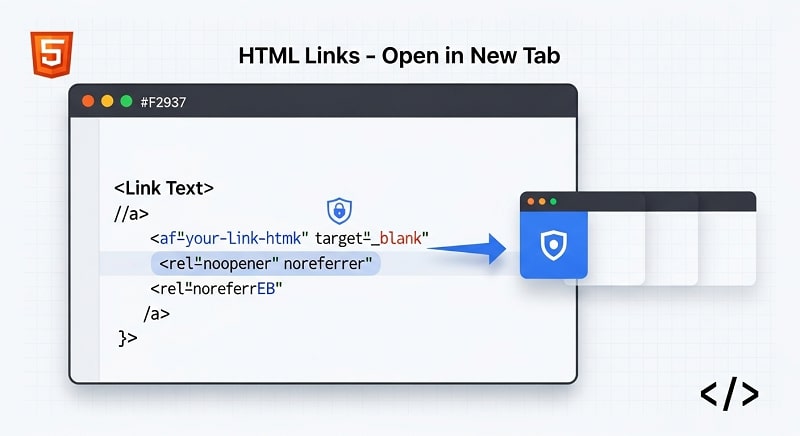
The correct and secure way to open links in new tabs requires combining target=”_blank” with rel=”noopener noreferrer”. The complete syntax looks like this: <a href=”https://example.com” target=”_blank” rel=”noopener noreferrer”>Visit Example</a>. The noopener value prevents the newly opened page from accessing the window.opener property, eliminating the primary security vulnerability. The noreferrer value additionally prevents the browser from sending referrer information to the destination page, providing an extra layer of privacy protection.
Modern browsers have implemented implicit noopener behavior for target=”_blank” links, meaning they automatically apply this security measure even when not explicitly specified. However, best practice dictates including both noopener and noreferrer explicitly to ensure compatibility with older browsers and maintain clear, self-documenting code. Some developers choose to use only noopener when they need the destination site to receive referrer information for analytics purposes, though this decision should be made carefully based on specific requirements and security considerations.
Understanding the Security Risks: Reverse Tabnabbing Explained
Reverse tabnabbing represents a sophisticated security exploit that takes advantage of the relationship between the original page and newly opened tabs. When you use target=”_blank” without proper security measures, the destination page receives a reference to your page through the window.opener JavaScript object. This connection allows the external page to execute JavaScript that can modify your page’s location, potentially redirecting users to phishing sites designed to steal credentials or personal information.
The attack typically follows a predictable pattern that exploits user trust and attention patterns. A user clicks a link on a legitimate website, opening a new tab to view external content. While the user focuses on the new tab, malicious code on that page executes JavaScript to change the original tab’s location to a fake login page that closely mimics the legitimate site. When the user returns to what they believe is the original tab, they encounter a fake login screen and may enter their credentials, unknowingly handing them to attackers. This attack proves particularly effective because users trust the page they originally visited and don’t expect it to change while they view other content.
How Noopener and Noreferrer Prevent Attacks
The rel=”noopener” attribute specifically addresses the window.opener vulnerability by ensuring that the window.opener property returns null in the newly opened tab. Without access to this property, the external page cannot execute JavaScript that affects the original page, effectively severing the potentially dangerous connection between the two browsing contexts. This simple addition provides robust protection against reverse tabnabbing attacks while requiring no changes to site functionality or user experience.
The rel=”noreferrer” attribute serves a complementary function by preventing the browser from sending the Referer HTTP header to the destination page. This means the external site cannot determine which page the user came from, providing additional privacy protection. While noreferrer also implies noopener behavior in most modern browsers, using both attributes explicitly ensures maximum compatibility and makes security intentions clear. Some developers choose to omit noreferrer when they want destination sites to know the referral source for legitimate analytics purposes, but this decision should balance privacy concerns against tracking needs.
Complete Code Examples for Different Scenarios
Implementing secure external links requires a complete understanding of proper syntax and attribute combinations. Here’s a comprehensive example demonstrating the correct approach:
<!DOCTYPE html>

<html lang="en">

<head>

<meta charset="UTF-8">

<meta name="viewport" content="width=device-width, initial-scale=1.0">

<title>Secure External Links Example</title>

</head>

<body>

<h1>External Resources</h1>

<p>Visit our partner site:

<a href="https://example.com" target="_blank" rel="noopener noreferrer">

Example Website

</a>

</p>

<p>Read the documentation:

<a href="https://docs.example.com" target="_blank" rel="noopener noreferrer">

Technical Documentation

</a>

</p>

</body>

</html>
This example demonstrates the proper structure for creating multiple secure external links within a single page. Each link includes all three essential attributes: href for the destination, target=”_blank” for new tab behavior, and rel=”noopener noreferrer” for security. The code follows HTML5 standards and will work consistently across all modern browsers while providing maximum security for users.
Internal Links vs External Links
Understanding when to use target=”_blank” involves recognizing the distinction between internal and external links. Internal links connect different pages within your own website and generally should not open in new tabs, as this disrupts the natural navigation flow and can confuse users. The default behavior of opening internal links in the same tab allows users to utilize the browser’s back button effectively and maintains a logical browsing history.
External links directing users to other websites often benefit from opening in new tabs, as this keeps your site accessible while users explore additional resources. However, even this guideline isn’t absolute. Consider your specific use case and user experience goals. For example, a news article might include multiple external reference links that benefit from new tab behavior, allowing readers to investigate sources without losing their place. Conversely, a contact form that redirects to a thank you page should never open in a new tab, as users expect to replace the current page content with the confirmation message.
Opening Links in New Tabs with JavaScript
JavaScript provides alternative methods for opening links in new tabs, offering greater control and flexibility for dynamic interactions. The window.open() method serves as the primary JavaScript approach for this functionality. The basic syntax is: window.open(‘https://example.com’, ‘_blank’);. This method accepts the URL as the first parameter and the target specification as the second parameter, with ‘_blank’ instructing the browser to open the link in a new tab.
JavaScript approaches prove particularly valuable when implementing interactive elements like buttons that should open external resources. Here’s a complete example demonstrating a button-triggered new tab opening:
<!DOCTYPE html>

<html lang="en">

<head>

<meta charset="UTF-8">

<title>JavaScript New Tab Example</title>

</head>

<body>

<button id="openResource">Open External Resource</button>
<script>
document.getElementById(‘openResource’).addEventListener(‘click’, function() {
window.open(‘https://example.com’, ‘_blank’);
});
</script>
</body>
</html>
Advanced JavaScript Techniques
JavaScript offers more sophisticated approaches for handling new tab functionality, particularly when dealing with dynamic content or complex user interactions. You can create functions that determine whether to open links in new tabs based on various conditions, such as the link’s destination domain or the user’s preferences. For example, you might implement logic that automatically opens all external domain links in new tabs while keeping internal links in the same tab.
One advanced technique involves using event delegation to handle all link clicks on a page dynamically. This approach attaches a single event listener to a parent element rather than individual listeners to each link, improving performance on pages with many links. The code can check each clicked link’s href attribute and apply appropriate new tab behavior based on whether the link points to an external domain. This centralized approach ensures consistency and makes it easier to update link behavior across your entire site.
Accessibility Considerations for New Tab Links
Opening links in new tabs creates specific accessibility challenges that developers must address to ensure inclusive web experiences. Screen reader users and individuals relying on assistive technologies need clear indications when links will open in new tabs, as this unexpected behavior can cause confusion and disorientation. The Web Content Accessibility Guidelines recommend informing users before they click links that will open in new contexts.
The most effective approach combines multiple accessibility techniques to ensure all users understand link behavior. Adding descriptive text or icons to indicate new tab links helps all users, not just those using assistive technologies. Here’s an accessible implementation example:
<a href="https://example.com" target="_blank" rel="noopener noreferrer">

External Resource

<span class="sr-only">(opens in new tab)</span>

<svg aria-hidden="true" class="external-icon">

<!-- Icon indicating external link -->

</svg>

</a>
This example includes hidden text that screen readers will announce, informing users the link opens in a new tab. The sr-only class uses CSS to visually hide the text while keeping it accessible to assistive technologies. The accompanying icon provides a visual cue for sighted users. Setting aria-hidden=”true” on the icon prevents screen readers from announcing it, avoiding redundant information since the hidden text already provides the necessary context.
Best Practices for Accessible New Tab Links
Creating truly accessible new tab links requires thoughtful implementation beyond basic compliance. Consider adding aria-label attributes that include complete context about the link’s destination and behavior. For example: aria-label=”External Resource – opens in new tab” provides comprehensive information in a single attribute that screen readers will announce clearly.
Visual indicators should be consistent throughout your site, using the same icons or styling for all external links that open in new tabs. This consistency helps users develop mental models of your site’s navigation patterns, reducing cognitive load and improving overall usability. Some sites use subtle visual cues like small external link icons or arrows, while others opt for text-based indicators. Whatever approach you choose, maintain consistency and ensure sufficient color contrast to meet WCAG standards for users with visual impairments.
SEO Impact of Target Blank and Rel Attributes
Understanding how target=”_blank” and rel attributes affect search engine optimization helps developers make informed decisions about link implementation. The good news is that using target=”_blank” has no direct negative impact on SEO. Search engine crawlers ignore the target attribute entirely when following and indexing links, meaning opening links in new tabs doesn’t prevent link equity from passing to the destination page or affect crawl behavior.
The rel=”noreferrer” attribute does have indirect SEO implications worth considering. When you use noreferrer, you prevent the destination site from seeing your site as a referral source in their analytics. This means website owners won’t know you’re linking to them, which can affect relationship building and reciprocal linking opportunities. If you’re linking to potential partners or hoping site owners will notice your links and possibly link back, using noreferrer might hinder those organic link acquisition opportunities.
Balancing Security and SEO Goals
Developers face a choice between maximizing security with both noopener and noreferrer versus maintaining analytics visibility. Using only rel=”noopener” provides essential security protection while still allowing destination sites to see referrer information. This approach works well when linking to partners, industry resources, or sites where you want the owner to know about your reference. Modern browsers’ built-in noopener behavior means you get basic security even if you choose this approach.
For maximum security and privacy, especially when linking to untrusted external sites or handling sensitive content, using both rel=”noopener noreferrer” remains the best practice. The minor loss of referrer tracking is offset by enhanced user privacy and security. Many content management systems, including WordPress, automatically add both attributes to external links that open in new tabs, reflecting the industry consensus that comprehensive security outweighs analytics considerations.
Common Mistakes and How to Avoid Them
Many developers make preventable mistakes when implementing new tab functionality that can compromise security or user experience. The most critical error involves using target=”_blank” without rel=”noopener” or rel=”noreferrer”, creating the security vulnerability discussed earlier. While modern browsers mitigate this risk through implicit noopener behavior, explicitly including the attribute ensures compatibility with older browsers and makes security intentions clear in the code.
Another common mistake involves overusing new tab links throughout a website. Opening every link in a new tab frustrates users by cluttering their browser with multiple tabs and disrupting natural navigation flow. Reserve new tab behavior for external links, documentation, or resources users might want to reference while remaining on your site. Internal navigation should almost always use default same-tab behavior, allowing users to rely on familiar back button functionality and maintain clean browsing history.
Testing and Validation Best Practices
Proper testing ensures your new tab links function correctly across different browsers and devices. Manually test links in major browsers including Chrome, Firefox, Safari, and Edge, verifying that they open in new tabs and include proper rel attributes. Use your browser’s developer tools to inspect link elements and confirm attribute values match your intentions. Right-click on a page and select “Inspect Element” to view the HTML and verify that rel=”noopener noreferrer” appears correctly in your anchor tags.
Automated testing tools can help identify missing or incorrect attributes across large sites. Browser extensions and online validators can scan pages for security issues, including links with target=”_blank” but missing rel attributes. Regular audits of your site’s external links help maintain security standards and ensure consistent implementation. Consider documenting your team’s standards for when to use new tab links and what attributes to include, creating a style guide that promotes consistent, secure implementation across all site content.
Browser Compatibility and Modern Standards
Understanding browser compatibility for target=”_blank” and related attributes helps ensure consistent behavior across different user environments. All modern browsers support the target attribute and its standard values, including Chrome, Firefox, Safari, Edge, and Opera. The noopener value for the rel attribute gained widespread support starting with Chrome 49, Firefox 52, and Safari 10.1, though browsers continue improving their default security measures.
A significant development in browser security came with the specification change that made noopener behavior implicit for all target=”_blank” links. This means modern browsers automatically prevent window.opener access even when the rel=”noopener” attribute is not explicitly stated. However, this protection doesn’t extend to the noreferrer functionality, which must still be explicitly specified if you want to prevent referrer information from being sent. Legacy browsers lacking this implicit protection remain in use, making explicit attribute specification the most reliable approach for ensuring security across all user environments.
Future-Proofing Your Implementation
Writing code that remains secure and functional as browser standards evolve requires following established best practices and staying informed about specification changes. Always include explicit rel=”noopener noreferrer” attributes rather than relying on browser defaults, as this approach works across all browsers regardless of their implicit security measures. This redundancy costs nothing in terms of performance or file size while providing maximum compatibility and clear documentation of your security intentions.
Monitor web standards developments and browser updates to stay informed about changes affecting link security and behavior. The W3C and WHATWG regularly update HTML specifications, and major browsers often implement experimental features before standardization. Following developer blogs from browser vendors and subscribing to web development newsletters helps you stay current with evolving best practices and new security considerations that might affect your link implementation strategies.
Pro Tips
- Use CSS for consistent visual indicators: Create a global CSS class that automatically adds external link icons to all target=”_blank” links. This ensures visual consistency across your site and makes it easy to update the styling in one place. You can use the attribute selector
a[target="_blank"]to style these links automatically without adding extra classes to each element. - Implement conditional JavaScript for dynamic control: Create a JavaScript function that automatically converts external domain links to target=”_blank” while keeping internal links as default. This approach centralizes your new tab logic and makes it easier to maintain consistent behavior across your site. The function can check each link’s hostname against your domain and apply appropriate attributes dynamically.
- Consider using aria-describedby for detailed link context: Instead of inline hidden text, create a single element with an ID that describes new tab behavior, then reference it with aria-describedby on all external links. This reduces HTML repetition and makes it easier to update the description globally if needed.
- Test with real screen readers: Don’t rely solely on automated accessibility testing. Use actual screen reader software like NVDA or VoiceOver to test how your new tab links are announced. This hands-on testing reveals user experience issues that automated tools might miss and helps you understand how assistive technology users interact with your site.
- Create a content management system (CMS) plugin or module: If you manage content through WordPress, Drupal, or another CMS, develop or install plugins that automatically add proper attributes to external links. Many modern CMSs include this functionality by default, but customizing it to match your specific security and analytics needs provides better control.
- Document your team’s external link policy: Create clear guidelines for when to use target=”_blank” and share them with content creators and developers. This documentation should explain security requirements, accessibility considerations, and user experience principles to ensure everyone follows consistent practices.
- Monitor browser console for security warnings: Modern browsers log console warnings when they detect security issues with external links. Regularly check your browser’s developer console while testing to catch any links missing proper rel attributes before they reach production.
- Use lint tools and code quality checkers: Configure ESLint or similar tools with rules that flag target=”_blank” usage without proper rel attributes. Many linting tools include security-focused rulesets that catch these issues during development, preventing them from reaching production code.
Frequently Asked Questions
Does using target=”_blank” slow down page performance?
Using target=”_blank” has minimal impact on page performance. The primary performance consideration involves the security attributes you include. When properly implemented with rel=”noopener”, you actually improve performance slightly because the new tab runs in a separate process, preventing the external page’s JavaScript from affecting your page’s responsiveness. Without noopener, the two pages share process resources, which can slow down both tabs if the external site runs intensive scripts.
Can I use target=”_blank” on buttons and form elements?
Buttons themselves don’t support the target attribute since they’re not hyperlinks. However, you can use JavaScript with window.open() to achieve similar functionality when users click buttons. Form elements do support the target attribute, allowing you to specify where the form submission response should open. Using target=”_blank” on forms opens the response in a new tab, though this practice is rarely recommended as it can confuse users expecting the same-page response typical of form submissions.
How do I know if my links are secure?
Inspect your page’s HTML using browser developer tools to verify that all target=”_blank” links include rel=”noopener noreferrer”. Right-click on your page, select “Inspect” or “Inspect Element”, and search for target=”_blank” in the HTML to check each instance. Additionally, modern browsers display console warnings when they detect potentially unsafe external links, providing another verification method during development and testing.
Should I use noopener, noreferrer, or both?
Using both rel=”noopener noreferrer” provides maximum security and privacy protection. The noopener value prevents the security vulnerability while noreferrer adds privacy by blocking referrer information. If you need destination sites to see referral data for analytics purposes, you can use only noopener, which provides essential security while maintaining referrer tracking. Never use target=”_blank” without at least noopener, as this creates security vulnerabilities.
Do all content management systems automatically add security attributes?
Modern CMS platforms like WordPress automatically add rel=”noopener noreferrer” to external links that users configure to open in new tabs. However, older CMS versions or custom-built systems might not include this functionality. Always verify your specific CMS’s behavior by inspecting the generated HTML. If your CMS doesn’t add these attributes automatically, consider installing plugins or updating to newer versions that include this security feature by default.
Can users override my target=”_blank” settings?
Yes, users maintain ultimate control over link behavior through browser settings and extensions. Users can configure browsers to open all links in new tabs, open all links in the same tab, or use other custom behaviors regardless of your target attribute settings. Power users often right-click links and choose how to open them from a context menu. This user control is intentional and respects user preferences, though most users experience links as developers intend when no custom settings are configured.
Does target=”_blank” affect mobile browsers differently?
Mobile browsers handle target=”_blank” similarly to desktop browsers, though the user experience differs. On mobile devices, new tabs might appear as separate pages in a tab stack rather than visible side-by-side tabs. Some mobile browsers display new pages differently depending on available screen space and device capabilities. The security considerations remain identical across devices, so always include rel=”noopener noreferrer” regardless of whether you’re primarily targeting mobile or desktop users.
Is there a way to programmatically control all external links?
Yes, JavaScript can automatically detect and modify all external links on a page. You can write a function that runs on page load, finds all links pointing to external domains, and adds target=”_blank” with proper rel attributes. This centralized approach ensures consistency and makes it easier to update behavior site-wide. However, this JavaScript-based method requires JavaScript to be enabled, so consider implementing proper attributes directly in HTML for critical external links to ensure they work for all users.
Conclusion
Mastering the implementation of HTML links that open in new tabs requires understanding multiple interconnected concepts, from basic HTML syntax to security vulnerabilities and accessibility standards. The target=”_blank” attribute provides powerful control over link behavior, but it must always be paired with rel=”noopener noreferrer” to prevent security exploits and protect user privacy. Modern web development demands this security-conscious approach, and fortunately, implementing it correctly is straightforward once you understand the underlying principles.
The key takeaways for implementing new tab links include always using the complete attribute combination of target=”_blank” rel=”noopener noreferrer” for external links, reserving new tab behavior for situations where users genuinely benefit from keeping both pages accessible, and implementing proper accessibility indicators so all users understand link behavior before clicking. These practices ensure your sites remain secure, accessible, and user-friendly across all browsers and devices.
As web standards continue evolving, staying informed about browser updates and specification changes helps you maintain secure, modern implementations. While browsers increasingly implement implicit security measures, explicitly stating your security intentions through proper attribute usage ensures your code works reliably across all environments and remains self-documenting for future developers. By following the guidelines and best practices outlined in this guide, you can confidently implement new tab functionality that enhances user experience while maintaining the highest security standards.
