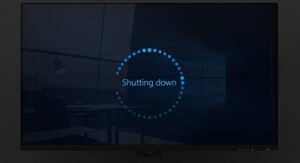
Encountering a Windows 10 PC that refuses to shut down can be both frustrating and disruptive, especially when you’re racing against deadlines or simply trying to power off for the night. This issue is more common than you might think, and it can stem from a variety of causes—ranging from misconfigured settings to corrupted system files. Fortunately, there are several proven methods to diagnose and resolve the problem, ensuring your computer powers down smoothly every time.
In this comprehensive guide, we’ll walk you through nine effective solutions to fix a Windows 10 PC that won’t shut down. Each method is designed to address specific underlying causes, such as the notorious Fast Startup feature, background processes, or outdated drivers. Whether you’re a tech novice or a seasoned user, these step-by-step instructions will help you regain control over your system’s shutdown behavior.
Why Does Windows 10 Fail to Shut Down?
Before diving into the fixes, it’s essential to understand why your Windows 10 PC might be refusing to shut down. The most common culprits include:
Fast Startup: This feature, designed to speed up boot times, doesn’t fully shut down your PC. Instead, it hibernates the kernel session, which can sometimes prevent a complete shutdown. While Fast Startup is beneficial for quick restarts, it can interfere with the shutdown process, especially on older hardware or systems with misconfigured settings.
Background Processes: Applications or services running in the background may refuse to close, causing Windows to hang during shutdown. This is particularly common with software that performs automatic updates or syncs data, such as cloud storage apps or antivirus programs. If these processes don’t terminate gracefully, your PC may appear stuck on the “shutting down” screen indefinitely.
Corrupted System Files: System file corruption can disrupt critical operations, including shutdown procedures. Corruption can occur due to sudden power losses, malware infections, or failed updates. When essential files are missing or damaged, Windows may struggle to execute shutdown commands properly.
Outdated Drivers: Device drivers, especially those for graphics cards, chipsets, or storage controllers, can cause shutdown issues if they’re outdated or incompatible. For example, an outdated Intel Management Engine Interface driver is a known offender. These drivers act as intermediaries between your hardware and the operating system, and any miscommunication can lead to shutdown failures.
9 Proven Fixes for Windows 10 Shutdown Issues
1. Disable Fast Startup
The Fast Startup feature is a double-edged sword. While it reduces boot times by hibernating the kernel session, it can also prevent your PC from shutting down completely. Disabling this feature is often the quickest way to resolve shutdown issues.
To disable Fast Startup:
- Press Windows + X and select Power Options.
- Click Choose what the power buttons do on the left sidebar.
- Select Change settings that are currently unavailable.
- Under Shutdown settings, uncheck Turn on fast startup (recommended).
- Click Save changes and restart your PC.
After disabling Fast Startup, your PC will perform a full shutdown, which may take slightly longer but ensures all processes and services are properly terminated. This is especially useful if you’ve noticed your PC’s fans or lights remain on even after you’ve initiated a shutdown.
If you’re using a laptop, disabling Fast Startup can also help preserve battery life, as a full shutdown prevents background processes from draining power unnecessarily. However, keep in mind that your PC may boot up a few seconds slower the next time you turn it on.
2. Perform a Full Shutdown Using Command Prompt
If your PC is stuck on the shutdown screen, you can force a full shutdown using the Command Prompt. This method bypasses the Fast Startup feature and ensures all processes are terminated immediately.
To perform a full shutdown:
- Press Windows + X and select Command Prompt (Admin) or Windows Terminal (Admin).
- Type the following command and press Enter:
shutdown /s /f /t 0This command forces your PC to shut down without any delays. The /s flag specifies a shutdown, /f forces running applications to close, and /t 0 sets the delay to zero seconds.
Alternatively, you can use the Shift + Shut Down method:
- Click the Start menu and select the Power button.
- Hold down the Shift key and click Shut down.
This method also bypasses Fast Startup, ensuring a complete shutdown. It’s particularly useful if you’re troubleshooting hardware issues or preparing your PC for maintenance.
3. Run the Windows Update Troubleshooter
Windows updates can sometimes interfere with the shutdown process, especially if an update is stuck or corrupted. Running the Windows Update Troubleshooter can identify and resolve these issues automatically.
To run the troubleshooter:
- Press Windows + I to open Settings.
- Go to Update & Security > Troubleshoot.
- Under Get up and running, select Windows Update.
- Click Run the troubleshooter and follow the on-screen instructions.
The troubleshooter will scan for issues related to Windows Update and apply fixes automatically. If updates are the root cause of your shutdown problems, this tool can often resolve them without requiring manual intervention. After running the troubleshooter, restart your PC and attempt to shut it down normally.
If the troubleshooter doesn’t resolve the issue, consider manually checking for updates. Sometimes, pending updates can prevent shutdowns until they’re installed. Navigate to Settings > Update & Security > Windows Update and click Check for updates. Install any available updates and restart your PC.
4. Boot into Safe Mode and Disable Automatic Restart
If your PC restarts instead of shutting down, the issue might be related to automatic restart settings. Booting into Safe Mode allows you to disable this feature and troubleshoot further.
To disable automatic restart:
- Restart your PC and press F8 repeatedly before the Windows logo appears to enter the boot menu.
- Select Safe Mode and wait for Windows to load.
- Press Windows + R, type sysdm.cpl, and press Enter.
- Go to the Advanced tab and click Settings under Startup and Recovery.
- Uncheck Automatically restart and click OK.
- Restart your PC normally and attempt to shut it down.
Disabling automatic restart prevents Windows from rebooting after critical errors, which can sometimes mask shutdown issues. This is particularly useful if your PC is stuck in a loop of restarting instead of powering off. Once disabled, you’ll be able to see error messages that might indicate the root cause of the problem.
5. Run System File Checker (SFC) and DISM
Corrupted system files can prevent Windows from shutting down properly. The System File Checker (SFC) and Deployment Image Servicing and Management (DISM) tools can scan for and repair these files.
To run SFC and DISM:
- Open Command Prompt as Administrator.
- Type sfc /scannow and press Enter.
- After the scan completes, type DISM /Online /Cleanup-Image /RestoreHealth and press Enter.
- Restart your PC after both scans are complete.
The SFC tool scans for corrupted system files and replaces them with cached copies, while DISM repairs the Windows image itself. These tools are essential for resolving deep-seated issues that might not be apparent through standard troubleshooting. If either tool reports errors it couldn’t fix, you may need to consider a system restore or repair installation.
For best results, run these tools in Safe Mode, where fewer background processes are active. This ensures the scans can operate without interference from third-party software.
6. Update or Reinstall Device Drivers
Outdated or corrupted drivers, particularly for graphics cards, chipsets, or storage controllers, can cause shutdown issues. Updating or reinstalling these drivers can often resolve the problem.
To update drivers:
- Press Windows + X and select Device Manager.
- Expand categories such as Display adapters or System devices.
- Right-click on a device and select Update driver.
- Choose Search automatically for drivers and follow the prompts.
If updating doesn’t work, consider uninstalling and reinstalling the driver:
- Right-click the device in Device Manager and select Uninstall device.
- Restart your PC. Windows will automatically reinstall the driver.
For critical drivers, such as those for your GPU or chipset, it’s best to download the latest versions directly from the manufacturer’s website. This ensures you’re installing the most compatible and up-to-date drivers available. If you’re unsure which drivers to update, focus on those related to power management, storage, and graphics.
7. Disable Intel Rapid Storage Technology
Intel Rapid Storage Technology (IRST) is designed to improve storage performance, but it can sometimes interfere with shutdown processes. Disabling this service may resolve shutdown issues, especially on systems with Intel chipsets.
To disable IRST:
- Press Windows + R, type services.msc, and press Enter.
- Locate Intel Rapid Storage Technology in the list.
- Right-click and select Properties.
- Set Startup type to Disabled and click Stop.
- Click Apply and restart your PC.
Disabling IRST can be particularly effective if you’ve recently updated your storage drivers or BIOS. However, note that this may impact the performance of Intel Optane memory or RAID configurations. If you rely on these features, consider updating the IRST driver instead of disabling the service.
8. Check for Background Processes and Apps
Background applications or services can prevent Windows from shutting down. Use Task Manager to identify and terminate these processes manually.
To manage background processes:
- Press Ctrl + Shift + Esc to open Task Manager.
- Go to the Processes tab and look for applications using high CPU or memory.
- Right-click on suspicious processes and select End Task.
- Switch to the Startup tab and disable non-essential apps from launching at startup.
Pay special attention to apps that sync data, such as OneDrive, Google Drive, or Dropbox, as these often run background processes that can delay shutdowns. Additionally, antivirus software or system utilities may interfere with shutdown procedures. If you notice a specific app consistently causing issues, consider updating or reinstalling it.
9. Reset BIOS Settings to Default
Incorrect BIOS settings can also prevent your PC from shutting down properly. Resetting the BIOS to its default configuration can resolve these issues.
To reset BIOS settings:
- Restart your PC and press the appropriate key (usually F2, F12, Del, or Esc) to enter BIOS.
- Look for an option to Load Default Settings or Reset to Default.
- Save the changes and exit BIOS.
- Restart your PC and attempt to shut it down.
Resetting the BIOS can fix issues caused by overclocking, incorrect power management settings, or misconfigured boot orders. If you’ve recently made changes to your BIOS, such as enabling fast boot or adjusting power states, these could be the source of your shutdown problems.
Preventing Future Shutdown Issues
Once you’ve resolved your shutdown issues, take proactive steps to prevent them from recurring:
- Keep Windows and Drivers Updated: Regularly install Windows updates and driver updates to ensure compatibility and stability. Enable automatic updates to streamline this process.
- Monitor Background Processes: Use Task Manager to identify and disable unnecessary startup programs. The fewer processes running in the background, the smoother your shutdowns will be.
- Use Antivirus Software: Malware or viruses can corrupt system files and interfere with shutdowns. Run regular scans to keep your system clean.
- Avoid Forcing Shutdowns: While holding the power button is a quick fix, it can lead to file corruption over time. Always attempt a proper shutdown first.
- Back Up Your System: Regular backups ensure you can restore your system quickly if shutdown issues lead to more severe problems.
By following these best practices, you’ll minimize the risk of encountering shutdown issues in the future. If problems persist, consider performing a clean installation of Windows or consulting a professional technician for hardware diagnostics.
Final Thoughts
Windows 10 shutdown issues can stem from a variety of sources, but with the right approach, they’re almost always fixable. Start with the simplest solutions, such as disabling Fast Startup or performing a full shutdown, before moving on to more advanced troubleshooting steps like updating drivers or resetting BIOS settings. By methodically addressing each potential cause, you’ll restore your PC’s ability to shut down smoothly and reliably.
If none of the above methods work, it may be time to consider a system restore or even a fresh installation of Windows. However, in most cases, one of the nine fixes outlined here will resolve the issue, allowing you to power down your PC without frustration.