

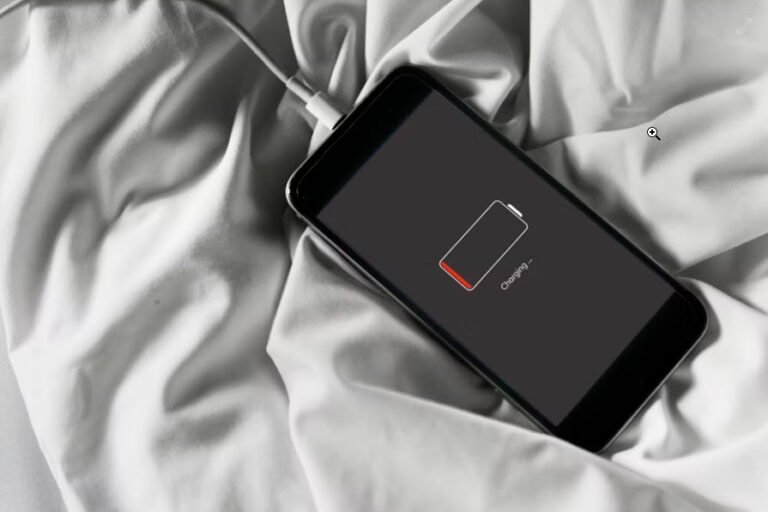
For many iPhone users, the sudden realization that their device is losing power at an alarming rate can be a source of significant frustration. Whether you are using the latest flagship model or an older iteration, battery longevity remains one of the most critical aspects of the user experience. An iPhone that cannot survive a full day of moderate use loses its primary value as a portable communication and productivity tool. Understanding the complex interplay between hardware limitations, software optimizations, and user habits is the first step toward reclaiming your device’s autonomy. This comprehensive guide provides a deep dive into the technical reasons behind battery depletion and offers a structured, verified roadmap to resolving these issues effectively.
The modern smartphone is a marvel of engineering, balancing high-performance processors with increasingly demanding display technologies. However, every new feature—from 5G connectivity to Always-On Displays—places an additional burden on the lithium-ion battery housed within the chassis. Furthermore, as Apple continues to iterate on its iOS operating system, the background processes required to keep features like Siri, iCloud synchronization, and Location Services running smoothly can sometimes malfunction or consume more energy than intended. This guide is designed to help you navigate these complexities by identifying the “silent killers” of battery life and implementing systematic fixes that do not require sacrificing the core functionality of your iPhone.
Before diving into specific settings, it is essential to understand that battery life is divided into two distinct categories: battery life and battery health. Battery life refers to the amount of time your device runs before it needs to be recharged, while battery health refers to the long-term degradation of the battery’s capacity over its lifespan. A significant drop in daily performance might be caused by a software glitch, but it could also be a symptom of a battery that has physically reached the end of its useful life. By using the analytical tools built directly into iOS, we can pinpoint the exact cause and apply the most appropriate remedy for your specific situation.
Step 1: Analyze Your Battery Usage Data
The most powerful tool in your arsenal is the Battery Usage menu found within the Settings app. Unlike many third-party utilities, this native tool provides a granular look at exactly which applications and system services are drawing power. By navigating to Settings > Battery, you can view a graph of your battery level and activity over the last 24 hours or the last 10 days. This data allows you to identify outliers—apps that are consuming a disproportionate amount of energy relative to the time you actually spend using them.
When reviewing this list, pay close attention to the distinction between Screen On and Screen Off usage. If an app like Facebook or YouTube shows several hours of “Background Activity” while the screen was off, it indicates that the app is continuously refreshing or fetching data even when your phone is in your pocket. This is often the primary culprit for overnight battery drain. Additionally, look for the “High Brightness” or “No Cell Coverage” warnings that iOS occasionally provides in this menu, as these indicators suggest environmental factors are contributing to your power loss rather than the software itself.
If you notice that “System Services” or “Home & Lock Screen” are at the top of the list, your issue likely stems from system-level features rather than third-party apps. High usage in “Home & Lock Screen” often points to an excessive number of widgets or a high-frequency wallpaper update cycle. Once you have identified the primary offenders, you can begin to target them individually using the steps outlined in the following sections of this guide. Diagnostic data is the foundation of effective troubleshooting, as it prevents you from wasting time on settings that may not actually be impacting your specific device.
Step 2: Optimize Display and Visual Settings
The display is the single largest consumer of power on any iPhone. On modern models featuring OLED screens (iPhone X and later, excluding SE models), the way the screen renders colors can directly impact energy consumption. Because OLED pixels produce their own light, displaying “true black” requires the pixel to be turned off entirely, consuming zero power. Consequently, using Dark Mode is not just an aesthetic choice; it is a verified method for extending battery life by up to 30% in high-contrast environments. You can enable this by going to Settings > Display & Brightness and selecting Dark.
Another critical display setting is Auto-Brightness. While many users prefer to manual control their brightness, the human eye is often poor at judging the minimum light needed for a given environment. Leaving the brightness at a high level in a dim room wastes significant energy. By enabling Auto-Brightness in Settings > Accessibility > Display & Text Size, your iPhone uses its ambient light sensor to adjust the display to the most efficient level possible. This ensures that the screen is only as bright as it needs to be to remain legible, preventing unnecessary drain.
For users with the iPhone 13 Pro and later models, ProMotion technology allows the screen to refresh up to 120 times per second. While this provides a fluid experience, it can be taxing on the battery. If you are in a situation where you need to maximize every drop of power, you can limit the frame rate to 60Hz. This is found under Settings > Accessibility > Motion > Limit Frame Rate. Furthermore, for those with the Always-On Display (iPhone 14 Pro and later), consider disabling the wallpaper or the feature entirely in Settings > Display & Brightness > Always On Display to save an additional 1-2% of battery per hour.
Step 3: Manage Background App Refresh and Notifications
Background App Refresh is a feature that allows applications to check for new content and updates even when they are not actively being used. While convenient for apps like Weather or News, many apps (such as social media platforms or retail apps) use this feature to track user data or push advertisements, leading to significant idle drain. To take control, navigate to Settings > General > Background App Refresh. You can either turn it off entirely or, more ideally, go through the list and disable it for every app that does not require real-time updates.
In addition to background refreshing, the sheer volume of Notifications received daily can impact battery life. Every time your iPhone vibrates or the screen wakes up to show a notification, the processor must spin up and the display must ignite. For a user receiving hundreds of notifications a day, this adds up to hours of unnecessary screen time. Review your notification settings in Settings > Notifications. Use the Scheduled Summary feature to bundle non-urgent notifications into a single delivery window, which reduces the frequency of the device waking up throughout the day.
Connectivity settings also play a vital role in background drain. If you are in an area with a weak 5G signal, your iPhone will continuously boost power to the modem to maintain a connection, which is a major battery killer. If you do not require high-speed 5G, switching to LTE in Settings > Cellular > Cellular Data Options > Voice & Data can drastically improve stability and power efficiency. LTE is more mature and less demanding on the hardware, making it a safer bet for those prioritizing battery life over peak download speeds.
Step 4: Audit Location Services and System Privacy
Location tracking is one of the most energy-intensive tasks an iPhone performs because it involves the GPS chip, Bluetooth, and Wi-Fi mapping. Many applications request “Always” access to your location, which allows them to ping your coordinates even when the app is closed. To rectify this, go to Settings > Privacy & Security > Location Services. Review each app and change its access to While Using the App. This ensures that the GPS is only active when you are actively engaging with the service, preventing silent drain in the background.
Deep within the Location Services menu lies a section called System Services. This is where the iPhone handles internal tasks like time zone adjustment, emergency calls, and location-based alerts. Many of these are essential, but others are primarily for Apple’s internal data collection. You can safely disable iPhone Analytics, Popular Near Me, and Routing & Traffic without affecting your daily experience. These services frequently transmit data to Apple’s servers, and disabling them reduces the frequency of radio activity.
Another overlooked aspect of privacy that affects battery is Significant Locations. This feature tracks the places you visit most often to provide “personalized services” like traffic predictions in Maps. However, the constant monitoring of your movement can be a steady drain on the battery. If you do not rely on these specific predictive features, turning off Significant Locations in the System Services menu can provide a noticeable boost to your battery’s endurance throughout the day.
Step 5: Refine Mail Settings and Account Syncing
The way your iPhone handles email can have a surprising impact on power consumption. There are two primary methods for receiving mail: Push and Fetch. Push is the most demanding because it maintains a constant connection between your device and the mail server, delivering messages the instant they arrive. If you receive a high volume of emails, this constant state of “readiness” prevents the iPhone’s processor from entering its low-power sleep state. You can manage this in Settings > Mail > Accounts > Fetch New Data.
For most users, switching from Push to Fetch (set to every 15 or 30 minutes) or even Manual is a superior choice for battery conservation. Fetching at intervals allows the iPhone to wake up, download all pending messages at once, and then go back to sleep. Manual fetching only checks for mail when you actually open the Mail app. If you have multiple accounts—such as a personal Gmail, a work Outlook, and an iCloud account—the cumulative effect of all three accounts constantly “pushing” data can be the primary reason your battery is draining fast.
Furthermore, check for accounts that may be stuck in a syncing loop. Sometimes, a corrupted calendar event or a massive contact list can cause the iPhone to attempt to sync indefinitely, heating up the device and draining the battery in a matter of hours. If you notice your iPhone feels warm to the touch and the Battery menu shows high “Calendar” or “Contacts” usage, the best fix is to delete the account from Settings > Mail > Accounts, restart your device, and then re-add the account to clear the synchronization cache.
Step 6: Understanding Battery Health and Calibration
If you have optimized every setting and the battery still drains rapidly, the issue may be physical degradation. Lithium-ion batteries have a limited number of charge cycles (usually around 500 to 1,000 for an iPhone) before their capacity begins to drop significantly. Check your Maximum Capacity in Settings > Battery > Battery Health & Charging. If this number is below 80%, your battery is considered “consumed,” and the operating system may begin to throttle performance to prevent unexpected shutdowns. At this stage, a physical battery replacement is the only true fix.
To preserve the health of a new or healthy battery, always enable Optimized Battery Charging. This feature uses machine learning to understand your daily charging routine and waits to finish charging past 80% until you need to use it. This prevents the battery from sitting at 100% for extended periods while plugged in, which is chemically stressful for the cells. For iPhone 15 users and later, you can even set an 80% Limit, which is the most effective way to ensure the long-term longevity of the battery if you do not need the full 100% capacity for your daily commute.
Sometimes, the battery’s software “fuel gauge” can become de-calibrated, leading to inaccurate readings where the phone might jump from 20% to 1% or shut down unexpectedly. To calibrate your battery, use your iPhone until it shuts down automatically due to low power. Charge it to 100% without interruption using a high-quality MFi-certified charger. Once it reaches 100%, leave it on the charger for an additional hour. Perform a “Force Restart” while still connected to the power. This process resets the internal parameters that the iPhone uses to calculate remaining power, often resolving erratic battery behavior.
Step 7: Advanced Troubleshooting and System Resets
When all else fails, the problem may lie in a corrupted system file or a “ghost” process that persists through standard restarts. The first step in advanced troubleshooting is the Force Restart. Unlike a standard power down, a force restart cuts power to the hardware temporarily, clearing the temporary memory (RAM) and resetting the processor’s state. On an iPhone 8 or later, press and quickly release the Volume Up button, press and quickly release the Volume Down button, then press and hold the Side button until the Apple logo appears.
If the drain persists, you should consider Resetting All Settings. This is found in Settings > General > Transfer or Reset iPhone > Reset > Reset All Settings. This action does not delete your personal data like photos or messages, but it does revert all system preferences—including Wi-Fi passwords, Bluetooth pairings, and privacy settings—to their factory defaults. This is highly effective at clearing out conflicting settings that may have been carried over from an old backup or caused by a buggy iOS update.
The final, “nuclear” option is a DFU (Device Firmware Update) Restore. This is the deepest type of restore possible, as it completely erases and reloads the firmware and the software. If your battery issues are purely software-based, a DFU restore followed by setting the device up as “New” (rather than restoring from an iCloud backup) will fix the problem 100% of the time. This ensures that no corrupted data from your previous setup is re-introduced to the system. Always ensure you have a verified backup of your photos and documents before attempting this step.
Pro Tips for Maximum Efficiency
- Use Low Power Mode Strategically: Do not wait until you reach 20% to enable Low Power Mode. If you know you will be away from a charger for a long time, enabling it at 80% or 100% will maximize your total runtime by proactively curbing background processes and reducing the CPU clock speed from the start of your day.
- Monitor Signal Strength: In areas with poor cellular reception, your iPhone will use significantly more power to maintain a connection. If you are in a “dead zone” for an extended period, such as on a flight or in a basement, manually enabling Airplane Mode can save 5-10% of your battery per hour by stopping the modem from searching for a signal.
- Avoid Temperature Extremes: Lithium-ion batteries are highly sensitive to heat. Using your iPhone in direct sunlight on a hot day or leaving it in a hot car can cause permanent capacity loss. If your device feels hot to the touch, remove the case and stop using demanding apps like games or camera features until it cools down to room temperature.
- Audit Third-Party Widgets: Widgets on your Home Screen or Lock Screen are essentially mini-apps that run constantly. High-activity widgets, such as those that track live sports scores or stock prices, refresh frequently and can contribute to noticeable drain. Keep your widget usage to a minimum and remove any that are not essential.
- Disable “Hey Siri” if Unused: If you do not frequently use the hands-free “Hey Siri” command, turning it off in Settings > Siri & Search can save power. When this feature is active, the iPhone’s microphone and a specific low-power co-processor are always listening, which uses a small but measurable amount of energy over 24 hours.
Frequently Asked Questions
Is it normal for my iPhone to drain faster after an iOS update?
Yes, it is very common for an iPhone to experience increased battery drain for 48 to 72 hours following a major software update. During this period, the system is performing intensive background tasks such as re-indexing photos, updating the Spotlight search database, and recalibrating system files. This is not a bug, but a necessary process. Once the indexing is complete, the battery life typically returns to normal or even improves due to the update’s optimizations.
Should I close all my apps to save battery?
Contrary to popular belief, force-closing apps in the App Switcher does not save battery life and can actually increase drain. iOS is designed to “freeze” apps in the background so they consume no resources. When you force-close an app and then reopen it later, the iPhone must load the entire app into RAM from the storage disk, which requires more CPU cycles and energy than simply unfreezing it. You should only force-close an app if it is malfunctioning or “frozen.”
Do third-party “Battery Saver” apps actually work?
Generally, no. Due to the way Apple “sandboxes” applications for security, third-party apps do not have the system-level permissions required to manage other apps’ power usage or change hardware settings. Most of these apps are simply displays for data that is already available in your Settings menu, and some may even contribute to battery drain by running their own background processes. Stick to the native tools provided by Apple for the most accurate and safe results.
Does Wi-Fi use more battery than Cellular data?
No, Wi-Fi is significantly more energy-efficient than cellular data (especially 5G or 4G LTE). Connecting to a Wi-Fi network requires much less power to transmit and receive data over short distances compared to reaching a distant cell tower. Whenever possible, stay connected to a stable Wi-Fi network to reduce the strain on your device’s modem and extend your battery life throughout the day.
Can a fast charger damage my battery health?
Fast charging is safe as long as you use a reputable, MFi-certified charger and cable. Your iPhone has built-in voltage regulators that prevent the battery from receiving more power than it can safely handle. However, fast charging does generate more heat than standard charging. To protect your battery health while fast charging, try to keep the device in a cool environment and avoid using heavy apps that could further increase the internal temperature while the phone is plugged in.
Conclusion
Solving iPhone battery drain is rarely about a single “magic” setting; rather, it is about implementing a series of small, calculated optimizations that collectively reduce the daily load on your device’s hardware. By starting with a thorough analysis of your usage data, you can target the specific applications and services that are unique to your lifestyle. Whether it is switching to Dark Mode, refining your Mail fetch settings, or auditing your Location Services, each step brings you closer to a device that is as efficient as it is powerful. Remember that software is only half the battle; maintaining physical battery health through proper charging habits and temperature management is equally vital for ensuring your iPhone serves you well for years to come. If you have followed this guide and continue to see abnormal drain, a hardware diagnostic at an Apple Store is the recommended final step to ensure your device is functioning as intended.


