

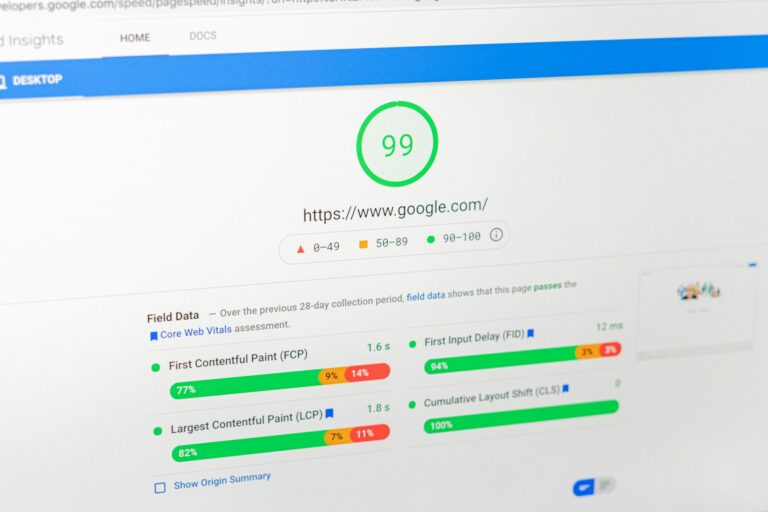
Improve Website Speed Using Google Pagespeed
In today’s fast-paced digital world, website speed is no longer just a luxury; it’s a necessity. Slow-loading websites frustrate users, increase bounce rates, and can even negatively impact your search engine rankings. Recognizing this critical need, Google developed Google PageSpeed Insights (PSI) – a powerful, free tool designed to help website owners analyze, understand, and significantly optimize their website’s performance. By providing actionable recommendations, PSI empowers you to deliver a faster, more seamless experience for your visitors.
This comprehensive guide will walk you through leveraging Google PageSpeed Insights effectively, from understanding your scores to implementing key optimizations that will boost your website’s loading time and overall user satisfaction in 2025.
Analyze Your Website with PageSpeed Insights
Your first step is to get a baseline measurement of your website’s current performance. Navigate to the official Google PageSpeed Insights website. Simply enter the URL of the webpage you wish to analyze into the provided field and click “Analyze.” Within moments, PSI will generate a comprehensive report, providing a score out of 100 for both mobile and desktop versions of your site. This dual scoring is crucial because Google prioritizes mobile-first indexing, meaning mobile performance is often more critical for search visibility.
Understand Your PageSpeed Score
The score generated by Google PageSpeed Insights is a quick indicator of your website’s performance. While perfection isn’t always attainable, aiming high is key:
- 90-100 (Green): This is considered an excellent score, indicating that your website is performing exceptionally well.
- 50-89 (Orange): This falls into the average category. There’s room for improvement, and addressing suggestions here can lead to noticeable performance gains.
- 0-49 (Red): This is considered a poor score, signaling significant performance issues that should be addressed urgently to prevent negative impacts on user experience and SEO.
Beyond the single score, pay attention to Core Web Vitals metrics, which include Largest Contentful Paint (LCP), First Input Delay (FID), and Cumulative Layout Shift (CLS). These metrics are crucial for real-world user experience and Google’s ranking algorithms.
Prioritize and Implement Suggestions
The true value of PageSpeed Insights lies in its detailed recommendations. After analyzing your site, PSI provides a list of opportunities and diagnostics categorized by impact: High, Medium, and Low priority.
Always begin by addressing the high-priority suggestions first, as these often yield the most significant performance improvements for the effort invested. These suggestions usually involve issues that severely impact loading speed or user interactivity.
Optimize Images for Faster Loading
Images are frequently the largest contributors to slow website speed. Unoptimized images can significantly bloat page size and delay loading. To tackle this:
- Compress Images: Utilize image optimization tools (many WordPress plugins or online services exist) to reduce file size without compromising visual quality.
- Choose Modern Formats: Opt for modern image formats like WebP, which offer superior compression compared to JPEG or PNG.
- Resize Appropriately: Ensure images are sized correctly for their display area; avoid loading a 2000px wide image into a 500px container.
- Implement Lazy Loading: This technique delays the loading of images (and videos) until they are actually visible in the user’s viewport, dramatically improving initial page load times.
Leverage a Content Delivery Network (CDN)
A Content Delivery Network (CDN) is a distributed network of servers strategically located in various geographical regions worldwide. When a user requests content from your website, the CDN serves static files (such as images, CSS, and JavaScript) from the server closest to that user.
This significantly reduces latency and improves loading speeds, especially for a global audience. Popular CDN providers include Cloudflare, Akamai, and Amazon CloudFront.
Minify CSS and JavaScript Files
Minification involves removing unnecessary characters from your code (CSS, JavaScript, and HTML) without altering its functionality. This includes whitespace, comments, line breaks, and block delimiters.
By reducing the file size of these critical assets, browsers can download and parse them faster, leading to quicker rendering of your webpage. Many website optimization plugins for CMS platforms like WordPress offer built-in minification features, or you can use online minifiers for custom code.
Implement Browser Caching
Browser caching instructs a user’s web browser to store static files (like your logo, CSS stylesheets, JavaScript files, and often images) on their local device. The next time the user visits your website (or another page on your site), their browser doesn’t need to re-download these files from your server. Instead, it retrieves them from their cache, leading to significantly faster subsequent page loads. This is configured through HTTP headers on your web server or via caching plugins for CMS users.
Optimize Server Response Time
Your server’s response time, often referred to as Time to First Byte (TTFB), is the duration it takes for the server to respond to an initial request from a user’s browser. A slow server response time can bottleneck your entire loading process. To improve it:
- Choose Quality Web Hosting: Invest in a reputable and performant web hosting service. Shared hosting often leads to slower response times compared to VPS, dedicated, or managed WordPress hosting.
- Optimize Your Database: For dynamic sites (like WordPress), regularly optimize and clean your database to ensure quick data retrieval.
- Reduce HTTP Requests: Minimize the number of individual files (images, CSS, JS) that a browser needs to download to render a page. Combining files (CSS sprites, concatenating JS) can help.
- Use Server-Side Caching: Implement caching mechanisms on your server to serve pre-generated content, reducing the need for the server to process every request from scratch.
Use a Responsive Design
While not a direct “speed” optimization in the same vein as image compression, a responsive web design significantly contributes to performance by providing an optimal viewing experience across all devices. Instead of loading separate, potentially heavy, desktop-only versions for mobile users, a responsive design fluidly adapts the layout and content to fit different screen sizes.
This eliminates the need for redirects or downloading unnecessary desktop-specific assets, leading to a faster and more consistent experience for mobile users, which is critical given mobile-first indexing.
Select a Fast-Loading Theme/Template
If your website is built on a Content Management System (CMS) like WordPress, the choice of theme or template plays a monumental role in your site’s speed. Some themes are bloated with excessive features, animations, and heavy scripts that can significantly drag down performance, even if they look visually appealing.
When selecting a theme, prioritize those specifically optimized for speed, clean code, and minimal dependencies. Look for lightweight designs that load quickly out-of-the-box and avoid themes that promise too many unnecessary functionalities you won’t use.
